
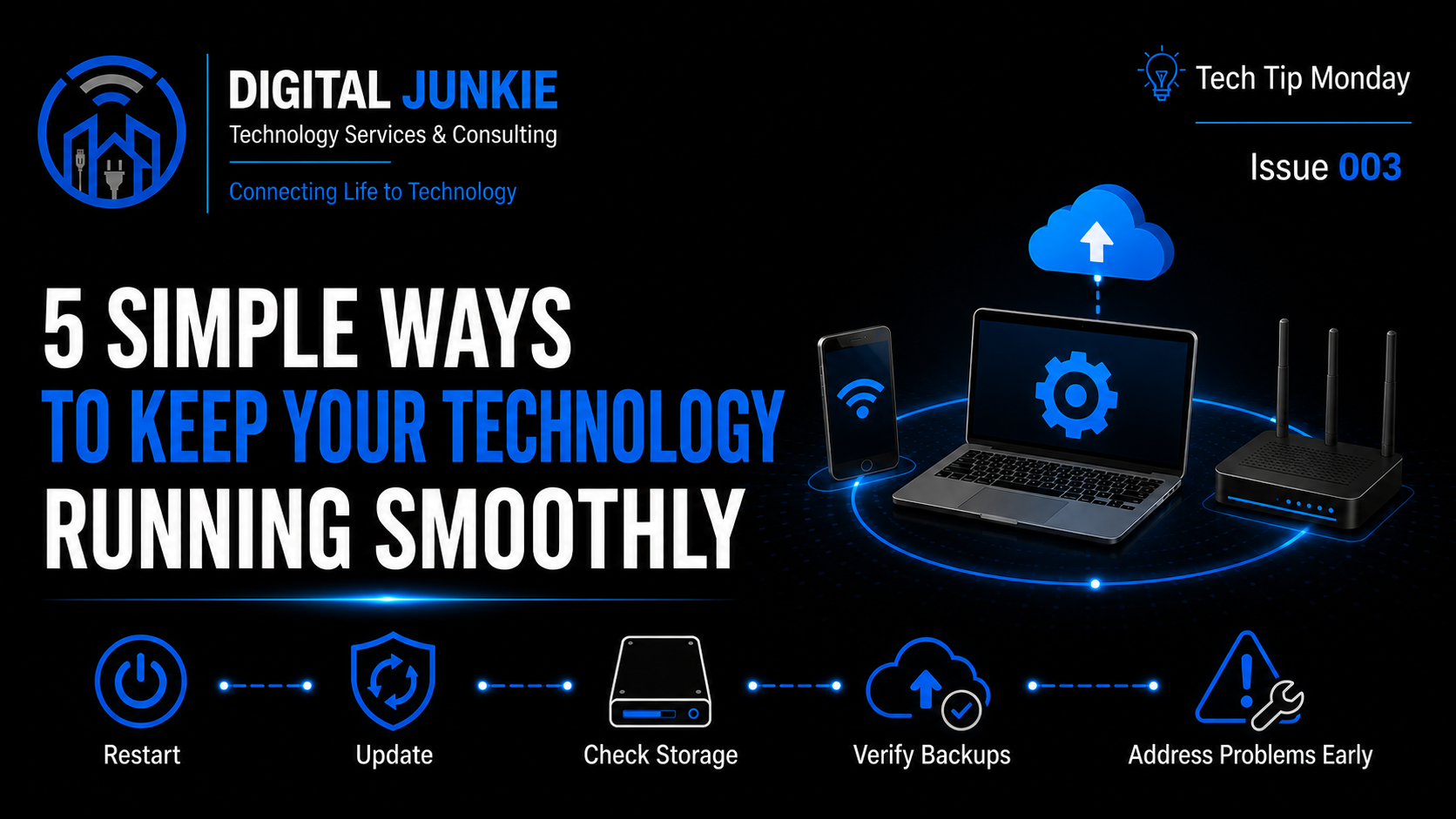
5 Simple Ways to Keep Your Technology Running Smoothly
💡 TECH TIP MONDAY • ISSUE 003
Technology rarely fails without warning.
A computer starts taking longer to open programs. A phone runs low on storage. A printer disconnects every few days. A router begins dropping devices. A backup notification appears, gets dismissed, and is forgotten.
These small problems are easy to ignore because the device still works—at least most of the time. But small warning signs often become larger problems when they are left alone.
The good news is that keeping your technology reliable does not require hours of maintenance or deep technical knowledge. A few simple habits can prevent many of the slowdowns, lost files, security issues, and expensive repairs that frustrate homeowners and small businesses.
Here are five simple ways to keep the technology you depend on running smoothly.
Restart Your Devices Regularly
One of the most useful troubleshooting steps is also the simplest: restart the device.
Computers, phones, tablets, printers, routers, smart TVs, security cameras, and other connected devices all run software. As that software operates, temporary memory fills, background processes can become stuck, and network connections may stop behaving correctly.
Restarting gives the device a clean start. It:
• Clears temporary memory
• Stops frozen processes
• Reloads software and drivers
• Reestablishes network connections
That is why the familiar question—“Have you tried turning it off and back on again?”—solves so many problems.
You do not need to restart every device every day. But if something has been running continuously for weeks or begins acting strangely, a restart is an excellent first step.
TRY THIS
Restart one device today that you normally leave running all the time. If a printer, router, smart device, or computer has been unreliable, see whether a clean restart improves it.
Keep Software and Firmware Updated
Updates are easy to postpone, especially when a device appears to be working normally. However, updates are not only about adding new features.
They often include:
• Security fixes
• Performance improvements
• Bug repairs
• Stability improvements
• Compatibility with newer devices and services
This applies to more than computers and phones. Wi-Fi routers, mesh systems, cameras, smart locks, printers, televisions, and home-automation devices may all receive firmware updates.
Outdated software can make technology slower, less reliable, or less secure. In some cases, manufacturers correct known connection or performance problems through an update.
A device that has become unreliable may not be failing at all. It may simply be overdue for an update.
TRY THIS
Check your computer and phone for pending updates. Then open the management app for your router, printer, or smart devices and see whether firmware updates are available.
Install updates when you have enough time to let them finish without interrupting important work.
Don’t Ignore Low-Storage Warnings
Storage is not only where your files live. Computers and phones also need free space for temporary files, updates, application data, and normal operating-system tasks.
When storage becomes nearly full, you may notice:
• Slower startup times
• Applications freezing or hesitating
• Updates failing to install
• Photos or files refusing to save
• General sluggishness
It is tempting to dismiss a low-storage warning and keep working, but the problem will not correct itself.
Waiting until the drive is completely full can lead to failed updates, corrupted files, or a device that no longer operates reliably.
Start by reviewing downloads, old installers, duplicate photos, videos, and applications you no longer use. Move files you want to keep to reliable external or cloud storage instead of deleting them blindly.
TRY THIS
Check the available storage on your primary computer and phone. If either is nearly full, remove unnecessary files or move important data to a properly backed-up location.
Make Sure Your Backups Are Actually Working
Many people believe their files are backed up because they once connected an external drive or signed into a cloud service.
Unfortunately, a backup that has stopped running provides the same protection as no backup at all.
Backup software can lose access to an account. An external drive can become disconnected. Cloud storage can fill up. A password change can interrupt synchronization. Warning messages may be dismissed for months without anyone realizing the newest files are no longer protected.
A healthy backup process should be automatic, current, and tested. You should know where your important files are stored and be able to confirm that recent files exist in the backup.
For important photos, documents, and business data, consider the 3-2-1 backup rule:
• Keep three copies of your important data
• Store them on two different types of media
• Keep one copy in a different location
The best time to discover a backup problem is while the original files are still available—not after a computer, phone, or drive fails.
TRY THIS
Open your backup service today. Confirm the date of the most recent successful backup and verify that you can see a file you created or changed recently.
Address Small Problems Before They Become Emergencies
Technology often tells you when something is beginning to go wrong.
Pay attention to warning signs such as:
• Recurring error messages
• Unusual pop-ups
• Devices repeatedly dropping offline
• A computer becoming progressively slower
• Clicking, grinding, or unusual fan noise
• A printer that works only after several attempts
• Backup or security warnings that keep returning
People become remarkably good at working around technology problems.
They restart the printer three times, reconnect to Wi-Fi, close the same error message, or wait several minutes for a computer to respond. Eventually, the workaround becomes part of the routine.
The problem is that recurring symptoms usually have a cause. Addressing that cause early is often faster and less expensive than waiting for a complete failure.
This is especially important for a small business. A problem that wastes five minutes for several employees every day can quietly consume days of productivity over a year.
TRY THIS
Write down one technology problem you have been tolerating.
Note what happens, when it started, whether it is repeatable, and what changed around the same time. Those details can make diagnosis much faster.
A Few Minutes of Prevention Can Save Hours Later
You do not need to spend your day maintaining technology. The goal is simply to notice warning signs and build a few small habits into your routine.
Restart devices when they begin acting strangely. Install updates. Keep enough storage available. Verify your backups. Address recurring problems before they become emergencies.
These steps will not prevent every failure, but they can eliminate many common problems and help your technology remain dependable for longer.
DIGITAL JUNKIE RECOMMENDS
Set aside ten minutes once a month for a quick technology check:
• Restart devices that stay on continuously
• Install pending updates
• Check available storage
• Confirm that backups completed successfully
• Make a note of recurring errors or unreliable devices
Ten minutes of attention can prevent hours of frustration later.
💡 THIS WEEK’S TECH TIP
Pick one device today and give it a quick check.
Restart it. Install any pending updates. Check its available storage. Confirm that its important files or settings are backed up.
You do not have to fix everything at once. Start with one device and one small habit.
💙 DIGITAL JUNKIE’S ADVICE
Small maintenance habits prevent big technology headaches.
If a warning keeps returning or a problem comes back immediately after a restart, do not keep working around it. That is usually a sign that the device needs proper troubleshooting.
QUESTION OF THE WEEK
Which technology-maintenance task are you most likely to put off?
• Restarting devices
• Installing updates
• Freeing storage
• Checking backups
• Dealing with recurring problems
Share your answer in the comments. You are probably not the only one putting it off.
COMING NEXT WEEK
💡 Tech Tip Monday • Issue 004
5 Ways to Make Your Computer Last Longer
Next Monday, we’ll cover practical steps that can extend the useful life of a Windows PC or Mac, protect your investment, and help you recognize when an upgrade or replacement actually makes sense.
CONNECTING LIFE TO TECHNOLOGY
Digital Junkie Technology Services & Consulting helps homeowners and small businesses throughout Central Texas keep their technology reliable, secure, and working the way it should.
Whether you need help with computers, Wi-Fi, networking, smart-home technology, security cameras, data recovery, backups, or business IT support, Digital Junkie is here to help you find the real problem and choose the right solution.
Digital Junkie Technology Services & Consulting
🌐 www.digitaljunkie.tech
✉️ info@digitaljunkie.tech
📞 737-400-6482

The Hidden Cost of “We’ll Deal With It Later”
💼 Small Business Sunday • Issue 003
Every business owner has said it.
“We’ll deal with it later.”
Sometimes it’s a slow computer.
Sometimes it’s Wi-Fi that drops a few times each day.
Maybe it’s a printer that only works after three attempts.
Or a laptop that has to be restarted every morning before anyone can get any work done.
None of those problems seem urgent.
The business is still operating.
Employees are still getting work done.
Customers aren’t complaining.
So the issue gets pushed down the priority list.
Tomorrow becomes next week.
Next week becomes next month.
Then one day…
Everything stops.
The repair bill often isn’t the most expensive part.
The real cost has already been building for weeks—or even months.
⸻
Small Problems Rarely Stay Small
Technology problems usually don’t fail all at once.
They slowly become part of everyone’s daily routine.
An employee says,
“My computer always does that.”
Someone else says,
“Just restart it.”
Another person knows they have to walk to the other side of the building because the Wi-Fi works better there.
The printer requires a specific sequence of turning it off and back on.
The server occasionally freezes.
The internet randomly disconnects for a minute or two.
Everyone adapts.
The problem becomes “normal.”
Unfortunately, normal doesn’t mean free.
⸻
The Costs You Don’t See
When business owners think about technology expenses, they often think about repair invoices or replacing equipment.
Those are visible costs.
The hidden costs are much harder to measure.
⏰ Lost Time
If an employee spends five extra minutes every day waiting for a slow computer, that may not seem like much.
But over a year, those minutes add up to hours of lost productivity.
Multiply that across several employees, and suddenly you’ve paid for a new computer without ever buying one.
⸻
😡 Employee Frustration
Technology should help people do their jobs.
When it gets in the way, frustration builds.
Employees become distracted.
Morale suffers.
People stop reporting problems because they assume nothing will change.
Instead, they simply work around them.
⸻
💰 Lost Revenue
Slow systems delay customer service.
Missed emails lead to missed opportunities.
A network outage can stop work completely.
Appointments get delayed.
Invoices aren’t sent.
Sales don’t happen.
Every minute of downtime has a cost—even if it never appears on an invoice.
⸻
⚠️ Customer Impact
Customers rarely know why something went wrong.
They only know that it did.
Long wait times.
Delayed responses.
Scheduling mistakes.
Slow service.
Technology problems eventually become customer experience problems.
⸻
The Most Common “Later” Problems
Some issues show up again and again in small businesses.
Slow computers
Weak Wi-Fi
Aging hardware
Printer problems
Backup warnings
Security updates that never get installed
Hard drives beginning to fail
Password management issues
None of these usually fail overnight.
They quietly get worse until one day the business can no longer ignore them.
⸻
Why This Happens
Business owners wear a lot of hats.
Sales.
Marketing.
Payroll.
Hiring.
Customers.
Operations.
Technology rarely becomes the top priority until something stops working.
That’s understandable.
But technology is different from many other business expenses.
Ignoring it doesn’t make the problem stay the same.
It usually makes the eventual repair more expensive.
⸻
Preventative Maintenance Is Usually Cheaper
Think about changing the oil in your car.
Nobody enjoys paying for it.
But almost everyone understands it’s less expensive than replacing an engine.
Technology works the same way.
Regular maintenance can identify:
Drives that are beginning to fail
Security vulnerabilities
Aging equipment
Backup problems
Network bottlenecks
Software issues before they interrupt business
Small fixes today often prevent expensive emergencies tomorrow.
⸻
Technology Should Support Your Business
Good technology shouldn’t constantly demand your attention.
It should quietly support your employees, your customers, and your business goals.
When computers are reliable, Wi-Fi is stable, backups are working, and security is current, people stop thinking about technology.
That’s exactly how it should be.
⸻
The Bottom Line
The most expensive technology problem usually isn’t the emergency repair.
It’s the weeks or months of lost productivity that happened before anyone decided to fix it.
Small issues have a habit of becoming expensive ones.
Addressing them early saves time, reduces frustration, protects revenue, and helps your business keep moving forward.
Technology shouldn’t slow your business down.
It should help your business grow.
⸻
Need a Second Opinion?
Whether you’re dealing with slow computers, unreliable Wi-Fi, aging hardware, recurring IT issues, or simply want to make sure your technology is supporting your business instead of slowing it down, I’d be happy to help.
Digital Junkie Technology Services & Consulting provides professional technology support for small businesses throughout Central Texas.
Services include:
Business IT Support
Wi-Fi & Network Design
Computer Repair & Upgrades
Data Backup & Recovery
Security Cameras
Smart Office Technology
Technology Planning & Consulting
Digital Junkie Technology Services & Consulting
Connecting Life to Technology
Serving Austin, Round Rock, Pflugerville, Cedar Park, Georgetown, Leander, Hutto, Taylor, and surrounding Central Texas communities.
⸻
Coming Next Week
💼 Small Business Sunday • Issue 004
Your Business Doesn’t Need an IT Department—It Needs a Plan
Many small businesses assume professional IT requires hiring full-time staff. Next week, we’ll look at why having a clear technology plan is often more valuable than having an in-house IT department—and how even small businesses can build reliable, secure, and scalable technology without the cost of a dedicated IT team.
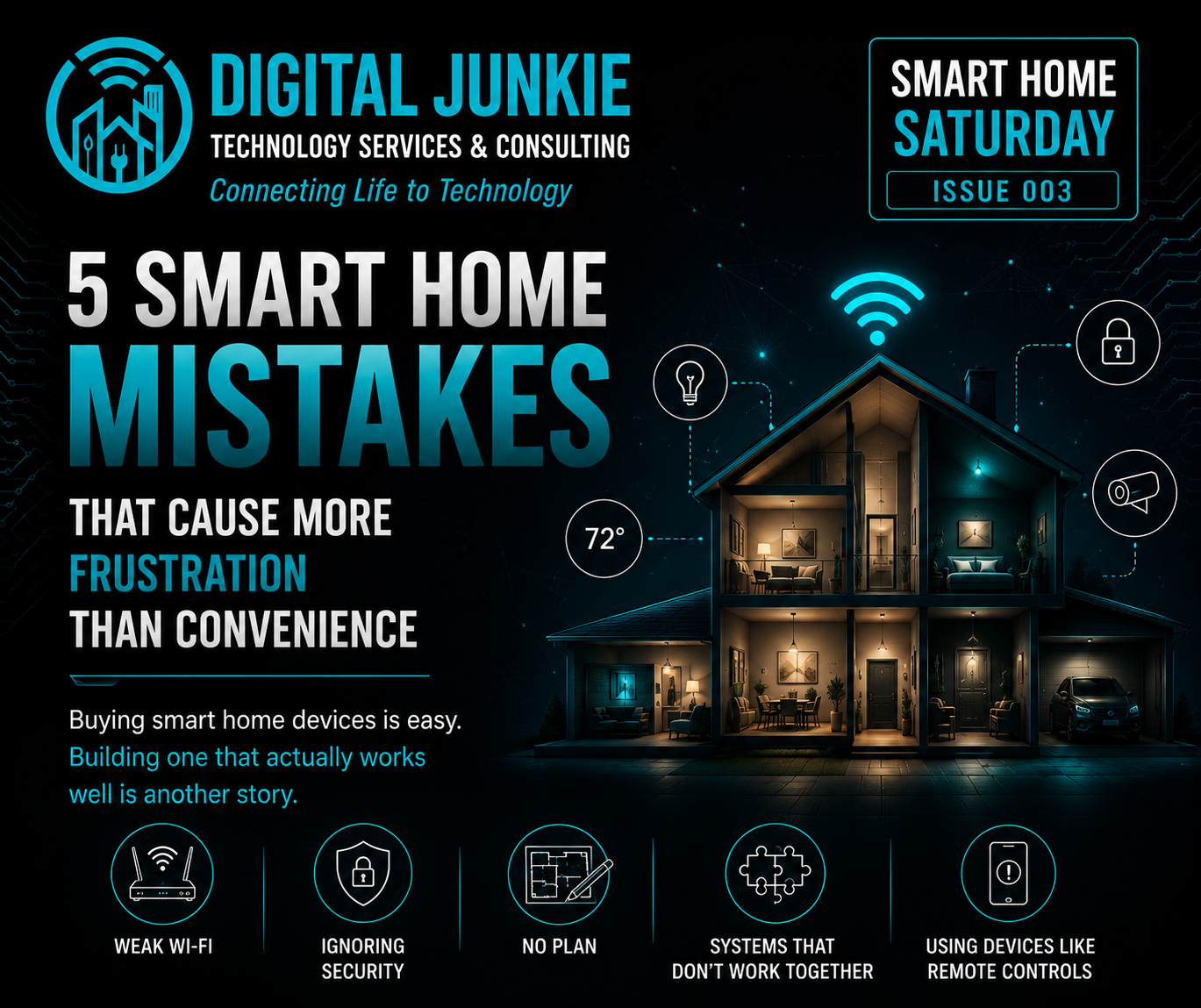
5 Common Smart Home Mistakes That Cause More Frustration Than Convenience
🏠 Smart Home Saturday • Issue 003
Smart home technology is supposed to make everyday life easier.
Your lights can turn on automatically. Your thermostat can adjust itself. Your doors can lock at bedtime. Your cameras can alert you when someone arrives. Your home can respond to motion, schedules, routines, and even whether anyone is home.
That is the promise.
Unfortunately, many people end up with a collection of disconnected devices, several different apps, unreliable connections, and technology that feels like more work than it is worth.
The problem usually is not that smart home technology does not work. The problem is that the system was built one device at a time without considering how everything would work together.
Here are five of the most common smart home mistakes I see—and what to do instead.
Mistake #1: Buying Whatever Is Cheapest
Price matters, but buying the least expensive device available can create bigger problems later.
Someone may purchase a smart light from one brand, a camera from another, a thermostat from a third company, and a door lock from somewhere else. Each device may work perfectly well on its own, but that does not mean they will communicate with one another.
You can quickly end up with:
Several different apps
Separate accounts and passwords
Devices that cannot share routines
Different subscription plans
Inconsistent controls
Products that may lose support sooner
A low purchase price does not always mean a low total cost.
The frustration, time, subscriptions, replacement devices, and eventual system redesign may cost more than choosing compatible products from the beginning.
A better approach
Before buying anything, decide which ecosystem or platform will serve as the foundation of your smart home.
That could include platforms such as Apple Home, Google Home, Amazon Alexa, Samsung SmartThings, Home Assistant, or another compatible system.
You do not necessarily have to buy every product from the same manufacturer. You do need to confirm that the products can work together through the platform you plan to use.
Mistake #2: Using Smart Devices Like Remote Controls
This is one of the biggest mistakes I see.
Many people buy smart devices but continue using them almost exactly like traditional devices.
Instead of walking over to a light switch, they open an app.
Instead of adjusting the thermostat on the wall, they open another app.
Instead of locking the front door manually, they open yet another app.
That may provide remote control, but it is not really automation.
A smart home should not require you to pull out your phone and search through several apps every time you want something to happen.
The real value comes from creating automations that allow your home to respond without constant input.
Useful automation examples
Exterior lights turn on automatically at sunset.
Hallway lights activate when motion is detected at night.
The thermostat adjusts when everyone leaves home.
Doors lock automatically at bedtime.
Cameras switch modes when the house becomes empty.
A “Goodnight” routine turns off lights, locks doors, lowers the thermostat, and arms cameras.
A “Good Morning” routine adjusts lighting and temperature before you get out of bed.
The best smart home automations often become invisible. They quietly happen in the background and remove small tasks from your day.
Mistake #3: Building on Weak Wi-Fi
Smart devices are only as reliable as the network supporting them.
A camera that repeatedly disconnects may not be defective. A smart lock that responds slowly may not need replacement. A speaker that drops audio may not be the real problem.
Weak Wi-Fi, interference, poor router placement, overcrowded networks, and insufficient coverage can make otherwise good devices appear unreliable.
This becomes especially noticeable with:
Outdoor cameras
Video doorbells
Garage devices
Backyard equipment
Devices located behind thick walls
Smart products installed far from the router
Homes with many connected devices
A better approach
Treat the network as the foundation of the smart home.
Before adding more devices, make sure the home has:
Strong coverage where devices will be installed
Proper router or mesh-system placement
Reliable internet service
Updated networking equipment
Enough capacity for the number of connected devices
Appropriate separation between primary, guest, and smart-device traffic when needed
Adding more gadgets to a weak network usually creates more frustration, not a smarter home.
Mistake #4: Ignoring Security
Every connected device is another piece of technology that should be secured and maintained.
People often install smart devices and never think about them again. They leave default passwords in place, skip firmware updates, reuse passwords, or connect everything to the same network.
That can create unnecessary risk.
Basic smart home security practices
Change all default passwords.
Use strong, unique passwords.
Enable two-factor authentication when available.
Keep device firmware and apps updated.
Remove old devices from accounts before selling or discarding them.
Avoid purchasing unsupported or unknown products simply because they are inexpensive.
Use a separate guest or IoT network when appropriate.
Review who has access to cameras, locks, and shared accounts.
Security does not have to make your smart home difficult to use. It should be part of the initial setup rather than something added after a problem occurs.
Mistake #5: Buying Devices Without a Plan
Smart home projects often begin with one impulse purchase.
Then another device is added.
Then another.
Eventually, the homeowner has several devices but no real system.
Without a plan, people often discover that:
Devices require different hubs.
Products are not compatible.
Wi-Fi coverage is inadequate.
Too many apps are required.
Automations are difficult or impossible to create.
Subscription costs begin adding up.
Important areas were overlooked.
Devices duplicate functions they already had.
A better approach
Start by identifying the problem you want technology to solve.
For example:
Do you want better security?
Are you trying to reduce energy use?
Do you want easier lighting control?
Are you helping an older family member live more independently?
Do you want to know when doors, leaks, or appliances need attention?
Are you trying to create routines that save time?
Once the goal is clear, you can select compatible devices, plan the network, choose the right platform, and build useful automations around the way you actually live.
Too Many Apps Usually Means the System Was Not Planned
One of the clearest signs of a poorly designed smart home is having to open several different apps just to complete one routine.
For example, leaving the house might require someone to:
Open the lighting app.
Turn off several lights.
Open the thermostat app.
Adjust the temperature.
Open the camera app.
Arm the cameras.
Open the lock app.
Lock the front door.
That is not convenience.
With proper planning, a single routine could complete all of those steps automatically when the last person leaves home.
Smart devices should reduce the number of actions you perform—not simply move those actions onto your phone.
What a Well-Designed Smart Home Looks Like
A good smart home does not need to be filled with expensive gadgets.
It should be:
Reliable
Easy to control
Secure
Compatible
Expandable
Built around useful routines
Simple enough for everyone in the home to use
The best systems are often the least noticeable. Lights, temperature, security, and alerts work naturally without requiring constant attention.
The goal is not to own the most smart devices.
The goal is to create a home where the technology works together to make daily life simpler.
Before Buying Your Next Smart Device
Ask these questions:
Does it work with my existing platform?
Will it require another app?
Does it need a separate hub?
Will it work if the internet goes down?
Does it require a subscription?
Is my Wi-Fi strong enough where it will be installed?
Can it participate in the automations I want?
Is the manufacturer likely to support it long term?
What problem will this device actually solve?
If you cannot answer those questions, it may be worth pausing before making the purchase.
A little planning upfront can prevent years of frustration.
The Bottom Line
Buying smart home devices is easy.
Building a smart home that works together reliably takes more thought.
The most common mistakes are buying incompatible products, using devices only as remote controls, relying on weak Wi-Fi, ignoring security, and adding gadgets without a larger plan.
A smart home should not force you to manage more apps, remember more passwords, or troubleshoot more devices.
It should quietly simplify your routines, improve comfort, strengthen security, and save you time.
The smartest home is not the one with the most gadgets. It is the one where everything works together.
Need Help With Your Smart Home?
Digital Junkie Technology Services & Consulting helps homeowners design, install, troubleshoot, and improve smart home systems throughout Central Texas.
Whether you are starting from scratch or trying to make existing devices work together, I can help with:
Smart home planning
Device compatibility
Wi-Fi and network improvements
Smart lighting
Cameras and video doorbells
Smart thermostats
Connected locks
Automations and routines
Troubleshooting unreliable devices
Simplifying systems that use too many apps
Digital Junkie Technology Services & Consulting
Connecting Life to Technology
🌐 www.digitaljunkie.tech
📧 eherring@digitaljunkie.tech
📞 737-400-6482
Serving Austin, Round Rock, Pflugerville, Cedar Park, Georgetown, Leander, Hutto, Taylor, and surrounding Central Texas communities.
Coming Next Week
🏠 Smart Home Saturday • Issue 004
What Happens to Your Smart Home When the Internet Goes Down?
Some devices stop working. Others continue operating normally. Next week, we will break down the difference between Wi-Fi, internet access, cloud control, and local smart home automation.
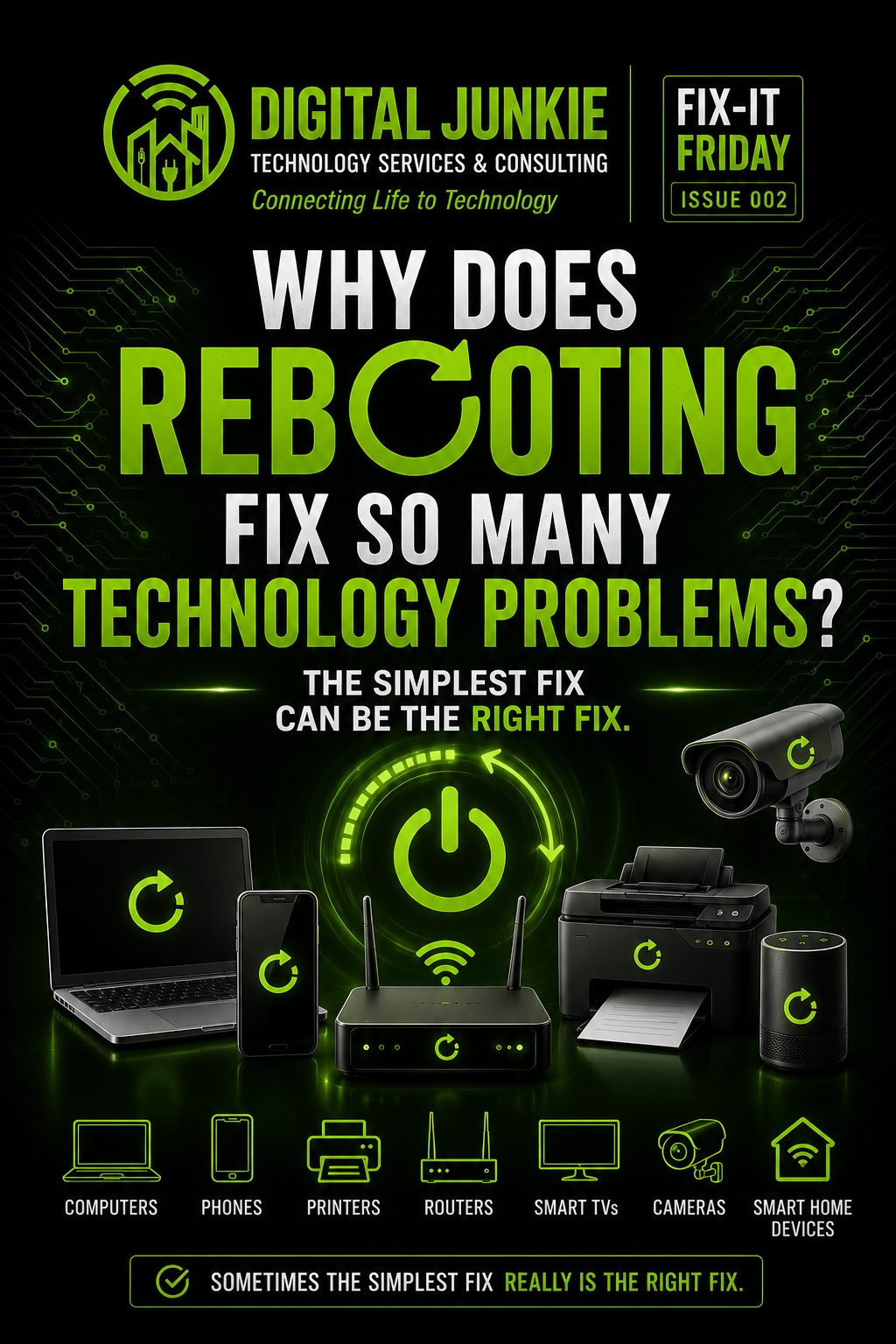
Why Does Rebooting Fix So Many Technology Problems?
🔧 Fix-It Friday • Issue 002
One of the oldest jokes in the IT world is:
“Have you tried turning it off and back on again?”
It gets laughed at because it sounds almost too simple.
But here’s the thing…
There’s a very good reason IT professionals ask you to restart your device first.
Whether it’s a computer, phone, printer, Wi-Fi router, smart TV, security camera, or even a smart pet feeder, a simple reboot can solve an amazing number of technology problems.
Let’s look at why.
What Actually Happens During a Restart?
A restart gives your device a clean slate.
As software runs, temporary files build up, programs use memory, and background services can become stuck or unresponsive.
When you reboot a device, it:
Clears temporary memory (RAM)
Stops frozen or hung processes
Reloads software and device drivers
Re-establishes network connections
Starts the operating system from a clean state
Think of it like giving your technology a fresh start after a long day.
Devices That Benefit From a Restart
A reboot isn’t just for computers.
Almost every modern device contains software that can occasionally benefit from restarting.
Examples include:
💻 Computers
📱 Phones & Tablets
🖨️ Printers
📶 Wi-Fi Routers & Mesh Systems
📺 Smart TVs
🎥 Security Cameras
🔊 Smart Speakers
🐶 Smart Pet Feeders
💡 Smart Home Devices
If it runs software, restarting it is often one of the quickest troubleshooting steps you can try.
What a Restart Won’t Fix
While restarting is a great first step, it isn’t a magic solution.
A reboot won’t repair:
Broken hardware
Cracked screens
Dead batteries
Failing hard drives or SSDs
Physical damage
Internet outages caused by your provider
If the problem comes back immediately after restarting, it’s usually a sign that something deeper needs attention.
Why IT Professionals Always Ask First
People sometimes assume IT asks them to restart because it’s an easy way to delay solving the problem.
The truth is exactly the opposite.
Restarting eliminates dozens of common software issues in just a few minutes.
If the problem disappears after a reboot, you’ve saved time and avoided unnecessary troubleshooting.
If the problem remains, you’ve already completed the first diagnostic step and narrowed down the possible causes.
Either way, it’s a win.
When It’s Time to Call a Professional
If you’ve already restarted the device and you’re still experiencing:
Frequent crashes
Slow performance
Devices dropping offline
Wi-Fi problems
Printer communication issues
Smart home devices not responding
Recurring error messages
…it may be time for a deeper diagnosis.
Finding the root cause is almost always less expensive than replacing hardware that isn’t actually broken.
Digital Junkie Recommends
Before assuming the worst, always try a restart first.
It’s quick, safe, and often resolves temporary software or communication issues.
If the problem comes right back, don’t keep restarting it over and over—that’s usually your device telling you something else needs attention.
The Bottom Line
Sometimes the simplest fix really is the right fix.
A reboot won’t solve every technology problem, but it’s one of the most effective first steps for computers, phones, printers, routers, smart home devices, and countless other electronics.
Knowing when a restart is enough—and when it’s not—can save you time, frustration, and money.
Digital Junkie’s Advice
Restart first. Replace last. Diagnose before you spend money.
Coming Next Week…
🔧 Fix-It Friday • Issue 003
Why Replacing Parts Before Diagnosing the Problem Can Cost You More
Learn why proper troubleshooting often saves money and prevents replacing perfectly good hardware.
Connecting Life to Technology
Technology doesn’t have to be frustrating. Whether you’re dealing with a slow computer, unreliable Wi-Fi, printer problems, smart home issues, network troubleshooting, or business IT support, Digital Junkie Technology Services & Consulting helps homeowners and businesses across Central Texas solve technology problems the right way—by finding the root cause, not just treating the symptoms.
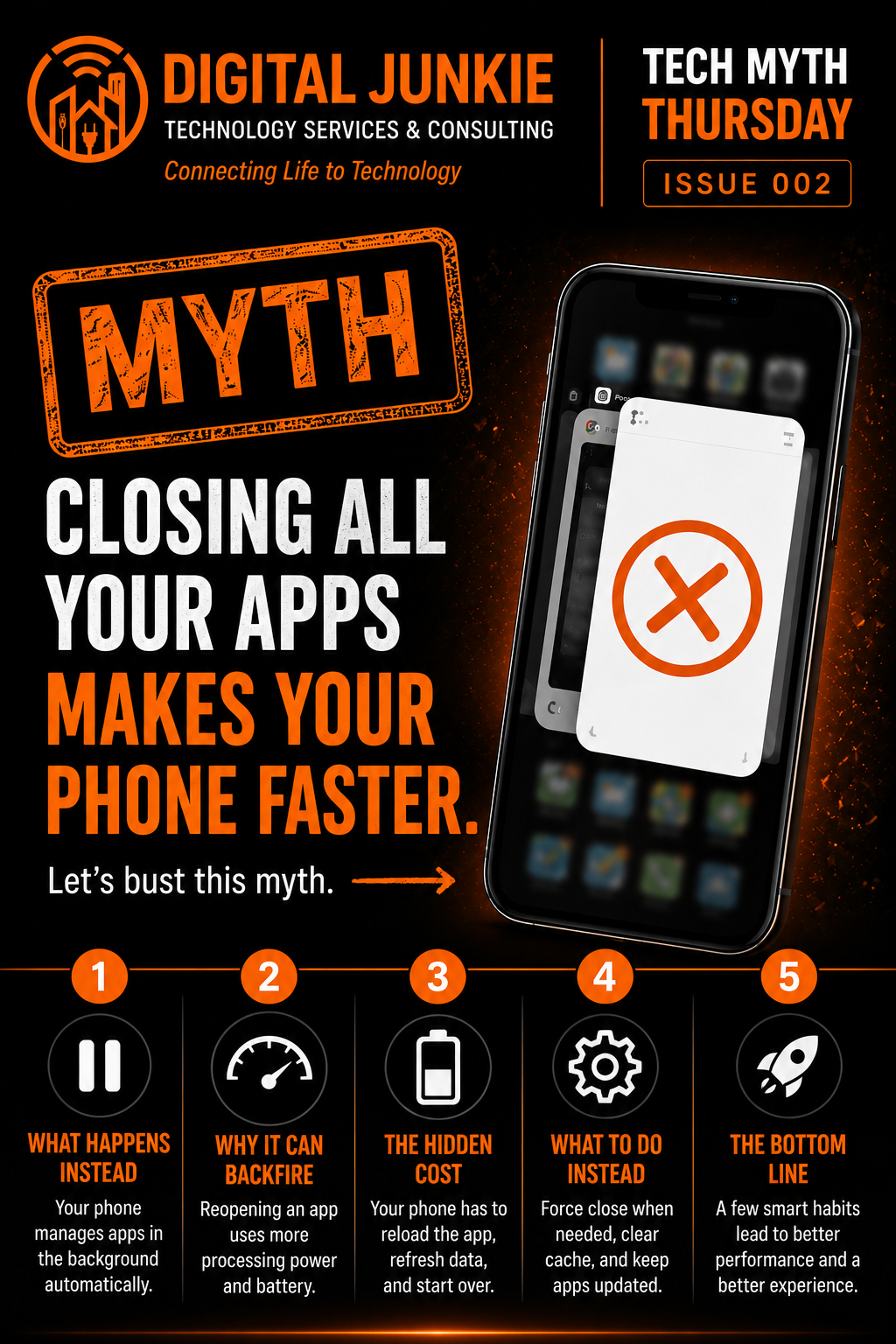
Does Closing Apps Make Your Phone Faster?
🤔 Tech Myth Thursday • Issue 002
One of the most common smartphone habits I see is people constantly swiping away every app they have open.
Some people do it several times a day because they've heard it makes their phone run faster.
The truth?
Not usually.
Modern smartphones are designed to manage apps in the background far more efficiently than most people realize.
What Actually Happens
When you switch away from an app, your phone doesn't necessarily keep it running at full power.
In most cases, the operating system pauses the app and stores it in memory so you can quickly return where you left off.
That means the app isn't actively consuming processor power just because it's still visible in your recent apps list.
Both iPhones and Android phones are built to automatically manage memory, battery usage, and background processes without you having to constantly force close everything.
Why Constantly Closing Apps Can Backfire
Every time you force close an app, your phone has to completely reload it the next time you open it.
That means it must:
Reload the application
Rebuild its memory
Reconnect to the internet
Reload images and data
Ironically, that often requires more processing power than simply leaving the paused app alone.
While the difference may be small for one app, doing it dozens of times every day doesn't provide the performance boost many people expect.
When You Should Force Close an App
There are absolutely times when closing an app is the right choice.
For example:
The app freezes
The app crashes repeatedly
It becomes unresponsive
It continues playing audio unexpectedly
It's clearly draining your battery abnormally
In those situations, force closing the app is often the quickest way to resolve the issue.
What Actually Makes Your Phone Faster
If your phone feels sluggish, these steps are much more effective than constantly clearing your recent apps.
Free Up Storage
Phones need available storage to operate efficiently. Running nearly full can slow things down.
Install Updates
Software updates often include performance improvements, bug fixes, and security updates.
Restart Occasionally
A simple restart clears temporary processes and refreshes system resources.
Remove Problem Apps
Some apps use excessive battery or continue running unnecessary background tasks.
Check Battery Health
An aging battery can cause some phones to reduce performance in order to maintain stability.
Digital Junkie Recommends
Instead of making it a habit to close every app, let your phone do the job it was designed to do.
Only force close apps when something isn't working correctly.
Your phone's operating system is generally much better at managing memory than we are.
The Bottom Line
Closing every app doesn't magically make your phone faster.
In many cases, it actually creates more work for your phone the next time those apps are opened.
Focus on keeping your phone updated, maintaining available storage, and removing apps that misbehave.
Those changes will have a much bigger impact on performance.
Digital Junkie's Advice
Don't waste time constantly closing apps. Spend that time keeping your phone healthy instead.
Coming Next Week...
🤔 Tech Myth Thursday • Issue 003
Does Charging Your Phone Overnight Ruin the Battery?
We'll separate fact from fiction and explain how modern smartphones actually handle overnight charging.
Connecting Life to Technology
Technology myths spread quickly, but good information helps you make better decisions. Whether you need help with smartphones, computers, Wi-Fi, networking, or technology around your home or business, Digital Junkie Technology Services & Consulting is here to help homeowners and small businesses throughout Central Texas get the most out of their technology.
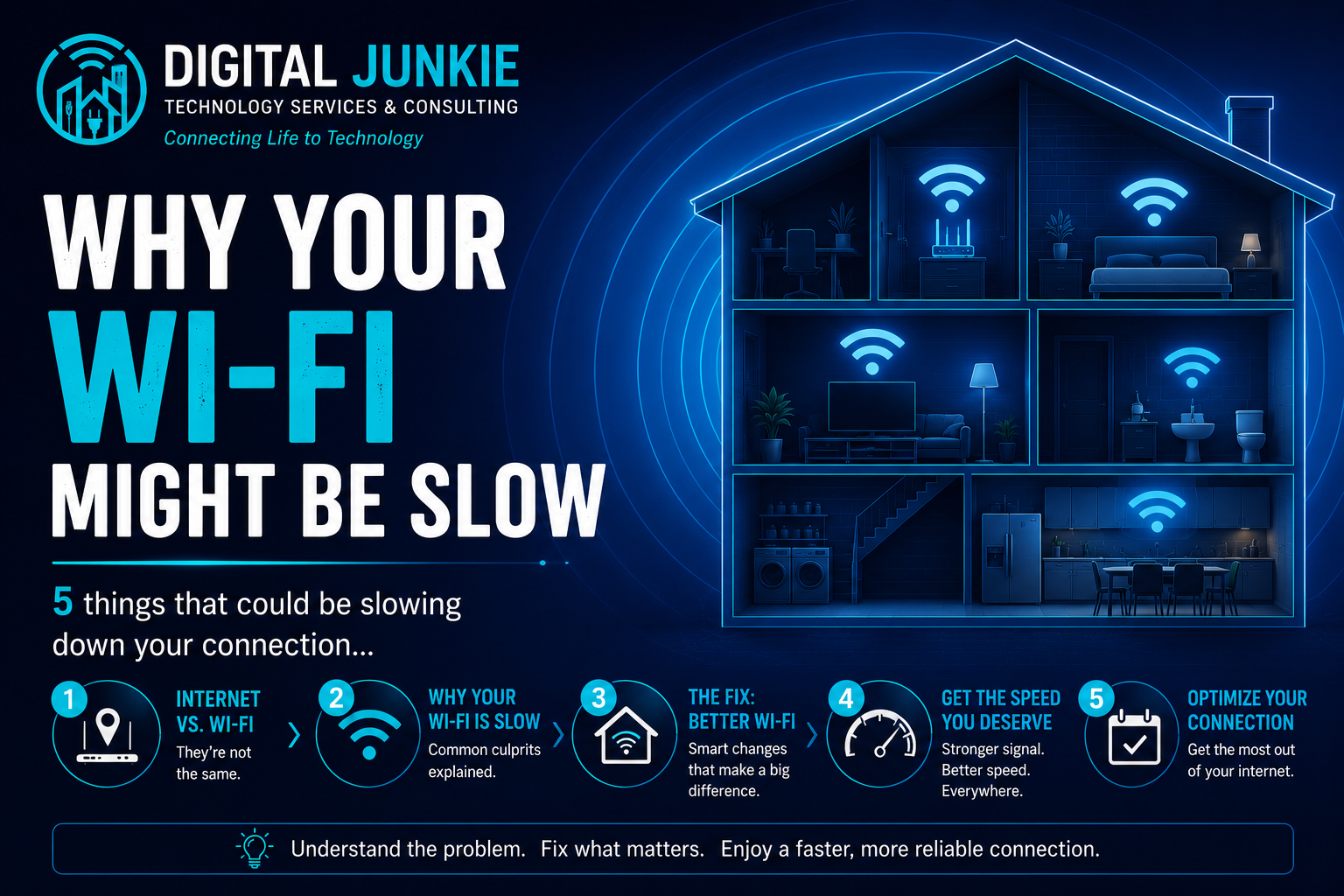
Think Your Internet Is Slow? It Might Just Be Your Wi-Fi.
📶 Wi-Fi Wednesday • Issue 002
One of the most common service calls I receive starts with the same sentence:
"My internet is really slow."
Most people immediately assume their internet provider is the problem.
But after testing their connection, I often find something surprising...
The internet coming into the home is working exactly as it should.
The real problem is the Wi-Fi network inside the house.
Before you spend more money upgrading your internet plan, it's worth understanding what might actually be slowing you down.
Internet vs. Wi-Fi
Although people often use the terms interchangeably, they aren't the same thing.
Your internet is the connection your Internet Service Provider (ISP) delivers to your home.
Your Wi-Fi is the wireless network that distributes that internet connection to your phones, computers, TVs, tablets, and smart home devices.
You can have a blazing-fast internet connection and still experience slow performance if your Wi-Fi isn't delivering that speed throughout your home.
1. Poor Router Placement
Location matters far more than most people realize.
Some of the worst places to put a router include:
Inside a closet
Behind a television
In a cabinet
On the floor
In a far corner of the house
For the best coverage, place your router as close to the center of your home as possible and elevate it off the floor whenever practical.
2. Walls and Building Materials
Not everything lets Wi-Fi pass through easily.
Some common signal blockers include:
Brick
Concrete
Stone fireplaces
Metal framing
Mirrors
Large appliances
Sometimes moving a router just a few feet can noticeably improve signal strength throughout the home.
3. Wireless Interference
Your Wi-Fi shares the airwaves with many other devices.
Common sources of interference include:
Neighboring Wi-Fi networks
Bluetooth devices
Baby monitors
Microwaves
Cordless phones
Wireless security devices
Too much interference can make your connection feel slow even though your internet service is working perfectly.
4. One Router Isn't Always Enough
Many homes today are simply too large or too complex for a single wireless router.
Multiple floors, long hallways, garages, patios, and thick interior walls can all create dead zones.
A properly designed mesh Wi-Fi system—or, even better, wired wireless access points—can provide strong, reliable coverage throughout your entire home or business.
5. Your Router May Need an Update
Many people never think about their router once it's installed.
Like your phone or computer, routers receive firmware updates that improve:
Performance
Stability
Security
Compatibility with newer devices
Some manufacturers are also notorious for performance degrading over time until firmware updates are installed. Regular updates and the occasional reboot can often resolve mysterious slowdowns.
Digital Junkie Recommends
Before paying your ISP for a faster internet package, make sure your Wi-Fi is delivering the speed you're already paying for.
A better router location, reduced interference, updated firmware, or a professionally designed mesh Wi-Fi system can often make a much bigger difference than simply buying more bandwidth.
The Bottom Line
A slow experience doesn't always mean you need faster internet.
More often than not, the issue is how that internet is being distributed throughout your home.
The good news?
Most Wi-Fi problems can be solved without changing internet providers or paying for a more expensive plan.
Digital Junkie's Advice
Don't pay for more speed until you're sure your Wi-Fi is delivering the speed you already have.
Coming Next Week...
📶 Wi-Fi Wednesday • Issue 003
How to Find the Best Place for Your Wi-Fi Router
We'll cover simple placement tips that can dramatically improve your signal without spending a dime.
Connecting Life to Technology
Whether you're dealing with dead zones, buffering, unreliable Wi-Fi, slow wireless speeds, or need a complete home or business network redesign, Digital Junkie Technology Services & Consulting helps homeowners and small businesses across Central Texas get the most out of their technology.
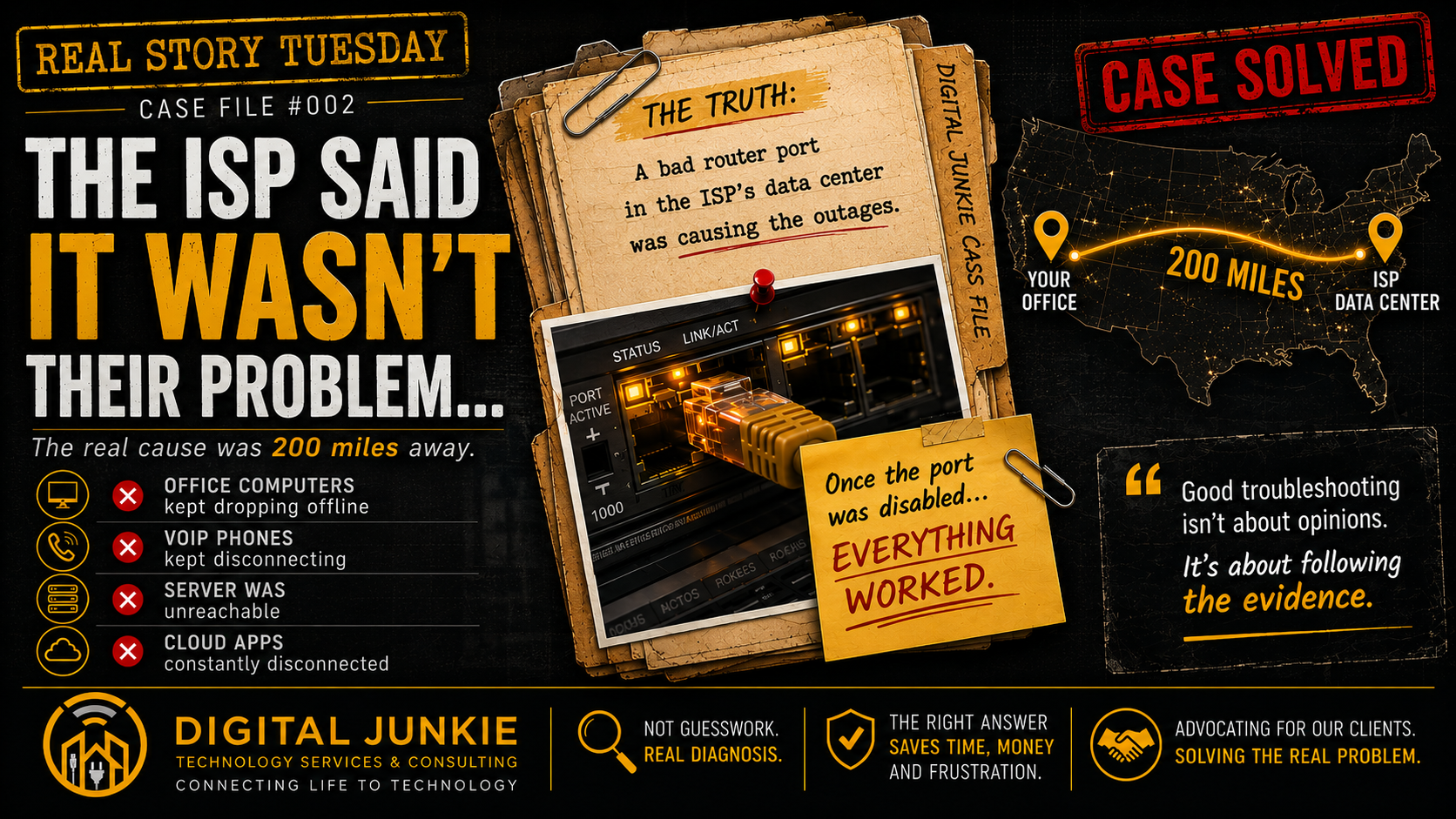
The ISP Said It Wasn't Their Problem...
📖 Real Story Tuesday • Issue 002
The ISP Said It Wasn't Their Problem...
One of the biggest challenges in IT isn't fixing technology.
Sometimes it's convincing someone else where the problem actually is.
Recently, I was called by a small business that had been dealing with constant network problems. Their internet provider insisted everything on their end looked fine and repeatedly pointed the finger at the equipment inside the office.
Unfortunately, the symptoms told a very different story.
Everything Was Randomly Disconnecting
Employees were becoming increasingly frustrated.
Office computers randomly dropped offline.
VoIP phones disconnected in the middle of calls.
The office server became unreachable.
Cloud applications constantly froze and reconnected.
Nothing stayed down long enough to completely stop business—but it happened often enough to disrupt nearly everyone's day.
After multiple calls with their internet provider, the customer kept hearing the same response:
"The problem is your office equipment."
Trust the Process, Not Assumptions
When I arrived, I treated the situation like every other network issue.
Start at the beginning.
Verify every step.
Assume nothing.
I spent the day checking:
Switches
Routers
Cabling
Network configuration
Interface statistics
Error logs
Device health
Everything inside the office looked healthy.
Yet the outages continued.
Follow the Evidence
Instead of replacing hardware that appeared to be working correctly, I started collecting evidence.
I monitored the network.
I reviewed logs.
I captured traffic.
I documented exactly when the interruptions occurred.
The more information I gathered, the clearer one thing became.
The interruptions weren't originating inside the office.
Something farther upstream wasn't behaving normally.
The Breakthrough
After multiple calls, multiple technicians, and several escalations, I finally reached someone willing to investigate deeper inside the provider's own infrastructure.
Instead of checking only the customer's equipment, they examined equipment farther upstream.
That's when they found it.
A failing router interface nearly 200 miles away inside their own network.
One defective port was intermittently dropping packets as traffic passed through.
From the customer's perspective, it looked like random internet outages.
From the ISP's perspective, everything initially appeared normal.
The moment that port was disabled and traffic was rerouted...
Everything stabilized.
Immediately.
The office computers stayed online.
The phones stopped dropping calls.
The server became reliable.
Cloud applications worked normally again.
Business returned to normal.
The Lesson
Technology problems don't always originate where the symptoms appear.
It's easy to blame the equipment you can see.
Sometimes the real problem exists hundreds of miles away.
The key isn't guessing.
The key is following the evidence until you find the truth.
Digital Junkie Recommends
Before replacing networking equipment or switching internet providers, make sure the problem has been properly diagnosed.
A methodical investigation can save thousands of dollars in unnecessary hardware and countless hours of frustration.
Real Story Takeaway
The best IT professionals don't just fix technology.
They advocate for their clients.
Sometimes that means challenging assumptions, gathering evidence, and refusing to accept "everything looks fine" when the facts say otherwise.
Digital Junkie's Advice
Good troubleshooting isn't about opinions.
It's about collecting evidence, eliminating possibilities, and following the facts wherever they lead.
That's how real problems get solved.
Coming Next Week...
📖 Real Story Tuesday • Issue 003
How I Proved It Was the ISP
Next week, I'll walk through the investigation process that proved the issue wasn't inside the customer's office—and why evidence always wins over assumptions.
(No networking knowledge required.)
Connecting Life to Technology.
Whether it's unreliable Wi-Fi, intermittent internet issues, business networking, VoIP phones, security cameras, or complete IT support, Digital Junkie helps homeowners and small businesses throughout Central Texas solve technology problems the right way.

Why Is My Computer So Slow? (And What You Can Do About It)
💡 Tech Tip Monday • Issue 002
If you’ve ever found yourself waiting… and waiting… for your computer to open a program or load a webpage, you’re not alone.
One of the most common questions I hear is:
“Do I need a new computer?”
The answer is not always.
A slow computer doesn’t automatically mean it’s time to replace it. In many cases, there’s an underlying cause that’s both identifiable and fixable. Whether you’re using a Windows PC or a Mac, understanding what’s slowing your computer down can save you time, frustration, and money.
Here are seven of the most common reasons computers slow down.
1. Too Many Programs Running
Over time, computers collect software that automatically starts every time you turn them on. Add multiple browser tabs, cloud storage apps, messaging programs, and background services, and your computer may simply be trying to do too much at once.
The result is slower startup times and sluggish performance throughout the day.
2. Your Storage Drive Is Almost Full
Your operating system needs free space to work efficiently.
When your storage is nearly full, your computer has less room for temporary files, updates, and virtual memory. That can cause programs to open slowly, files to take longer to save, and the entire system to feel less responsive.
Keeping at least 15-20% of your storage free is a good habit.
3. You’re Still Using a Traditional Hard Drive
This is one of the biggest performance issues I still see.
Older hard disk drives (HDDs) are dramatically slower than modern solid-state drives (SSDs). Simply upgrading to an SSD can often reduce startup times from minutes to seconds and make everyday tasks feel much faster.
For many older computers, it’s one of the best upgrades you can make.
4. Your Computer Needs More Memory (RAM)
If everything slows down when you have several programs open, your computer may be running out of available memory.
More RAM allows your computer to keep multiple applications running smoothly without constantly moving data back and forth to the storage drive.
Depending on your computer, upgrading RAM may be a simple and affordable solution.
5. Updates Have Been Ignored
Operating system updates aren’t just about new features.
They often include performance improvements, bug fixes, updated drivers, and important security patches. Keeping your computer updated helps it run more reliably and securely.
6. Malware or Unwanted Software
Not every slow computer has a virus, but malware, adware, unwanted browser extensions, and poorly written software can all consume valuable system resources.
If your computer suddenly becomes much slower than normal, it’s worth investigating before assuming the hardware has failed.
7. It May Actually Be Time for an Upgrade
Sometimes a computer has simply reached the end of its useful life.
Older hardware may no longer support current software, receive security updates, or provide the performance today’s applications require.
The key is knowing whether your computer needs maintenance, an upgrade, or replacement before spending money.
🔧 Try This Before Calling IT
Before replacing your computer, try these simple steps:
✅ Restart your computer.
✅ Install any pending Windows or macOS updates.
✅ Remove programs you no longer use.
✅ Free up storage space.
✅ Close unnecessary browser tabs and applications.
✅ Review which programs automatically start when you log in.
You might be surprised how much faster your computer feels after a little maintenance.
💻 Digital Junkie Recommends
If your computer has a traditional hard drive, upgrading to an SSD is often the single biggest performance improvement you can make.
If you’re unsure what’s causing the slowdown, have it evaluated before spending money on a replacement. A proper diagnosis can often save hundreds of dollars.
💡 Digital Junkie’s Advice
Don’t assume a slow computer means you need a new one.
The best approach is to diagnose the problem first. Sometimes it’s a simple cleanup. Sometimes it’s a hardware upgrade. And sometimes replacing the computer is the right decision.
Knowing the difference can save you time, money, and frustration.
💬 Question of the Week
What’s the biggest issue you’re experiencing with your computer right now?
Slow startup?
Programs freezing?
Slow internet browsing?
Random crashes?
Something else?
I’d love to hear what’s going on and help point you in the right direction.
Connecting Life to Technology.
Whether you need help with a slow computer, Wi-Fi issues, networking, security cameras, smart home technology, or business IT support, Digital Junkie is here to help homeowners and small businesses throughout Central Texas get the most from their technology.
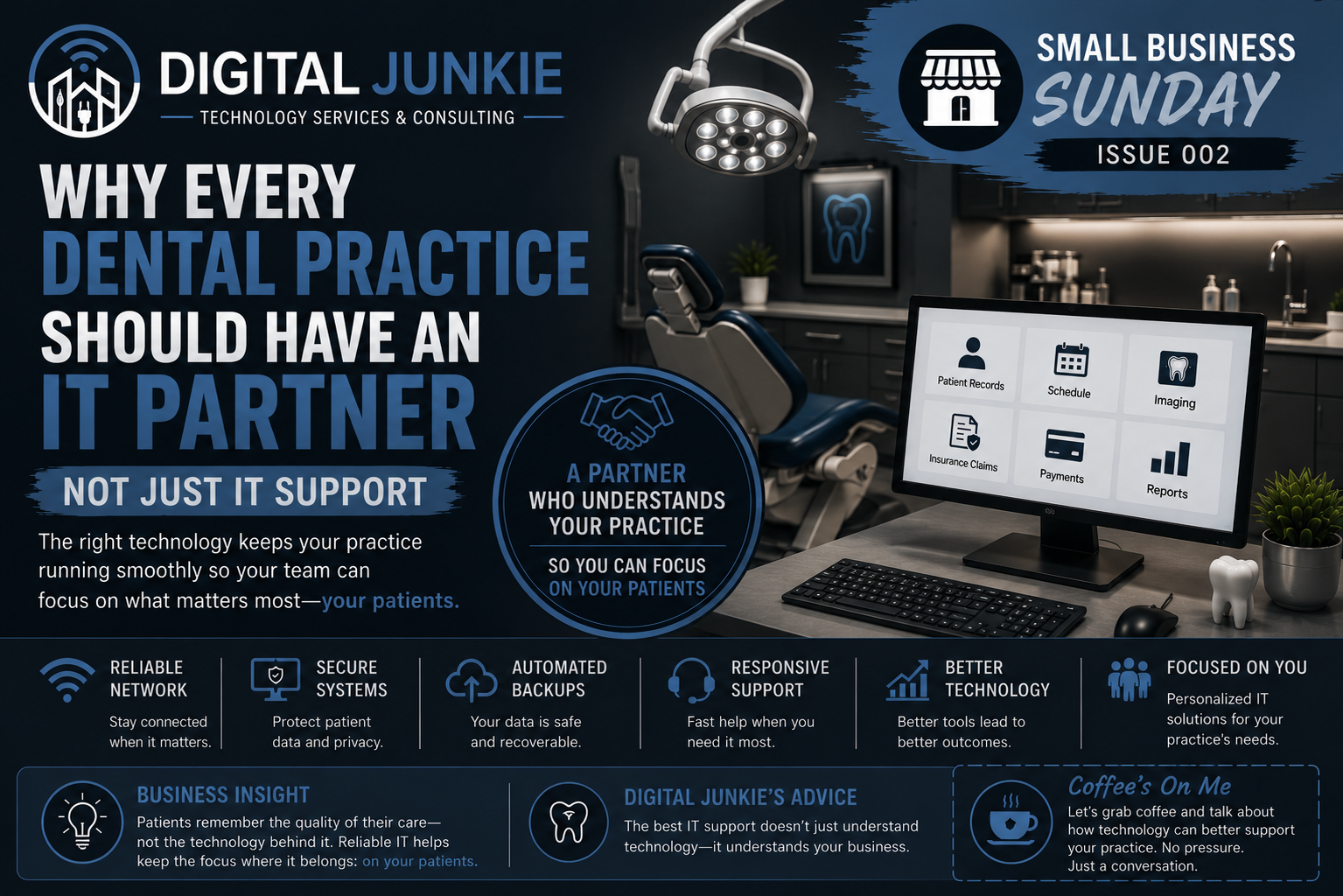
Why Every Dental Practice Should Have an IT Partner—Not Just IT Support
💼 Small Business Sunday • Issue 002
Why Every Dental Practice Should Have an IT Partner—Not Just IT Support
Technology touches nearly every part of a modern dental practice.
From the moment a patient walks through the front door until they leave, your team relies on computers, networks, phones, imaging equipment, practice management software, printers, and internet connectivity to keep the day moving.
When one piece of technology stops working, it isn’t just an inconvenience.
It can interrupt patient care, delay appointments, frustrate your team, and impact the entire schedule.
That’s why I believe every dental practice should have an IT partner—not just someone to call when something breaks.
Technology Keeps Your Practice Moving
Technology isn’t simply there to make life easier.
It’s part of your daily workflow.
Every day your team depends on systems that allow them to:
Schedule appointments
Access patient records
View digital X-rays and images
Use practice management software
Process insurance claims
Accept payments
Communicate with patients
Print treatment plans and forms
Stay connected to the internet
When those systems aren’t working, your team spends valuable time troubleshooting instead of focusing on patients.
Downtime Costs More Than You Think
When people think about technology problems, they often think about repairing a computer.
In reality, the biggest cost is usually downtime.
Every minute your team can’t access the tools they need creates delays that ripple throughout the day.
Appointments fall behind.
Patients wait longer.
Staff members become frustrated.
Productivity decreases.
Reliable technology helps your team focus on what matters most—providing excellent patient care.
The Difference Between IT Support and an IT Partner
Anyone can fix a computer.
An IT partner understands how your business operates.
Imagine calling someone who already knows:
How your office is laid out
Which workstations support patient care
Where your network equipment is located
How your Wi-Fi is configured
Which printers serve each area
Which systems are critical to keeping the office running
Instead of spending valuable time explaining your environment every time you need help, they can begin solving the problem immediately.
That familiarity often means faster resolutions and less disruption to your day.
Being Proactive Beats Being Reactive
One of the biggest mistakes I see is waiting until something breaks before thinking about IT.
Preventive maintenance often catches small problems before they become expensive emergencies.
Regular updates, reliable backups, security reviews, network monitoring, and planning for future growth all help reduce unexpected downtime.
The goal isn’t just fixing problems.
It’s preventing them whenever possible.
Digital Junkie Recommends
Choose an IT professional who wants to understand your practice—not just repair your computers.
The better they understand how your office operates, the more valuable they become every time you need assistance.
Technology should support your team, not slow it down.
☕ Coffee’s On Me
If you own or manage a dental practice, I’d enjoy learning more about your office and how your technology supports your team.
Whether you’re planning an upgrade, dealing with recurring issues, or simply want a second opinion, I’m always happy to meet for coffee and talk through your goals.
No pressure. No sales pitch. Just a conversation about making technology work better for your practice.
💡 Business Insight
Patients remember the quality of their care—not the technology behind it. Reliable IT helps keep the focus where it belongs: on your patients.
💙 Digital Junkie’s Advice
The best IT support doesn’t just understand technology—it understands your business.
Questions for You
If one piece of technology stopped working tomorrow morning, what would have the biggest impact on your practice?
Internet
Practice management software
Phones
Digital imaging
Payment processing
Something else?
I’d love to hear your thoughts in the comments.

The Biggest Mistake People Make When Buying Security Cameras
🏠 Smart Home Saturday • Issue 002
The Biggest Mistake People Make When Buying Security Cameras
If there’s one mistake I see more than any other, it’s this:
People buy security cameras before they have a plan.
Sometimes it’s after a package is stolen.
Sometimes it’s after a car break-in.
Sometimes it’s because they found a great deal online or at their local warehouse store.
Unfortunately, many people don’t realize until after everything is installed that the system doesn’t meet their needs.
The best security camera system isn’t determined by the brand or the number of cameras.
It’s determined by how well it’s designed for your home, your property, and what you’re trying to protect.
Start With the “Why”
Before looking at brands, prices, or camera bundles, ask yourself one simple question:
Why do I want security cameras?
Your answer changes everything.
Are you trying to:
Deter crime?
Protect package deliveries?
Monitor your driveway?
Capture license plates?
Watch children or pets?
Keep an eye on your business?
Check on an elderly family member?
Different goals require different solutions.
Think About What You Need to See
Not every camera is designed for the same job.
Ask yourself:
Do I need to recognize faces?
Do I want to read license plates?
Is nighttime image quality important?
Do I want two-way audio?
Do I need motion alerts?
Should it detect people, vehicles, packages, or animals?
Choosing the right features now can save frustration later.
Camera Placement Matters More Than Camera Count
One of the biggest misconceptions is that more cameras automatically mean better security.
That’s not always true.
A properly planned four-camera system often provides better protection than an eight-camera system with poor placement.
It’s not about covering every square foot.
It’s about covering the areas that matter most.
Don’t Forget Your Network
Even the best cameras can’t perform well on a poor network.
Many “camera problems” actually turn out to be:
Weak Wi-Fi
Poor signal coverage
Incorrect camera placement
Network congestion
Limited internet bandwidth for cloud services
If your cameras constantly disconnect, record slowly, or miss events, the network may be the real issue.
Recording Options Matter
Before buying a system, think about how you want to store your recordings.
Your options may include:
Local Network Video Recorder (NVR)
Cloud recording
SD card storage
A combination of local and cloud storage
Each option has advantages depending on your priorities, budget, and how long you want to keep recordings.
Professional Planning Saves Time and Money
One of the biggest ways I help homeowners and small businesses isn’t by installing cameras.
It’s by helping them choose the right solution before they spend their money.
Every property is different.
The right camera for your front porch may not be the right camera for your driveway.
The best recording option for a small business may be completely different from what works best in a home.
Taking a little time to plan the system first usually results in better coverage, fewer headaches, and money spent where it actually matters.
Digital Junkie Recommends
Before purchasing a security camera system, think beyond the cameras themselves.
Consider:
Your goals
Camera placement
Recording method
Network reliability
Future expansion
A little planning upfront can save a lot of time, money, and frustration later.
💙 Digital Junkie’s Advice
Don’t buy cameras because they’re on sale. Buy a security system that’s designed for your needs.
If you’re not sure where to start, I’d much rather help you choose the right system before you buy than help you replace the wrong one afterward.
Questions for You
If you could install just one security camera tomorrow, where would you put it?
🚪 Front Door
🚗 Driveway
🌳 Backyard
🚪 Side Gate
🏢 Business Entrance
Let me know in the comments—I’d love to hear what area of your home or business you’d protect first.
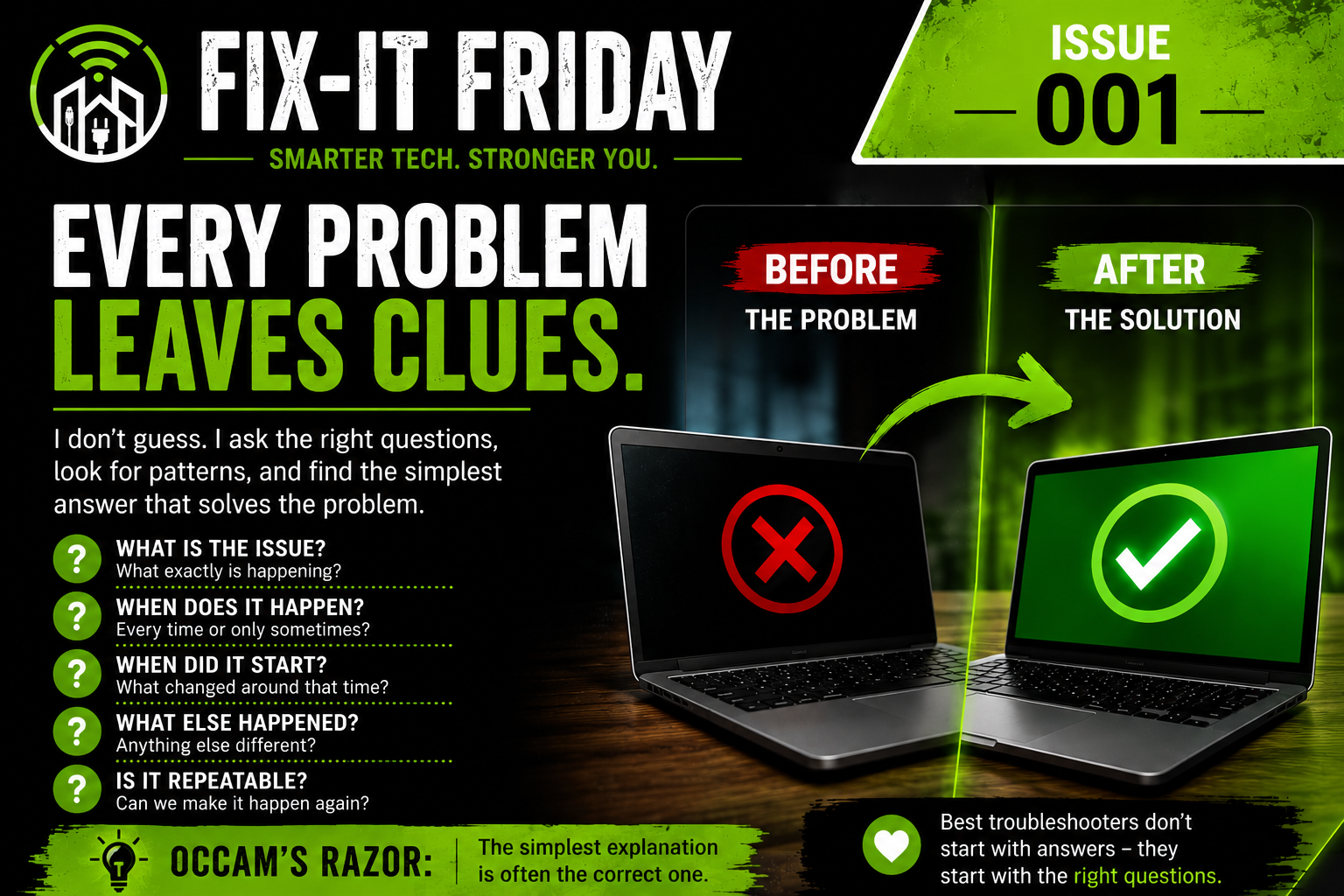
Every Problem Leaves Clues: How I Troubleshoot Technology Issues
🔧 Fix-It Friday • Issue 001
Every Problem Leaves Clues: How I Troubleshoot Technology Issues
When someone calls me and says, “My computer isn’t working,” or “The Wi-Fi keeps dropping,” I don’t immediately start replacing parts or changing settings.
I start by asking questions.
The answers almost always point me in the right direction.
Whether it’s a computer, printer, network, security camera, or smart home device, every problem leaves clues. My job is simply to find them.
The First Questions I Always Ask
Almost every troubleshooting call begins with the same basic questions:
What exactly is happening?
When did it start?
Does it happen every time or only sometimes?
What changed around the same time?
Can we make it happen again?
These questions help narrow down the possibilities before making assumptions.
Many technology issues aren’t random—they’re connected to a recent change, a specific action, or a recurring pattern.
Look for Patterns, Not Random Events
One of the biggest lessons I’ve learned over the years is that technology usually behaves consistently.
If something only happens after waking the computer from sleep…
If the internet only drops during heavy rain…
If a printer only fails after someone prints from a particular computer…
Those patterns matter.
Finding those connections often leads directly to the solution.
Why I Start With the Simplest Explanation
One principle I try to follow is called Occam’s Razor.
It simply means that the simplest explanation is often the correct one.
That doesn’t mean it’s always the answer—but it’s the best place to begin.
Sometimes the fix is as simple as:
A loose cable
A failed power strip
A setting changed during an update
A device connected to the wrong Wi-Fi network
A computer that simply needed a restart
Other times the issue is much more complex.
The key is not guessing. It’s following the evidence one step at a time.
Technology Doesn’t Have to Be a Mystery
People are often surprised by how quickly a problem can be solved—not because the solution was obvious, but because asking the right questions uncovered the real cause.
That’s why I don’t believe in replacing equipment until I understand what’s actually wrong.
A little investigation can save hundreds—or even thousands—of dollars.
🛠️ Try This Before Calling IT
The next time something isn’t working, ask yourself:
What changed?
Does it happen every time?
Can I recreate the problem?
Did anything else stop working at the same time?
Is there a pattern?
Even if you still need help, those answers will make troubleshooting much faster.
💙 Digital Junkie’s Advice
The best troubleshooters don’t start with answers—they start with the right questions.
If your technology is acting up, don’t guess. Let’s find the real cause together.
Questions for You
What’s the strangest technology problem you’ve ever experienced?
Or have you ever solved a problem simply by realizing something small had changed?
Share your story in the comments!

Do You Really Need a New Computer?
Most people replace their computer years before they actually need to.
🤔 Tech Myth Thursday
One of the most common things I hear is:
“I guess it’s time for a new computer.”
Sometimes that’s true.
But surprisingly often…
It isn’t.
Many slow computers aren’t actually worn out.
They’re simply overdue for a little maintenance.
Before You Spend $1,000…
Ask yourself a few questions.
Is your computer actually broken?
Or is it just…
Taking forever to start?
Running out of storage?
Slowing down after years of software updates?
Filled with programs you no longer use?
Those problems don’t always require a brand-new computer.
What Can Often Be Improved?
Depending on the age of your computer, you may be surprised what can be done.
Sometimes the solution is as simple as:
Removing unnecessary startup programs
Cleaning up storage
Installing more memory (RAM)
Replacing an old hard drive with a solid-state drive (SSD)
Reinstalling Windows or macOS to give the system a fresh start
In many cases, these upgrades can dramatically improve performance for a fraction of the cost of buying a new machine.
When Buying New Does Make Sense
There are times when replacing your computer is the right decision.
For example:
✔ Your hardware is no longer supported.
✔ Repair costs approach the value of the computer.
✔ Your needs have outgrown what the system can realistically handle.
✔ The computer has become unreliable despite repairs.
The goal isn’t to keep an old computer forever.
The goal is to make the smartest investment.
🛠️ Try This Before Buying Anything
The next time your computer feels slow…
Restart it.
Make sure updates have finished installing.
Check how much free storage is available.
If it’s still struggling, have someone evaluate it before replacing it.
You might save yourself hundreds of dollars.
🏆 Digital Junkie Recommends
Before buying a replacement computer, ask one simple question:
“Can this one be upgraded or repaired for significantly less?”
You may be surprised by the answer.
💙 Digital Junkie’s Advice
Don’t replace your computer because it’s old. Replace it because it no longer meets your needs.
Let’s Settle the Debate…
I’m curious…
How old is your current computer?
Less than 2 years
2–5 years
5–8 years
More than 8 years
I’m already shopping for a new one 😅
Leave a comment below—I read every one of them.
I’m happy to tell you whether I think it’s worth upgrading or replacing, and there’s no obligation or sales pitch.
Sometimes the best advice I can give is:
“Keep the one you have.”
At Digital Junkie Technology Services & Consulting, I help homeowners and small businesses throughout Central Texas get the most from their technology—whether that means upgrading existing equipment or helping choose the right replacement when the time comes.
Connecting Life to Technology.
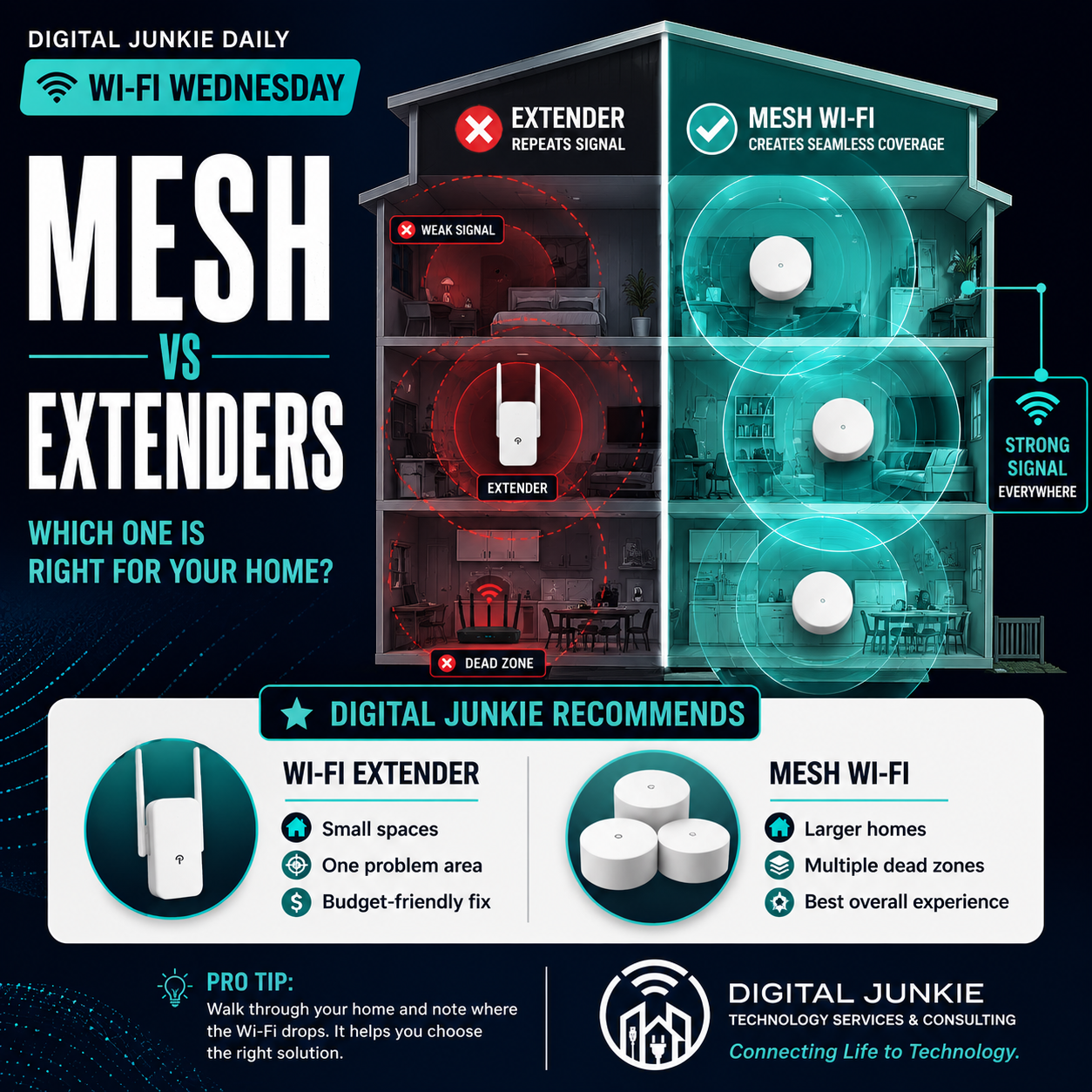
Mesh Wi-Fi vs. Wi-Fi Extenders: Which Is Right for Your Home?
Dead zones, buffering, and weak Wi-Fi don’t always require a faster internet plan. Understanding the difference between a Wi-Fi extender and a mesh system can save you money—and give you a much better wireless experience.
📶 Wi-Fi Wednesday
Every Wednesday I share practical advice to help homeowners and small businesses get the most from their technology. Today’s topic answers one of the questions I hear most often:
“Should I buy a Wi-Fi extender or a mesh system?”
The answer depends on your home, but understanding how each works can save you money, frustration, and a lot of trial and error.
What Is a Wi-Fi Extender?
A Wi-Fi extender does exactly what its name suggests—it extends your existing Wi-Fi signal.
The catch?
It can only repeat the signal it receives.
If the extender is placed where your Wi-Fi signal is already weak, you’re simply repeating a weak connection.
Think of it like trying to repeat a conversation you can barely hear.
If the message coming in isn’t clear, the message going out won’t be either.
A Wi-Fi extender is often a good choice for:
Apartments and smaller homes
One room with weak Wi-Fi
Budget-conscious upgrades
Occasional internet use
What Is a Mesh Wi-Fi System?
A mesh Wi-Fi system uses multiple access points that work together as one seamless network.
Instead of stretching a weak signal, each mesh node helps create strong, consistent coverage throughout your home.
As you walk from room to room, your phone, tablet, or laptop automatically connects to the strongest access point.
No switching networks.
No reconnecting.
No wondering if you’re connected to the “right” extender.
Everything simply works in the background.
Mesh Wi-Fi is usually the better choice for:
Larger homes
Two-story homes
Homes with multiple dead zones
Families with many connected devices
Working from home
Streaming and online gaming
🏆 Digital Junkie Recommends
✅ Wi-Fi Extender
Best for:
Small homes
One problem area
Budget-friendly improvements
✅ Mesh Wi-Fi
Best for:
Larger homes
Multiple dead zones
The best overall Wi-Fi experience
Before You Buy Anything
One mistake I see all the time is people buying new equipment without understanding where the problem actually exists.
Before spending money:
Walk through your home and run a speed test in several rooms.
Is only one bedroom slow?
Or does the Wi-Fi struggle throughout the entire house?
Knowing where the signal drops is often the first step toward choosing the right solution.
🛠️ Try This Before Calling IT
Take a few minutes tonight and make a simple floor plan of your home.
Mark where your router sits.
Then note every room where your Wi-Fi struggles.
You may quickly discover that your problem isn’t your internet speed at all—it’s your Wi-Fi coverage.
💙 Digital Junkie’s Advice
Don’t buy more Wi-Fi. Build better Wi-Fi.
Choosing the right equipment is only part of the equation. Proper placement and thoughtful network design often make a bigger difference than simply purchasing the most expensive hardware.
At Digital Junkie Technology Services & Consulting, I help homeowners and small businesses throughout Central Texas improve Wi-Fi coverage, eliminate dead zones, optimize networks, and choose technology that fits their needs—not just what’s on sale.
Connecting Life to Technology.

Real Story Tuesday: They Thought Their Photos Were Gone Forever
A reminder that your most valuable files are often the ones you can’t replace.
One of the hardest phone calls I receive doesn’t start with, “My computer won’t turn on.”
It starts with something like this:
“All of our family photos are on that drive.”
In an instant, years of memories can feel like they’ve disappeared.
Pictures from birthdays.
Family vacations.
Graduations.
Wedding photos.
Videos of children taking their first steps.
Those files aren’t just data—they’re pieces of our lives that can’t be recreated.
Recently, a customer reached out after an external hard drive suddenly stopped working. Every attempt to open it resulted in error messages, and naturally, they feared the worst.
Don’t Panic… and Don’t Make It Worse
When a drive suddenly becomes inaccessible, many people immediately begin trying every recovery program they can find online. Others repeatedly unplug and reconnect the drive, hoping it will magically start working again.
While those reactions are understandable, they’re not always the safest approach.
In some situations, every additional attempt to access a failing drive can make recovery more difficult.
The best first step is often the simplest:
Stop using the drive until you understand what’s actually wrong.
The Good News
Fortunately, not every drive that appears “dead” has actually lost its data.
Sometimes the drive itself has failed while the information remains recoverable.
Other times the issue is electronic, logical, or related to the file system rather than the data itself.
Every situation is different, which is why proper diagnosis is so important before attempting recovery.
In this case, the customer’s photos, documents, and other important files were successfully recovered.
The relief on their face was worth far more than the hard drive itself.
The Real Lesson Isn’t About Recovery
It’s about preparation.
Computers can be replaced.
External hard drives can be replaced.
Even phones can be replaced.
Your memories cannot.
That’s why I always encourage people to follow a simple rule:
The 3-2-1 Backup Rule
Keep:
3 copies of your important files.
Stored on 2 different types of media.
With 1 copy stored somewhere else, such as secure cloud storage.
It’s one of the easiest ways to protect yourself from hardware failure, theft, fire, or accidental deletion.
⭐ This Week’s Takeaway
Ask yourself one question today:
If your computer or external hard drive stopped working tonight, would your most important photos still exist somewhere else?
If the answer is “I’m not sure,” now is the perfect time to create a backup plan.
Future you will be thankful.
💙 Digital Junkie’s Advice
Backups aren’t for your computer. They’re for your memories.
At Digital Junkie Technology Services & Consulting, I help homeowners and small businesses throughout Central Texas with data recovery, backup planning, networking, computer repair, Wi-Fi optimization, and technology consulting.
Because the best recovery is the one you never have to need.
Connecting Life to Technology.
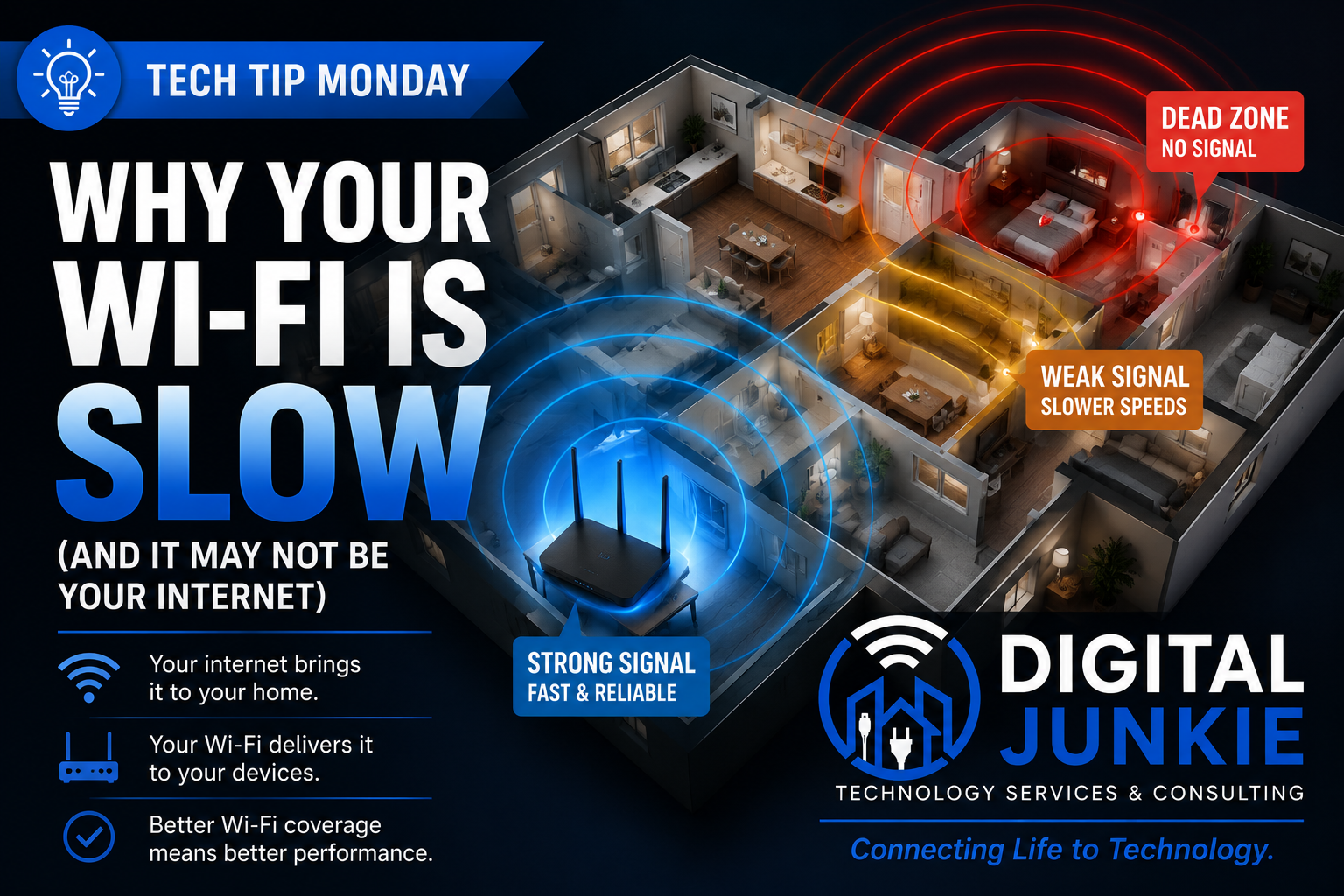
Tech Tip Monday: Why Your Wi-Fi Is Slow (And It May Not Be Your Internet)
Is Your Internet Actually Slow… or Is Your Wi-Fi the Real Problem?
One of the most common calls I receive starts with the same sentence:
“My internet is so slow.”
Sometimes that’s true—but more often than not, the internet isn’t actually the problem.
Your internet connection and your Wi-Fi network are two different things, and understanding the difference can save you money and a lot of frustration.
Internet Speed vs. Wi-Fi Speed
Think of your internet like the water coming into your house.
Your Wi-Fi is the plumbing that carries that water to every room.
You can have plenty of water coming into the house, but if the pipes are too small, clogged, or too far away, you won’t get great water pressure where you need it.
Wi-Fi works the same way.
You might be paying for fast internet from your provider, but if your wireless signal is weak, your devices won’t see those speeds.
Common Causes of Slow Wi-Fi
Some of the biggest problems I see include:
📍 The router is tucked away in a closet or cabinet.
🏠 The router is located at one end of the house instead of near the center.
🧱 Thick walls, brick, or metal interfere with the wireless signal.
📶 Older routers simply can’t keep up with today’s devices.
📡 Homes have grown larger, but many people still rely on a single wireless router.
In many cases, the solution isn’t buying faster internet—it’s improving the Wi-Fi inside your home.
Before You Upgrade Your Internet Plan…
Many people assume paying for a faster internet package will solve everything.
Sometimes it will.
Often it won’t.
If your Wi-Fi coverage is poor, doubling your internet speed usually won’t fix the problem.
It’s like installing a larger water meter while leaving the same old plumbing inside the house.
🛠️ Try This Before Calling IT
Walk around your home while running a speed test on your phone or laptop.
Test near the router first.
Then test in the rooms where you usually notice slow speeds.
If your speed drops dramatically as you move through the house, your internet may be working just fine—it’s your Wi-Fi coverage that needs attention.
The Bottom Line
Reliable Wi-Fi isn’t about buying the most expensive router or the fastest internet package.
It’s about having the right equipment in the right place for your home.
Whether it’s optimizing your current setup, improving coverage, or designing a better home network, a little planning can make a huge difference in everyday performance.
At Digital Junkie Technology Services & Consulting, I help homeowners and small businesses throughout Austin, Round Rock, Pflugerville, Georgetown, Cedar Park, Leander, Hutto, and surrounding Central Texas get the most from their technology.
Connecting Life to Technology.
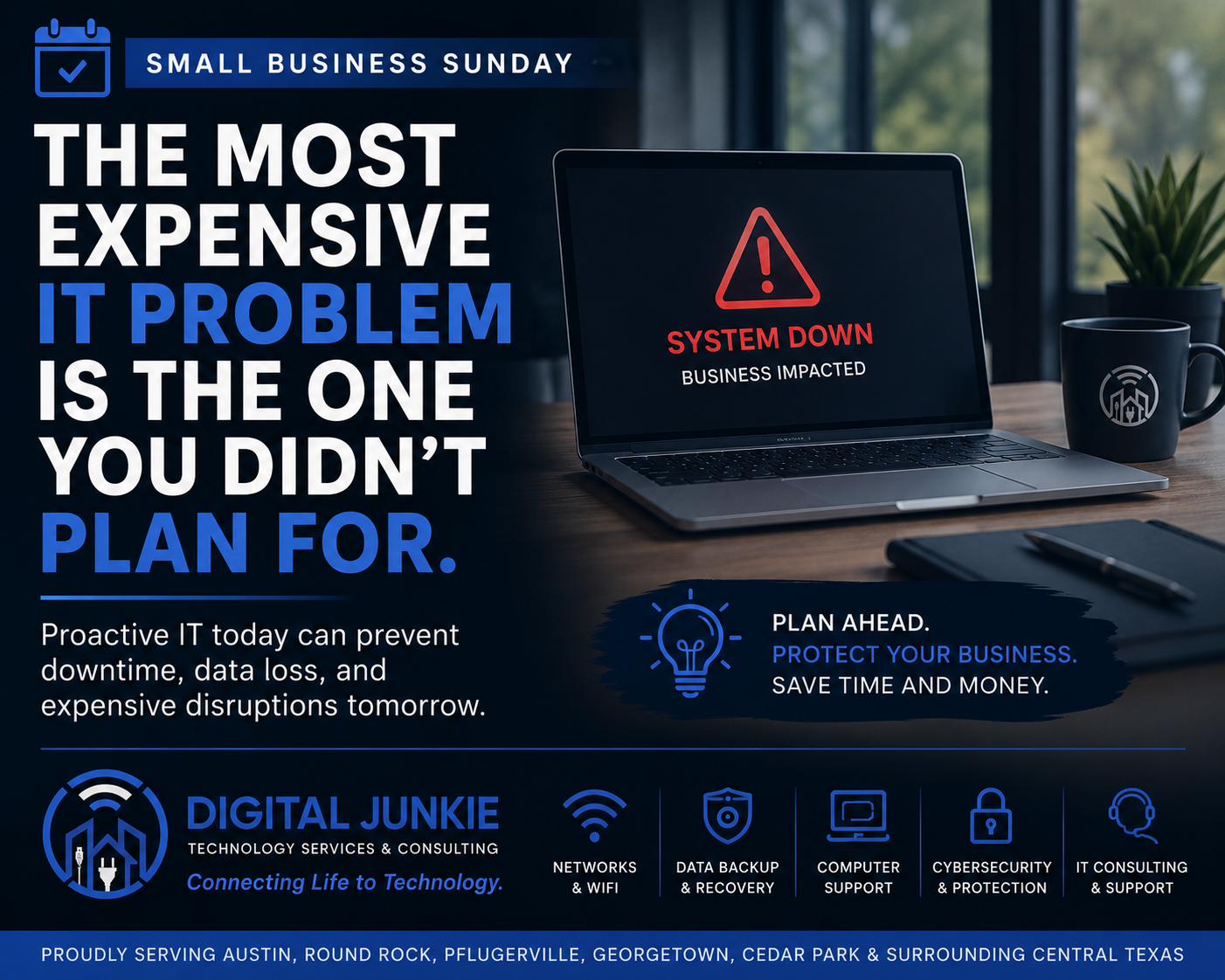
The Most Expensive IT Problem Is the One You Didn’t Plan For
Every small business owner plans for the obvious.
You carry insurance on your building. You insure your vehicles. You lock your doors at night and hope you’ll never have to use those policies.
But there’s one part of the business many owners don’t think about until it’s too late.
Technology.
I’ve been called into businesses because the internet suddenly stopped working. Servers failed. Hard drives died. Credit card systems went offline. Employees couldn’t access files. In almost every case, the biggest expense wasn’t replacing the equipment—it was the downtime.
When your technology stops, your business often stops with it.
It’s Not About Fancy Technology
A lot of people assume improving their IT means buying the newest computers or replacing everything at once.
Most of the time, that’s not true.
The goal isn’t to have the newest technology.
The goal is to have reliable technology.
Sometimes that means replacing aging equipment before it fails. Other times it means improving your Wi-Fi, organizing your network, creating a proper backup strategy, or simply documenting passwords and account information so you’re not scrambling during an emergency.
Small improvements made today can prevent major headaches tomorrow.
Ask Yourself These Questions
If your primary office computer failed tomorrow morning…
Could you keep working?
Are your important files backed up?
Does someone know how your network is configured?
Would your employees still be productive?
How long would your business be down?
If any of those questions make you pause, you’re not alone.
Most businesses are so focused on serving customers that technology planning gets pushed to the bottom of the list—until something breaks.
Prevention Costs Less Than Downtime
One hour of downtime can easily cost more than months of preventative maintenance.
Whether it’s missed sales, frustrated customers, delayed projects, or employees waiting for systems to come back online, the hidden costs add up quickly.
The best IT support isn’t just about fixing problems.
It’s about preventing them in the first place.
This Week’s Business Tip
Take 15 minutes this week and write down the answers to these three questions:
Where are my important business files stored?
How are they backed up?
If my main computer failed tomorrow, what’s my plan?
If you don’t have clear answers, don’t panic—but don’t ignore it either. Having a plan before you need it is one of the best investments you can make in your business.
At Digital Junkie Technology Services & Consulting, I help small businesses throughout Austin, Round Rock, Pflugerville, Georgetown, Cedar Park, Leander, Hutto, and the surrounding Central Texas area build reliable technology they can depend on. Whether it’s networking, Wi-Fi optimization, backup planning, computer support, or ongoing IT consulting, my goal is simple: keep your technology working so you can focus on running your business.
Connecting Life to Technology.
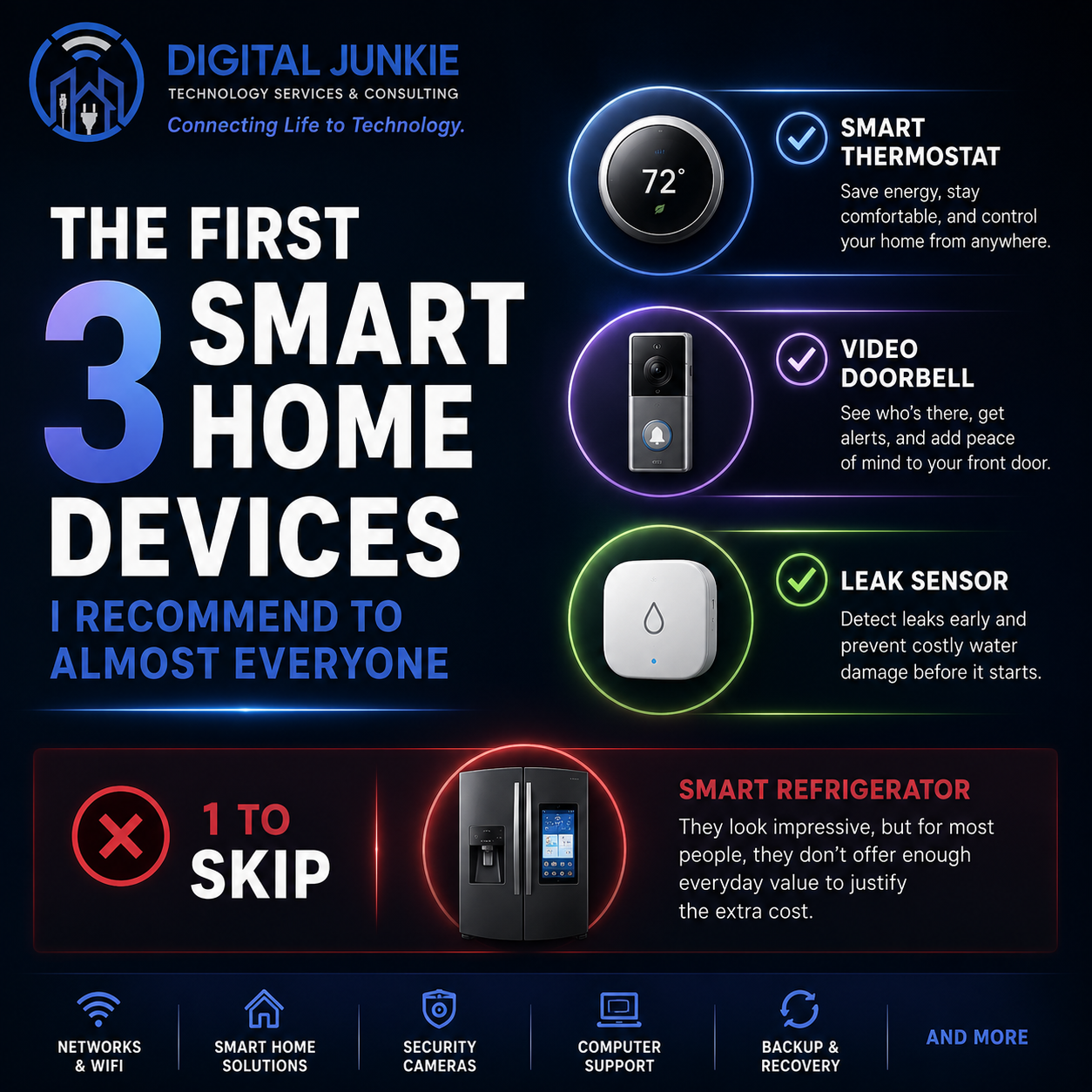
The First 3 Smart Home Devices I Recommend to Almost Everyone
Smart Home Technology That Actually Makes Everyday Life Better
Walk into any electronics store today and you’ll find shelves full of “smart” devices promising to make your life easier. The problem is that not every smart home gadget is worth your money.
As someone who installs and supports smart home technology for homeowners throughout Austin, Round Rock, Pflugerville, Georgetown, Cedar Park, and the surrounding Central Texas area, I’m often asked where someone should start.
My answer is almost always the same.
1. Smart Thermostat
If I could only recommend one smart home device, this would be it.
A quality smart thermostat helps keep your home comfortable while reducing energy usage. Whether you’re leaving for work, coming home from vacation, or simply want to adjust the temperature from your phone, it’s one of those upgrades you’ll use every single day.
It’s practical, reliable, and often pays for itself over time through energy savings.
2. Video Doorbell
A video doorbell adds both convenience and security.
Whether you’re checking on a package delivery, seeing who’s at your front door, or talking with a visitor while you’re away, it’s one of the easiest ways to make your home feel a little safer.
The good news is you don’t have to lock yourself into one particular ecosystem. There are several excellent options available, and choosing the right one depends on your needs and whether you prefer local storage or cloud-based features.
3. Smart Leak Sensor
This is probably the most underrated smart home device available today.
A small leak under a sink, behind a washing machine, or around a water heater can cause thousands of dollars in damage before anyone notices.
A smart leak sensor sends an alert the moment it detects water, giving you the opportunity to address a problem before it becomes a major repair.
For the small investment they require, leak sensors offer some of the best protection you can add to a home.
The One I’d Skip
Smart Refrigerators
They’re impressive to look at, but for most homeowners I don’t think they’re the best place to spend your money.
Features like recipe suggestions, calendars, weather displays, and touchscreens sound exciting, but most people already have those same tools on the phone in their pocket.
I’d rather invest in technology that improves comfort, enhances security, lowers utility bills, or helps prevent expensive repairs.
Buy Smart, Not Just Smart Home
The best smart home products are the ones that quietly improve your everyday life without adding unnecessary complexity.
If you’re thinking about upgrading your home but aren’t sure which products are worth buying—or which brands fit your needs—I’d be happy to help you choose the right solution before you spend your money.
At Digital Junkie Technology Services & Consulting, I help homeowners and small businesses throughout Central Texas with smart home installation, Wi-Fi optimization, networking, security cameras, computer repair, and technology consulting.
Connecting Life to Technology.

Prime Day is Here June 23–26: Great Tech Deals, Less Tech Stress
igital Junkie Prime Day tech setup and installation help for smart TVs, Wi-Fi systems, security cameras, smart home devices, and consumer electronics in Austin, Pflugerville, Round Rock, and Central Texas.
Amazon Prime Day is here from June 23–26, which means it is officially that magical time of year when people buy smart TVs, Wi-Fi systems, security cameras, smart home gadgets, streaming devices, laptops, soundbars, and random tech accessories they may or may not fully understand.
And honestly? That’s okay. We’ve all been there.
You find a great deal, click Add to Cart, and two days later there’s a box on your porch promising “easy setup.” Then somehow you’re sitting on the floor surrounded by cables, your phone app won’t connect, your Wi-Fi password suddenly feels like state-secret information, and the device is blinking at you like it knows you’re losing.
That’s where Digital Junkie Technology Services & Consulting comes in.
Buy the Deal. Let Us Handle the Setup.
Prime Day is a great time to save money on consumer electronics, but buying the right device is only half the battle. The real fun starts when it needs to be installed, connected, mounted, configured, updated, paired, synced, or convinced to stop flashing blue.
Digital Junkie helps homeowners and small businesses in Austin, Pflugerville, Round Rock, Georgetown, Hutto, Cedar Park, Leander, Taylor, and surrounding Central Texas areas with tech setup, smart home installation, Wi-Fi troubleshooting, TV mounting, home office setup, security cameras, video doorbells, and consumer electronics installation.
Basically, if it plugs in, connects to Wi-Fi, needs an app, or came with instructions written in microscopic print, we can probably help.
Prime Day Tech Worth Looking At
This is a good time to shop for:
Smart TVs and TV mounts
Soundbars and home theater equipment
Mesh Wi-Fi systems and routers
Security cameras and video doorbells
Smart locks, thermostats, and smart home devices
Streaming devices
Laptops, monitors, printers, and home office tech
Backup drives, cables, docks, and accessories
But not every “deal” is actually a good deal. Sometimes the cheapest camera needs a subscription. Sometimes the fancy router is overkill. Sometimes the TV is great but the mount, cables, and setup plan are not.
A bargain stops being a bargain when it turns into a three-hour argument with your living room.
Need Help Choosing What to Buy?
Digital Junkie can help before you buy, too.
If you’re not sure which Prime Day tech deal makes sense for your home, office, Wi-Fi setup, security needs, or budget, we can help you compare options and avoid buying something that looks great online but becomes annoying in real life.
We can help with:
Product advice before you order
TV installation and mounting
Smart home setup
Mesh Wi-Fi installation
Home network setup
Security camera installation
Video doorbell setup
Printer and computer setup
Small business IT support
General tech troubleshooting
Prime Day Should Save You Money, Not Test Your Patience
Take advantage of the Prime Day discounts from June 23–26, but don’t let the setup ruin the fun.
You shop the deals.
We make the tech work.
Digital Junkie Technology Services & Consulting
Connecting Life to Technology
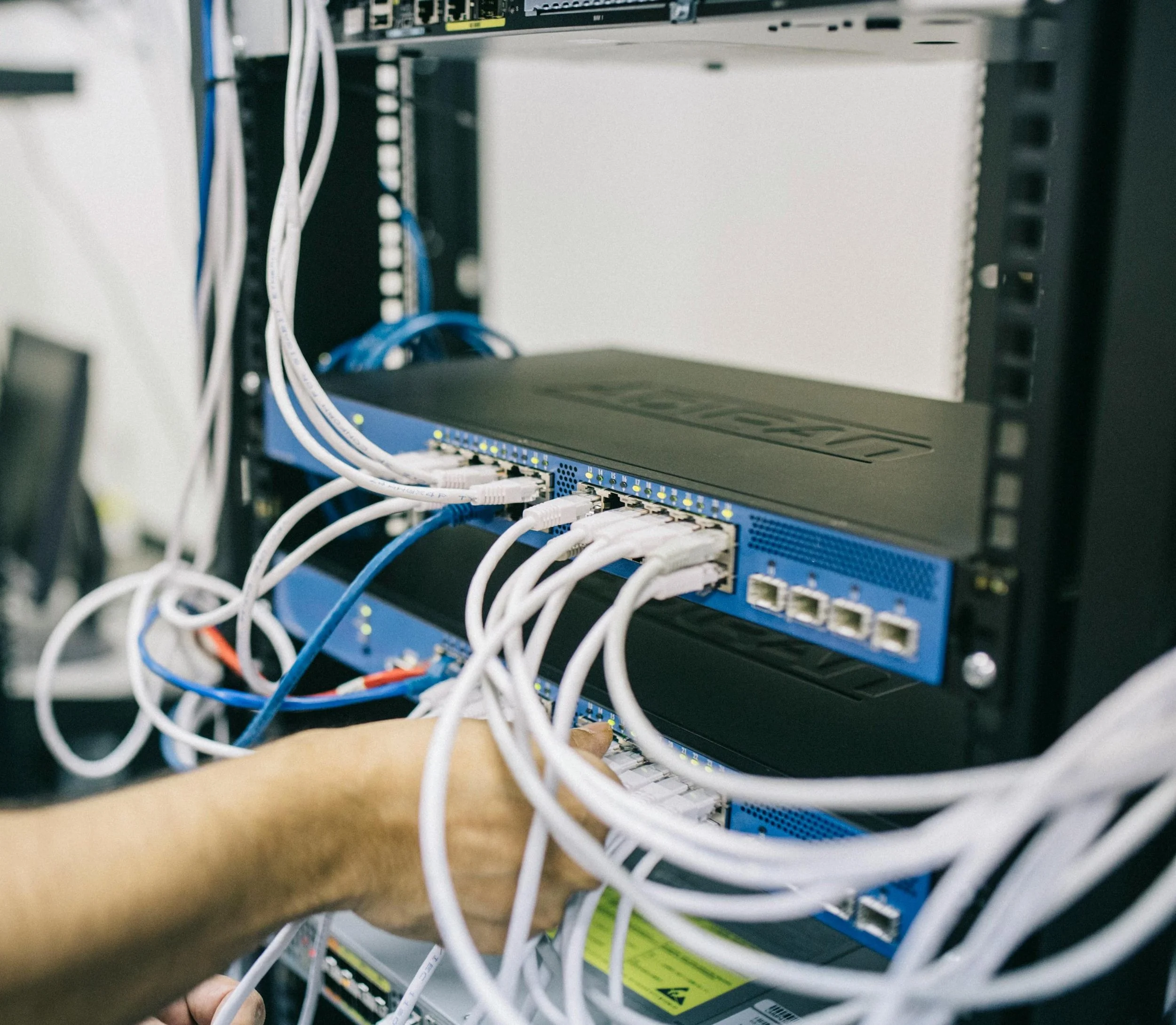
Why Adding Smart Home Devices Slows Down Your Wi-Fi — And What to Do About It
If you've noticed your internet feeling sluggish lately — videos buffering, video calls dropping, Alexa taking forever to respond — you're not imagining it. One of the most common tech complaints I hear from Austin homeowners is that their Wi-Fi was fine until they started adding smart home devices. A thermostat here, a few cameras there, some smart bulbs, a video doorbell — and suddenly everything feels slow.
Here's the good news: this is a completely solvable problem. Here's what's actually happening and what you can do about it.
Why smart devices slow down your Wi-Fi
Every device you connect to your Wi-Fi network — whether it's a laptop, a security camera, or a smart plug — competes for bandwidth and "airtime" on your router. A typical Austin home in 2026 has anywhere from 20 to 40 connected devices. While most smart home gadgets (smart lights, plugs, locks) use very little data on their own, they still create constant background traffic: checking for commands, downloading firmware updates, and syncing with the cloud.
The bigger bandwidth consumers are security cameras, smart TVs, and video doorbells. A single 1080p security camera can use 1–2 Mbps continuously. If you have four cameras running around the clock, that's up to 8 Mbps constantly chewing through your connection — before anyone in your house streams a single video.
Add a few people working from home, a gamer, and kids streaming, and you can see how a 100 Mbps internet plan can start to feel painfully slow.
The other problem: Wi-Fi dead zones
Many Austin homes — especially larger ones, two-story houses, or homes with thick walls — have areas where the Wi-Fi signal is weak or nonexistent. Smart devices placed in these dead zones (like a camera at the back of the garage or a smart lock on the front door) struggle to maintain a stable connection, causing them to repeatedly reconnect. Every reconnect creates a small burst of network traffic and slows things down further.
5 things you can do right now
1. Restart your router. Sounds basic, but most routers benefit from a restart every few weeks. Power it off, wait 30 seconds, power it back on.
2. Check how many devices are connected. Log into your router's app (most modern routers have one) and see how many devices are actually connected. You may find old phones, tablets, or neighbor devices you forgot about still eating up your bandwidth.
3. Move your router to a central location. If your router is tucked in a closet or in one corner of the house, moving it to a more central location can dramatically improve coverage.
4. Separate your smart devices onto a guest network. Most modern routers let you create a separate Wi-Fi network. Put your smart home devices on it and keep your computers, phones, and streaming devices on the main network. This stops your Ring camera from competing with your Zoom call.
5. Consider a mesh Wi-Fi system. If you have dead zones or a larger home (over 2,000 sq ft), a mesh system with multiple nodes is the single biggest upgrade you can make. Systems like Eero, Google Nest Wifi, or Orbi blanket your entire home with strong, consistent signal.
When DIY isn't enough
Sometimes the fix isn't just a router reboot — it requires actually understanding your home's layout, your internet plan, and how your devices are configured. If you've tried the basics and your Wi-Fi still struggles, it's worth having someone take a proper look.
At Digital Junkie, I help Austin homeowners untangle exactly these kinds of problems. I'll assess your current setup, identify the bottlenecks, and recommend the most cost-effective fix — whether that's a mesh system, a network configuration change, or something else entirely.
Call (737) 400-6482 or visit my Wi-Fi & Networking page to learn more. Most jobs can be scheduled within the same week.
Tags:
#wifi #smart home #networking #Austin TX #slowinternet #hometech
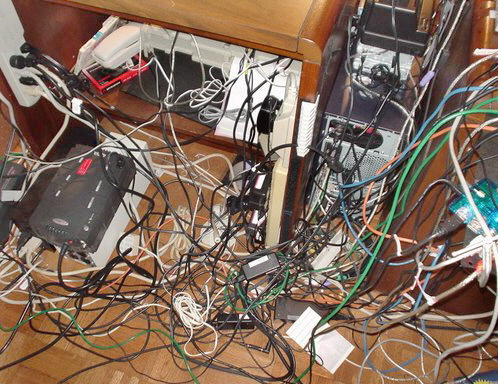
New Year, New Tech Habits: 7 Simple Fixes That Make Your Technology Work For You in 2026
The start of a new year usually brings resolutions about health, finances, and productivity—but one area most people overlook is technology.
Ironically, tech is the thing we rely on every single day, yet it’s often ignored until something breaks, slows down, or causes stress. After working with individuals and small businesses across the Austin area, I’ve learned something important:
Most tech problems aren’t caused by “bad technology.”
They’re caused by neglect, clutter, and poor setup.
The good news? You don’t need to buy all new gear or overhaul everything to make a big difference. Here are 7 simple tech habits you can adopt this year to make your technology more reliable, secure, and less frustrating.
1. Reset Your Password Habits (Once and for All)
If you’re still reusing passwords—or relying on your browser to remember everything—this is the year to fix that.
A proper password manager:
Creates strong, unique passwords for every site
Syncs across devices
Protects you if one account is compromised
This single change dramatically reduces account takeovers, email hacks, and “I’m locked out” moments.
New Year habit: One strong master password + a password manager = peace of mind.
2. Make Sure Your Backups Actually Work
Many people think they’re backed up… until they aren’t.
Photos, documents, business files, and memories should exist in at least two places:
One off-site (cloud backup)
One local (external drive or NAS)
As an IT consultant, data recovery is one of the most stressful services I provide—mostly because it’s often preventable.
New Year habit: Verify backups now, not after data is gone.
3. Declutter Your Devices (Software and Hardware)
Over time, devices collect:
Unused apps
Startup clutter
Old user accounts
Random cables and accessories
This slows systems down and creates confusion—especially in shared or business environments.
New Year habit: Remove what you don’t use, simplify what remains, and organize what matters.
4. Give Your Wi-Fi a Health Check
Wi-Fi issues are one of the most common tech complaints I hear—and they’re rarely caused by internet speed.
Most problems come from:
Poor router placement
Outdated networking equipment
Interference
Weak security settings
A proper Wi-Fi assessment can improve coverage, performance, and security without changing your internet provider.
New Year habit: Treat Wi-Fi like infrastructure, not an appliance.
5. Don’t Throw Away Old Computers—Repurpose Them
That “slow” old laptop or desktop may still have plenty of life left.
With the right setup, older machines can become:
Backup servers
Media servers
Home labs
Lightweight Linux systems running modern tools
This is often more cost-effective—and more powerful—than buying new hardware.
New Year habit: Reuse before you replace.
6. Properly Separate Work and Personal Technology
Blending work and personal tech leads to:
Security risks
Lost or overwritten files
Account sync issues
Compliance problems for small businesses
Even simple separation—different user accounts, storage locations, or devices—can make a huge difference.
New Year habit: Clear boundaries between work and personal technology.
7. Have a Go-To Tech Person Before Something Breaks
The worst time to look for IT help is during an emergency.
Whether it’s:
A failed update
A hacked email account
A broken computer
A new device setup
Having someone who already understands your environment saves time, money, and stress.
New Year habit: Build a relationship, not just a repair ticket.
What I See Every January
Every year starts the same way:
“This computer was working fine last year…”
“I thought it was backing up…”
“We’ve always done it this way…”
January is when small issues finally surface—and when fixing them early prevents much larger problems later in the year.
✅ Start the Year With Technology That Works for You
You don’t need more gadgets.
You need better habits, smarter setup, and reliable support.
I help individuals and small businesses in Austin simplify their technology, improve reliability, and reduce stress—without unnecessary upgrades or confusing jargon.
🔧 New Year Tech Checkup
Feeling overwhelmed or unsure where to start?
I offer a New Year Tech Checkup for individuals and small businesses that includes:
Device and network review
Backup and security verification
Wi-Fi performance assessment
Recommendations to improve reliability and reduce risk
📞 Call or Text: (737) 400-6482
📧 Email: eherring@digitaljunkie.tech
Start the year with confidence—before small tech issues turn into big ones.
Tags:
#NewYearTechTips #ITSupportAustin #SmallBusinessIT #HomeITServices #WiFiOptimization #DataBackup #Cybersecurity #DigitalJunkie