

Tech Explained Tuesday 012: What Is Artificial Intelligence—and What Is It Actually Doing?
Artificial intelligence, or AI, is a broad category of computer systems that perform tasks such as recognizing patterns, interpreting language, making predictions, and generating content. Many modern AI systems learn patterns from examples, then apply those patterns to new information. Their output can be useful without being correct every time.
An AI-powered spam filter and a chatbot perform different jobs. One may classify an incoming message; the other may draft a reply. Understanding that difference helps you choose a useful task and decide how carefully to check the result.
Is AI the same thing as machine learning?
AI is the broader field. Machine learning is one approach within it: building mathematical models that learn patterns from data instead of specifying every decision by hand. A model is the mathematical system used to turn inputs into outputs.
For example, a traditional rule could flag any email containing a particular phrase. A machine-learning filter could use many signals learned from example messages to estimate whether a new email is spam. Neither approach guarantees that every message lands in the right folder.
Generative AI is the part of this landscape that creates content, including text, images, and audio. AI also includes systems that recognize, classify, recommend, or predict without writing anything. IBM’s overview of artificial intelligence explains these related terms.
What happens during training—and when you use AI?
Training and inference are different stages.
During training, software adjusts a model using examples so that its outputs better match the training objective. For an email filter, those examples might include messages labeled as spam or legitimate mail.
Inference is the step where the trained model processes a new input and produces an output. The incoming email is new; the model applies patterns it has already learned to estimate its category. Google Cloud’s explanation of AI inference describes this distinction.
Providing extra context in a conversation can influence the next response without retraining the underlying model. For instance, “Make that shorter and suitable for a customer” changes the current task. It does not, by itself, mean the system has permanently learned your preferences. Saved-memory features and providers’ later use of conversations are separate, product-specific questions.
How does a chatbot write an answer?
A language model works with pieces of text called tokens. A token can be a word, part of a word, or punctuation. Using the available context, the model generates a sequence of these pieces to form a response. Google’s introduction to language models explains tokens and context.
That context may include your instructions, earlier conversation, attached material, or information supplied by connected tools. The exact inputs depend on the application. This is why “Explain this for a beginner in three bullet points” can produce a different answer from “Write a technical analysis.”
The generation process is not a built-in guarantee that every statement is true. NIST describes how generative AI can produce confidently presented false material, including through the statistical processes used to generate language. See its Generative AI Risk Management Profile.
Is AI searching the internet every time?
Do not assume that it is. Some AI applications can retrieve web pages or search connected information; others answer from the context and model already available to them. A current-sounding answer is not evidence that a current source was checked. For an example of search being added as a separate capability, see Anthropic’s explanation of its web search tool.
When freshness matters, ask for sources, open them, and check both the date and the actual supporting passage. A link that exists can still fail to support the claim beside it. For a product setting, use that product’s current official documentation and confirm that it matches your version.
What can you use AI for today?
Start with a task where you can recognize a good result and correct a poor one. These are illustrative exercises, not claims about a particular product or customer outcome:
• Turn your own non-sensitive notes into a short checklist. Compare the checklist with the original so that no obligation disappears.
• Draft a routine announcement from facts you supply. Check names, dates, prices, and any promises before sharing it.
• Ask for a plain-language explanation of an unfamiliar term. Compare important details with a reliable source.
• Brainstorm several ways to organize a project. Choose the version that fits your actual time, resources, and constraints.
Choose a smaller task if reviewing the output would take more effort than doing the work yourself. For exact totals, use a calculator or spreadsheet and check the inputs. For actions that affect people or systems, keep an appropriate human review step before anything is sent, changed, or relied upon.
How do you ask for a useful result?
Use a task, relevant context, a desired format, and a boundary. Here is a reusable example:
“Turn the notes below into three bullet points for a customer update. Use plain language. Preserve the dates exactly. Do not add facts; mark anything missing as a question. Notes: [paste non-sensitive notes].”
The boundary helps communicate what you want, but you still need to check compliance. A clear prompt reduces ambiguity; it does not make a model infallible.
1. Pick one outcome. Decide whether you need a summary, draft, explanation, or list of options.
2. Supply the necessary facts. Replace private names or details with placeholders when they are not needed.
3. Specify the audience and format. “For a beginner, in three bullets” gives useful direction.
4. Compare the response with your input. Look for missing details, changed meaning, or additions you did not provide.
5. Verify important claims independently. Edit the output before using it.
What should you check before sharing information with AI?
Keep passwords, account credentials, private customer records, and unnecessary confidential details out of a casual AI experiment. For work information, use only tools and settings approved for that information, and check the relevant privacy and retention terms first.
Data handling varies by service, account, and settings. A friendly chat interface does not tell you who can access an upload or how long it may be retained. NIST’s Generative AI Profile identifies data privacy alongside inaccurate output as a risk that needs active management.
A practical test is to use a made-up example or remove identifying details before asking the question. If the task still works, there is no reason to include the original sensitive information.
How do you tell whether the answer helped?
Judge the result against the job you gave it. Did it preserve the facts? Follow the requested format? Leave uncertainty visible? Save time after review, rather than just produce more words?
For an Austin business drafting a customer update, that means checking the date, the promised action, and the tone before sending it. For a home user organizing a task list, it means checking that the steps actually fit the equipment and situation. These are examples of applying the same review habit at different scales.
Digital Junkie helps make technology easier to understand. For a conversation about your technology needs, visit Digital Junkie, email info@digitaljunkie.tech, or call 737-400-6482. Austin and Surrounding Areas.
Tech Explained Tuesday 011: What Are Passkeys—and Will They Replace Passwords?
A passkey is a digital credential that lets you sign in to a supported app or website without typing that account’s password. You approve the sign-in using a device unlock method, such as a fingerprint, face recognition, or PIN. Passkeys can replace passwords for supported sign-ins, but they have not eliminated passwords across all accounts.
If you have seen a “Create a passkey” prompt and wondered whether to accept it, the useful questions are simple: where will it be saved, which devices can use it, and how will you get back in if those devices are unavailable?
What is a passkey in plain English?
Think of a passkey as a sign-in credential your device or credential manager uses for you. You do not invent it, memorize it, or type it into a website. Your fingerprint or PIN authorizes its use; that fingerprint or PIN is not itself the passkey.
A passkey provider is the system that manages the credential. It might be built into your operating system or supplied by a password manager. Knowing which provider saved it makes later troubleshooting much easier.
FIDO Alliance explains that biometric processing stays on your device rather than sending your fingerprint or face data to the website.
Source: https://fidoalliance.org/passkeys/
How do passkeys work?
When a passkey is created, it establishes a pair of cryptographic keys for the account. The website keeps the public key. The private key stays protected by the authenticator or passkey provider and is not disclosed to that website.
During sign-in, the service sends a challenge. After you authorize use of the passkey, your device supplies a signed response that the service can verify with the public key. You prove access to the credential without sending a reusable password.
Apple’s security explanation describes this public/private-key model and how Face ID or Touch ID can authorize its use. The important distinction is between approving a sign-in locally and giving the website a secret it can store.
Source: https://support.apple.com/en-us/102195
Why are passkeys more resistant to phishing?
A phishing page may copy a real website’s appearance. Passkey authentication checks the service identity, rather than relying only on whether the page looks convincing. A credential scoped to the real service cannot simply be used by a lookalike domain.
That is different from a password you could accidentally type into the wrong page. It is also different from a padlock icon: a fraudulent website can use HTTPS too. An encrypted connection does not establish that the business behind a page is legitimate.
Passkeys strengthen authentication, not every possible route into an account. Device compromise, deceptive recovery requests, and weaker fallback sign-ins still deserve attention. Keep devices updated and treat unexpected account-recovery messages carefully.
Source: MDN, Passkeys
https://developer.mozilla.org/en-US/docs/Web/Security/Authentication/Passkeys
Will passkeys replace passwords completely?
They can replace passwords in supported sign-in flows. Whether an account still has a password, and whether you can remove it, depends on that service’s rules. There is no single switch that converts every account you own.
For example, Google states that adding a passkey does not remove existing authentication or recovery factors. For a work or school account, administrator settings can also affect how passkeys are used.
Check each account separately. A successful passkey sign-in is not proof that its password has been deleted or that every device you use supports the same experience.
Source: Google Account Help
https://support.google.com/accounts/answer/13548313?hl=en
Synced versus device-bound passkeys
Synced passkeys can become available on compatible devices through your passkey provider. Device-bound passkeys remain on the specific authenticator where they were created, such as a hardware security key. Neither category means that every device or application will automatically work with it.
For a personal account, ask where the credential lives and whether your other devices can access it. For a business account, also ask who controls the provider account and how access will be handled when someone changes roles or leaves. A convenient personal setup may not match an employer’s requirements.
FIDO’s enterprise guidance distinguishes these credential types and the deployment decisions around them.
Source: https://fidoalliance.org/white-paper-fido-deploying-passkeys-in-the-enterprise-introduction/
How to try a passkey on one account
Use this checklist as a cautious first-account trial rather than changing everything in one sitting:
1. Choose a service you already use and open its official app or a known website address. Find its current passkey instructions in account security settings.
2. Use a personal device you control, with its screen lock enabled. Avoid creating a personal passkey in a shared device’s credential store.
3. Notice which provider the save prompt identifies. Record the provider’s name in your own account inventory; do not record PINs or recovery secrets there.
4. Follow the service’s setup prompts. Keep your existing working access while checking the new method.
5. Test a fresh sign-in on the device you expect to use. If another device matters to you, test that specific combination too.
6. Review recovery instructions before removing an existing sign-in method. Check that the recovery contact details and any supported backup options are current.
Google’s setup guide supports the personal-device and screen-lock precautions and warns that someone able to unlock a device with a saved passkey may be able to access the account. Exact menus and requirements vary by service, browser, and operating system.
Source: https://support.google.com/accounts/answer/13548313?hl=en
What if you lose your phone or replace it?
Start with two separate questions: can you regain access to your passkey provider, and can you regain access to the individual website account? Those are related, but they are not always the same recovery process.
Before replacing a device, check your provider’s migration instructions and confirm that required credentials work on the replacement. Do not erase your only working device as an experiment. For a device-bound credential, plan an additional supported sign-in or recovery route in advance.
Prepare a short personal checklist: provider name, official recovery instructions, where securely stored recovery material can be found, and which alternate method you have actually tested. If a device is stolen, follow the device maker’s lost-device steps and the affected services’ guidance for revoking access.
Account recovery can remain a target even after passkeys improve sign-in security. The UK National Cyber Security Centre discusses why recovery and reset processes still need protection.
Source: https://www.ncsc.gov.uk/sites/default/files/pdfs/blog/passkeys-not-perfect-getting-better.pdf
Common questions
Is a passkey the same as my fingerprint?
No. The fingerprint can authorize use of the digital credential; it is not the credential itself. Your device may offer another unlock method, such as a PIN.
Should I delete all my passwords now?
No. Review the options for each account, test your passkey, and understand recovery first. Continue protecting any passwords that remain active.
Do passkeys make an account impossible to hack?
No. They provide phishing-resistant authentication. Other weaknesses, including recovery methods and compromised devices, can still matter.
Will a passkey work on my work account?
Check with the account administrator. Support and policy may differ from your personal account, even on the same device.
What should I do if a passkey does not appear?
Check that you are on the correct service and account, using the expected provider and a supported browser/device combination. Consult the service’s current instructions before deleting credentials or changing recovery settings.
A useful first step today
Pick one supported personal account. Create a passkey, note where it is saved, test it, and confirm the recovery path. That small trial gives you something concrete to evaluate before changing your other accounts.
Have questions about your everyday technology? Contact Digital Junkie at www.digitaljunkie.tech, info@digitaljunkie.tech, or 737-400-6482. Serving Austin and Surrounding Areas.
Tech Tip Monday 011: Your Computer Has a Built-In Clipboard History You Probably Aren’t Using
Copied a link, copied something else, then went back to find that first link again? Clipboard history gives you a way to retrieve earlier copies. On Windows, open it with Windows + V. On a Mac running macOS Tahoe or later, open Spotlight with Command-Space, then press Command-4 to view Clipboard history. Enable the feature if prompted.
The useful change is simple: you can collect several pieces of information before deciding which one to paste. You do not have to keep interrupting a task to return to the original source.
How to use clipboard history on Windows
1. Press the Windows logo key and V together. Select Turn on if prompted.
2. Copy two short pieces of harmless text, one after the other.
3. Click in the document or message where you want to paste.
4. Press Windows + V and select the earlier entry.
5. For a reusable item, open its options and choose Pin.
Windows history holds up to 25 entries, with a 4 MB limit per item and support for text, HTML and bitmap images. Unpinned entries disappear after a restart; older unpinned entries also give way to new ones. Pinning keeps useful entries available after a restart. Microsoft documents these controls and limits in “Using the clipboard”:
https://support.microsoft.com/en-us/windows/apps/using-the-clipboard
How to find clipboard history on a Mac
On macOS Tahoe or later, press Command-Space, then Command-4, or click Spotlight’s Clipboard button. Choose Enable if asked. Search or browse for an entry, select it and press Command-C, then click your destination and press Command-V. Spotlight’s More menu also offers Clear History.
Check your macOS version under Apple menu > About This Mac if the feature is missing. Do not assume an older Mac installation has the same controls. Apple’s guide explains the Spotlight workflow:
https://support.apple.com/en-nz/guide/mac-help/mchl40d5b86b/mac
Try this before using it for real work
Open a blank note and type three practice lines: “meeting link,” “delivery instructions,” and “follow-up message.” Copy each line separately, then use history to retrieve the first one. This gives you an easy way to learn the selection process without exposing real personal or business information.
Now think about a task you repeat. For example, when drafting an appointment reminder, you might gather the meeting link, a parking note and a short preparation checklist. History can make assembling that draft less fiddly. These are examples of how you could use the feature, not claims about a particular customer’s results.
Before sending, read the finished message. A convenient paste can still be the wrong paste: the previous appointment’s link or an outdated instruction may look familiar enough to miss.
Choose carefully what you keep
A short public-facing reply, a frequently shared resource link or a general instruction can be a useful reusable item. A password, recovery code or confidential client note should not become a reusable snippet. Apple specifically warns that sensitive information may appear in clipboard history.
Use a password manager for credentials and your organization’s approved tools for confidential information. Before screen sharing, consider whether opening history would reveal something private. On a shared computer, review what you leave behind.
On Windows, clearing history leaves pinned entries in place, so remove those separately when needed. Cross-device clipboard syncing is a separate option in Settings > System > Clipboard; decide whether you want copied text traveling between devices before enabling it. The Microsoft guide above explains clearing and syncing.
If an item is missing
Start with a fresh, short test sentence. If that appears in history, compare the missing item with your system’s supported formats and retention limits. Also check whether you enabled history before copying it. Treat this as a temporary working list, not a recovery tool or a permanent archive.
Keep important text in a saved document. If you repeatedly need to organize dozens of approved replies, a maintained reference document may be easier to review and update than a growing collection of clips. Clipboard history works best when you can quickly recognize the few items you need.
Quick answers
Does clipboard history replace ordinary paste?
No. You can keep using your usual paste action when you want the latest item; open history when you need to choose something earlier.
Can it bring back everything I have ever copied?
No. Do not rely on it to recover an old item that was never retained, expired or was cleared. Return to the original source when the entry is unavailable.
What should I try first?
Use the three-line practice exercise above. Once choosing an earlier entry feels natural, try it during one everyday task and see whether it reduces backtracking.
Make everyday computer tasks easier
For readers in Austin and surrounding areas, Digital Junkie’s Tech Tip Monday focuses on practical ways to get more out of familiar technology. Need help getting more out of yours? Visit www.digitaljunkie.tech, email info@digitaljunkie.tech or call 737-400-6482.

Small Business Sunday 011: How to Future-Proof Your Business Technology
Future-proofing your business technology means making it easier to maintain, expand, and replace as your business changes. Start by documenting the systems you rely on, choose tools that work together and let you export your data, protect daily operations, and budget for upgrades before they become emergencies. No purchase can remove the need for future changes.
For a small business, the useful question is: “Will this technology still support the way we need to work, and can we change it without disrupting everything?” A clear plan helps you answer that before spending money.
Start with the work your technology needs to support
Write down the tasks your business must complete each day: taking orders, booking appointments, sending invoices, accessing project files, or communicating with customers. Then identify the devices, accounts, software, and connections behind each task.
For example, imagine a service company that schedules jobs through an online calendar. Its daily work may depend on more than that calendar: staff phones, internet access, the business email account, and the person who manages permissions all matter. This is a planning example, not a customer case study.
Set a specific goal before comparing products. “Let two more employees schedule jobs without duplicate entries” gives you something to test. “Modernize our technology” does not tell you whether a purchase succeeded.
What belongs in a business technology inventory?
A useful inventory records what you have, who is responsible for it, what it supports, and when a decision is due. Begin with a simple spreadsheet or shared document containing these fields:
• Device, application, subscription, or service name.
• Business task it supports and people who depend on it.
• Responsible owner and a backup contact.
• Renewal date, current cost, and vendor support deadline, if published.
• Where important data is stored and how it can be recovered.
• Known problems and the next action needed.
Include routers, printers, mobile devices, domain registration, email, and software subscriptions—not just computers. Record where authorized staff can find access instructions, but keep passwords and recovery codes in an appropriately secured system rather than the inventory sheet.
Mark the systems whose failure would stop essential work. An unreliable device used for occasional printing and an account that controls customer bookings deserve different priorities. Check support dates against the vendor’s official lifecycle information; age alone does not tell you whether something remains supported.
What should you check before buying business technology?
Evaluate a proposed purchase against a real workflow. Ask the vendor to demonstrate the steps your team actually performs, and confirm which features are included in the specific plan you would buy.
Compatibility: Does it work with your current devices, operating systems, and essential applications? If an integration is advertised, test whether it moves the information you need in the right direction and preserves the required fields.
Growth: What happens when you add staff, another location, more storage, or more transactions? Ask about user limits, plan changes, and administrative controls. Avoid paying for speculative capacity without a credible need.
Data access: Can you export records in a usable format? Request a sample export and check whether attachments, notes, and relationships between records are included. A list of customer names may be inadequate if you also need their job history.
Support: Who handles problems, during which hours, and through what channels? Understand the difference between a promised response and an actual resolution. Check the vendor’s documentation and written terms.
Total cost: Compare purchase or subscription costs alongside setup, migration, accessories, training, support, and eventual exit costs. Model a realistic current team size and a plausible growth scenario using actual quotes.
These questions apply whether you are choosing a cloud service, a local application, or new hardware. The right choice depends on your workflow and requirements, not the category alone.
Test one workflow before a wider rollout
Run a limited trial with a small group and appropriate sample data. Follow an everyday task from start to finish—for example, creating an appointment, assigning it, updating it, and producing the record your team needs afterward.
Decide what success looks like before the test: no missing records, acceptable performance, required permissions working, and staff able to complete the task. Capture problems and the time needed to resolve them. Avoid putting sensitive business information into an unapproved trial environment.
Before moving everyone, identify who owns the rollout, when the change will happen, how staff will learn the new process, and how you would return to the previous setup if the trial fails. Include a data check after migration rather than assuming a completed import means every record is correct.
Make security and recovery part of the plan
Protecting the systems you already use is part of preparing for the future. NIST’s small-business guidance recommends multifactor authentication, software updates, staff awareness, and protected, tested backups. Multifactor authentication adds another form of identity verification when signing in; use phishing-resistant options where available.
Assign responsibility for updates and account access. When roles change or someone leaves, review access rather than leaving unused permissions in place. Show staff how to report suspicious messages through a known contact.
Source: NIST, Cybersecurity Basics
https://www.nist.gov/itl/smallbusinesscyber/cybersecurity-basics
For recovery planning, choose an important business process and ask two concrete questions: how long could it be unavailable, and how much recent work could you afford to recreate? Use your answers to discuss backup frequency, recovery options, and costs with whoever manages your systems.
Run a controlled restore test into a safe location. Confirm that the recovered files open, the needed information is present, and an authorized person can access it. Record the result, any missing steps, and who is responsible for correcting problems. A successful file restore does not by itself prove that an entire application or business process can be recovered; test the parts your operations depend on.
Build an upgrade plan your budget can support
Create a short list of proposed changes. Give each item a reason, an owner, an estimated cost, and a target date. Rank it by business impact, support deadlines, and the availability of a workable alternative.
As an illustrative planning approach, first address a critical system nearing its vendor’s support deadline or an unresolved recovery problem. Next evaluate recurring workflow bottlenecks. Schedule cosmetic improvements or low-impact convenience purchases after those needs have been considered.
Spread planned changes across a realistic calendar. Include the cost of training and the time people will spend transitioning, not just the invoice. Review the plan periodically and whenever hiring, a move, a new service, or a vendor change affects your requirements. A quarterly review can be a practical starting cadence; adjust it to your business.
A practical first 30 days
Week 1: Document your essential workflows and the systems behind them. Assign owners and identify missing information.
Week 2: Check support and renewal dates. Review access to important accounts and arrange a controlled restore test with the person responsible for backups.
Week 3: Pick one operational problem and test a possible improvement against clear requirements. Include staff who will use it.
Week 4: Turn the findings into a prioritized plan with owners, estimated costs, and target dates. Schedule the next review.
This is a suggested starting sequence, not a reason to delay an urgent repair or a known security issue. Scale it to the time and people available.
Common questions about future-proofing business technology
Can you completely future-proof a business?
No. Business needs, software, and vendor support change. The goal is to make changes manageable through documentation, adaptable tools, tested recovery, and planned replacement.
Do you need to replace every older computer?
No. Evaluate support status, reliability, compatibility, and the work it needs to perform. Keep equipment that still meets your requirements; plan action for equipment that does not.
Does moving everything to the cloud solve the problem?
No. Evaluate account administration, data export, connectivity, recovery, support, and ongoing cost for each service. A cloud product still needs an owner and a plan for change.
What is the best first step on a limited budget?
Document the systems behind your most important business task. Use that list to identify the most consequential gap before choosing a purchase. This helps turn a vague upgrade wish into a specific decision.
How do you know an upgrade is worth it?
Define the operational problem and a measurable acceptance test before buying. Compare the full cost with the expected improvement, then use a pilot to check your assumptions. Avoid treating a vendor demonstration as proof that your workflow will succeed.
Choose one action for this week
Pick the business process you would least want to lose on a busy day. List what it depends on, name the person responsible, and identify the next improvement to investigate. That is a concrete starting point for a technology plan you can maintain.
For a conversation about your business technology in Austin and Surrounding Areas, contact Digital Junkie at www.digitaljunkie.tech, info@digitaljunkie.tech, or 737-400-6482.
Wi-Fi Wednesday 010: Should You Use Your Internet Provider’s Router or Buy Your Own?
Keep your internet provider’s router if it delivers reliable coverage, has the settings you need, and comes at a reasonable total cost. Buying your own makes sense when you want specific network controls, a different coverage solution, or savings from an equipment fee you can actually remove.
The decision is about your home and your needs. A retail router is not automatically faster, more secure, or cheaper. But choosing the right one can give you much more say in how your network works.
When should you keep the provider’s router?
Provider equipment is often the easiest route to getting connected. The provider knows the hardware, supplies setup instructions, and can usually help troubleshoot its own equipment. Replacement and support terms depend on your plan.
Keeping it is a reasonable choice when:
- Wi-Fi reaches the rooms where you need it.
- Calls, streaming, and everyday browsing work reliably.
- The available settings are enough for your household.
- Equipment is included, or the fee is worth the convenience to you.
- You prefer one place to call when something goes wrong.
Before buying anything, open your provider’s app or router settings and see what is already available. Some gateways offer device lists, address reservations, guest networks, and other controls. Others expose fewer options or manage certain settings automatically. The exact model, firmware, and provider configuration matter more than the label “ISP router.” ISP simply means internet service provider.
What can your own router give you?
The strongest reason to buy is a feature you will actually use. Read the manual for the exact model before purchasing; do not assume that every retail router offers the same controls.
QoS: help important traffic when the connection is busy
Quality of Service, or QoS, lets a supported router give selected traffic or devices priority. Imagine a work call competing with a large game download. A suitable QoS system can help manage that competition rather than treating every transfer the same way.
Check whether the router prioritizes entire devices, particular applications, or both. TP-Link’s QoS instructions illustrate how supported models can prioritize devices and use configured bandwidth values. Incorrect settings can limit performance, so follow the model’s instructions and test the result.
QoS does not increase the speed of your internet plan or fix weak Wi-Fi coverage. It helps allocate capacity when there is contention. A wired connection or better access-point placement may address a different part of the problem.
Source: TP-Link, How to set up QoS — https://www.tp-link.com/us/support/faq/1104/
DHCP reservations: keep useful local addresses consistent
DHCP automatically gives devices addresses on your home network. Provider routers commonly do this already. The feature to compare is how much control you have over those assignments.
A DHCP reservation tells a compatible router to give a particular device the same local IP address. That can be useful for a printer, a network storage device, or equipment you manage through an address in your browser. For example, a reserved printer address can make an address-based printer setup easier to maintain.
A reservation is not the same thing as purchasing a static public IP address from your provider. It also will not solve every printer-discovery problem. Follow your router’s reservation process rather than manually assigning an address that might conflict with another device.
Source: TP-Link, DHCP reservation for a fixed IP address — https://service-provider.tp-link.com/faq/439/
Monitoring: understand what is connected
A useful dashboard can show connected devices and, on supported models, their traffic usage. That can help you investigate a busy connection: is a computer downloading an update, or is a streaming device using the network?
Compare the detail offered. A device list is different from live bandwidth reporting, and live reporting is different from a history of usage. ASUS documentation, for example, describes traffic-monitoring tools on supported hardware. Check what your chosen router records, how long it retains that information, and whether a subscription is needed.
Network monitoring does not mean you can read all encrypted activity or see every page someone opens. Treat it as a troubleshooting tool, with limits that vary by product.
Source: ASUS RT-AX55 user manual, Traffic Analyzer — https://dlcdnets.asus.com/pub/ASUS/wireless/RT-AX55/E18121_RT-AX55_UM.pdf
Other controls worth comparing
Depending on your needs, look for guest-network isolation, custom DNS settings, parental controls, VPN support, and a clear update policy. DNS translates names such as website addresses into network addresses. A guest network can help separate visitors from household devices when isolation is supported and enabled.
Do not buy for a long feature list alone. Ask whether the controls you want are available in the operating mode you will use, whether they require a cloud account, and whether advanced features cost extra. A simple retail router may offer less control than you expected.
Does buying a router save money?
Only count charges that will actually disappear from your bill. Some plans include equipment. Some require the provider’s gateway even when you add your own router. A router purchase by itself does not guarantee rental savings.
Here is an illustrative example, not a current provider quote:
- Removable equipment fee: $10 per month.
- Total required replacement-equipment cost: $150.
- Added recurring costs: $0.
- Break-even point: $150 divided by $10 = 15 months.
- Over 24 months, the fee would total $240. Buying would save $90 under these assumptions, before taxes or replacement costs.
Use this calculation for your situation:
Break-even months = total upfront cost ÷ net monthly savings.
Net monthly savings means the fee removed minus any new recurring cost. If the net savings are zero or negative, there is no rental-fee break-even point. You might still buy for better controls, but that is a different benefit.
Include every required purchase: router, modem if needed, additional coverage equipment, and any chosen setup service. Check subscription charges and possible changes to bundled benefits. Equipment also has a useful life; a one-time purchase is not a promise that it will last forever.
Ask your provider: “If I use my own equipment with this exact plan, which charges disappear, and which equipment must remain?” Get the answer before buying.
A router is not always a replacement for the whole box
People often call the provider’s box a router, but it may be a gateway combining several functions.
A modem connects to a cable or other supported internet service. A router directs traffic between your local network and the internet. A Wi-Fi router also provides wireless access. Fiber installations use an optical network terminal, or ONT, to handle the fiber connection; depending on the installation, it may be separate from or integrated with other equipment.
Buying a Wi-Fi router does not automatically replace a modem, an ONT, or equipment the provider requires for authentication or other services.
For cable service, confirm any replacement modem is approved for your exact provider, plan speed, and phone service if applicable. Xfinity publishes guidance on approved third-party equipment, including checking compatibility before purchasing. Rules can vary by service and plan.
Source: Xfinity, Using approved third-party equipment — https://www.xfinity.com/support/articles/list-of-approved-cable-modems
Can you use your own router behind the provider’s gateway?
Often, yes, but the correct setup depends on the gateway and service.
Bridge mode can disable a gateway’s routing functions while retaining its modem function. Xfinity documents this approach for supported gateways. Enabling it also changes which provider Wi-Fi and app features remain available.
IP Passthrough is another approach on supported equipment. AT&T documents configurations that pass the gateway’s public address to a downstream device such as your router. This is not identical to bridge mode, and instructions differ by model. Your own router must be configured to provide the protection and network services it takes over.
Simply connecting two devices in router mode can create double NAT: two layers of network address translation. Everyday browsing may still work, but some gaming, remote-access, and port-forwarding setups can become more complicated. Follow provider guidance rather than toggling settings at random.
If you only need better wireless coverage, access-point mode may be another option. In that arrangement, the provider’s router keeps managing the network while the added equipment supplies Wi-Fi. Some routing features, such as QoS or DHCP management on the added unit, may be unavailable in that mode. Check before purchasing.
Sources: Xfinity, Bridge Mode — https://www.xfinity.com/support/articles/wireless-gateway-enable-disable-bridge-mode
AT&T, IP Passthrough and DMZplus — https://www.att.com/support/smallbusiness/article/smb-internet/KM1188700/
Source: TP-Link, Access Point Mode vs Router Mode — https://www.tp-link.com/us/support/faq/2420/
A practical checklist before you buy
1. Name the problem. Is it missing controls, weak coverage, connection congestion, or an equipment charge? Those problems may need different solutions.
2. Check your existing model. Read its settings and documentation before assuming a feature is missing.
3. Confirm compatibility. Identify the modem or gateway, connection type, plan speed, and any phone or TV dependencies.
4. Confirm the features. Look for the specific QoS behavior, address reservations, monitoring, and operating modes you need.
5. Match the hardware to the job. Check wired-port speeds and coverage needs. Router specifications cannot make your internet plan faster, and placement still matters.
6. Calculate the whole cost. Use the fee your provider confirms it will remove, including all required equipment and subscriptions.
7. Plan the handoff. Follow provider and manufacturer instructions, keep a way to return to the working setup, and confirm service works before returning rented equipment. Keep the return receipt and check the next bill.
Who handles updates and troubleshooting?
With your own router, you take responsibility for its administration. Use a strong administrator password, install supported firmware updates, and enable automatic updates if the model offers them and that suits your setup. Keep a record of important settings and replace equipment when security support ends.
Your provider remains responsible for its service, but support for your purchased router may come from the manufacturer or a separate technician. Ask where that support boundary falls before switching. Convenience has value, especially if you do not want to manage network settings yourself.
Frequently asked questions
Is my own router always better than the ISP router?
No. It is better for you when it solves a real problem or provides controls you need. A reliable included gateway may be the better fit for a household that values simplicity.
Will a new router make my internet faster?
It can improve performance if the existing router is the bottleneck. It cannot increase your subscribed internet speed or repair a provider outage. Wi-Fi placement, interference, device capabilities, and wired-port limits also matter.
Do I need my own router to use DHCP?
No. Home routers normally assign local addresses through DHCP. Compare reservation and configuration options rather than treating DHCP itself as an exclusive retail-router feature.
Will buying a router remove my equipment fee?
Not necessarily. Confirm the exact fee and which equipment must be replaced or returned. Adding your router behind a required gateway may leave your bill unchanged.
Should I buy a router if my provider’s equipment is free?
Consider buying if you need features or coverage the included setup cannot provide. If it already does the job, there may be no practical reason to spend more.
Make the decision around your home
Keep the provider’s equipment when it meets your needs at a fair total cost. Choose your own router when you can point to useful controls, a suitable coverage plan, or verified savings—and you are prepared to manage it.
Need help choosing and setting up your router? Contact Digital Junkie for help in Austin and Surrounding Areas.
737-400-6482
Tech Explained Tuesday 010: What Is a Password Manager—and Is It Safe to Use One?
A password manager is an app or built-in browser or device tool that generates, stores, and fills passwords. A reputable, well-maintained manager is generally a safer approach than reusing passwords across accounts, provided you protect access to it and understand its recovery process. It reduces the work of using a different strong password everywhere; it does not remove every security risk.
If you have ever reset a password, immediately forgotten the replacement, and reused an old favorite, you know the problem. Remembering dozens of unrelated passwords is difficult. A manager lets you move that job into a tool designed for it.
CISA recommends password managers to help generate and securely store strong passwords. The practical benefit is consistency: you can use unique passwords without having to memorize each one. [1]
How does a password manager work?
Think of it as a digital vault containing an entry for each account: the website address, username, and password. Encryption protects the stored information by transforming it into unreadable data that requires the appropriate key to decode. The details of that protection depend on the product and its design.
During everyday use, you unlock the manager, choose a saved login, and let it fill the matching website or app. When you create an account or change a password, its generator can suggest a strong replacement. Some managers synchronize entries across devices; check which devices and browsers your chosen product supports.
A standalone manager commonly uses a master password or passphrase to protect access. A built-in manager may rely on your device and account security instead. Fingerprint or face unlock can make access more convenient, but you should still understand which password or recovery method is needed after a restart, device change, or lockout.
Why is it better than reusing one password?
If a password is exposed at one service, attackers can try it on other services. A different password for every account prevents that same leaked password from working elsewhere. It does not stop unrelated attacks or guarantee that an account is secure. NCSC specifically identifies password reuse as a reason to adopt unique passwords. [2]
For example, imagine using the same password for a shopping account and your email. A leak involving the shopping login creates another opportunity to attack your inbox. If those passwords are different, that particular shortcut fails.
Importing an existing password into a manager does not make it unique. You must change the password through the actual website's account settings and save the replacement in the manager. Merely editing a vault entry will not update the website.
Is putting all your passwords in one place safe?
It is reasonable to question that concentration of information. A vault is valuable to an attacker, so protecting it matters. The decision is about replacing a weak habit with a better-managed process, not finding a tool that cannot fail.
Consider these limits:
• A weak or reused master password undermines protection.
• An unlocked vault on an unattended computer may expose entries.
• Malicious software on a device can threaten information you access there.
• Software flaws and provider incidents remain possible.
• Losing access without a usable recovery method can lock you out.
Encryption is one layer. Device updates, screen locking, careful sign-ins, and recovery planning are part of using the manager well. NCSC's buyer guidance emphasizes both security and usability, including encrypted storage and matching saved credentials to the correct site. [3]
Autofill can help you notice a suspicious sign-in page when your expected login is not offered. Do not treat autofill as proof that every page is trustworthy, or override a mismatch without checking the address. Navigate through a known bookmark or the service's official app when unsure.
What should you look for when choosing a manager?
Start with the devices you actually use. A tool that works well on your computer but is awkward on your phone may encourage you to fall back into old habits.
Compare these practical requirements:
• Compatibility: Does it work with your computers, phones, and browsers?
• Security documentation: Does the provider clearly explain vault protection and sign-in safeguards?
• Maintenance: Is the product actively supported, with a clear update process?
• Recovery: What happens if you forget the master password or lose your phone?
• Portability: Can you move your data if you later change tools?
• Cost and access: Does the plan cover the features and devices you need?
A browser or device manager can be a practical starting point. A standalone manager may be useful when you move between different devices or browsers, or need additional sharing features. Neither category is automatically best for everyone. Choose a setup you can use consistently, and review the provider's current instructions before migrating accounts.
For workplace accounts, follow the organization's approved tools and sharing policies. Do not move business credentials into a personal vault without authorization.
How to secure your password manager
Protect the account that unlocks it
If the manager uses a master password, make it long, unique, and memorable to you. Do not reuse an email password, a familiar phrase from social media, or an example from an article. A passphrase is a password made from multiple words; its value depends on length and unpredictability, not just adding spaces.
Enable multifactor authentication, or MFA, where supported. MFA requires another kind of proof in addition to a password, such as an authenticator code or security key. It adds protection to account sign-in, but its exact role varies by product. It does not necessarily protect a stolen encrypted vault file from offline guessing. CISA recommends adding MFA to account security. [4]
Also enable MFA on important individual accounts. Securing the password manager does not automatically enable it on your email or other services.
Plan for recovery before you need it
Read the provider's recovery instructions during setup. Find out what a recovery code can restore and what it cannot. A code that bypasses a lost second factor may not recover a forgotten master password.
Keep the required recovery material in a secure place you can access without opening the locked vault. The only copy should not be inside the system it is meant to help you recover. Consider who could access a printed copy, and keep it protected accordingly.
Recovery differs substantially among products. For example, Bitwarden lists specific recovery possibilities and explains that, if none apply, it cannot recover the account's data. That example illustrates why you should check your chosen manager's process rather than assume support can unlock everything. [5]
Keep the device and vault protected
Install the official application or extension from the provider's verified download page or your device's official store. Keep it and your operating system updated. Configure the vault to lock when appropriate, and lock your computer when you leave it.
Avoid saving credentials on public or shared-access computers. An account-management tool is only part of the protection surrounding the device you use it on.
A practical way to get started
1. Set up the manager and complete its security and recovery settings first.
2. Start with your email account. Your inbox often receives password-reset messages for other services, so it deserves particular attention.
3. Visit the email provider's official account settings. Generate a unique password, save it, and complete the change on the website.
4. Confirm the saved login works before moving on. Keep an existing trusted session available while checking your setup.
5. Enable the account's supported second verification step and store its recovery information securely.
6. Replace reused passwords on your other accounts, working through a manageable group at a time.
Do not delete your previous records until you have confirmed the replacement entries work. If you use an export file to migrate passwords, check whether it is encrypted; an unencrypted export can expose every included login. Remove unnecessary migration files after you have verified the transfer, following the provider's instructions.
Common questions about password managers
Can a password manager be hacked?
Yes. No software is immune to flaws or attacks. The consequences depend on what was accessed, the product's design, and how the account and devices were protected. Follow the provider's official incident guidance if a problem is reported.
Does a manager change my old passwords automatically?
Saving or importing a login usually stores the existing password. Change reused passwords on the relevant websites, then save and verify the new entries. Do not assume an import has fixed password reuse.
What if I forget my master password?
Use the recovery options documented by your provider. Some require advance setup, and some situations cannot be recovered. Learn this before you depend on the vault for all your accounts.
What about passkeys?
Passkeys let you sign in using cryptographic credentials rather than typing a reusable password. NCSC recommends them where available. You still need to understand how to access them on another device and recover access if a device is lost. Password managers remain useful for accounts that still require passwords, and some can also store passkeys. [2]
Remember less, protect access better
Start with a manager you can use reliably, secure its access, and learn recovery. Then replace reused passwords one account at a time. That is a practical improvement you can build on without reorganizing every login in one sitting.
Need help getting started? Contact Digital Junkie at www.digitaljunkie.tech, email info@digitaljunkie.tech, or call 737-400-6482. Serving Austin and Surrounding Areas.
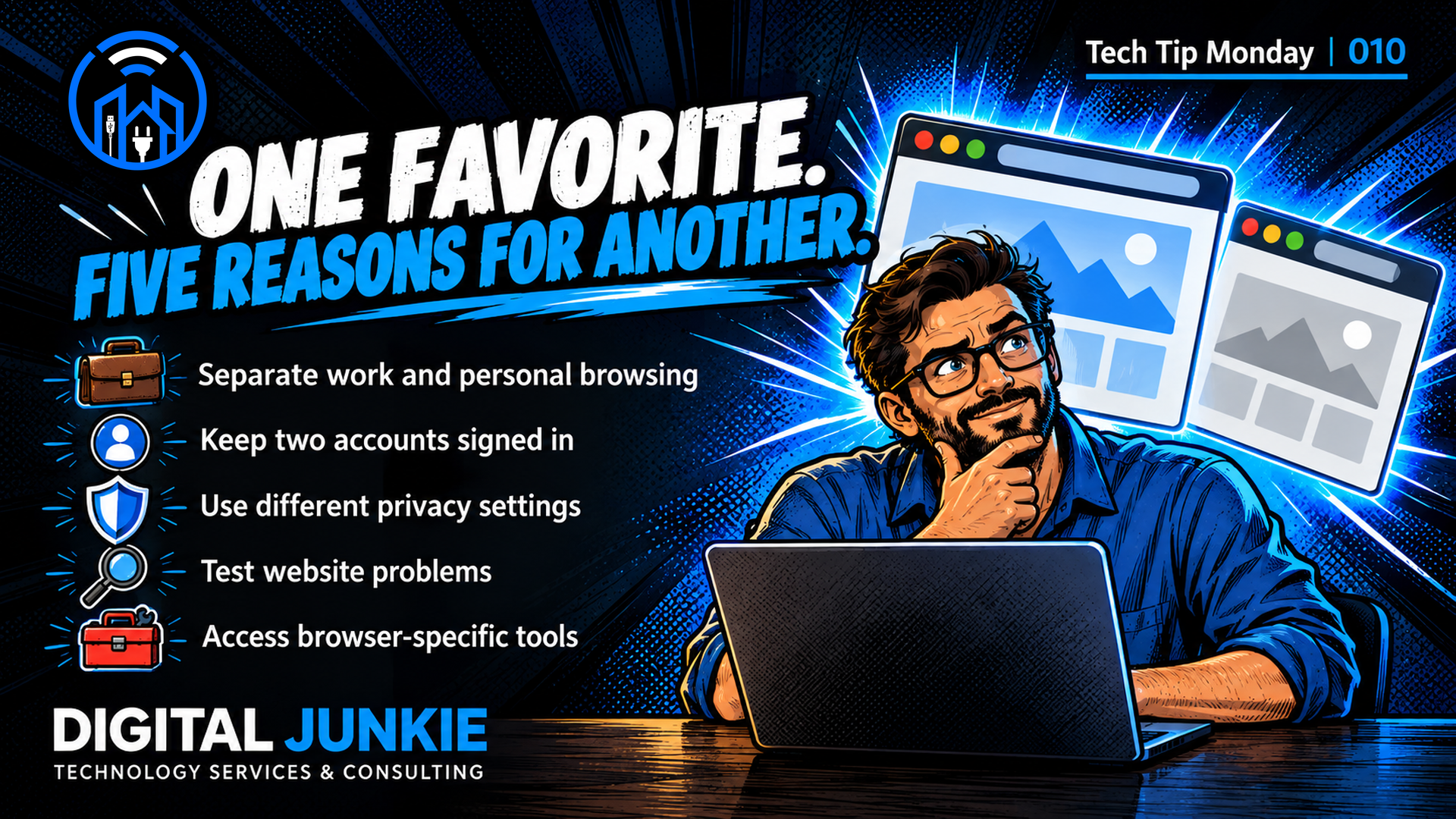
Tech Tip Monday 010: Why You Should Have More Than One Web Browser Installed
A second web browser can help you separate work from personal browsing, stay signed into two accounts on the same service, use different privacy settings, test website problems, and access a feature your usual browser does not offer. You can keep your favorite as the default and give the second one a specific job.
Think about a typical day: you open a work document, check personal email, research a purchase, and return to a business account. Everything happens in a browser, but those tasks do not necessarily need the same accounts, settings, or tools.
The goal is a setup you can recognize and use consistently. Here are five reasons a second browser can earn its place on your computer—and how to decide whether browser profiles would be enough instead.
1. Keep work and personal browsing separate
Use one browser for business email, work documents, and client tools. Use another for personal email, shopping, and entertainment. Separate browser icons give you a visible cue about which part of your day you are entering.
For example, a business owner could keep scheduling and invoicing bookmarks in the work browser while leaving household shopping bookmarks in the personal one. This is an example of organization, not a guarantee that you will never select the wrong account.
Start by bookmarking three essential work sites in one browser. Sign into only the accounts you intend to use there. Before importing your entire history or bookmark collection, consider whether that would recreate the clutter you were trying to separate.
On an employer-managed computer, follow the organization's approved browser and account rules. A second browser does not make personal activity invisible to the employer or turn a shared device into a private one.
2. Stay signed into two accounts on the same service
A separate browser normally maintains its own website sign-in session. That means you can open a personal account in one browser and a business account on the same service in another, without repeatedly signing out to switch.
A session is the website's record of your current signed-in visit, often maintained using cookies—small pieces of information stored by the browser. Separate sessions are useful when a service's built-in account switcher is awkward or missing.
Try opening the service in both browsers, signing into the intended account in each, and checking the displayed account name before working. Organization-wide sign-in tools and individual service policies can affect the result. Separate sessions also do not grant access or subscriptions you do not already have.
If you prefer one browser, profiles or Firefox's Multi-Account Containers may meet this need. Mozilla documents how containers keep website cookies separate so different accounts can stay signed in at the same time. [1]
3. Use different privacy settings for different tasks
You might want stronger tracking protection while reading and researching, while keeping a separate browser configured for the work applications you depend on. This lets you maintain distinct settings without constantly changing your everyday setup.
For example, Firefox offers Standard, Strict, and Custom tracking-protection settings. Strict protection blocks additional tracking content, but it can also affect embedded videos, forms, or sign-in components. Test the sites you use after changing a protection setting. [2]
The privacy benefit comes from the actual protections and how you browse. Merely installing a second browser does not make you anonymous. Signing into the same account in both browsers still identifies you to that service.
Keep your work browser's security protections enabled. If a trusted application needs a particular setting, use its official guidance and make the narrowest relevant change rather than broadly turning protections off.
4. Test whether a website problem follows the browser
When a page looks wrong or a feature stops working, open the same address in your second browser. If it works there, you have a useful clue: the problem may involve the first browser's settings, extensions, stored website data, or compatibility with that page. Mozilla recommends this comparison as a troubleshooting step. [3]
For a useful test:
1. Copy the exact page address into the second browser.
2. If the problem requires a login, use the same account so you are comparing the same access and content.
3. Repeat the action and note any error message.
4. If it works, check the first browser's updates and relevant extensions or settings. Consult the site's help before making wider changes.
If the page fails in both browsers, investigate further; that result alone does not prove the website or internet connection is at fault. A shared account restriction or other common factor could still be involved. If a payment or order may have gone through, check its status before submitting it again.
5. Use a browser-specific tool without moving everything
A particular extension, reading experience, or built-in tool can be a good reason to keep another browser. You can use the feature when needed while leaving your default browser and familiar routine in place.
For example, Microsoft Edge provides Reading mode and Read aloud for supported webpages. If that experience suits how you read long material, you can open those pages in Edge without moving your email, bookmarks, and everyday browsing there. Similar features may exist elsewhere; the useful question is which implementation meets your need. [4]
For an extension, check the developer's supported browsers and operating systems before installing anything. Desktop and mobile availability can differ. Review the requested permissions and install only what the task requires; some extensions can read or change website data. [5]
Should you use a second browser or separate profiles?
Choose profiles when you like your current browser and mainly want separate bookmarks, history, saved passwords, or accounts. Chrome profiles support that separation and can use different names, pictures, and colors. [6]
Choose a second browser when you want a distinct application icon, a different browser's features or privacy controls, or another browser for compatibility testing. A profile still uses the same browser application, so it is a less useful substitute for that last comparison.
Neither option is a substitute for separate computer user accounts when different people need private access. Someone who can use your unlocked computer may also be able to open your other browser or profile.
How to set up a useful second browser
1. Give it one clear purpose. Start with work, personal browsing, testing, or one specific tool.
2. Download it from the browser maker's official website or your device's official app store. Use a currently supported version for your device.
3. Keep your preferred default. A second browser does not need to take over links from other apps; review any default-browser prompt before accepting it.
4. Add only the accounts and bookmarks it needs. Do not assume passwords or bookmarks will automatically transfer between different browsers.
5. Review privacy settings and extension permissions. Keep the setup suited to the purpose you chose.
6. Keep both browsers updated. Open the less-used one periodically and complete any update or restart it requests.
Test your arrangement with one everyday task. If you keep opening the wrong browser, simplify the division rather than adding more apps.
Common questions about using two browsers
Do I have to stop using my favorite browser?
No. Keep it as your default and open the second browser for its assigned tasks.
Is a second browser the same as a private window?
No. A second browser is a separate application with its own configuration. A private window is a browsing mode within an application. Neither automatically makes you anonymous online.
Will my passwords and bookmarks appear in both?
Not automatically in every setup. Transfer and synchronization depend on the browsers and password tools you use. Check the supported options before assuming that a saved login will be available elsewhere.
Does everyone need two browsers?
No. If one browser already handles your tasks well, adding another may bring little value. Start with a specific need; profiles may be sufficient if your main goal is account organization.
Give the second browser a job
A second browser is most useful when you know why it is there. Pick one recurring frustration—mixed accounts, a privacy-setting tradeoff, a website problem, or a missing tool—and build around that.
Need help setting up your browsers? Contact Digital Junkie at www.digitaljunkie.tech, email info@digitaljunkie.tech, or call 737-400-6482. Serving Austin and Surrounding Areas.
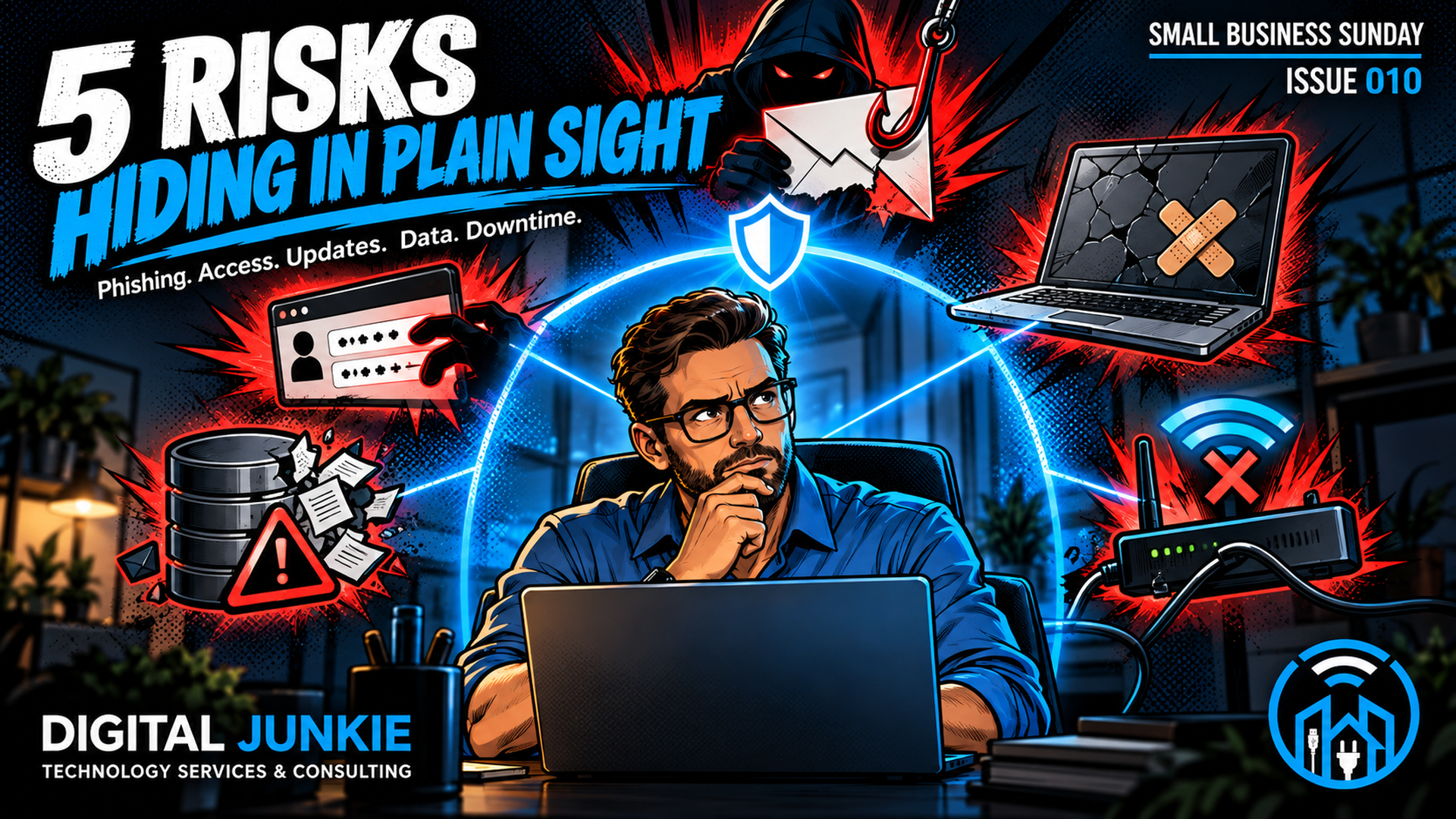
Small Business Sunday 010: The 5 Biggest Technology Risks Facing Small Businesses
Small businesses run on technology, even when technology is not the product. Email carries invoices and customer requests. Cloud apps hold schedules and records. Laptops process payments and keep teams moving. That convenience also means a single weak point can interrupt the entire business.
The five biggest technology risks facing small businesses are phishing, weak access controls, outdated technology, data loss, and operational downtime. The good news is that reducing these risks does not require an enterprise-sized security department. It starts with a few repeatable habits, clear ownership, and a recovery plan that has actually been tested.
Quick answer: What are the biggest technology risks for a small business?
1. Phishing and social engineering that trick people into revealing credentials, sending money, or opening malicious files.
2. Weak passwords, missing multifactor authentication, shared accounts, and excessive privileges.
3. Unsupported software, unpatched devices, and technology no one is actively managing.
4. Data loss caused by ransomware, hardware failure, mistakes, theft, or an untested backup process.
5. Downtime caused by internet, cloud, device, power, or provider failures with no practical alternative.
1. Phishing and social engineering
Phishing is dangerous because it targets normal business behavior. An email may look like a Microsoft 365 sign-in alert, an overdue invoice, a file shared by a customer, or an urgent request from a manager. The attacker wants the recipient to act before thinking.
The best defense combines people and technology. Train employees to pause when a message creates urgency, changes payment instructions, requests credentials, or sends them to an unfamiliar sign-in page. Verify unusual financial or account requests through a separate channel using a known phone number, not the contact information in the suspicious message. Give employees a simple way to report questionable messages without fear of being blamed.
Use spam filtering, multifactor authentication, and domain protections as additional layers. None is perfect alone. Together, they make one mistake less likely to become a business-wide incident.
Practical action: Choose one verification rule this week. For example, every change to payment details must be confirmed by phone with a known contact.
2. Weak identity and access controls
A stolen password becomes far more damaging when it is reused, shared, or attached to an administrator account. Shared logins also make it difficult to determine who changed a setting or accessed a record.
Give each person a separate account. Require unique passwords stored in a reputable password manager, and enable multifactor authentication—especially for email, banking, cloud storage, remote access, accounting, and administrative tools. Avoid using an administrator account for daily work. Grant only the access a person needs, review access when roles change, and remove accounts promptly when someone leaves.
Practical action: Start with the system that would hurt most if someone took it over. Confirm that every user has an individual account and MFA is turned on.
3. Unsupported and unpatched technology
Updates often fix known security weaknesses. A device or application that no longer receives security updates can remain exposed even if it still appears to work normally. Forgotten apps, old routers, unused accounts, and untracked devices add risk because no one knows who is responsible for them.
Create a simple inventory of computers, mobile devices, network equipment, cloud services, websites, and important business applications. Record the owner, purpose, vendor, support status, and update method. Turn on trusted automatic updates where appropriate, schedule time for updates that require testing, and remove systems the business no longer needs.
Practical action: List every device that connects to business email or data. Identify which one has gone the longest without a verified update.
4. Data loss and failed recovery
A backup is only useful if it contains the right data, remains protected when other systems are attacked, and can be restored in time. Ransomware can encrypt connected backups. Hardware can fail. A well-meaning employee can overwrite a critical file. Cloud platforms can synchronize accidental deletion across devices.
Keep multiple copies of essential data and maintain at least one protected or isolated copy. Encrypt sensitive backups, limit who can delete them, and monitor whether backup jobs succeed. Most importantly, test a restore. A small test can reveal missing folders, expired credentials, slow downloads, or unclear responsibilities before an emergency.
Decide what must return first. Payroll, customer communication, scheduling, payment processing, and core records may have different recovery priorities. Document who makes that decision and where recovery instructions are stored.
Practical action: Restore one important file to a safe location today and confirm that it opens correctly.
5. Operational downtime and vendor dependence
Cybersecurity is not the only cause of disruption. An internet outage, failed laptop, unavailable cloud service, damaged router, power problem, or provider issue can stop work. The risk grows when one connection, device, employee, or vendor is a single point of failure.
Map the technology behind critical tasks such as taking payments, contacting customers, accessing schedules, and retrieving documents. For each task, ask: What happens if this service is unavailable for four hours? Who contacts the provider? Can employees work from another device or connection? Is essential vendor information available when the main system is down?
Practical action: Pick one critical workflow and write a one-page workaround. Keep a copy somewhere the affected system cannot lock you out of.
A simple small-business technology risk plan
Use the NIST Cybersecurity Framework as a practical cycle: govern the work, identify what matters, protect it, detect problems, respond when something happens, and recover operations. You do not have to fix everything at once.
Begin with these priorities:
• Name one person responsible for coordinating technology risk.
• Inventory essential systems, data, accounts, and providers.
• Enable MFA and eliminate shared or reused passwords.
• Patch supported systems and retire unsupported ones.
• Protect backups and test a restore.
• Document how to report an incident and keep vendor contacts accessible.
• Rehearse one realistic outage scenario with the people involved.
Frequently asked questions
What technology risk should a small business address first?
Start with the risk that combines high impact with high likelihood. For many businesses, that means securing email with MFA, training employees to verify suspicious requests, and protecting critical data with tested backups.
Is cybersecurity software enough to protect a small business?
No. Security software helps, but it cannot replace unique accounts, MFA, timely updates, employee verification habits, protected backups, and a tested response plan.
How often should a small business test backups?
Test restores on a regular schedule and after significant changes to systems or backup settings. The right frequency depends on how quickly the business changes and how much data it can afford to lose.
What is a single point of failure?
It is one device, service, connection, person, or provider whose failure can stop a critical business process. Identifying it allows the business to create a backup route or documented workaround.
Small businesses do not need perfect technology to become more resilient. They need visibility, sensible safeguards, and recovery steps people can follow under pressure. Address these five risks one practical improvement at a time, and the business becomes harder to disrupt and faster to recover.
Need help identifying weak points and building a practical technology plan? Visit https://www.digitaljunkie.tech/blog/the-5-biggest-technology-risks-facing-small-businesses or contact Digital Junkie for technology services and consulting in Austin and surrounding areas.
Smart Home Saturday 010: Smart Plugs: The Most Underrated Smart Home Upgrade
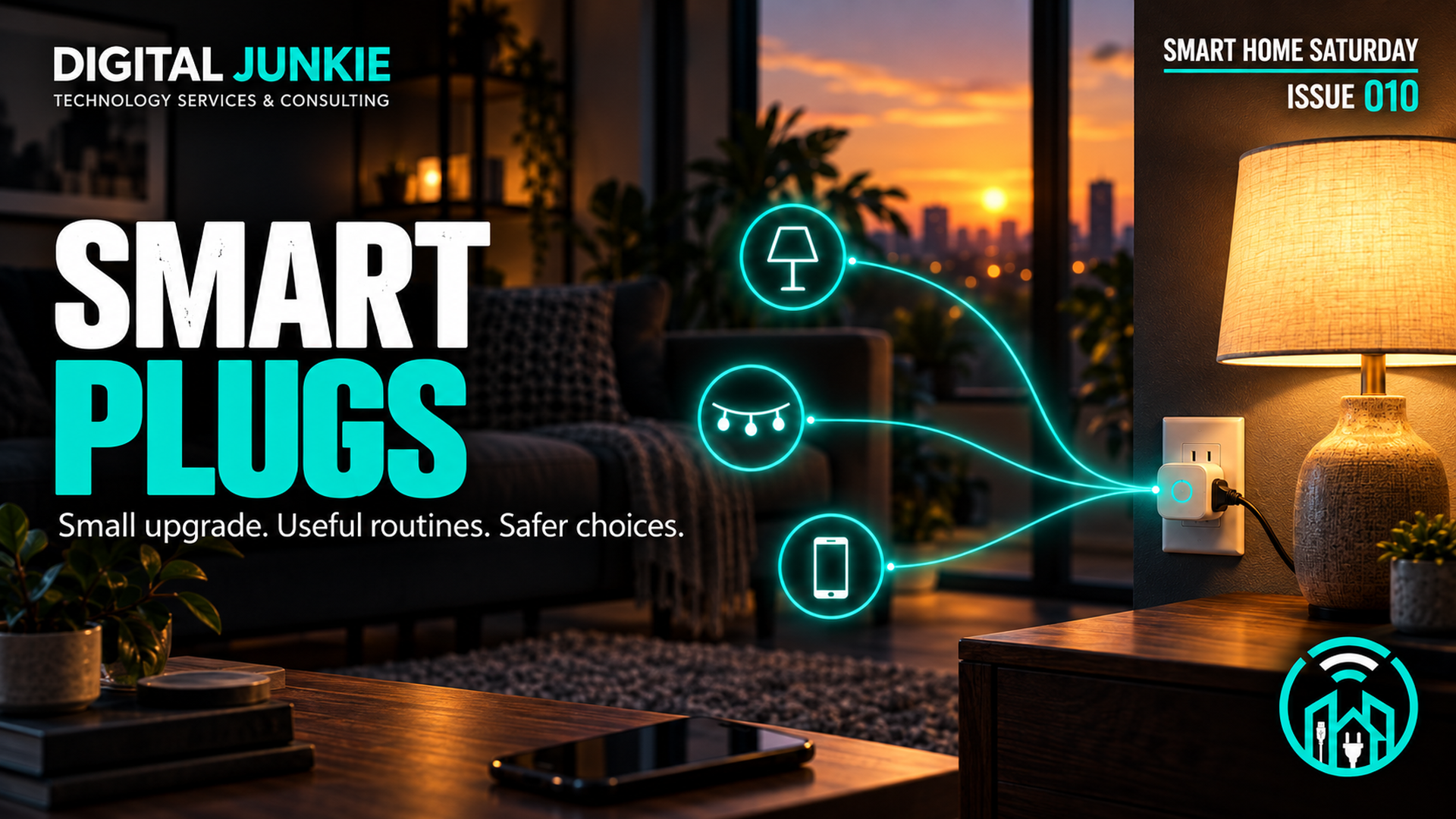
Smart plugs are one of the simplest ways to make an ordinary household device easier to control. Place one between a wall outlet and a compatible device, connect it to the manufacturer’s app or supported smart-home platform, and you may gain remote on/off control, schedules, timers, voice commands, and routine integration.
The important word is compatible. A smart plug controls the electricity reaching a device; it does not add every smart feature, and it cannot make an unsafe device safe to automate. The best results come from choosing a modest, repeatable task and matching the plug carefully to the load, location, network, and platform.
Quick answer
A smart plug is a plug-in switch that lets you control power to a connected device. Good starting uses include lamps, decorative lights, and other devices that safely resume their intended operation when power returns. Before buying, check the smart plug’s electrical rating, indoor or outdoor designation, outlet fit, network requirements, and compatibility with your preferred app or smart-home system. Never automate an appliance when an unexpected start, stop, or connection failure could cause harm.
What does a smart plug actually do?
A smart plug opens or closes the electrical connection to the device plugged into it. Depending on the model, you may be able to control that connection through:
• A mobile app
• A recurring schedule
• A countdown timer
• Sunrise or sunset timing
• A voice assistant
• A larger household routine
• An occupancy or sensor event in a compatible ecosystem
Some smart plugs also measure energy use, but that feature is not universal. Read the product specifications rather than assuming every model includes monitoring.
ENERGY STAR describes plug-load control as part of smart-home energy management and notes that compatible systems can schedule devices and automatically control them based on occupancy. Those capabilities depend on the particular devices and system. Source: https://www.energystar.gov/products/smart_home_energy_mgnt_systems
What a smart plug does not do
A smart plug does not change the internal controls of the connected appliance. It only controls incoming power. That distinction explains several common surprises:
• A lamp with a physical switch may turn back on when power returns if its switch remains in the on position.
• A device with an electronic button may remain off after power is restored because it requires another button press.
• A smart plug cannot adjust brightness, speed, temperature, or mode unless the connected device already supports that behavior through its own controls.
• A smart plug cannot overcome an incompatible network, app, platform, or electrical load.
Test the device manually before automating it. Turn it on, unplug it, wait briefly, and reconnect it. If it resumes safely in the desired state, it may be a practical candidate, subject to the ratings and manufacturer instructions for both products.
The best first uses for a smart plug
Table lamps
A lamp with a physical on/off switch is often an easy first project. Leave the lamp’s switch on and use the smart plug to control power. You can create an evening schedule, include the lamp in a bedtime routine, or turn it off without crossing the room.
Decorative and seasonal lights
Decorative lights are frequently switched at predictable times. A schedule can turn them on near sunset and off at bedtime. Use only products and connections rated for the environment. Outdoor lighting requires equipment specifically marked for outdoor use, including the smart plug and any other exposed connection.
Plug-in fans and similar simple devices
A simple fan may be useful if it has a physical control and safely returns to the selected setting after power is restored. Confirm that both manufacturers permit the intended use and that the fan’s electrical requirements stay within the smart plug’s rating.
Hard-to-reach switches
A smart plug can make a safely compatible device easier to control when its switch is behind furniture or in another inconvenient location. Keep the smart plug accessible enough to inspect, reset, or unplug when necessary.
When a smart plug is not the right choice
Do not use a routine for an application that could cause injury, fire, flooding, food-safety problems, or medical risk if it starts unexpectedly, fails to start, or loses connectivity. Google’s household-routine guidance explicitly says routines are for convenience rather than safety- or security-critical use and should not be used when a failed start or stop could cause harm. Source: https://support.google.com/assistant/answer/7672035
Be especially cautious with heating appliances, cooking equipment, motorized devices, medical equipment, pumps, or anything the manufacturer says should not be used unattended or with a plug-in controller. A product being able to fit into the outlet does not establish that it is suitable for automation.
Never exceed the smart plug’s marked electrical limits. Do not hide it where heat cannot dissipate, expose an indoor-only plug to moisture, or combine adapters and extension products in a way the instructions prohibit. If a plug, outlet, cord, or faceplate becomes unusually hot, discolored, loose, cracked, or emits an odor, stop using it and have the condition evaluated.
How to choose the right smart plug
1. Match the electrical rating
Read the label and manual for both the smart plug and connected device. Compare voltage, current, wattage, and any load-type restrictions. Motors, heaters, and devices with high startup demand may have requirements that are not obvious from their ordinary running power.
2. Match the location
Use an outdoor-rated model outdoors. Consider rain exposure, covered versus uncovered outlets, temperature limits, plug orientation, and whether the outlet has suitable weather protection. Do not assume a splash-resistant housing makes every connection safe in every outdoor location.
3. Check the outlet fit
Measure the available space. A bulky smart plug may block the second receptacle, interfere with a switch, or crowd adjacent adapters. Some models are designed to preserve the neighboring outlet; others are not.
4. Check network requirements
Many Wi-Fi smart plugs connect on 2.4 GHz, while other models use Thread, Zigbee, Bluetooth, or another protocol. Some need a compatible hub or border router. Confirm what your home network and chosen platform support before buying.
5. Check ecosystem compatibility
Look for explicit support for the platform you use. A Matter logo may broaden compatibility, but the specific controller, hub, network protocol, and supported features still matter. Confirm the exact model rather than relying only on a product-family name.
6. Decide whether energy monitoring matters
Energy monitoring can help compare usage or identify when a connected device runs, but not every smart plug provides it, and the quality of reporting varies. Treat monitoring as a feature to verify, not a default capability.
How to set up a smart plug well
Start with one plug and one uncomplicated device.
1. Update the phone, smart-home app, and hub software when updates are available from trusted sources.
2. Plug the smart plug directly into an appropriate outlet unless its instructions explicitly allow another arrangement.
3. Add the plug through the manufacturer’s documented setup process.
4. Give it a clear name based on the device and room, such as “Living Room Lamp.”
5. Test manual control in the app.
6. Test the physical button on the plug.
7. Confirm what happens after a brief power interruption.
8. Create one simple schedule or routine.
9. Watch it operate several times before adding more automation.
Clear names become especially important when several plugs are connected. “Plug One” is easy to confuse; “Office Desk Lamp” tells household members exactly what will respond.
Build routines around real habits
The most useful routine usually removes a small action you repeat every day. Examples include turning a lamp on near sunset, switching decorative lights off at bedtime, or turning several compatible lights off with one household command.
Google Home currently supports time-based automation starters including a specific time, days of the week, sunrise, and sunset, with available actions depending on the connected device and platform. Source: https://support.google.com/googlehome/answer/15684394
Begin with predictable timing. If sunset control works consistently, you can decide whether a voice command, presence condition, or larger household routine would add value. Avoid creating multiple routines that issue conflicting commands to the same plug.
Do smart plugs save energy?
They can help manage when a connected load operates, but savings are not automatic. The outcome depends on what is connected, how much power it uses, how long automation keeps it off, and the smart plug’s own standby consumption.
A schedule that prevents decorative lights from running all night has a clear mechanism for reducing their operating time. Adding remote control to a device without changing how long it runs may add convenience without meaningful savings. Energy-monitoring models can provide useful observations, but measured use is not the same as a guaranteed reduction.
What happens when the internet goes down?
Behavior varies. The physical button normally remains important, but app control, voice control, remote access, and cloud-based routines may stop working. Some schedules or local automations may continue when a hub or device stores them locally; others may not.
Test the behavior that matters to you. Disconnect internet access temporarily, use the physical control, and restore service. Convenience automations should fail in a way you can safely manage.
Common smart-plug troubleshooting steps
If a smart plug will not connect or respond:
• Confirm that the outlet has power.
• Check the plug’s indicator against the manufacturer’s instructions.
• Verify that your phone is using the required network during setup.
• Confirm whether the model requires 2.4 GHz, a hub, Thread, Matter, or another protocol.
• Move the plug closer to the router or hub for a test.
• Restart the app and follow the documented reset procedure if needed.
• Remove duplicate or conflicting schedules.
• Check for trusted firmware, app, hub, or platform updates.
Do not repeatedly reset the plug before recording how it is failing. The indicator state, app message, and timing can help distinguish power, pairing, network, platform, or automation problems.
Frequently asked questions
Can a smart plug turn on any appliance?
No. The device must be electrically compatible, permitted by both manufacturers, and safe to start when power is supplied. Some appliances with electronic controls will not resume operation after power returns.
Do smart plugs work without Wi-Fi?
It depends on the model and system. A physical button may still work, and some local schedules or hub-based automations may continue. Cloud app control and voice features commonly depend on network or internet availability.
Can I use an indoor smart plug outside?
No. Use a model specifically rated for outdoor use and follow its placement and weather-protection instructions. Every exposed part of the connection must be suitable for that environment.
Will a smart plug lower my electric bill?
Only if it changes energy use enough to offset the plug’s own standby consumption. Scheduling an unnecessary load off can help; merely adding app control does not guarantee savings.
What is the easiest smart-plug routine to try?
Start with a compatible table lamp. Schedule it near sunset and turn it off at bedtime. This creates a visible, low-complexity test of setup, timing, manual control, and behavior after power or network interruptions.
The practical takeaway
Smart plugs are useful because they add a focused layer of control without replacing the connected device. Start small, verify compatibility, build one routine around a real habit, and automate only uses that remain safe if connectivity or timing does not behave as expected.

Fix-It Friday 009: Computer Keeps Freezing? Here’s How to Find the Cause
When a computer freezes, the cause is usually not obvious from the frozen screen alone. The practical way to troubleshoot it is to identify a repeatable pattern, check which resources are under pressure, and change one variable at a time. That process helps separate an isolated app problem from a system-wide software, storage, peripheral, heat, or hardware issue.
Quick answer
If your computer keeps freezing, start by noting what you were doing immediately before each freeze. Then check CPU, memory, and disk activity in Task Manager on Windows or Activity Monitor on Mac. Restart, install trusted operating-system and application updates, verify available storage, disconnect nonessential accessories, and reverse recent changes one at a time. Back up important files before deeper troubleshooting. If freezes continue, save the details and diagnostic results for support or repair.
First determine what “freezing” means
Different symptoms point toward different parts of the system. Ask these questions before changing anything:
• Is only one application unresponsive, or does the entire computer stop responding?
• Can the pointer still move?
• Does audio continue?
• Can you switch to another application?
• Does the problem happen during one task, such as a video call, game, large download, or file export?
• Does it happen soon after startup, after the computer has been running for a while, or after waking from sleep?
If one application freezes while everything else works, begin with that application. If the pointer, keyboard, sound, and every application stop together, investigate the system more broadly.
What should you do during a freeze?
Give the computer a short moment to recover, especially if you just opened a large file or started a demanding task. Repeated clicking can add more work to an already overloaded system.
If the system still responds, save open work and close the unresponsive application normally. Windows users can open Task Manager with Ctrl + Shift + Esc. Mac users can open the Force Quit window with Option + Command + Escape. Force quitting can lose unsaved work in that application, so use it only when a normal quit is not available.
If the entire system remains unresponsive and no normal shutdown option works, a forced power-off may be the only practical way to regain control. Treat that as a recovery step, not a fix. Repeated forced shutdowns can leave unsaved work behind and do not identify the underlying cause.
Build a simple freeze log
A short record is more useful than trying random fixes. For each incident, capture:
• Date and time
• Application or task in use
• Number of open browser tabs or demanding programs
• Devices connected by USB, Bluetooth, dock, or adapter
• Whether the fan became louder or the computer felt unusually warm
• Any warning or error message
• Whether the pointer, keyboard, or sound still worked
• What changed recently, including updates, applications, drivers, or accessories
After two or three incidents, compare the entries. If the same application, accessory, workload, or timing appears repeatedly, test that lead first. A pattern is evidence, but it is not proof by itself.
Check CPU, memory, and disk activity
Resource-monitoring tools can show what the computer is doing when it slows down or begins to stall.
On Windows, open Task Manager and review the Processes and Performance views. On Mac, open Activity Monitor and review CPU, Memory, and Disk. Sort by the resource you are investigating and look for a process that repeatedly rises near the time of the freeze.
CPU: A sustained CPU surge can make the system feel stuck while a process completes intensive work. A brief spike is normal; a repeated or prolonged surge tied to the same application is more useful evidence.
Memory: When open applications require more memory than is comfortably available, the system may become slow or unresponsive while it moves data between memory and storage. Closing unused applications and browser tabs can help you test whether workload is contributing.
Disk: Heavy disk activity can accompany updates, syncing, security scans, indexing, or an application reading and writing large amounts of data. Low free space can also affect performance and make updates difficult to install. Review storage before deleting anything, and protect files you need.
Do not end unfamiliar system processes simply because they use resources. Record the process name, close ordinary applications you recognize, and investigate before disabling system components.
Check available storage
Very low storage can contribute to poor performance and update problems. In Windows, review Settings > System > Storage. On Mac, review System Settings > General > Storage. Remove or move files only after confirming what they are, and emptying a recycle or trash folder only when you are certain its contents are no longer needed.
Microsoft recommends Storage Sense and Cleanup recommendations as built-in ways to review space on Windows. Source: https://support.microsoft.com/en-us/windows/experience/storage-filemanagement/free-up-drive-space-in-windows
Restart and install trusted updates
A restart clears the current session and lets pending system work complete. After restarting, open only the applications needed for your test. If the computer remains stable under a light workload but freezes after one specific application opens, that application becomes a stronger lead.
Install operating-system and application updates from the operating system, the application itself, or the hardware manufacturer’s trusted support channel. Updates can include reliability and compatibility fixes. Avoid third-party “driver updater” or “PC cleaner” utilities that make broad changes without clearly explaining them.
Microsoft’s current Windows performance guidance includes checking Windows and optional driver updates, monitoring CPU, memory, and disk use, freeing storage, and testing after a restart. Source: https://support.microsoft.com/en-us/windows/experience/performance-optimization/tips-to-improve-pc-performance-in-windows
Disconnect nonessential accessories
Docks, hubs, external drives, printers, adapters, webcams, and other accessories add drivers, power demands, and connections to the system. Shut down safely, disconnect nonessential devices, restart, and test the same workload.
If the freezing stops, reconnect one device at a time and test again. This method is slower than reconnecting everything at once, but it preserves the evidence you need to identify the trigger. Never disconnect a drive while it is actively writing data.
Reverse recent changes one at a time
Think about what changed shortly before the freezes began. Possibilities include a new application, browser extension, operating-system update, device driver, security tool, memory upgrade, dock, display, or external drive.
Reverse or disable only one recent change, then repeat the task that usually causes the problem. If you make several changes simultaneously and the problem disappears, you will not know which change mattered.
Use safe mode or built-in diagnostics when appropriate
Safe mode starts the computer with a reduced set of software and services. If the machine is stable in safe mode but freezes during a normal startup, third-party startup software, extensions, or drivers may deserve closer attention. Safe mode does not automatically identify the exact cause, and the startup method differs by operating system and hardware model, so follow the current instructions from Microsoft or Apple for your device.
Built-in hardware diagnostics can help when freezes continue after software and accessory testing. Apple Diagnostics, for example, can test a Mac and return reference codes for detected hardware issues. Apple recommends disconnecting external devices other than essential input, display, network, and power connections before testing. Source: https://support.apple.com/102550
Back up files before deeper testing
Repeated freezes can interrupt file writes and make troubleshooting harder. Confirm that important documents, photos, and business data exist in a current backup before reinstalling software, changing storage, running repair operations, or opening the computer.
A backup is not verified merely because a backup application says it ran. Confirm that you can locate the protected files and understand how they would be restored.
When might hardware be involved?
Hardware deserves more attention when freezing occurs across unrelated applications, continues after a clean software test, appears during startup or built-in diagnostics, or is accompanied by diagnostic reference codes, storage errors, display artifacts, unexpected shutdowns, or abnormal heat. These signs still require diagnosis; none proves a specific failed component on its own.
Stop using the computer and disconnect power if you notice smoke, sparks, a burning smell, liquid exposure, a swollen battery, or an unusually hot enclosure. Those are safety concerns rather than ordinary performance problems.
What information should you save for repair or support?
Bring the freeze log, exact error messages, screenshots or photos, diagnostic reference codes, the names of repeatedly active processes, recent changes, and a list of steps already tested. Also note whether the problem affects one user account, one application, or the entire computer.
Clear evidence can prevent repeated troubleshooting and make the next support conversation more productive.
Frequently asked questions
Why does my computer freeze randomly?
“Random” freezes can come from many sources, including an application that stops responding, resource pressure, low storage, incompatible software or drivers, an accessory, excess heat, or a hardware problem. A freeze log and one-change-at-a-time testing can reveal a pattern that was not obvious at first.
Can too many browser tabs freeze a computer?
Many tabs can increase memory and CPU use, particularly when pages are playing media or running active web applications. Close unused tabs and test the same task again while watching resource use. If the problem persists under a light workload, continue investigating.
Does a frozen computer mean the hard drive is failing?
Not necessarily. Storage trouble is one possible cause, but a freeze alone does not identify a failed drive. Review disk activity, available space, system messages, and built-in diagnostics. Back up important files before deeper storage testing.
Should I reset or reinstall the operating system?
Not as the first step. A reinstall is disruptive and can erase useful evidence. Start with the pattern, resource use, storage, trusted updates, peripherals, and recent changes. Back up and verify your files before any reset or reinstall.
Next week
Fix-It Friday 010: Getting a Blue Screen? Here’s What to Do Next

Tech Myth Thursday 009: Your Smart TV Is Just a Screen—What the LG Privacy Controversy Reveals
Quick answer
A smart TV is not merely a display. It is an internet-connected computer with an operating system, applications, advertising services, device-discovery features and, on some models, microphones or voice controls. The recent LG controversy raises legitimate privacy and security questions, but it does not prove that every LG television was hacked or that every owner's private information was stolen.
The careful conclusion is this: researchers reported concerning behavior on the televisions they tested; LG disputes important parts of their interpretation; some data-processing capabilities are acknowledged by LG; and owners can reduce their exposure today without waiting for every disagreement to be resolved.
What happened in the LG smart TV controversy?
On September 6, 2026, Gamers Nexus published an investigation produced with Level1Techs and independent security researchers. According to the investigation, tested retail LG OLED televisions collected or created records related to viewing activity, devices on the local network and voice or audio features. The investigators also raised questions about activity when a television appeared inactive or lacked an internet connection.
Those are reported findings from a limited set of tested televisions—not proof that all LG televisions behave identically. Features can differ by model, webOS version, region, user agreement and enabled setting.
LG rejected the characterization that its televisions indiscriminately record ambient conversations. In a statement reported by Tom's Hardware, LG said voice data is processed only when the voice button is held or when an enabled far-field voice feature recognizes a wake word. LG said unsuccessful wake-word audio is processed locally, deleted immediately and not transmitted to its servers.
LG did confirm that its televisions may scan the local network to find compatible devices. It described that as a normal smart-device function. LG also said Automatic Content Recognition, or ACR, is offered through optional consent for personalized recommendations, services and advertising. Tom's Hardware noted that it had not independently verified the investigation or LG's counterclaims.
That disagreement matters. A responsible explanation should say “researchers reported” and “LG says” where the evidence is disputed, rather than turning an unresolved technical argument into a claim that millions of televisions were definitively hacked.
What is Automatic Content Recognition?
Automatic Content Recognition is technology that attempts to identify what is playing on a television. Depending on its implementation and the user's permissions, it may analyze small samples or identifying characteristics of audio or video and compare them with a reference database. This can support recommendations, audience measurement and targeted advertising.
ACR is important because it may recognize content from more than a built-in streaming application. LG's own 2022 announcement said it was rolling out proprietary ACR technology across LG televisions to help advertisers understand television-ad exposure in households. The broader privacy question is not simply whether the TV knows which app is open, but whether it can infer what appears on the screen or plays through connected sources.
ACR does not automatically mean someone is watching a live video feed from your living room. It also does not prove that an attacker has taken control of the television. It is a data-collection mechanism, and the privacy impact depends on what is sampled, how it is linked to a device or household, whether consent is meaningful, where the data travels, how long it is retained and who can access it.
Was this a hack, a breach or a privacy dispute?
These terms are not interchangeable.
A privacy controversy concerns what data a product is designed to collect, how consent works and whether customers understand the trade. A vulnerability is a technical weakness that could permit unauthorized access. A compromise occurs when someone actually exploits a weakness or otherwise gains unauthorized control. A data breach means protected information was accessed or disclosed without authorization.
The current controversy combines claims about intended telemetry and smart features with claims about security weaknesses. That does not establish that every television was remotely compromised or that a database of LG customer records was stolen.
There is relevant history. In 2024, Bitdefender disclosed vulnerabilities affecting webOS versions 4 through 7 that could allow authorization bypass, privilege escalation and command execution under certain conditions. LG issued patches in March 2024. That research demonstrates why television software updates matter, but it should not be misrepresented as proof of a new 2026 mass breach.
What information or capabilities could be involved?
The answer depends on the model, software, enabled features and permissions. Potentially relevant categories include:
Viewing activity. ACR or related services may identify programs, advertisements or other content being displayed. This can be used for recommendations, measurement or advertising profiles.
Advertising identifiers. A television may use a device or advertising identifier to associate activity with a particular device or household without necessarily using the owner's name in every record.
Voice interactions. A microphone-equipped remote or television may process voice commands. The central dispute is whether any voice-related data was created outside the limited circumstances LG describes.
Local-network information. Device discovery can reveal that compatible phones, computers, speakers or smart-home products are present on the same network. Discovery alone is not the same as reading the contents of those devices, but it expands what the television can observe about its environment.
Account and application activity. Smart services may process login state, application use, searches, purchases or preferences. The current reporting does not establish that LG account passwords, banking information or personal files were broadly stolen.
Television control. If a genuine software vulnerability were successfully exploited, an attacker might be able to control television functions, run unauthorized commands or use the TV as a foothold on the home network. That is a risk scenario, not proof that it happened to a particular owner.
Can an LG TV listen when the screen is off?
A dark screen is not always a fully powered-down device. Many smart televisions retain limited standby functions so they can respond to a remote, wake word, casting request, scheduled task or software update. Whether a particular microphone or service continues processing in standby depends on the hardware and settings.
The 2026 investigation reported voice-related activity under conditions the investigators considered inactive. LG says its televisions do not collect or record ambient conversations outside an activated voice-button request or an enabled wake-word feature. Until the technical disagreement is independently reproduced and resolved, owners should not treat either the most alarming headline or a blanket reassurance as the entire answer.
What LG TV owners can do now
1. Install the latest webOS update
Open Settings, select All Settings, then Support and Software Update on many recent models. Choose Check for Updates and enable automatic updates if that matches your preference. Older models may place the option under General or About This TV. LG's support instructions note that menu paths vary by model.
Updates are the first defense against known software vulnerabilities. Privacy-setting changes do not patch exploitable code.
2. Review optional user agreements
On supported models, open Settings, then Privacy & Terms, then User Agreements. LG's September 2026 support guidance says agreements involving viewing information, voice features and personalized advertisements are optional and are not required for basic smart services. Deselect the optional processing you do not want.
Read each agreement rather than choosing “agree to all.” Recheck the selections after a major software update, factory reset or account change.
3. Turn off voice features you do not use
Disable far-field voice recognition, wake-word detection, voice information or related AI voice features if you never use them. Menu names vary. Remember that a microphone may be located in the remote, the television or both, depending on the model.
4. Limit viewing-data collection and personalized advertising
Look for settings or agreements referring to Viewing Information, Live Plus, ACR, personalized recommendations, advertising personalization or interest-based ads. Turning these off may reduce personalization or recommendations, but it should not prevent the television from functioning as a basic display.
5. Separate smart devices from sensitive equipment
If your router supports a guest or isolated IoT network, place the television and other smart-home devices there. The goal is to prevent those devices from initiating connections to personal computers, work laptops, storage drives, printers or security equipment. A guest network helps only if the router actually isolates clients from the main network, so check the router's documentation.
6. Disconnect the TV from the internet if you do not need smart features
A television can often serve as a display for an antenna, game console, cable box or external streaming device without maintaining its own internet connection. This reduces the TV's direct telemetry and remote attack surface, although the external streaming device will have its own privacy and security settings.
7. Remove unused apps and protect the associated account
Delete applications you no longer use, sign out of abandoned services, use a unique LG account password and enable multifactor authentication when the account offers it. These steps reduce unnecessary access paths, but they do not replace firmware updates or privacy controls.
What does not fully solve the problem?
A VPN does not stop a television from processing information locally or discovering devices on the home network. It may change the apparent internet address, but the television can still communicate through the VPN connection.
DNS blocking or a filtering device may reduce connections to known telemetry domains, but it can also break applications, recommendations, updates or sign-in functions. It is an advanced control—not a substitute for patches, consent choices or network isolation.
Covering a microphone opening may reduce sound reaching that microphone, but microphone placement varies and physical modification can damage the television or remote. Disabling unwanted features and disconnecting power are more dependable choices. If you need certainty that the television is not operating in standby, unplugging it or switching off its power at a controllable outlet is different from merely turning the screen dark.
Frequently asked questions
Are all LG smart TVs spying on their owners?
That conclusion is not supported by the available evidence. Researchers reported concerning behavior on tested models, while LG disputes major allegations. Model, region, software version, settings and consent choices all matter.
Did hackers steal information from LG TV owners?
The reporting discussed here does not establish a mass theft of LG passwords, financial information or personal files. It focuses primarily on data collection, device behavior and possible security weaknesses.
Should I immediately throw away my LG TV?
No. Start by updating it, reviewing optional agreements, disabling features you do not use and isolating it from sensitive devices. If you do not want the TV connected, use it as a display with networking disabled.
Does turning off ACR stop every kind of data collection?
No. It can limit content-recognition activity, but applications, streaming services, account systems, crash reporting and essential network functions may process other data under separate settings and policies.
Is a factory reset enough?
A factory reset may erase local settings and accounts, but it does not patch old firmware by itself. It can also present the user agreements again, so carefully review the options during setup.
The practical takeaway
The myth is that a smart TV is only a screen. The reality is that it is a connected computer placed in one of the most private rooms in the home. That does not make every television malicious or compromised, but it does justify the same habits used with phones and computers: install updates, minimize permissions, disable unused features, separate untrusted devices and understand what remains connected in standby.
The LG controversy is still developing. The best response is neither panic nor dismissal. Separate verified capabilities from disputed claims, then use the controls already available to reduce the data and network access you do not need.
Sources
Gamers Nexus investigation: https://www.youtube.com/watch?v=6IFVTcM28KA
LG response reported by Tom's Hardware: https://www.tomshardware.com/tech-industry/big-tech/lg-strongly-denies-tv-security-claims-says-tracking-and-snooping-concerns-not-true-online-investigation-claims-216-000-000-spy-tvs-record-audio
LG guidance on optional user agreements: https://www.lg.com/us/support/help-library/seeing-a-user-agreements-screen-on-your-lg-tv-CT10000018-20155426555618
LG firmware-update guidance: https://www.lg.com/us/support/help-library/lg-tv-how-can-i-update-the-tv-software--20154863567532
LG announcement about ACR: https://www.lg.com/global/newsroom/news/media-entertainment-solution/lg-smart-tvs-get-a-new-acr-solution-legacy-technology-replaced-by-lg-ads-solutions/
Bitdefender webOS vulnerability research: https://www.bitdefender.com/en-us/blog/labs/vulnerabilities-identified-in-lg-webos
Next week: Wi-Fi and Internet Are the Same Thing
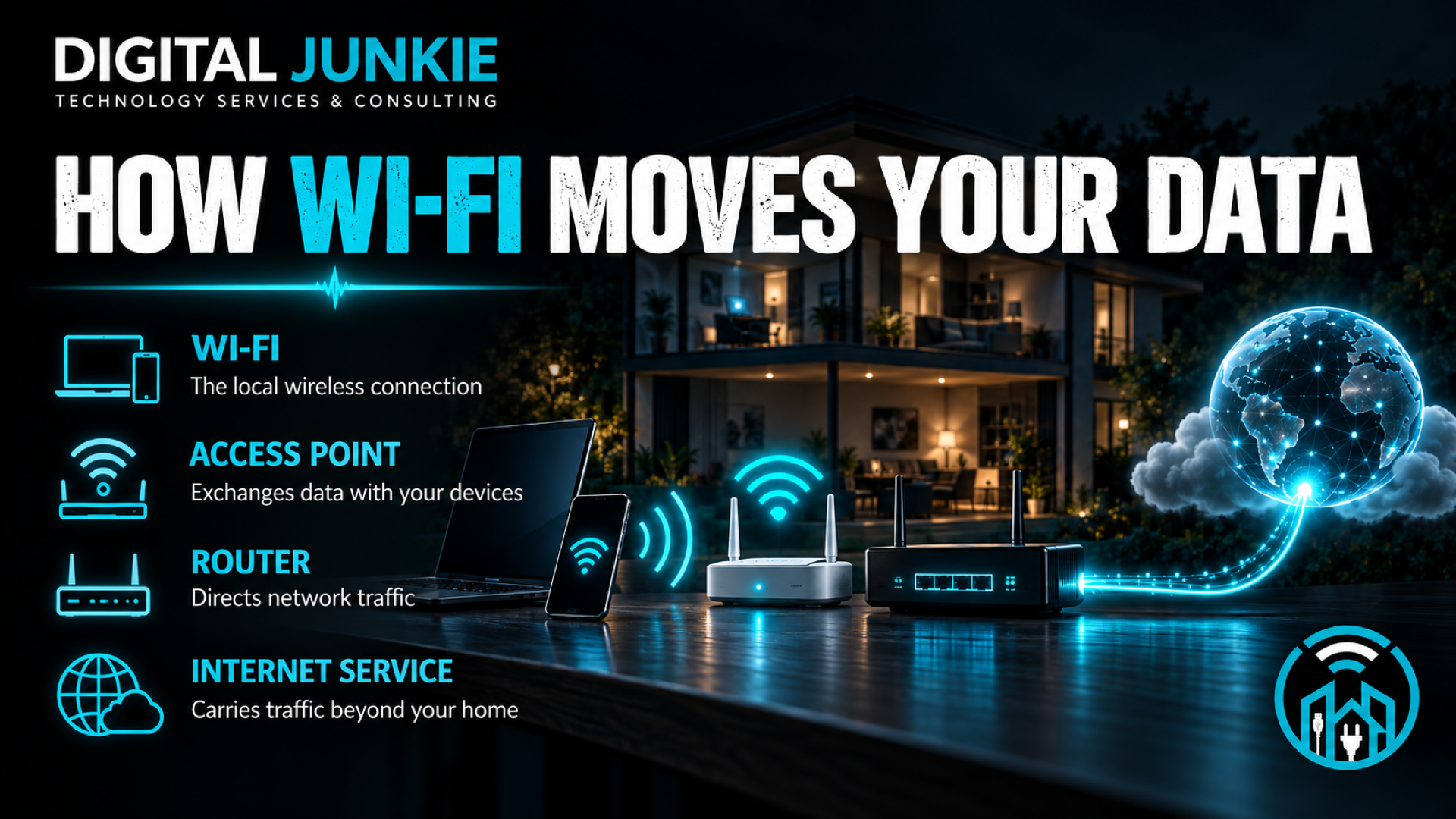
Wi-Fi Wednesday 009: How Does Wi-Fi Actually Work?
Quick answer
Wi-Fi is the local wireless connection between your device and a nearby access point, often built into a home router. Your phone, computer, or smart device converts data into radio transmissions. The access point receives those transmissions and passes the data through the local network. If the destination is online, the router directs the traffic through your modem or fiber gateway to your internet provider, and the response returns along the same general path.
Wi-Fi and the internet are related, but they are not the same thing. Wi-Fi can be working while the internet connection is down, and internet service can be working while poor Wi-Fi coverage keeps a device from using it well.
What is Wi-Fi?
Wi-Fi is a family of wireless local-area networking technologies based on the IEEE 802.11 standards. In everyday use, it replaces the cable between a device and the local network with a radio connection.
That distinction explains the name “wireless network.” A laptop connected by Wi-Fi is still joining a network. It is simply using radio transmissions instead of an Ethernet cable for the local link.
The Wi-Fi connection normally covers a limited area such as a home, office, school, or business. It does not automatically provide internet access. A Wi-Fi network can connect local devices to one another even if the modem or internet service is unavailable.
How does Wi-Fi send data through the air?
Digital information is divided into manageable units commonly called packets. A Wi-Fi device encodes that information into radio transmissions and sends it over a Wi-Fi channel. The access point receives the signal, interprets it according to the 802.11 rules, and passes the data toward its destination.
Communication works in both directions. When you load a website, your device sends a request. The network returns the site’s data. When you join a video call, audio and video move both to and from your device continuously.
The radio waves are invisible, but they behave like other radio-frequency signals: distance reduces usable signal strength, physical materials can absorb or reflect energy, and other transmitters can compete for the same spectrum.
What does the access point do?
The access point provides the wireless connection that Wi-Fi devices join. It advertises a network name, handles wireless communication, and bridges connected devices into the rest of the local network.
Many homes use a single box that combines an access point, router, Ethernet switch, firewall, and sometimes a modem. Because all of those jobs happen inside one enclosure, people often call the entire box “the router.” The functions remain different even when the hardware combines them.
What does the router do?
The router directs traffic between networks. Inside a home, it helps devices reach local resources and sends internet-bound traffic toward the modem, fiber terminal, or other provider connection. It also directs returning traffic back toward the correct device.
The router is not normally creating the content you requested. It is making forwarding decisions so the request and response reach the right destinations.
What does the modem or fiber gateway do?
The provider-facing equipment connects the home network to the service delivered by the internet provider. A cable modem communicates over a cable network. A fiber installation may use an optical network terminal or gateway. Other services may use different equipment.
The exact boxes and cables vary, but the logical path is similar:
Device → Wi-Fi access point → router → provider connection → internet provider → online service
The response follows the path back to the requesting device. Parts of this chain may be combined into one physical gateway.
Is Wi-Fi the same as internet service?
No. Wi-Fi is usually the local wireless link. Internet service is the connection that carries traffic beyond the home or business network.
This difference is useful during troubleshooting:
• If several devices have strong Wi-Fi signals but none can reach online services, the problem may be the modem, gateway, provider connection, or router’s internet path.
• If one distant device struggles while nearby devices work, the problem is more likely related to local Wi-Fi coverage, interference, or that device.
• If a computer works over Ethernet but performs poorly over Wi-Fi, the provider connection may be fine while the wireless link needs attention.
Why does Wi-Fi speed change from room to room?
Wi-Fi performance depends on more than the speed purchased from an internet provider. The wireless link between the device and access point has its own conditions.
Distance
The farther a device is from the access point, the weaker the received signal generally becomes. A weak connection may use more robust but slower transmission settings and may need to resend data.
Walls and building materials
Walls, floors, metal, masonry, mirrors, appliances, and other materials can weaken or redirect radio signals. A router hidden in a cabinet or placed behind large objects may have a harder time covering the home evenly.
Interference and neighboring networks
Nearby Wi-Fi networks and other devices using related spectrum can affect available airtime. The 2.4 GHz band is commonly used by many household devices and neighboring networks, so it may become crowded.
Competing devices
Devices using the same Wi-Fi channel share available airtime. A television streaming high-resolution video, a game download, cloud backup, video calls, cameras, and software updates can all create demand. A device that is connected but idle usually has much less impact than one actively moving large amounts of data.
Device capabilities
The router and client device must communicate using capabilities both support. An older phone or laptop may not use the newest Wi-Fi features even when the router supports them.
What is the difference between 2.4 GHz and 5 GHz Wi-Fi?
Modern routers commonly support both 2.4 GHz and 5 GHz connections, and newer equipment may also support 6 GHz.
The FCC notes that 2.4 GHz generally provides broader coverage, while 5 GHz can provide faster performance over a shorter range and may face less congestion from neighboring networks. Real-world results depend on the router, device, channel conditions, building layout, and distance.
Use 5 GHz when a compatible device is reasonably close and performance matters. Use 2.4 GHz when broader reach is more important or a device does not support another band. When the router manages bands under one network name, it may steer devices automatically, although its decisions are not always perfect for every layout.
Where should you place a Wi-Fi router?
Place the router or access point near the center of the area that needs coverage. Keep it in the open, elevated when practical, and away from large metal objects, enclosed cabinets, and other obvious obstructions.
A router placed at one far edge of a home must send its signal through more distance and more walls to reach the opposite side. A central position gives the signal a better starting point, though large or complicated spaces may still need additional access points or a well-planned mesh system.
When should you use Ethernet instead?
Ethernet provides a wired local connection and avoids wireless congestion for that device. It is often a practical choice for stationary, high-demand equipment such as desktop computers, televisions, game systems, network storage, and access points.
Moving fixed devices to Ethernet can also leave more wireless airtime for phones, tablets, and portable equipment. A wired connection will not fix a slow internet plan or provider outage, but it can help separate internet-service problems from Wi-Fi problems during testing.
How can you tell whether the problem is Wi-Fi or the internet?
Use a controlled comparison:
1. Test more than one device.
2. Compare performance near the router with performance in the problem area.
3. If possible, connect one device directly by Ethernet.
4. Check whether local devices can still reach the router when websites fail.
5. Restart equipment only after noting which lights and services are affected.
6. Check the internet provider’s outage information if every device loses online access.
If Ethernet works normally but Wi-Fi does not, focus on access-point placement, channels, signal strength, interference, and wireless-device compatibility. If both wired and wireless devices fail, investigate the router’s internet connection, gateway, or provider service.
Frequently asked questions
Does Wi-Fi work without the internet?
Yes. Devices can join a local Wi-Fi network and may communicate with local printers, storage, or other systems even when the internet connection is unavailable. Online apps and websites will not work without a functioning internet path.
Does having more Wi-Fi bars guarantee faster internet?
No. Signal bars describe the local wireless connection imperfectly; they do not guarantee available airtime, low interference, fast internet service, or a responsive online destination.
Why is Wi-Fi fast near the router but slow in another room?
Distance and building materials can weaken the signal. The distant device may also encounter more interference or connect through a slower band. Testing near the router helps determine whether the location is part of the problem.
Does every connected device slow down Wi-Fi?
Connected devices share network resources, but activity matters. An idle device may use very little airtime, while streaming, downloads, backups, cameras, and calls can create sustained demand.
Will a faster internet plan fix weak Wi-Fi coverage?
Not by itself. A faster plan can increase capacity entering the home, but it does not move the access point closer, remove walls, reduce interference, or improve an older device’s wireless hardware.
The bottom line
Wi-Fi is the local radio link that connects devices to an access point. The router directs traffic, the provider-facing equipment connects the local network to the service provider, and the internet carries traffic to online destinations.
Understanding those separate jobs makes troubleshooting easier. Start by asking where the path is failing: the device, the wireless link, the local network, the provider connection, or the online service. Then test one part at a time instead of treating every connection problem as “the Wi-Fi.”
Authoritative guidance
IEEE 802.11 Working Group, About IEEE 802.11: https://grouper.ieee.org/groups/802/11/abt80211.html
Federal Communications Commission, Home Network Tips: https://docs.fcc.gov/public/attachments/DOC-363362A1.pdf
NEXT WEEK: Your Smart TV Might Be Slowing Down Your Wi-Fi
Tech Explained Tuesday 009: What Is Two-Factor Authentication—and Why Isn’t a Password Enough?
Quick answer
Two-factor authentication, or 2FA, requires two different kinds of proof before an account lets you in. A password is only one kind of proof: something you know. Adding something you have, such as a security key or a device with an authenticator, creates a second barrier. If someone steals your password but cannot provide that second factor, the login may still be blocked.
That is why a strong password still matters—but is not enough on its own for important accounts.
What is two-factor authentication?
Two-factor authentication is a form of multifactor authentication that uses two distinct authentication factors. The three common factor categories are:
• Something you know, such as a password or PIN
• Something you have, such as a phone, authenticator, or physical security key
• Something you are, such as a fingerprint or another biometric characteristic
The word “distinct” matters. A password followed by a PIN is still two knowledge-based checks, so it is not true two-factor authentication under the National Institute of Standards and Technology definition. Combining a password with possession of a registered device, for example, uses two different factors.
Why isn’t a password enough?
A password can be long and unique and still be exposed. Someone may capture it through a phishing page, steal it with malicious software, obtain it from a compromised service, or discover that it was reused on another account.
Once an attacker has a working password, a password-only login has no independent way to determine whether the person signing in is you or the person who stole the secret. The account sees the correct password and may grant access.
Two-factor authentication changes that decision. The password can satisfy the first checkpoint, while the second checkpoint asks for a different form of evidence. The second factor does not make account takeover impossible, but it reduces the value of a stolen password by itself.
How does 2FA work during a login?
A typical login follows four steps:
1. You enter your username and password.
2. The service verifies the password.
3. The service asks for a second factor, such as a security-key response or a code generated by an authenticator.
4. Access is granted only after the required checks succeed.
Some devices combine the experience. For example, a device may hold a cryptographic key and require your fingerprint or local PIN before it can use that key. The screen may show one simple prompt even though more than one factor is involved behind the scenes.
What kinds of 2FA can you use?
Physical security keys
A security key is a device that you plug in, tap, or bring near your computer or phone. Properly implemented phishing-resistant security keys can verify the real service rather than handing a reusable code to a fake login page. They are a strong choice for email, administrative accounts, financial access, and other high-impact accounts when supported.
Authenticator apps
An authenticator app may generate a time-limited code or approve a sign-in prompt. Codes from an authenticator app do not depend on cellular text delivery. Number-matching prompts can also make accidental approvals less likely because you must match information shown during the login.
Text-message or email codes
A code delivered by text or email can add a barrier beyond a password, but it is generally a weaker option than phishing-resistant methods. Text messages may be exposed through phone-number takeover or interception, while an email-delivered code depends on the security of the email account receiving it. Use these options when they are the strongest methods the account provides, then upgrade if a stronger option becomes available.
Biometrics
A fingerprint or face check can be part of multifactor authentication, usually in combination with a device you possess. The biometric often unlocks an authenticator stored on that device. It is important to understand the entire login design rather than assuming that every fingerprint prompt works the same way.
Which 2FA method should you choose?
Use the strongest method an account supports and that you can reliably maintain.
For important accounts, prefer phishing-resistant authentication such as a supported security key or another properly implemented phishing-resistant authenticator. If that is unavailable, an authenticator app is generally preferable to a code sent by text or email. A text or email code is still useful when the only alternative is password-only access.
Your choice should also account for recovery. A strong method that leaves you permanently locked out after losing one device is not a complete setup. Register a backup authenticator or security key when the service permits it, and store recovery codes somewhere protected and separate from the device you normally use.
Where should you enable 2FA first?
Begin with accounts that can unlock other accounts or expose sensitive information:
• Primary email, because password-reset messages often arrive there
• Banking and payment accounts
• Cloud storage and document-sharing accounts
• Social media accounts
• Password-manager accounts
• Apple, Google, or Microsoft accounts tied to devices and services
• Administrator, remote-access, and business-management accounts
For a household or small business, email and administrator accounts are especially important starting points because one compromised account may provide access to many connected systems.
How to turn on 2FA safely
1. Sign in by navigating directly to the service or using its official app. Avoid enabling security features through an unexpected email link.
2. Open the account’s Security, Sign-in, or Login settings.
3. Look for Two-Factor Authentication, Two-Step Verification, or Multifactor Authentication.
4. Review the available methods and choose the strongest practical option.
5. Register the authenticator and complete a test login before signing out everywhere.
6. Add a backup method if the service supports one.
7. Save recovery codes in a secure place that is separate from your usual device.
8. Review trusted devices and remove anything you no longer recognize or use.
What should you do with unexpected approval prompts?
Do not approve a sign-in request you did not initiate. An unexpected prompt may mean that someone has your password and is trying to get past the second factor. Deny the request, change the password by going directly to the service, review recent account activity, and sign out unfamiliar sessions. If the account offers number matching or a phishing-resistant method, consider upgrading.
Does 2FA replace a strong password?
No. A unique password and a second factor protect against different failures. A strong, unique password reduces guessing and reuse risk. The second factor adds another requirement if that password is exposed. Use both, and keep the account’s recovery information current.
Frequently asked questions
Is 2FA the same as MFA?
2FA is a type of multifactor authentication that uses two distinct factors. MFA is the broader term for authentication that requires more than one distinct factor.
Are two passwords considered two-factor authentication?
No. Two passwords are both “something you know.” NIST guidance says multiple instances of the same factor remain single-factor authentication.
Can 2FA be hacked?
No security control prevents every attack. Some codes can be phished, approval prompts can be abused, devices can be compromised, and account-recovery processes can be targeted. Stronger, phishing-resistant methods reduce important risks, but users should still watch for unexpected prompts and suspicious account activity.
Is text-message 2FA better than no 2FA?
Yes, when the only alternative is a password alone, a texted code adds another barrier. However, CISA recommends moving to stronger methods when they are available because text and email codes provide weaker protection than security keys and well-configured authenticator options.
What happens if I lose my phone or security key?
Use a previously registered backup authenticator, backup key, or recovery code. If none is available, follow the service’s official account-recovery process. Set up recovery options before an emergency and never share a one-time code or recovery code with someone who contacts you unexpectedly.
The bottom line
A password answers one question: does this person know the secret? Two-factor authentication asks for a second, different kind of proof. That extra checkpoint means a stolen password alone may not be enough to open the account.
Turn on 2FA for your most important accounts, choose the strongest option each service supports, keep a protected backup method, and treat unexpected approval prompts as a warning.
Authoritative guidance
National Institute of Standards and Technology, Multi-Factor Authentication Glossary: https://csrc.nist.gov/glossary/term/Multi_Factor_Authentication
NIST Digital Identity Guidelines, Digital Identity Model: https://pages.nist.gov/800-63-4/sp800-63/model/
Cybersecurity and Infrastructure Security Agency, Require Multifactor Authentication: https://www.cisa.gov/audiences/small-and-medium-businesses/secure-your-business/require-multifactor-authentication
NEXT WEEK: What Is a Password Manager—and Is It Safe to Use One?

Tech Tip Monday 009: The Keyboard Shortcuts That Actually Save You Time
Keyboard shortcuts save time by removing small trips between the keyboard, mouse, menus, and toolbars. The biggest gains do not come from memorizing dozens at once. They come from learning a few commands that replace actions you repeat throughout the day.
Start With the Shortcuts You Already Need
Choose three shortcuts tied to frequent work. Use them until they feel automatic, then add another group. If you write or handle documents, begin with copy, paste, undo, select all, and save. On Windows, these use Ctrl; on a Mac, the corresponding commands generally use Command.
Everyday Editing
Copy is Ctrl+C on Windows and Command+C on Mac. Paste is Ctrl+V or Command+V. Cut is Ctrl+X or Command+X. Undo is Ctrl+Z or Command+Z. Select all is Ctrl+A or Command+A. Save is Ctrl+S or Command+S.
These commands work in most common applications, but an application can define its own behavior. When a shortcut does not work as expected, check the app's Edit or File menu; macOS commonly displays the current shortcut beside the command.
Recover From Browser Mistakes
Browser shortcuts are especially valuable because tab work is repetitive. Ctrl+T or Command+T opens a new tab. Ctrl+W or Command+W closes the current tab. If you close the wrong one, Ctrl+Shift+T on Windows or Command+Shift+T on Mac reopens previously closed tabs in order.
Ctrl+L or Command+L moves the cursor directly to the address bar. In Chrome, Ctrl+1 through Ctrl+8 on Windows or Command+1 through Command+8 on Mac jumps directly to a numbered tab. These commands reduce tab hunting when research or support work leaves many pages open.
Move Around the Computer Faster
Use Alt+Tab on Windows or Command+Tab on Mac to switch between open applications. Windows+S opens Windows Search; Command+Space opens Spotlight on Mac. Search is often faster than navigating folders or application lists because it can locate apps, settings, and files from one place.
For a selected-area screenshot, press Windows+Shift+S on Windows or Shift+Command+4 on Mac. These are useful when you need to document an error, explain what you see, or share only the relevant part of the screen.
Lock Before You Walk Away
Press Windows+L on a PC or Control+Command+Q on a Mac to lock the screen immediately. This shortcut is worth turning into a habit anywhere another person could see or use an unattended computer.
How to Make Shortcuts Stick
Keep the list visible for a week. Pick three commands and deliberately use them every time the matching task appears. The first few attempts may feel slower because you are replacing a familiar mouse movement. Repetition is what creates the payoff.
Avoid trying to memorize every shortcut at once. A short list connected to real daily tasks is more useful than a long list you never practice. Once the first group becomes automatic, add three more.
Compatibility Notes
Shortcuts can vary by application, browser, keyboard layout, accessibility settings, and customized system preferences. The browser commands in this guide are verified for Google Chrome and are also common in other major browsers. If a command conflicts with an app, use that app's menu or shortcut documentation as the final authority.
Sources
Microsoft Support: Keyboard shortcuts in Windows — https://support.microsoft.com/en-au/windows/keyboard-shortcuts-in-windows-dcc61a57-8ff0-cffe-9796-cb9706c75eec
Apple Support: Intro to Mac keyboard shortcuts — https://support.apple.com/guide/mac-help/intro-to-mac-keyboard-shortcuts-mchld6b9e240/mac
Google Chrome Help: Chrome keyboard shortcuts — https://support.google.com/chrome/answer/157179
Next Week
Tech Tip Monday 010: Why You Should Have More Than One Web Browser Installed
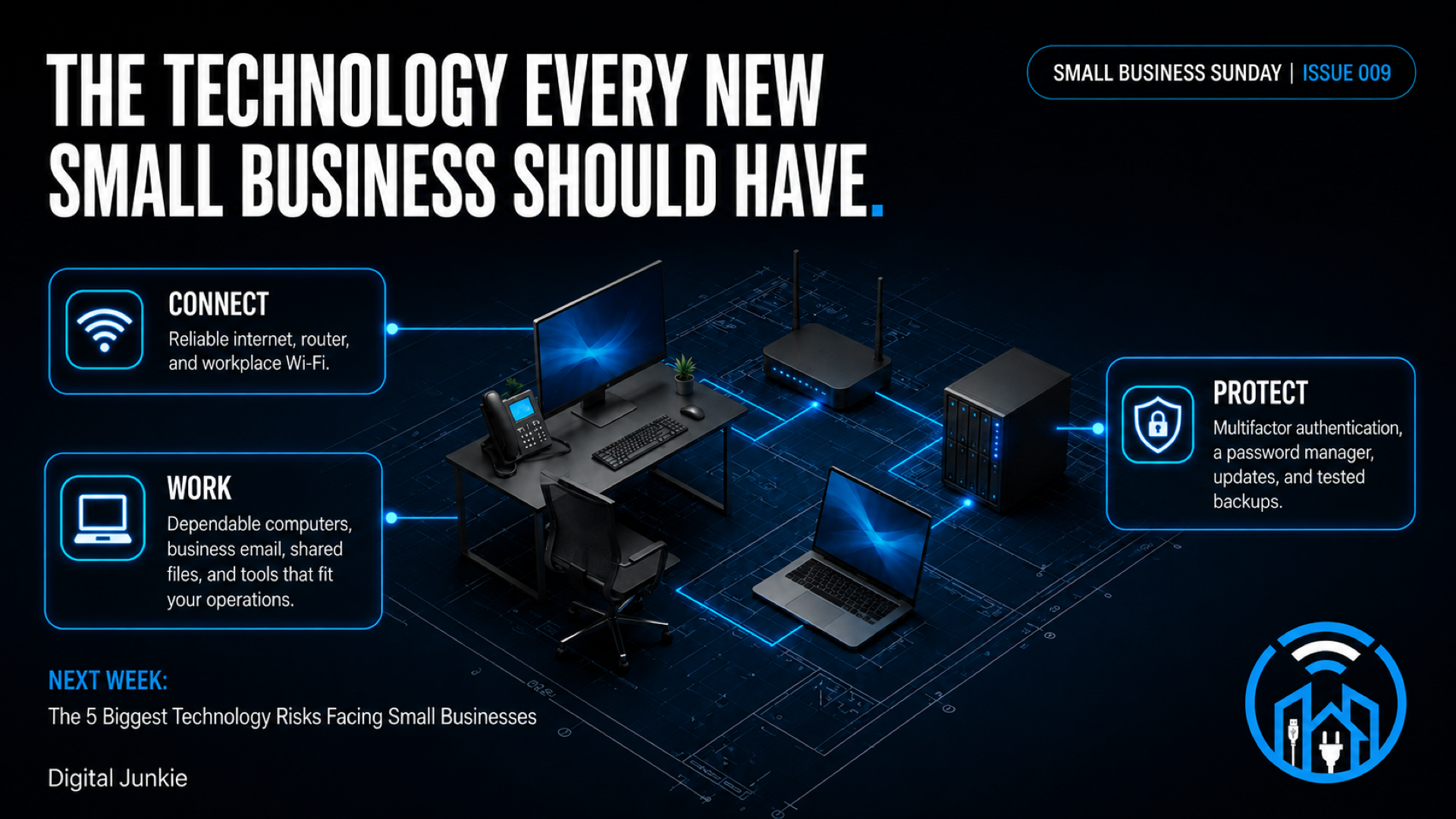
Small Business Sunday 009: The Technology Every New Small Business Should Have
Starting a business means making plenty of decisions before the first busy week arrives. Technology belongs on that list: how you will communicate, where your files will live, which devices you will use, and how you will recover if something goes wrong.
A useful starting point is to organize the setup around three needs: connect, work, and protect. The details will depend on your business, but those needs give you a practical foundation to build on.
Start with the work your business needs to do
Before choosing equipment or signing up for software, write down the tasks your business must handle. Think about communicating with customers, preparing estimates, managing appointments, keeping records, sharing documents, and accepting payments where applicable.
Identify who needs to do each task and where they will work. A business with one desk has different needs from a team moving between an office and customer locations. Let those everyday activities guide the setup.
Build a dependable connection
Your internet service, router, and workplace Wi-Fi form the connection layer. Choose service that fits the work you expect to do and make sure the network reaches the areas where people actually use it.
Keep guest access separate from business devices. Use wired connections where practical, especially for equipment that stays in one place. A clear network setup is easier to document and support than a collection of connections added without a plan.
Choose computers that fit daily operations
Dependable computers should support the applications and tasks your business uses. Work through a normal day: the documents you create, the systems you access, and the equipment you need to connect.
Use that list to establish requirements before buying. Put the essentials in place first, and keep a record of which devices belong to the business and who uses them.
Set up business email and shared files
Use business email on your own domain and decide where business documents will be stored. Establish a shared location for files that more than one person needs, with access assigned deliberately.
Give each person their own account. Decide who should be able to view or change information, and include access removal in the process for someone leaving the business. Keep account ownership and administration documented so the setup can be maintained.
Match business tools to your workflow
Accounting, scheduling, and payment tools should fit how your business operates. Start with the functions you need to perform, then decide which tools support them.
For example, an appointment-based business needs a clear way to manage bookings, while a business that sends estimates needs a dependable process for preparing and tracking them. Keep the focus on the work rather than building a long list of subscriptions.
Protect accounts and keep devices updated
Turn on multifactor authentication, which adds another check when signing in. Use a password manager to manage account passwords, and keep devices updated.
Make these steps part of the initial setup. Include them when adding an employee or a new device, and decide who is responsible for keeping the setup current.
Plan for backups and recovery
Set up backups for business information and test restoring files. The practical question is whether you can get the information back when you need it.
Document what is backed up, who checks it, and how to begin a restore. Keep recovery planning alongside account protection: both belong in the foundation rather than being left until a problem interrupts work.
Document the setup and plan for support
Keep a clear record of the devices, services, accounts, and responsibilities that make up your business technology. Identify who to contact when something needs attention and review the setup as the business grows.
For a new small business in Austin or elsewhere in Central Texas, this creates a practical starting plan: reliable connectivity, tools that support everyday work, and deliberate protection and recovery steps.
Need help planning your business technology? Talk to Digital Junkie.
737-400-6482
Austin and Surrounding Areas
Next Week on Small Business Sunday
The 5 Biggest Technology Risks Facing Small Businesses

Smart Home Saturday 009: How to Build a Smart Home Without Replacing Everything
A smart home does not have to begin with a truckload of new appliances. If your lamps, fans, switches, and everyday devices still work, the practical move is often to add intelligence around them. A few carefully chosen controls can make useful routines easier without turning the entire house into a renovation project.
The key is to begin with a problem, not a shopping list. Choose one routine you want to improve, select equipment that fits that job, and test the result before expanding. That approach keeps the system understandable and helps each purchase serve a clear purpose.
Start With the Routine You Want
Before comparing products, identify a repeated task that would genuinely be more convenient if it happened automatically or could be controlled more easily. You might want a lamp to turn on in the evening, a fan to shut off at bedtime, an entry light to respond when someone arrives, or a notification when a door opens.
Describe the routine in plain language. For example: "Turn on the living-room lamp at sunset and turn it off at bedtime." That simple sentence tells you what must be controlled, when it should happen, and whether a schedule is enough or a sensor is needed.
Starting with the routine also prevents a common mistake: buying a collection of devices that work individually but never become a useful system. A smart device is valuable when it removes friction from daily life, not merely because it connects to an app.
Keep the Devices That Still Do Their Jobs
Look at the equipment already in the room. A conventional lamp may only need a compatible smart plug. A light fixture might be better served by a smart bulb or an appropriate smart wall switch. A door can gain useful awareness through a contact sensor without replacing the door itself.
The right control depends on the device and how people use it. A smart plug can control power to some plug-in devices, but it does not add every feature found in a purpose-built smart appliance. A smart bulb needs continuous power to remain available for remote control, so a wall switch that is routinely turned off can defeat the intended setup. A wall control may preserve familiar manual operation, but installation and wiring requirements must be evaluated carefully.
Always follow the product manufacturer's directions and confirm that the control is rated for the connected load. Do not use a smart plug, switch, or other controller with equipment it is not designed to handle. If an upgrade involves household wiring or you are uncertain about safe installation, use a qualified professional.
Choose a Control Platform Before You Expand
Every new product needs a way to communicate and a place to be controlled. Before buying, check whether the device works with the control platform and home network you intend to use. Compatibility should be confirmed from current product information rather than assumed from the appearance of a logo or a broad claim on a listing.
A control platform is the app, hub, or ecosystem where you manage devices and routines. A hub is a device that can coordinate compatible smart-home equipment. Some products connect directly to the home's Wi-Fi network, while others use a separate hub or another supported connection method. The important point is not to collect every possible technology. It is to know how each purchase fits the system you are building.
Write down three details before adding a product: what it controls, how it connects, and which platform will manage it. If any answer is unclear, pause before purchasing. That small check can prevent an isolated device from becoming another unused app on your phone.
Organize the First Room
Once the first devices are connected, give them clear names based on location and function, such as "Living Room Floor Lamp" instead of "Plug 1." Group related devices by room where the platform allows it. Clear naming makes voice control, app control, troubleshooting, and future changes easier to understand.
Build the smallest version of the routine first. Test manual control, scheduled behavior, and any sensor trigger separately. Then test the complete routine at the time and under the conditions when it is supposed to run. Make sure household members can still use essential devices in a familiar way. A routine that only one person understands is harder to maintain.
If something is unreliable, simplify the setup and isolate the problem. Confirm power, network access, device status, and the routine's conditions before adding more equipment. Reliability is more valuable than complexity.
Expand With a Purpose
After the first room works consistently, decide whether the same pattern would help elsewhere. You may repeat a proven lighting routine, add a sensor that supports a specific need, or connect another compatible device to the existing platform. Each expansion should have a reason that can be stated as clearly as the first routine.
This gradual approach makes the home's smart features easier to learn and manage. It also gives you time to see which controls fit your household and which ideas sound better than they work in practice. You are building a dependable system around the home you already have, not replacing functional equipment simply to make it connected.
Start with one room. Keep what works. Add the right control for one useful routine, verify compatibility, and expand only after the first setup proves reliable.
Next Week on Smart Home Saturday
Smart Plugs: The Most Underrated Smart Home Upgrade
Tech Myth Thursday 008: Does Restarting Your Router Actually Help?
“Have you tried restarting the router?”
It is probably one of the most common pieces of advice you will hear when troubleshooting slow Wi-Fi, dropped connections, buffering, or an internet connection that suddenly stops behaving normally. Because the advice is repeated so often, it can sound like the networking equivalent of “turn it off and back on again.”
But restarting your router really can help.
The important part is understanding what a router restart can fix, what it cannot fix, and what it means when you have to keep restarting your router to get your Wi-Fi working again.
A reboot is a legitimate first troubleshooting step for some temporary network problems. It is not a permanent solution for poor Wi-Fi coverage, interference, failing hardware, or a problem with your internet service.
What Happens When You Restart Your Router?
Your router is not simply broadcasting a Wi-Fi signal. It is constantly managing network activity and connections between devices in your home or business.
When you restart or power cycle the router, you shut down its current operating state and allow it to start again. That fresh start can clear certain temporary problems and allow connections and services to initialize normally again.
That is why restarting a router can sometimes take a connection that is slow, unstable, or behaving strangely and return it to normal operation.
This does not mean rebooting magically improves the physical capabilities of the router or makes your internet plan faster. It means a temporary problem may have been cleared during the restart.
When Can Restarting Your Router Help?
A router reboot is worth trying when a network that normally works well suddenly starts behaving abnormally.
For example, you might notice:
• Wi-Fi devices unexpectedly losing their connection
• Websites or apps suddenly responding slowly
• Streaming video buffering when it normally does not
• Downloads performing much worse than usual
• Devices having trouble getting online
• A router or Wi-Fi network becoming unstable without an obvious reason
If restarting the router restores normal performance and the problem does not keep returning, the restart may have been all that was needed.
This is why “restart the router” is often a reasonable first Wi-Fi troubleshooting step. It is quick, simple, and can eliminate a temporary issue before you spend time investigating more complicated causes.
Restart vs. Reset: They Are Not the Same Thing
This distinction is important.
Restarting or rebooting a router means turning it off and starting it again while keeping its normal configuration.
A factory reset is very different. A factory reset can erase settings and return the router to its original configuration.
If you are simply troubleshooting a temporary Wi-Fi or internet problem, you generally do not want to press a factory-reset button unless you specifically intend to reconfigure the equipment afterward.
So when someone tells you to restart or power cycle your router, do not automatically interpret that as “reset the router.”
How to Properly Restart a Router
If you are troubleshooting your own home network, the basic goal is to let the router fully shut down before starting it again.
1. Turn off or unplug the router.
2. Give it enough time to fully power down.
3. Reconnect power.
4. Allow the router to completely boot and restore its network connections.
5. Test the same device or activity that was having trouble.
Do not judge the result immediately after plugging the router back in. Routers and other network equipment can take time to finish booting and re-establish their connections.
If you have separate networking equipment—such as a modem, gateway, router, mesh Wi-Fi system, or multiple network devices—the troubleshooting process can be more involved because the problem may not be occurring in the device you first suspect.
What Restarting Your Router Cannot Fix
A reboot becomes less useful when the underlying problem is physical, persistent, or caused somewhere else in the network.
Poor Wi-Fi Coverage
If one side of your house or office consistently has weak Wi-Fi, restarting the router does not change the distance between the router and your devices. It also does not remove walls or other obstacles that weaken the signal.
You might see a temporary improvement, but a genuine Wi-Fi coverage problem requires addressing coverage.
Wi-Fi Interference
Wireless networks operate in an environment shared with other devices and nearby networks. If interference is contributing to unstable Wi-Fi, rebooting may not remove the source of that interference.
Recurring wireless problems may require evaluating router placement, the surrounding wireless environment, and network configuration.
Failing or Inadequate Hardware
An aging or failing router can behave unpredictably. Restarting it may temporarily restore operation, but it cannot repair failing hardware.
The same applies when network hardware simply is not appropriate for the demands being placed on it.
If your router works after every reboot but repeatedly becomes unstable again, the reboot itself may be hiding a larger hardware or configuration problem.
Problems With Your Internet Connection
Wi-Fi and internet service are related, but they are not the same thing.
Your Wi-Fi is the wireless connection between your devices and your local network. Your internet connection is the service that connects that network to the internet.
If your internet service provider is experiencing an outage or there is a problem with the connection coming into your property, restarting your Wi-Fi router may not solve it.
That distinction matters when diagnosing slow internet versus slow Wi-Fi.
Why Does My Wi-Fi Work After Restarting the Router but Then Get Slow Again?
This is one of the most useful clues in network troubleshooting.
If restarting your router fixes the problem for a few minutes, hours, or days—but the same symptoms repeatedly return—you should stop treating the reboot as the solution.
It is providing temporary relief.
At that point, the useful question becomes:
Why does the network keep reaching a state where a restart is necessary?
The recurring cause could involve coverage, interference, hardware, configuration, the internet connection, or another part of the network.
Repeatedly rebooting the router without finding the cause is similar to clearing a warning light without investigating why it keeps coming back.
Should You Restart Your Router Regularly?
A healthy network should not require constant manual restarts just to remain usable.
There is a difference between occasionally rebooting equipment as a troubleshooting step and needing to restart your router every day or every week because Wi-Fi keeps slowing down or disconnecting.
If frequent router restarts have become part of your routine, that is useful diagnostic information. Something is causing the problem to return.
Instead of asking, “How often should I restart my router?” it may be more useful to ask, “Why do I need to keep restarting my router?”
A Better Way to Troubleshoot Recurring Wi-Fi Problems
When a restart does not permanently solve the issue, pay attention to the pattern.
Ask questions such as:
• Does the problem affect every device or only one?
• Is Wi-Fi slow everywhere or only in certain rooms?
• Does the problem happen at a particular time?
• Are wired devices affected too?
• Does the router show that the internet connection is down?
• Does performance get worse when more devices become active?
• Does restarting fix the problem temporarily, and how long does the improvement last?
Those details help separate a Wi-Fi coverage problem from an internet service problem, a device-specific issue, interference, or failing network hardware.
That is much more useful than repeatedly unplugging the router and hoping the problem stays away.
The Verdict: Restarting Your Router Can Help
The myth that restarting your router never makes a difference is busted.
A router reboot can be an effective troubleshooting step when you are dealing with a temporary network glitch or an unstable connection. If the restart restores normal operation and the issue stays gone, it did exactly what you needed it to do.
But if your Wi-Fi keeps disconnecting, your internet keeps slowing down, or you constantly have to restart the router to fix your connection, the reboot is no longer the real solution.
The next step is finding the underlying cause.
Digital Junkie Technology Services & Consulting helps homeowners and businesses diagnose Wi-Fi, networking, and internet connectivity problems instead of simply guessing at the cause.
Next Week on Tech Myth Thursday
Your Internet Provider Is Always Responsible for Slow Wi-Fi
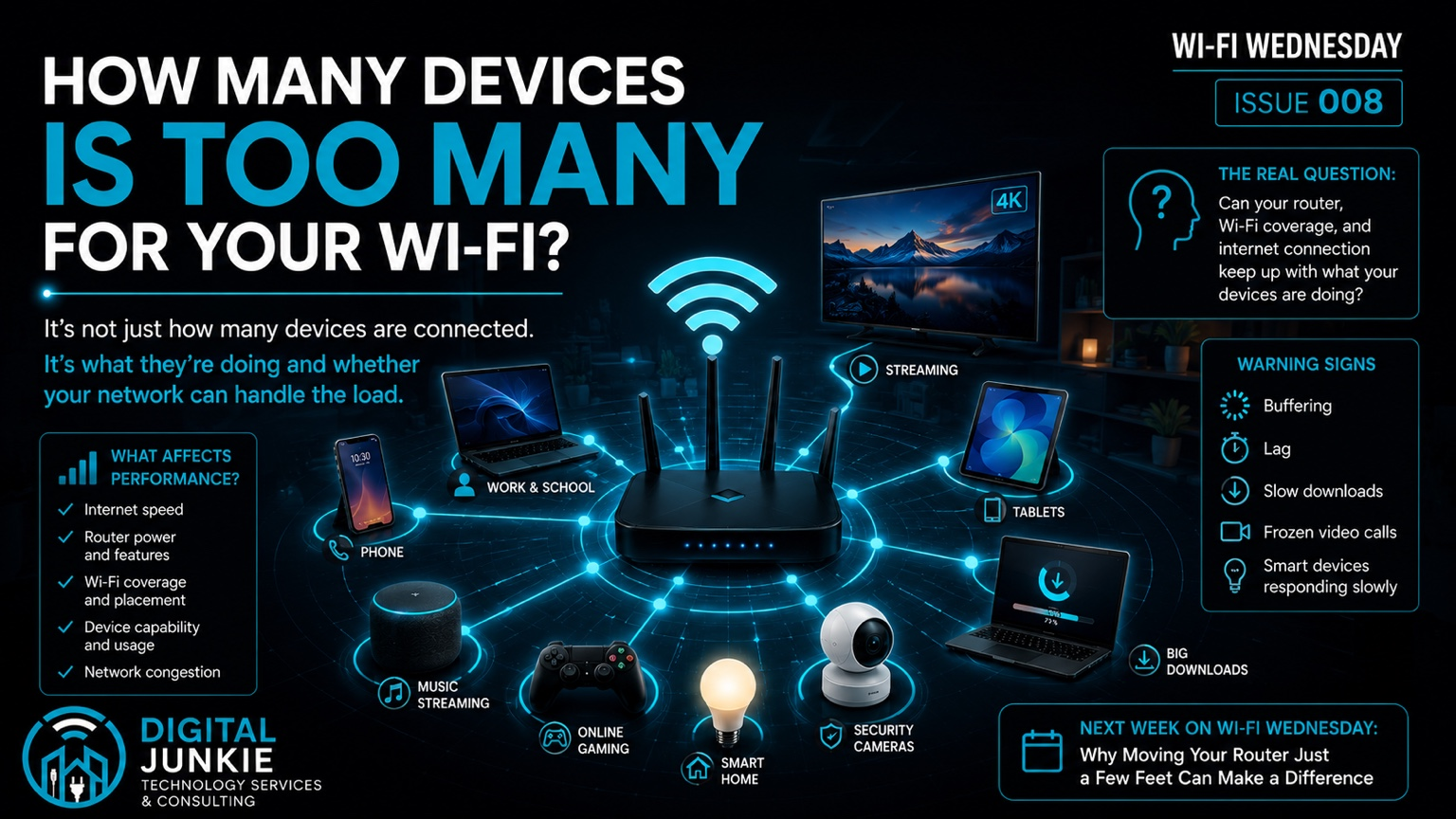
Wi-Fi Wednesday 008: How Many Devices Is Too Many for Your Wi-Fi?
Phones, laptops, TVs, tablets, game consoles, security cameras, smart speakers, thermostats, doorbells, printers—the list of devices connected to a modern Wi-Fi network can get long quickly.
So how many devices is too many for your Wi-Fi?
There isn’t one magic number.
A network with dozens of connected devices can perform perfectly well, while another network with only a handful of devices can struggle. The reason is simple: what those devices are doing matters just as much as how many are connected.
Connected Doesn’t Mean Busy
A smart light bulb, thermostat, or printer may stay connected to Wi-Fi all day while using very little network capacity most of the time.
Compare that with a smaller group of devices simultaneously streaming 4K video, playing online games, joining video calls, or downloading large files. Those active devices can place much more demand on the network.
That is why simply counting the devices connected to your router doesn’t tell you whether your Wi-Fi is overloaded.
Warning Signs Your Network Is Struggling
Instead of focusing only on the device count, pay attention to what happens when more people and devices become active.
Common warning signs include:
Streaming video that repeatedly buffers
Increased lag while gaming
Downloads that become unusually slow
Video calls that freeze or lose quality
Smart-home devices that respond slowly
Wi-Fi performance that noticeably drops when everyone gets online
If these problems consistently appear during periods of heavier use, your network may be having trouble keeping up with the demand.
Your Router Is Only Part of the Equation
When Wi-Fi slows down, the router often gets blamed first. But your wireless network is a chain, and performance depends on several parts working together.
Your Internet Connection
Your internet plan and the stability of the connection coming from your internet service provider affect how much traffic can move between your home or business and the internet.
Even an excellent Wi-Fi network cannot make an internet connection faster than the service available to it.
Your Router
The router manages the devices and traffic on your network. Its hardware, age, settings, features, and ability to manage multiple clients can all affect performance.
Wi-Fi Coverage
A fast router does not guarantee a strong connection everywhere.
Distance, walls, obstacles, interference, and dead spots can weaken Wi-Fi coverage. A device with a poor wireless connection may perform badly even when the rest of the network has plenty of capacity.
What Your Devices Are Doing
Different activities create very different demands.
Checking email is not the same as streaming 4K video. A smart plug sitting idle is not the same as a laptop downloading a huge file. A household or business with several people simultaneously streaming, gaming, transferring files, and participating in video calls can generate substantial network activity.
So, How Many Devices Can Your Wi-Fi Handle?
The useful answer isn’t a specific number.
The better question is:
Can your internet connection, router, Wi-Fi coverage, and connected devices work together well enough to handle the activity on your network?
If the answer is yes, having a large number of connected devices isn’t necessarily a problem.
If performance falls apart whenever everyone gets online, simply disconnecting a few smart devices may not solve the underlying issue. The actual bottleneck could be your internet connection, router hardware, Wi-Fi coverage, interference, or the amount and type of traffic moving across the network.
Don’t Just Count Devices—Find the Bottleneck
When Wi-Fi problems appear, troubleshooting the network as a whole is more useful than looking for an arbitrary maximum device count.
Digital Junkie Technology Services & Consulting can help identify what’s holding your network back and determine whether the problem is coverage, network hardware, internet performance, or another part of the connection.
Next Week on Wi-Fi Wednesday
Why Moving Your Router Just a Few Feet Can Make a Difference
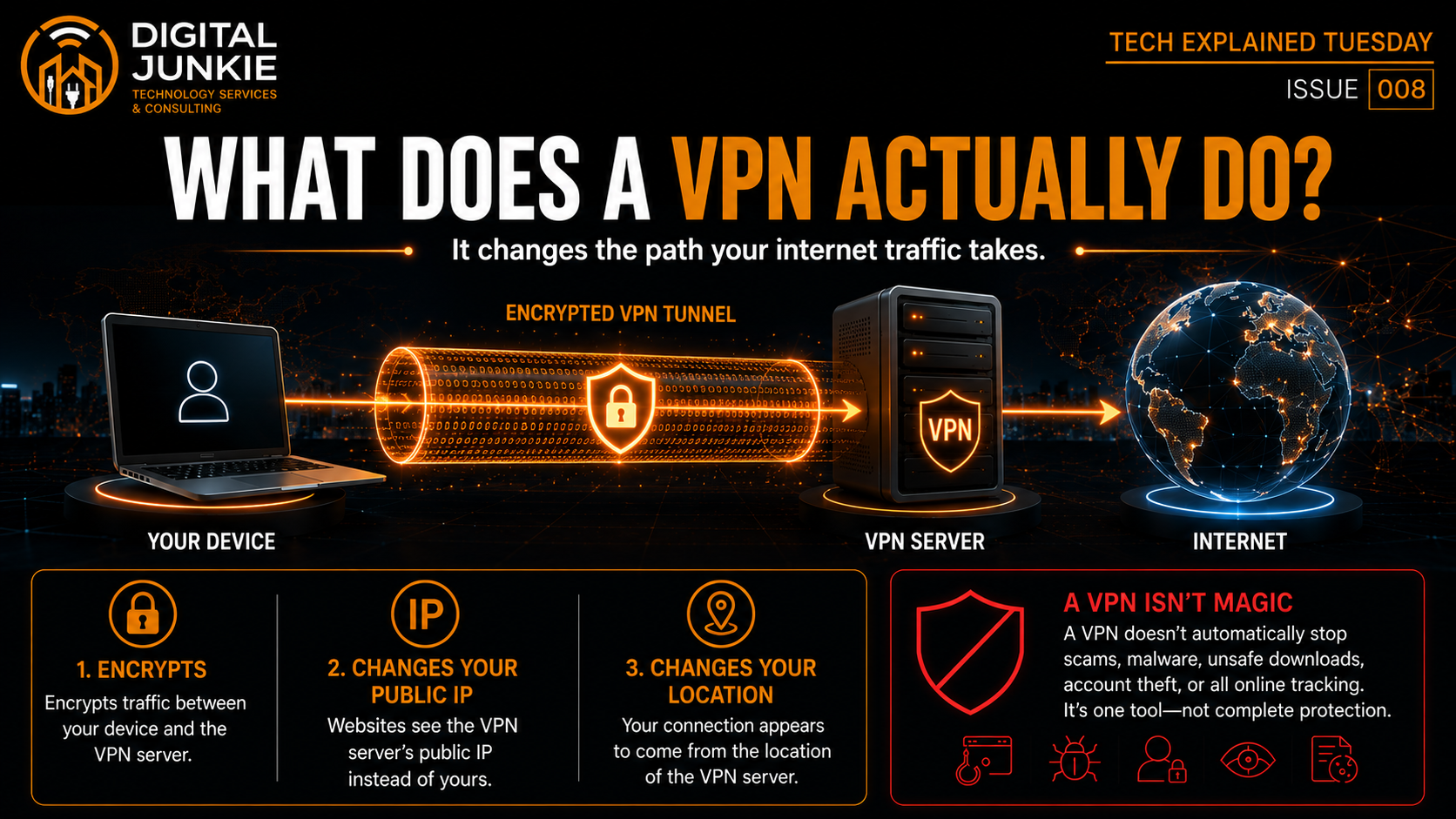
What Does a VPN Actually Do?
VPNs are everywhere.
You see advertisements telling you that you need one to stay safe online. VPN companies talk about encryption, privacy, anonymous browsing, hidden IP addresses, secure connections, and changing your location.
But what does a VPN actually do?
The answer is much simpler than a lot of the advertising makes it sound.
A VPN—or Virtual Private Network—changes the path your internet traffic takes. Instead of your device connecting normally through your internet provider and directly out to websites and online services, your traffic first travels through an encrypted connection to a VPN server.
That one change can provide some useful privacy and security benefits.
But a VPN is not a magic shield, and understanding what it doesn't do is just as important as understanding what it does.
How You Normally Connect to the Internet
Without a VPN, the basic path looks something like this:
Your device → Internet provider → Internet → Website or online service
When you open a website, your computer, phone, or tablet sends a request through your internet connection. Your internet service provider helps route that traffic across the internet to its destination.
The website then sends information back through that connection.
There are already important security technologies involved in modern internet use. For example, HTTPS encrypts communication between your browser and HTTPS-enabled websites.
But your normal internet connection still reveals information about the connection itself.
Your internet provider can see information about your internet activity, and websites and online services can generally see your public IP address. Your public IP can also provide information about your approximate geographic location and internet provider.
A VPN changes that path.
What Happens When You Turn On a VPN?
With a VPN enabled, the connection looks more like this:
Your device → Encrypted VPN tunnel → VPN server → Internet → Website
Your device establishes an encrypted connection with the VPN provider's server. Your internet traffic travels through that connection before heading to its final destination.
The VPN server essentially becomes an intermediary between you and the rest of the internet.
This produces three of the most noticeable effects of using a VPN.
1. A VPN Encrypts the Connection to the VPN Server
One of the primary functions of a VPN is creating an encrypted tunnel between your device and the VPN server.
Instead of sending your internet traffic directly through your normal connection, your device encrypts that traffic before sending it to the VPN server.
This can be particularly useful when you're using networks you don't completely trust, such as public Wi-Fi at a hotel, airport, coffee shop, conference center, or other shared location.
Someone observing that local network shouldn't simply be able to read the traffic traveling through your VPN tunnel.
But there's an important distinction:
The VPN tunnel doesn't extend forever.
The encrypted VPN connection protects traffic between your device and the VPN server. Once the traffic leaves the VPN server for its destination, the VPN tunnel itself is no longer protecting that portion of the connection.
That's one reason HTTPS and the security of the websites and services you use still matter.
2. A VPN Changes the Public IP Address Websites See
Your public IP address is normally assigned by your internet provider.
When you connect directly to a website, that website generally sees that public IP address.
When you're connected through a VPN, the website instead sees the public IP address of the VPN server handling your connection.
So instead of:
Website → Your public IP
it becomes:
Website → VPN server's public IP
This can provide an additional layer of privacy because websites aren't seeing the public IP address associated with your normal internet connection.
However, hiding your IP address doesn't make you anonymous.
If you sign into your Google, Facebook, Amazon, Microsoft, Apple, or other online accounts, those services still know which account you're using. Websites can also use cookies and other technologies to recognize and track users.
A different IP address doesn't erase all of that.
3. A VPN Can Change Your Apparent Location
Because websites see the VPN server's IP address, your internet connection can also appear to originate from the location of that VPN server.
Suppose you're physically in Texas but connect to a VPN server located in another state.
Websites checking the location associated with your IP address may believe your connection is coming from that other location.
Some VPN providers also operate servers in different countries, allowing your connection to appear to originate from another country.
This is why VPNs are sometimes used to access websites or services that vary based on geographic location.
Again, though, your apparent internet location isn't the same thing as completely hiding your identity.
Does a VPN Make Public Wi-Fi Safer?
This is one of the situations where a VPN can be genuinely useful.
Public Wi-Fi is convenient, but you're connecting through a network you don't control.
A VPN creates an encrypted connection from your device to the VPN server, adding another layer of protection for your internet traffic while you're connected to that network.
That can be valuable when traveling or regularly using hotel, airport, coffee-shop, or other shared Wi-Fi networks.
It's still important to practice normal online security.
A VPN doesn't make a dangerous website safe just because you visited it while connected to a VPN.
What Doesn't a VPN Protect You From?
This is where VPN advertising sometimes creates unrealistic expectations.
A VPN can improve privacy and protect a portion of your internet connection, but it doesn't automatically protect you from every online threat.
A VPN doesn't stop phishing.
If someone sends you a convincing fake Microsoft login page and you enter your password, the VPN can't determine that you've willingly handed your credentials to a scammer.
A VPN doesn't automatically stop malware.
Downloading a malicious program through an encrypted VPN connection doesn't make the program safe.
The VPN securely transported the malicious file to you.
It's still malicious.
A VPN doesn't protect a compromised account.
If someone already has your username and password, changing your IP address won't stop them from signing into your account.
Strong passwords and two-factor authentication are separate layers of protection.
A VPN doesn't eliminate online tracking.
Websites can use accounts, cookies and other techniques to identify or track users.
Changing your public IP address can reduce one piece of identifying information, but it doesn't eliminate the others.
A VPN doesn't make you invisible.
This is probably the biggest misconception.
A VPN provides privacy—not invisibility.
The VPN provider itself becomes part of your internet connection, which is also why choosing a trustworthy VPN provider matters.
Do You Actually Need a VPN?
Not everyone needs to leave a VPN running 24 hours a day.
Whether a VPN makes sense depends on what you're trying to accomplish.
A VPN can be useful when you:
Frequently use public or untrusted Wi-Fi
Want websites to see the VPN server's IP rather than your normal public IP
Want an additional layer of privacy from your internet provider
Need your connection to appear to originate from another location
Need secure remote connectivity for a business or organization
But installing a VPN shouldn't replace the fundamentals of good computer and internet security.
A VPN Is One Layer of Online Security
Think about online security as multiple layers rather than one application that protects everything.
A VPN can protect the connection between your device and the VPN server.
Strong, unique passwords help protect your accounts.
Two-factor authentication adds another barrier if a password is stolen.
Software updates fix known security vulnerabilities.
Safe browsing habits help prevent phishing, scams, malicious downloads, and other threats before they become problems.
Backups protect your data when prevention fails.
Each solves a different problem.
That's why asking "Do I need a VPN?" is often less useful than asking "What am I trying to protect myself from?"
Once you know the problem, you can choose the right technology for it.
The Bottom Line: What Does a VPN Actually Do?
Strip away all the marketing and a VPN's job is fairly straightforward:
It changes the path your internet traffic takes.
Your device establishes an encrypted connection with a VPN server, and that server connects to the internet on your behalf.
As a result, a VPN can:
Encrypt traffic between your device and the VPN server.
Replace the public IP address websites normally see with the VPN server's IP address.
Make your internet connection appear to originate from the VPN server's location.
Those are useful capabilities.
But a VPN doesn't automatically stop scams, malware, unsafe downloads, stolen passwords, compromised accounts, cookies, or every form of online tracking.
It's a powerful privacy and security tool when used for the right reasons—but it's still only one part of staying safe online.
If you're trying to improve the security, privacy, or reliability of your home or business technology and aren't sure which tools actually make sense, Digital Junkie Technology Services & Consulting can help you understand your options and build a solution around what you actually need.
Next week on Tech Explained Tuesday:
What Is Two-Factor Authentication—and Why Isn’t a Password Enough?
Tech Tip Monday 008: Mac vs PC: Which One Is Right for You?
Choosing between a Mac and a Windows PC is not simply a matter of deciding which one looks better. The right computer depends on how you work, the software you need, the devices you already use, your budget, whether you game, and how much you value upgrades or customization.
Why Choose a Mac?
Macs are known for a consistent hardware-and-software experience, straightforward everyday use, and tight integration with other Apple devices. If you already use an iPhone, iPad, Apple Watch, or other Apple products, a Mac can be especially appealing because those devices are designed to work together as part of the same ecosystem.
That consistency is one of the biggest reasons people choose a Mac. Apple controls both the computer hardware and macOS, which creates a more standardized experience across its computers. For someone who wants a computer that is straightforward to use without spending much time thinking about hardware configurations, a Mac may be a strong fit.
Macs can also make sense for people whose daily workflow already revolves around Apple devices. Before buying one, however, make sure the programs you rely on are available for macOS and work the way you need them to.
Why Choose a Windows PC?
Windows PCs offer far more hardware choices across different brands, sizes, configurations, and price points. That variety makes it possible to choose a computer around a specific budget or workload rather than selecting from one manufacturer’s lineup.
A Windows PC can also be the better choice when you depend on Windows-specific software. Software compatibility should always be checked before choosing a new computer, particularly when the computer will be used for work or specialized applications.
Gaming is another major consideration. Windows PCs provide a broad range of gaming hardware and performance options, from everyday laptops to powerful custom desktops. If gaming is important to you, the hardware and games you plan to use should be part of the decision from the beginning.
Windows desktops also provide more opportunities for hardware customization and upgrades. Depending on the computer, components can often be replaced or upgraded as your needs change. That can be valuable if you want greater control over your computer’s hardware or want to extend its useful life through future upgrades.
Mac vs PC: What Should You Consider?
Instead of starting with a brand, start with what you actually need the computer to do.
Software: What programs do you need to run every day? Check whether they support macOS, Windows, or both before buying anything.
Existing Devices: Think about the phones, tablets, accessories, and other devices you already own and how important integration between those devices is to you.
Budget: Consider both what you want to spend now and what you may need over the life of the computer. Compare computers that actually meet your requirements rather than choosing based only on the lowest purchase price.
Gaming: If you play games, consider the games you want to run and the level of performance you expect. Your gaming requirements can have a major impact on the computer and hardware you choose.
Upgrades and Customization: Decide whether you want the ability to replace components, upgrade hardware, or customize your setup later. If that flexibility matters, include it in your decision before purchasing.
So, Is Mac or PC Better?
There is not one right answer for everyone. The best computer is the one that fits what you actually need.
For one person, that may be a Mac because they value a consistent experience and already use several Apple devices. For someone else, a Windows PC may make more sense because they need particular software, gaming performance, more hardware choices, or greater upgrade flexibility.
Before spending your money, compare your software, workflow, budget, existing devices, gaming needs, and upgrade priorities. The logo on the computer should come after those considerations, not before them.
Need Help Choosing the Right Computer?
If you are trying to decide between a Mac and a PC, Digital Junkie Technology Services & Consulting can help you evaluate what you actually need so you can make a more informed choice.
www.digitaljunkie.tech
info@digitaljunkie.tech
737-400-6482
Austin and Surrounding Areas
NEXT WEEK
The Keyboard Shortcuts That Actually Save You Time