

Why Is My Computer So Slow? (And What You Can Do About It)
💡 Tech Tip Monday • Issue 002
If you’ve ever found yourself waiting… and waiting… for your computer to open a program or load a webpage, you’re not alone.
One of the most common questions I hear is:
“Do I need a new computer?”
The answer is not always.
A slow computer doesn’t automatically mean it’s time to replace it. In many cases, there’s an underlying cause that’s both identifiable and fixable. Whether you’re using a Windows PC or a Mac, understanding what’s slowing your computer down can save you time, frustration, and money.
Here are seven of the most common reasons computers slow down.
1. Too Many Programs Running
Over time, computers collect software that automatically starts every time you turn them on. Add multiple browser tabs, cloud storage apps, messaging programs, and background services, and your computer may simply be trying to do too much at once.
The result is slower startup times and sluggish performance throughout the day.
2. Your Storage Drive Is Almost Full
Your operating system needs free space to work efficiently.
When your storage is nearly full, your computer has less room for temporary files, updates, and virtual memory. That can cause programs to open slowly, files to take longer to save, and the entire system to feel less responsive.
Keeping at least 15-20% of your storage free is a good habit.
3. You’re Still Using a Traditional Hard Drive
This is one of the biggest performance issues I still see.
Older hard disk drives (HDDs) are dramatically slower than modern solid-state drives (SSDs). Simply upgrading to an SSD can often reduce startup times from minutes to seconds and make everyday tasks feel much faster.
For many older computers, it’s one of the best upgrades you can make.
4. Your Computer Needs More Memory (RAM)
If everything slows down when you have several programs open, your computer may be running out of available memory.
More RAM allows your computer to keep multiple applications running smoothly without constantly moving data back and forth to the storage drive.
Depending on your computer, upgrading RAM may be a simple and affordable solution.
5. Updates Have Been Ignored
Operating system updates aren’t just about new features.
They often include performance improvements, bug fixes, updated drivers, and important security patches. Keeping your computer updated helps it run more reliably and securely.
6. Malware or Unwanted Software
Not every slow computer has a virus, but malware, adware, unwanted browser extensions, and poorly written software can all consume valuable system resources.
If your computer suddenly becomes much slower than normal, it’s worth investigating before assuming the hardware has failed.
7. It May Actually Be Time for an Upgrade
Sometimes a computer has simply reached the end of its useful life.
Older hardware may no longer support current software, receive security updates, or provide the performance today’s applications require.
The key is knowing whether your computer needs maintenance, an upgrade, or replacement before spending money.
🔧 Try This Before Calling IT
Before replacing your computer, try these simple steps:
✅ Restart your computer.
✅ Install any pending Windows or macOS updates.
✅ Remove programs you no longer use.
✅ Free up storage space.
✅ Close unnecessary browser tabs and applications.
✅ Review which programs automatically start when you log in.
You might be surprised how much faster your computer feels after a little maintenance.
💻 Digital Junkie Recommends
If your computer has a traditional hard drive, upgrading to an SSD is often the single biggest performance improvement you can make.
If you’re unsure what’s causing the slowdown, have it evaluated before spending money on a replacement. A proper diagnosis can often save hundreds of dollars.
💡 Digital Junkie’s Advice
Don’t assume a slow computer means you need a new one.
The best approach is to diagnose the problem first. Sometimes it’s a simple cleanup. Sometimes it’s a hardware upgrade. And sometimes replacing the computer is the right decision.
Knowing the difference can save you time, money, and frustration.
💬 Question of the Week
What’s the biggest issue you’re experiencing with your computer right now?
Slow startup?
Programs freezing?
Slow internet browsing?
Random crashes?
Something else?
I’d love to hear what’s going on and help point you in the right direction.
Connecting Life to Technology.
Whether you need help with a slow computer, Wi-Fi issues, networking, security cameras, smart home technology, or business IT support, Digital Junkie is here to help homeowners and small businesses throughout Central Texas get the most from their technology.
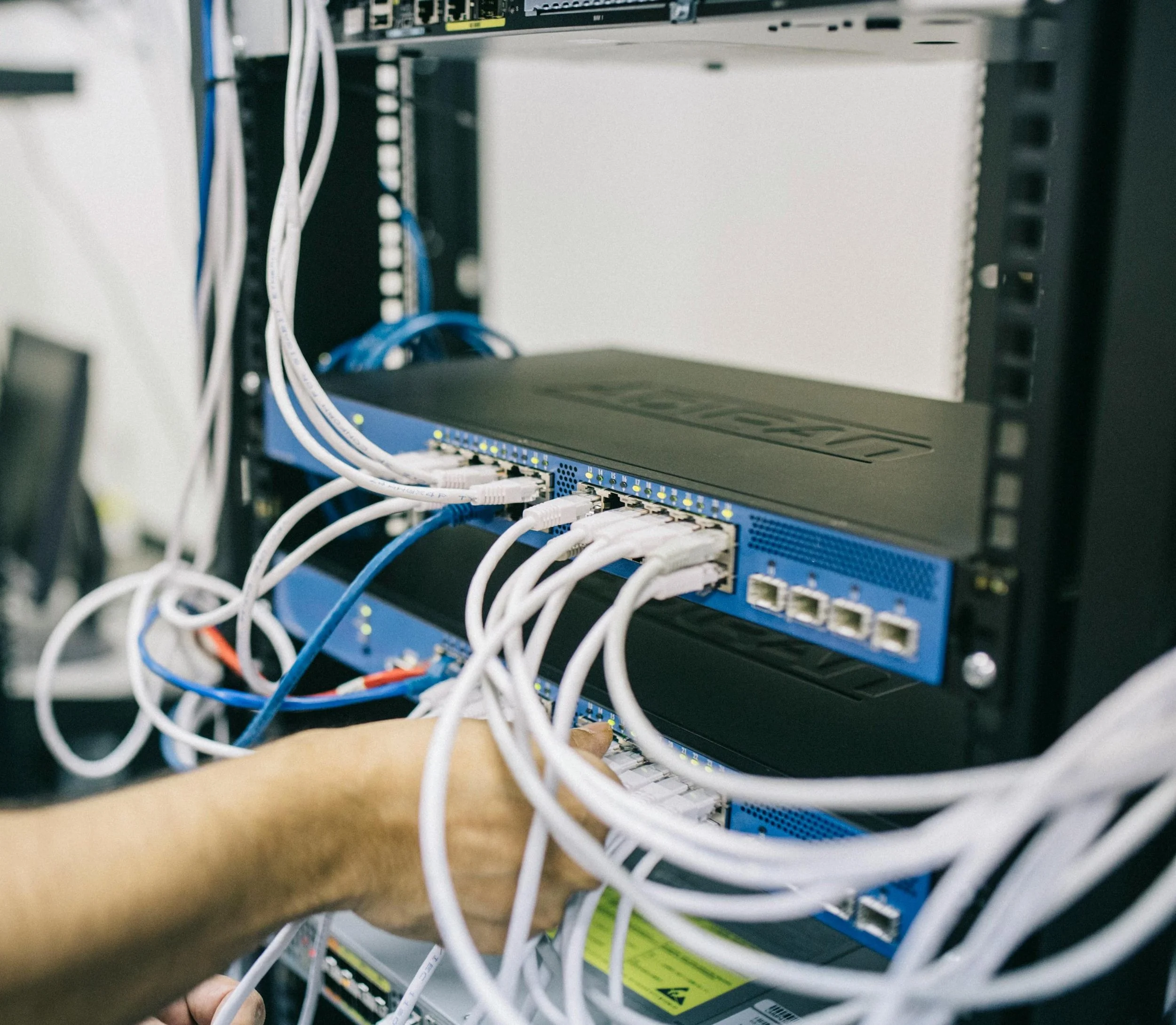
Why Adding Smart Home Devices Slows Down Your Wi-Fi — And What to Do About It
If you've noticed your internet feeling sluggish lately — videos buffering, video calls dropping, Alexa taking forever to respond — you're not imagining it. One of the most common tech complaints I hear from Austin homeowners is that their Wi-Fi was fine until they started adding smart home devices. A thermostat here, a few cameras there, some smart bulbs, a video doorbell — and suddenly everything feels slow.
Here's the good news: this is a completely solvable problem. Here's what's actually happening and what you can do about it.
Why smart devices slow down your Wi-Fi
Every device you connect to your Wi-Fi network — whether it's a laptop, a security camera, or a smart plug — competes for bandwidth and "airtime" on your router. A typical Austin home in 2026 has anywhere from 20 to 40 connected devices. While most smart home gadgets (smart lights, plugs, locks) use very little data on their own, they still create constant background traffic: checking for commands, downloading firmware updates, and syncing with the cloud.
The bigger bandwidth consumers are security cameras, smart TVs, and video doorbells. A single 1080p security camera can use 1–2 Mbps continuously. If you have four cameras running around the clock, that's up to 8 Mbps constantly chewing through your connection — before anyone in your house streams a single video.
Add a few people working from home, a gamer, and kids streaming, and you can see how a 100 Mbps internet plan can start to feel painfully slow.
The other problem: Wi-Fi dead zones
Many Austin homes — especially larger ones, two-story houses, or homes with thick walls — have areas where the Wi-Fi signal is weak or nonexistent. Smart devices placed in these dead zones (like a camera at the back of the garage or a smart lock on the front door) struggle to maintain a stable connection, causing them to repeatedly reconnect. Every reconnect creates a small burst of network traffic and slows things down further.
5 things you can do right now
1. Restart your router. Sounds basic, but most routers benefit from a restart every few weeks. Power it off, wait 30 seconds, power it back on.
2. Check how many devices are connected. Log into your router's app (most modern routers have one) and see how many devices are actually connected. You may find old phones, tablets, or neighbor devices you forgot about still eating up your bandwidth.
3. Move your router to a central location. If your router is tucked in a closet or in one corner of the house, moving it to a more central location can dramatically improve coverage.
4. Separate your smart devices onto a guest network. Most modern routers let you create a separate Wi-Fi network. Put your smart home devices on it and keep your computers, phones, and streaming devices on the main network. This stops your Ring camera from competing with your Zoom call.
5. Consider a mesh Wi-Fi system. If you have dead zones or a larger home (over 2,000 sq ft), a mesh system with multiple nodes is the single biggest upgrade you can make. Systems like Eero, Google Nest Wifi, or Orbi blanket your entire home with strong, consistent signal.
When DIY isn't enough
Sometimes the fix isn't just a router reboot — it requires actually understanding your home's layout, your internet plan, and how your devices are configured. If you've tried the basics and your Wi-Fi still struggles, it's worth having someone take a proper look.
At Digital Junkie, I help Austin homeowners untangle exactly these kinds of problems. I'll assess your current setup, identify the bottlenecks, and recommend the most cost-effective fix — whether that's a mesh system, a network configuration change, or something else entirely.
Call (737) 400-6482 or visit my Wi-Fi & Networking page to learn more. Most jobs can be scheduled within the same week.
Tags:
#wifi #smart home #networking #Austin TX #slowinternet #hometech