
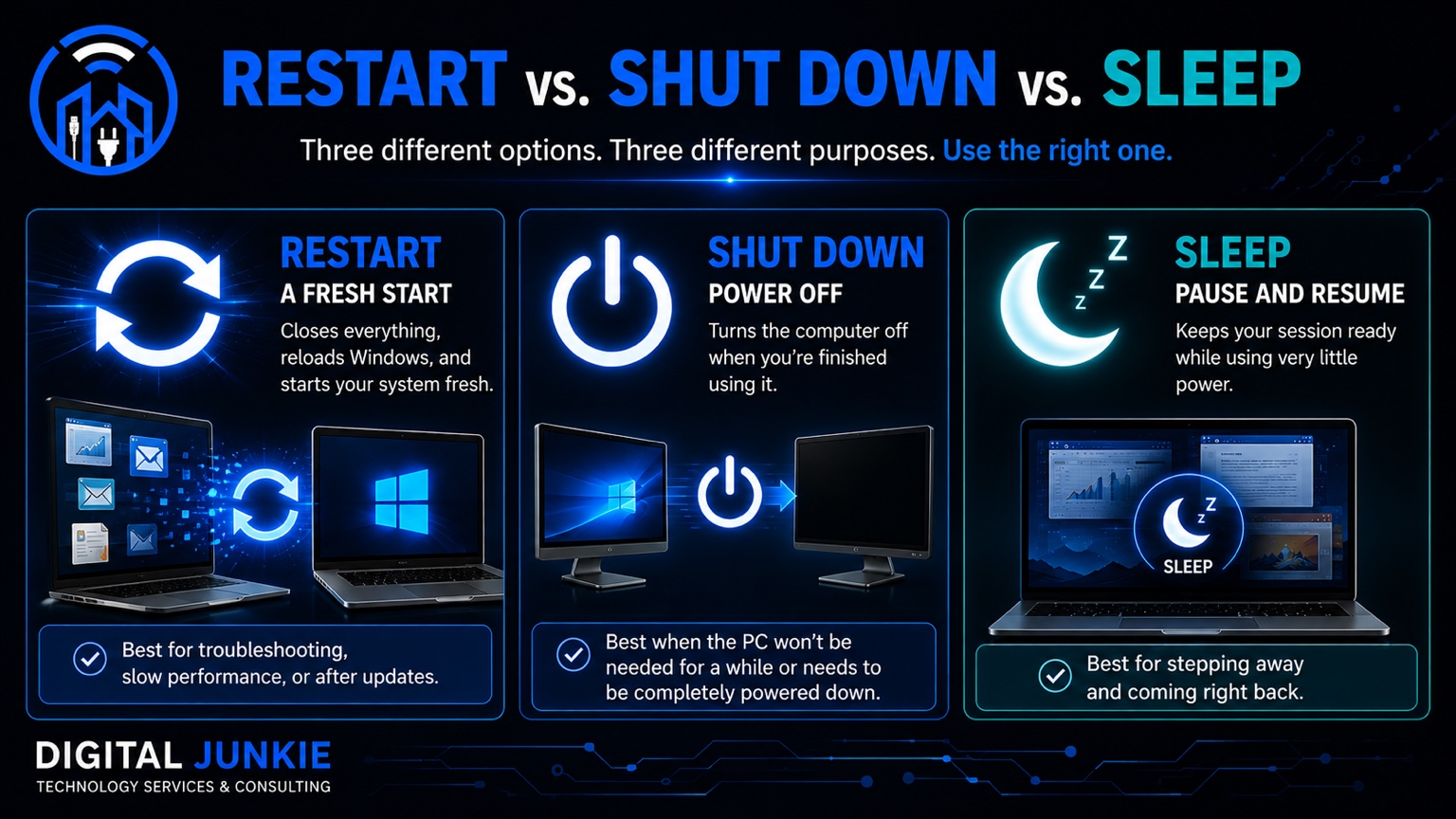
Tech Tip Monday 006: The Difference Between Restart, Shut Down, and Sleep
You’re finished using your computer, so you click the power button and Windows gives you several choices: Sleep, Shut Down, or Restart.
They all sound like different ways of turning off your PC, but they actually do very different things.
Understanding the difference between Restart, Shut Down, and Sleep can help you choose the right Windows power option, troubleshoot computer problems, install updates properly, save power, and get back to work faster.
So, should you restart your computer, shut it down, or put it to sleep?
Here’s the difference.
Restart: Give Your Computer a Fresh Start
Restart is usually the option to choose when your computer isn’t behaving normally.
When you restart your computer, Windows closes your running programs and reloads the operating system. Your computer then starts a fresh Windows session.
That makes restarting one of the simplest and most useful computer troubleshooting steps.
A restart is a good choice when your PC is:
Running unusually slowly
Acting strange or becoming unresponsive
Experiencing software problems
Having trouble with an application
Finishing Windows updates
Experiencing temporary system issues
There’s a reason one of the first troubleshooting questions is often, “Have you restarted the computer?”
Restarting isn’t magic. It simply gives Windows and your running software an opportunity to start fresh instead of continuing with the same session.
If your computer has suddenly become slow or something isn’t working correctly, Restart is usually the best first option to try.
Shut Down: Turn the Computer Off
Shut Down is for when you’re finished using your computer and want it powered off.
Instead of keeping your current session ready for an immediate return, shutting down closes your applications and turns the computer off.
This makes Shut Down a good choice when you know you won’t be using the computer for a while or specifically need the PC powered down.
Think of it this way:
Restart = close everything and immediately start again.
Shut Down = close everything and stay off.
For everyday computer use, you don’t necessarily need to shut down your PC every single time you walk away from it. If you’re returning soon, that’s exactly where Sleep becomes useful.
Sleep: Pause What You’re Doing
Sleep mode is designed for convenience.
When you put a Windows PC to sleep, the computer enters a low-power state while keeping your current session ready.
Your applications, files, and windows can remain available so you can quickly return to what you were doing.
Sleep is especially useful when you’re:
Stepping away for lunch
Moving between meetings
Leaving your desk temporarily
Closing your laptop for a short period
Planning to continue working later
Instead of closing everything and starting over, Sleep lets you essentially pause your computer and resume later.
That’s the big advantage of Windows Sleep mode: convenience.
Restart vs. Shut Down: What’s the Difference?
This is where many computer users get confused.
If you’re trying to fix a computer problem, Restart and Shut Down shouldn’t automatically be treated as interchangeable choices.
The practical difference is their purpose.
Choose Restart when you want Windows to close the current session and immediately start fresh.
Choose Shut Down when you’re finished with the computer and want it powered off.
So if someone tells you to restart your PC while troubleshooting a Windows problem, choose Restart rather than assuming shutting the computer down is the same instruction.
Sleep vs. Shut Down: Which Should You Use?
This depends mostly on when you plan to use the computer again.
If you’re coming back shortly, Sleep is usually the convenient option because your session stays ready.
If you’re finished for a while and want the PC completely powered down, choose Shut Down.
A simple way to remember it is:
Sleep = I’m coming back.
Shut Down = I’m done for now.
When Should You Restart Your Computer?
You don’t have to wait until your computer completely stops working before restarting it.
Restarting can be a useful first troubleshooting step whenever Windows or an application begins behaving unexpectedly.
For example, if your computer suddenly feels slower than normal, an application isn’t responding correctly, or something that normally works has stopped working, try restarting before assuming you have a major computer problem.
The same applies after certain Windows updates and software changes.
A simple restart can sometimes resolve a temporary problem without requiring more complicated computer repair or troubleshooting.
Should You Shut Down Your Computer Every Night?
For normal everyday use, the important thing isn’t following a rigid rule that says every computer must be shut down every night.
Instead, use the power option that matches what you’re doing.
Coming back soon? Sleep.
Finished using the computer for a while? Shut Down.
Computer acting strangely or needs a fresh start? Restart.
The goal isn’t to find one power option that you use every time. It’s understanding what each option is designed to do.
Restart, Shut Down, or Sleep: The Easy Rule
You don’t need to memorize everything happening behind the scenes.
Just remember these three simple rules:
RESTART — Troubleshooting or updates
Use Restart when your computer is acting up, running slowly, or needs a fresh Windows session.
SHUT DOWN — Done for a while
Use Shut Down when you’re finished using the PC and want it completely powered off.
SLEEP — Coming back soon
Use Sleep when you’re stepping away but want your applications, files, and windows ready when you return.
Three different Windows power options.
Three different purposes.
Using the right one can make everyday computer use—and troubleshooting computer problems—a lot simpler.
Need Help With a Computer That Isn’t Running Right?
If restarting your computer doesn’t solve the problem, the issue may need more than a simple reboot.
Digital Junkie Technology Services & Consulting can help troubleshoot computer problems, slow PCs, Windows issues, software problems, and other technology headaches.
Website: www.digitaljunkie.tech
Email: info@digitaljunkie.tech
Phone: 737-400-6482
Service Area: Austin and Surrounding Areas
Next Week on Tech Tip Monday
Did You Know Your PC Can Become a Retro Arcade?
That old or unused computer might be capable of something a lot more fun than collecting dust. Next week, we’ll look at how a PC can become a retro gaming and arcade machine.
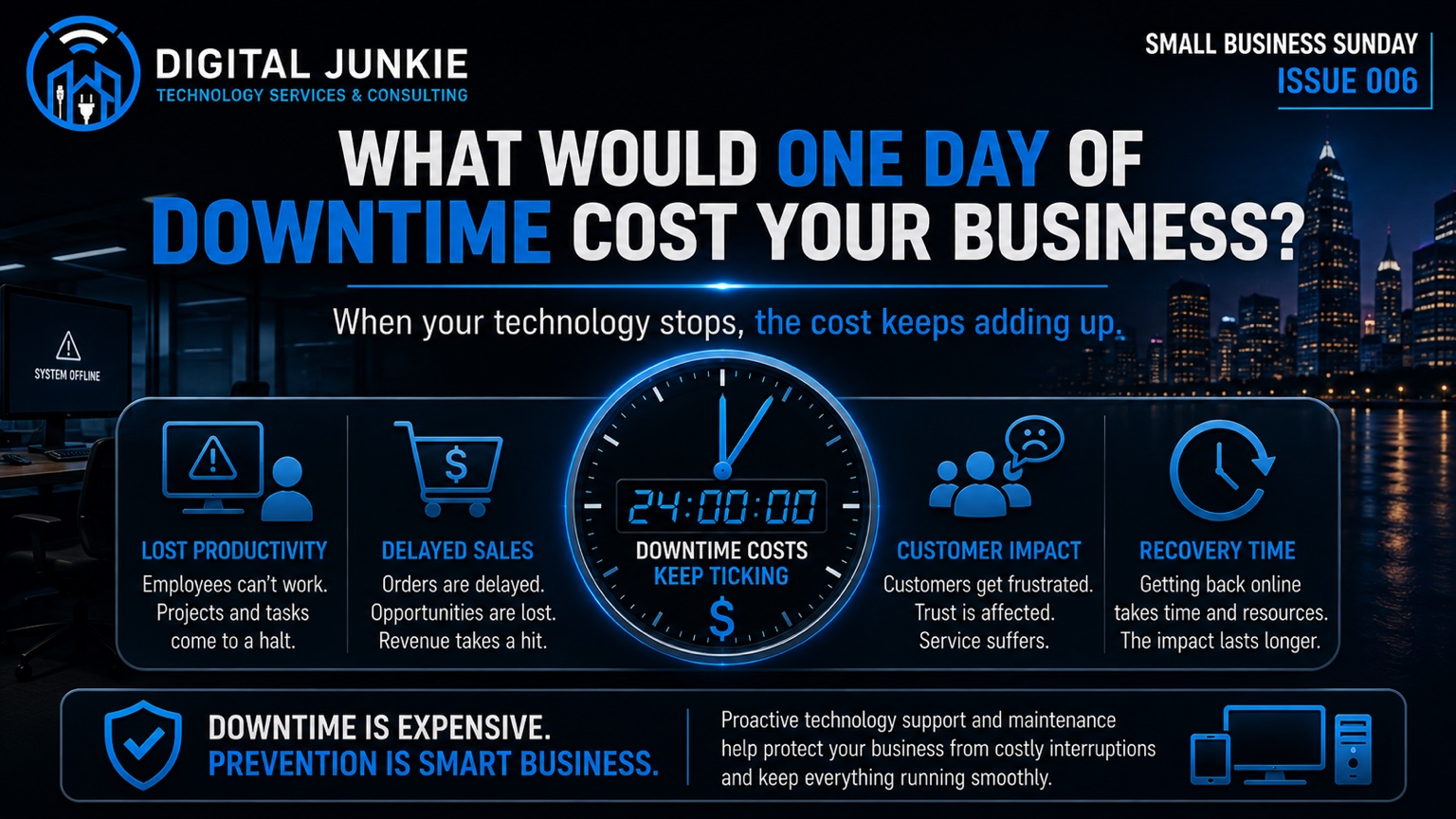
Small Business Sunday 006: What Would One Day of Downtime Cost Your Business?
Most small businesses think about technology in terms of what it costs to buy.
A new computer costs money. A network upgrade costs money. Backups, maintenance, security, and professional IT support all cost money.
But there is another technology expense that can be much harder to see until it happens:
What does it cost when your technology stops working?
Imagine arriving at work tomorrow and discovering that your computers, network, internet connection, or another critical system isn’t working. Employees are ready to work. Customers are calling. Orders need to be processed. Appointments need to be handled.
But the technology your business depends on isn’t cooperating.
The clock starts immediately—and so does the cost.
The Cost of Downtime Starts Immediately
Technology downtime doesn’t necessarily mean every part of a business comes to a complete stop. Sometimes that’s exactly what happens. Other times, employees can continue working but at a fraction of their normal productivity.
Either way, the business is paying for it.
Employees may be unable to access files, applications, email, printers, cloud services, or other systems they need. Work gets postponed. Projects stall. Deadlines become harder to meet.
Meanwhile, payroll doesn’t stop simply because the network did.
Customer-facing employees may have an even bigger problem. If they can’t access the systems they need, answering a simple customer question, processing an order, scheduling an appointment, or completing a transaction can suddenly become difficult or impossible.
For a small business, even a relatively short technology interruption can affect several parts of the operation at once.
Lost Sales Are Only Part of the Equation
Lost revenue is usually the first thing people think about when discussing downtime.
That’s certainly part of it.
If customers can’t place orders, employees can’t complete transactions, or your business can’t deliver its normal services, sales may be delayed or lost altogether.
But measuring downtime only by immediate lost sales misses much of the real impact.
Consider everything else that happens while employees wait for technology to return.
Productivity drops. Customers wait longer. Projects get pushed back. Employees spend time troubleshooting instead of doing their actual jobs.
Then the technology comes back online—and everyone has to catch up.
That means a one-hour outage doesn’t necessarily create only one hour of disruption.
Downtime Creates a Ripple Effect
One technology problem can quickly spread through a business.
A network problem could prevent several computers from accessing critical resources. An internet outage could affect cloud applications and communications. A computer failure could stop an employee from accessing the tools needed to perform their job.
The original technical problem might be relatively simple.
The business consequences aren’t always so simple.
Missed calls can mean potential customers don’t reach you.
Delayed orders can create unhappy customers or missed deadlines.
Appointments and jobs may need to be rescheduled.
Employees may spend additional time catching up once everything is working again.
A bad customer experience today can even affect whether that customer chooses your business tomorrow.
That’s why the true cost of downtime isn’t just the period when something was offline. The impact can continue long after the original problem has been fixed.
How Much Would One Day Cost Your Business?
There isn’t one universal number.
A business with two employees will have a very different downtime cost than one with twenty. A restaurant, dental office, contractor, retail store, professional office, and home-based business all depend on technology differently.
Instead of looking for an industry average, consider what downtime would actually mean inside your own business.
Ask yourself:
How many employees depend on computers or internet access to do their jobs?
What happens if those employees can’t work normally for several hours?
Can customers still contact you?
Can you process transactions or orders?
Can employees access the files and applications they need?
What happens to scheduled work?
How much employee time will be required to catch up?
How much would recovery itself cost?
Now imagine those problems lasting an entire business day.
That gives you a much more meaningful picture of what downtime could cost your business.
Downtime Isn’t Just an IT Problem
When a computer stops working, it’s easy to think of it as a computer problem.
When Wi-Fi stops working, it’s a network problem.
When a backup fails, it’s a backup problem.
From the perspective of the business, however, these are operational problems.
Technology now touches nearly every part of running a modern small business. Computers, internet access, networks, cloud applications, communications, security, and data aren’t separate from the business anymore.
They’re part of how the business operates.
That’s why technology reliability shouldn’t only become a priority after something breaks.
Prevention Is Usually Less Disruptive Than Recovery
No business can eliminate every possibility of downtime.
Internet providers can experience outages. Hardware eventually fails. Software can malfunction. Updates can cause unexpected problems. People make mistakes.
The goal isn’t to pretend those risks don’t exist.
The goal is to reduce the number of preventable failures and make recovery easier when something does happen.
That starts with the basics.
Reliable, properly configured equipment helps keep systems running.
A healthy, secure network keeps employees and devices connected.
Backups provide a recovery path when data or systems are lost.
Updates address vulnerabilities and can improve reliability and performance.
Proactive maintenance can uncover developing problems before they become outages.
These aren’t particularly exciting parts of running a business—but neither is discovering on Monday morning that nobody can work.
Know Your Technology Weak Points
One of the best questions a small-business owner can ask isn’t simply, “Is everything working today?”
It’s:
“What happens to my business if this stops working tomorrow?”
Look at the technology your operation depends on most.
Your computers.
Your network and Wi-Fi.
Your internet connection.
Your important business data.
Your backups.
Your critical applications and services.
Then consider whether you know what happens when one of them fails.
That simple exercise can expose technology risks that are easy to ignore while everything is working normally.
Digital Junkie Technology Services & Consulting helps businesses evaluate and support the technology they rely on every day. Whether the concern is computers, networking, Wi-Fi, backups, troubleshooting, or ongoing technology support, the goal is simple: keep technology from becoming the reason your business can’t operate.
You can learn more about Digital Junkie’s business technology services and resources at:
www.digitaljunkie.tech/business-it-support
www.digitaljunkie.tech/networking
www.digitaljunkie.tech/data-backup-recovery
Keep Your Business Connected
Downtime isn’t free.
Every minute employees can’t work normally, customers can’t be served, or business operations are interrupted has a cost—even when that cost doesn’t immediately appear on an invoice.
The smartest time to identify those risks is before the systems go down.
Strong technology doesn’t just make work easier. It helps keep your business productive, connected, and ready to serve your customers.
Next Week on Small Business Sunday
The Hidden Cost of Outdated Computers
Old computers don’t just feel slow. Next week, we’ll look at how aging technology can quietly cost a business through lost productivity, interruptions, and employee time.

Smart Home Saturday 006: Before You Buy Another Smart Device, Check These 4 Things
Walk through any electronics store or browse online for a few minutes and you’ll find thousands of smart home products promising to make life easier. Smart speakers, lights, cameras, locks, thermostats, garage door openers, plugs, appliances, and even pet feeders can now connect to your home network.
The smart home market has exploded over the past few years, and for good reason. When everything works together, home automation can add convenience, improve security, save energy, and make everyday tasks easier.
Unfortunately, many homeowners discover that buying a smart device is the easy part. Getting it to work reliably with the rest of their home is often where the frustration begins.
As someone who installs and troubleshoots home technology throughout the Austin area, I see the same mistakes over and over again. Most of them could have been avoided before the device was ever purchased.
Before you buy another smart home device, ask yourself these four questions.
1. Will It Work With What You Already Own?
Compatibility should always be your first consideration.
One of the biggest misconceptions about smart home technology is that every device works with every ecosystem. While industry standards like Matter are helping improve compatibility, there are still many products that work better with one platform than another.
Before making a purchase, determine which ecosystem already runs your home.
Do you primarily use:
Amazon Alexa?
Google Home?
Apple Home?
Samsung SmartThings?
Matter-compatible devices?
Buying a smart thermostat that doesn’t integrate with your existing smart speaker, or purchasing security cameras that require an entirely different app, can quickly turn a simple upgrade into a confusing collection of disconnected devices.
A smart home works best when everything communicates through the same ecosystem whenever possible.
2. Will Your Wi-Fi Support It?
People often think they need faster internet when their smart home isn’t working correctly.
In reality, reliable Wi-Fi is usually far more important than raw internet speed.
Every smart device depends on a stable wireless connection. If your Wi-Fi signal is weak where a camera, smart lock, or video doorbell is installed, you may experience delayed responses, devices going offline, or unreliable automation.
Coverage is only part of the equation.
Your router also has limits on how many devices it can efficiently manage at one time. Modern homes can easily have dozens of connected devices between phones, tablets, televisions, gaming consoles, streaming devices, security cameras, smart speakers, appliances, and home automation equipment.
An aging router may struggle under that load, even if your internet connection is fast.
Before expanding your smart home, ask yourself:
Do I have strong Wi-Fi everywhere this device will be installed?
Are there areas of my home with weak or inconsistent coverage?
Is my router designed to support the number of connected devices I already have?
Would a mesh Wi-Fi system provide better coverage?
A strong network is the foundation of every reliable smart home.
3. Will It Actually Solve Your Problem?
Smart home technology should solve problems—not create new ones.
It’s easy to get caught up in flashy advertisements and exciting new features, but the best smart home purchases are usually the ones that improve your daily routine in meaningful ways.
Before clicking “Buy Now,” ask yourself:
What problem am I trying to solve?
Will this actually make life easier?
Will I use this feature every day?
Is there a simpler solution?
For example, if your goal is to make sure the porch light turns on automatically at sunset, you may not need an expensive smart lighting system throughout your entire home. A single smart switch or smart bulb might accomplish exactly what you need.
Likewise, if you want to know when packages arrive, a quality video doorbell may provide more value than adding several indoor cameras.
Buying with a specific purpose almost always leads to a better experience than buying technology simply because it’s new.
4. Is It Secure and Will It Be Supported?
Every connected device becomes another entry point into your home network.
That makes security just as important as convenience.
Before purchasing any smart home product, research the manufacturer.
Ask questions like:
Does the company regularly release firmware updates?
Has the product been supported for several years?
Does the mobile app receive regular improvements?
Does it support strong passwords?
Is multi-factor authentication available?
Unfortunately, some inexpensive smart devices are abandoned by manufacturers after only a short time. Without ongoing security updates, those products can become unreliable—or worse, vulnerable to known security issues.
Choosing reputable brands with a proven history of long-term support is one of the smartest investments you can make.
The Bottom Line
Building a great smart home isn’t about owning the most gadgets.
It’s about building a system that works together reliably, fits your lifestyle, and continues working for years to come.
Before purchasing your next smart device, remember these four questions:
✔ Will it work with what I already own?
✔ Will my Wi-Fi support it?
✔ Will it actually solve my problem?
✔ Is it secure and will it be supported?
If you can confidently answer all four, you’ll be far more likely to enjoy your new technology instead of troubleshooting it.
Whether you’re adding your first smart speaker, upgrading your Wi-Fi, installing security cameras, or designing a fully connected home, planning ahead makes all the difference.
At Digital Junkie Technology Services & Consulting, I help homeowners and small businesses throughout Austin, Pflugerville, Round Rock, Georgetown, Cedar Park, Leander, Hutto, Taylor, and the surrounding Central Texas area build smart homes that are reliable, secure, and easy to use.
If you’re not sure which devices are right for your home—or you’d like help installing and configuring them—I’d be happy to help.
Continue Reading
If you enjoyed this article, you may also like:
https://www.digitaljunkie.tech/blog/what-is-blocking-your-wifi-signal
https://www.digitaljunkie.tech/blog/is-it-your-wi-fi-or-your-internet-provider-heres-how-to-tell
NEXT WEEK
Smart Home Saturday 007: Alexa vs Google Home vs Apple Home
Not all smart home ecosystems are created equal. Next week, we’ll compare the three biggest platforms, explain their strengths and weaknesses, and help you choose the one that’s the best fit for your home.
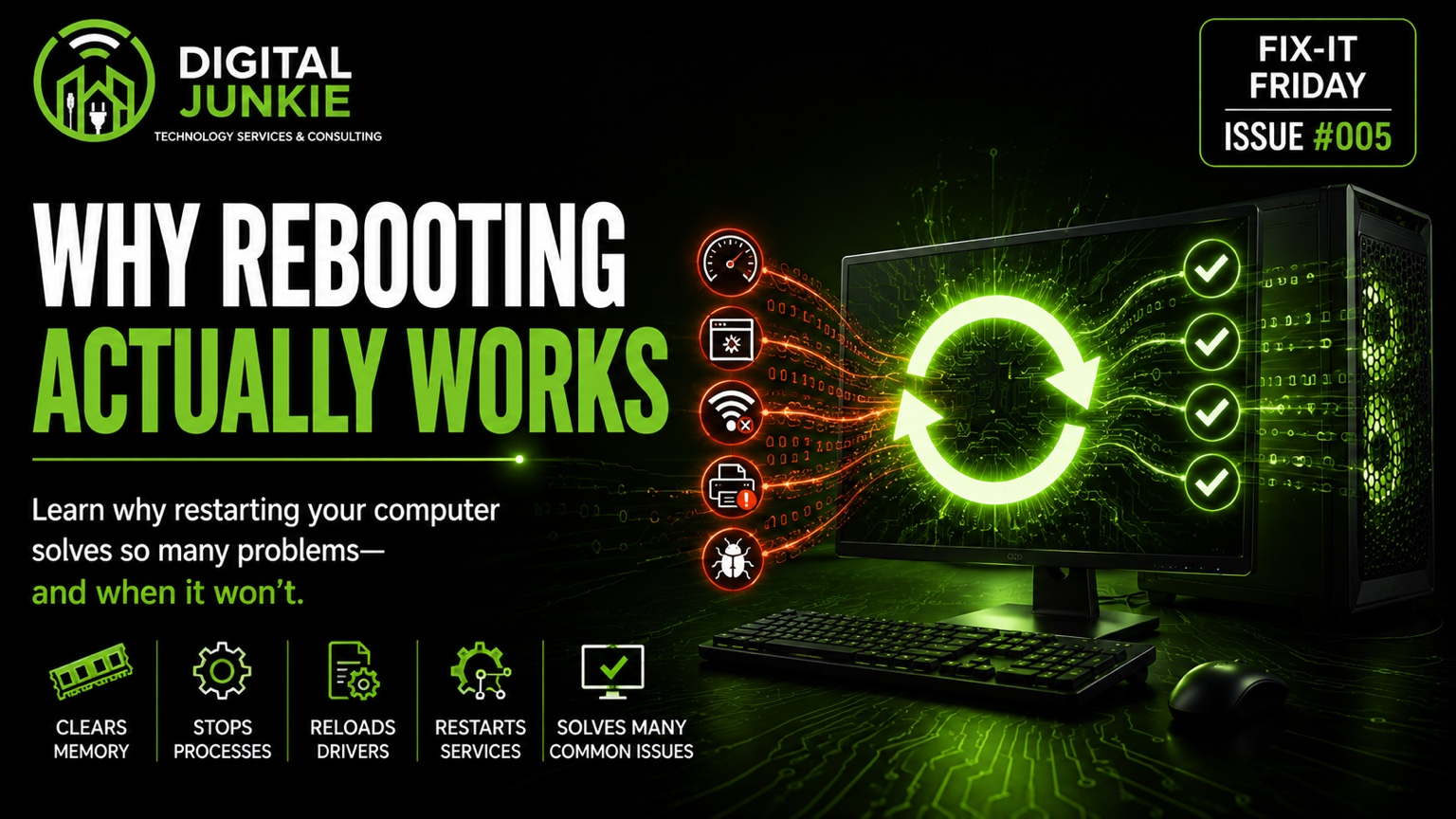
Fix-It Friday #005: Why Rebooting Actually Works (And When It Won’t)
Why Does Restarting Your Computer Actually Fix Things?
“Have you tried turning it off and back on again?”
It has become one of the oldest jokes in technology, but there’s a reason nearly every IT professional asks this question first.
Rebooting a computer isn’t just a convenient troubleshooting step—it actually resets many of the temporary software issues that build up while your computer is running. Whether you’re dealing with a slow computer, Wi-Fi problems, a printer that suddenly stopped working, or an application that’s frozen, restarting your PC can often solve the problem in just a few minutes.
But rebooting isn’t magic.
Sometimes it fixes the issue completely, and other times it doesn’t help at all.
Understanding why rebooting works—and when it won’t—can save you time, reduce frustration, and help you recognize when a bigger hardware or software problem needs attention.
What Happens When You Restart Your Computer?
Your computer is constantly running hundreds of processes in the background.
Windows is managing memory.
Programs are opening and closing.
Drivers are communicating with hardware.
Network services are maintaining your internet connection.
Printers, Bluetooth devices, security software, cloud storage, and dozens of other services are all working behind the scenes.
Over time, small software issues begin to accumulate.
A reboot clears many of those temporary problems and gives Windows a clean starting point.
1. It Clears Temporary Memory (RAM)
One of the biggest reasons rebooting helps is because it completely clears your computer’s Random Access Memory (RAM).
RAM is your computer’s short-term working memory.
Every application you open uses RAM.
Even after you close a program, pieces of that memory can remain allocated until Windows reclaims it.
Over time this can lead to:
Slower performance
Applications becoming sluggish
Programs running out of available memory
System instability
Restarting completely clears RAM and allows Windows to start fresh.
2. It Stops Frozen Background Processes
Sometimes a program doesn’t completely close.
It may continue running in the background while consuming processor time or memory.
These stuck processes often cause:
Slow computers
Programs that won’t launch
High CPU usage
Laptop fans constantly running
Excessive battery drain
Restarting forces every running process to close before Windows loads again.
3. It Reloads Device Drivers
Your computer depends on hundreds of hardware drivers.
Drivers allow Windows to communicate with devices like:
Graphics cards
Wi-Fi adapters
Printers
USB devices
Bluetooth
Sound cards
External hard drives
Sometimes drivers become unstable after updates or extended uptime.
A reboot reloads these drivers from scratch, often fixing temporary communication problems.
4. It Restarts Windows Services
Many essential Windows features run as background services.
Examples include:
Windows Update
Print Spooler
Network Services
Windows Audio
Bluetooth Services
Security Services
If one of these services crashes, certain parts of Windows may stop functioning correctly.
Restarting reloads every service automatically.
Why Restarting Fixes So Many Common Problems
Because of everything happening behind the scenes, rebooting often solves issues like:
Slow Computer Performance
Memory is refreshed.
Background processes are removed.
CPU resources are freed.
Programs That Freeze
Applications start with clean memory instead of inheriting whatever caused the previous crash.
Wi-Fi Problems
Restarting reloads your wireless adapter and reconnects to your network.
Many temporary network issues disappear immediately after a reboot.
Printer Problems
Windows reloads the Print Spooler service and reconnects to the printer.
Many “printer offline” errors are resolved this way.
Minor Software Glitches
Temporary conflicts between applications frequently disappear after restarting because Windows rebuilds its working environment.
When Restarting WON’T Fix the Problem
This is where many people get frustrated.
A reboot only fixes temporary software problems.
It cannot repair failing hardware.
Some common examples include:
Failing Hard Drives or SSDs
If a storage drive is physically failing, restarting won’t repair damaged sectors or worn-out flash memory.
Symptoms often include:
Clicking drives
Extremely slow performance
Blue screens
Files disappearing
Windows failing to boot
Bad Memory (RAM)
Faulty RAM can cause:
Random crashes
Blue Screens of Death
Applications closing unexpectedly
Windows installation failures
Restarting may temporarily hide the symptoms, but the problem will return.
Malware
Viruses, ransomware, spyware, and other malicious software are designed to survive a reboot.
In some cases, restarting actually allows malware to reload into memory.
A proper malware scan and cleanup is required.
Corrupted Windows Files
Important Windows system files occasionally become damaged by failed updates, sudden power loss, or storage issues.
Restarting won’t repair corrupted operating system files.
These often require:
System File Checker (SFC)
DISM repairs
Startup Repair
Windows Recovery
Reinstalling Windows
Hardware Failures
Restarting also won’t fix:
Failed power supplies
Overheating CPUs
Broken motherboards
Damaged graphics cards
Faulty charging circuits
Failed cooling fans
Hardware problems require diagnosis—not another reboot.
Restart vs. Shut Down
Many Windows users don’t realize that Restart and Shut Down are no longer exactly the same.
With Fast Startup enabled (the Windows default), choosing Shut Down may preserve parts of the Windows kernel to speed up the next boot.
Choosing Restart, however, performs a much more complete reset of the operating system.
That’s why IT professionals often recommend clicking Restart instead of simply shutting the computer down and turning it back on.
When Should You Call a Professional?
If restarting fixes the problem once but the same issue keeps coming back, your computer is telling you something.
Recurring problems usually indicate a deeper issue that should be diagnosed before it becomes more serious.
That could include:
Aging hardware
Malware
Storage failures
Corrupted Windows installations
Driver conflicts
Overheating
Network problems
Proper diagnostics identify the root cause instead of simply treating the symptoms.
The Bottom Line
Restarting your computer remains one of the simplest and most effective troubleshooting steps you can take.
It clears memory, reloads drivers, restarts Windows services, and removes many temporary software problems.
But it’s not a cure-all.
If your computer repeatedly crashes, runs extremely slowly, won’t boot, or continues having problems after multiple restarts, it’s time to look deeper.
At Digital Junkie Technology Services & Consulting, we help homeowners and small businesses throughout Austin, Round Rock, Pflugerville, Georgetown, Cedar Park, Leander, Hutto, Taylor, and the surrounding Central Texas area diagnose technology problems correctly the first time.
Whether it’s computer repair, Windows troubleshooting, Wi-Fi issues, malware removal, hardware upgrades, or complete technology support, we’ll identify the real problem—not just the symptom.
Related Articles
https://www.digitaljunkie.tech/blog/5-ways-to-make-your-computer-last-longer
https://www.digitaljunkie.tech/blog/why-is-my-computer-so-slow
https://www.digitaljunkie.tech/blog/incognito-mode-makes-you-anonymous
https://www.digitaljunkie.tech/blog/what-is-blocking-your-wifi-signal
Next Week
Fix-It Friday #006
Why Your Computer Gets Slower Over Time (And How to Fix It)
We’ll explain what gradually slows down computers, how to prevent it, and which upgrades provide the biggest performance improvements.
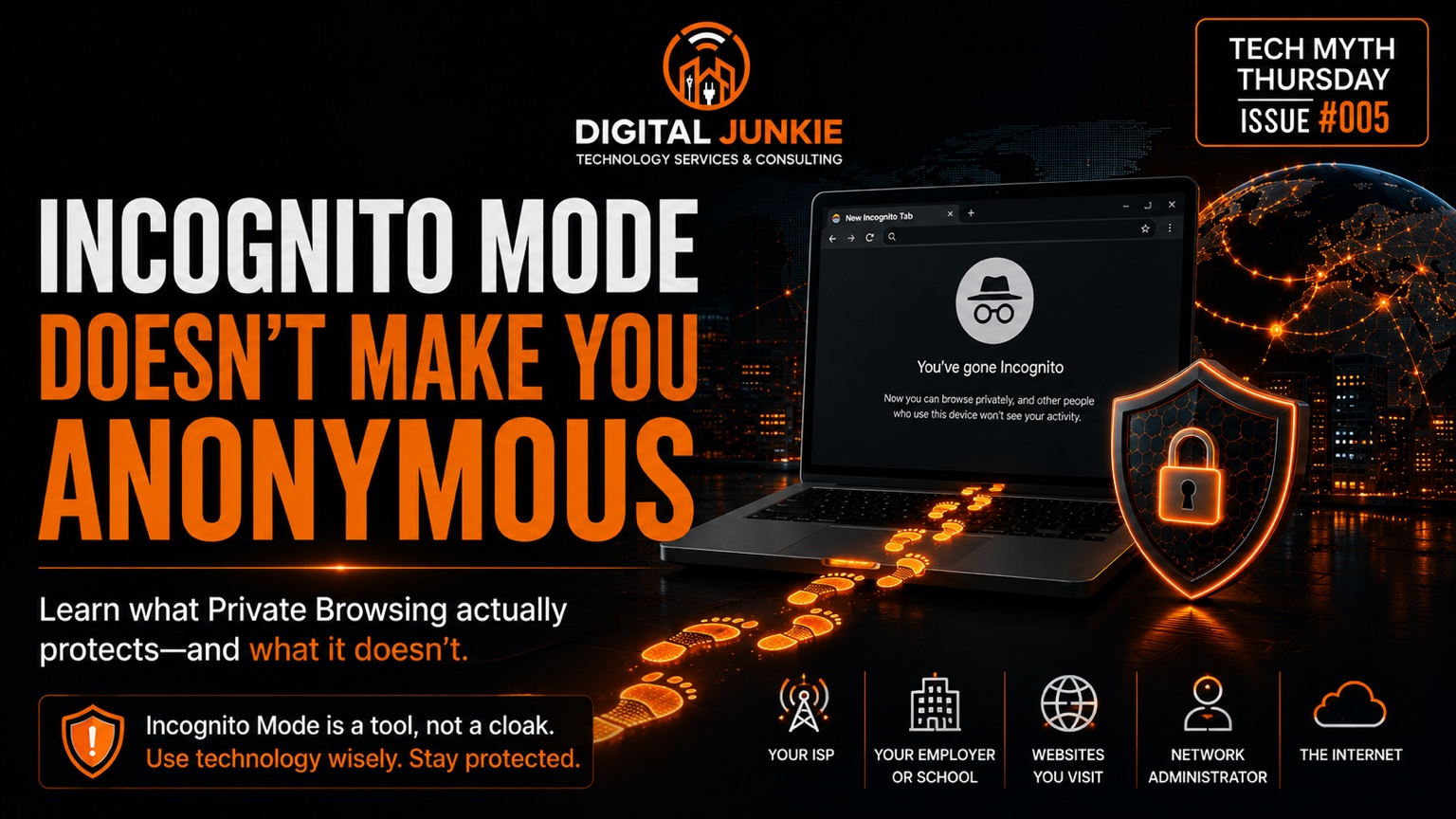
Tech Myth Thursday 005: Incognito Mode Makes You Anonymous.
Open a private browser window and many people immediately assume they’ve become invisible online.
After all, it’s called Incognito Mode, Private Browsing, or InPrivate Browsing depending on your browser. The icon changes, your history disappears when you close the window, and it feels like you’re browsing in secret.
Unfortunately, that’s one of the biggest technology myths on the internet.
Incognito Mode is a useful privacy feature, but it does not make you anonymous online. It doesn’t hide who you are from your internet provider, your employer, the websites you visit, or anyone managing the network you’re connected to.
Understanding what Incognito Mode actually does—and just as importantly, what it doesn’t do—can help you make better decisions about your online privacy and security.
What Is Incognito Mode?
Incognito Mode is a feature built into most modern web browsers, including Google Chrome, Microsoft Edge, Mozilla Firefox, and Apple Safari.
Its primary purpose is simple:
It prevents your browser from saving information on the device you’re currently using.
When you close every Incognito window, your browser removes most of the temporary information created during that browsing session.
This is extremely useful if you are:
Using a public computer
Borrowing someone else’s laptop
Shopping for a surprise gift
Logging into multiple accounts
Troubleshooting website issues caused by cookies
Those are exactly the kinds of situations Incognito Mode was designed for.
What Incognito Mode Actually Does
When you browse in an Incognito or Private Browsing window, your browser generally will not save:
Your browsing history
Temporary cookies after the session ends
Cached website data
Form entries
Search history stored locally
When you close the session, the next person who uses that computer won’t easily see where you’ve been browsing.
That’s helpful.
But notice something important.
Everything listed above happens on your own computer.
Nothing about that means your internet traffic becomes invisible.
What Incognito Mode Does NOT Do
This is where the confusion begins.
Incognito Mode does not:
Hide your IP address
Encrypt your internet connection
Prevent websites from identifying your device
Stop your Internet Service Provider from seeing where you connect
Prevent your employer or school from monitoring activity on their network
Make you anonymous online
Your browser simply stops keeping a local record.
That’s very different from hiding your activity across the internet.
Who Can Still See Your Activity?
Even while you’re browsing in Incognito Mode, multiple organizations can still see various parts of your internet activity.
Your Internet Service Provider (ISP)
Your ISP still routes all of your internet traffic.
Although many websites now use HTTPS encryption to protect the contents of your communications, your ISP can generally still determine which services and domains you’re connecting to, along with connection times and data usage.
Incognito Mode does not change that.
Your Employer or School
If you’re connected to a company network, a school network, or public Wi-Fi that is being managed, the network administrator may still be able to monitor internet activity according to their security policies.
Incognito Mode doesn’t bypass network monitoring.
Websites You Visit
Every website you visit still receives information such as:
Your IP address
Browser type
Operating system
Screen resolution
Device characteristics
Cookies created during that session
Many websites also use browser fingerprinting and other technologies to recognize returning visitors.
Incognito Mode limits some tracking but certainly doesn’t eliminate it.
Search Engines
If you’re signed into your Google, Microsoft, Apple, or other online account while browsing privately, your searches and activity may still be associated with your account.
Incognito Mode doesn’t automatically log you out.
Why This Myth Exists
The biggest reason people misunderstand Incognito Mode is because they confuse privacy with anonymity.
Those are not the same thing.
Privacy means your computer isn’t keeping a record for the next person who uses it.
Anonymity means nobody can identify you online.
Incognito Mode only addresses the first one.
Does Incognito Mode Have Any Security Benefits?
Yes.
It absolutely has legitimate uses.
Incognito Mode can help:
Prevent local browsing history from being stored.
Automatically remove session cookies when you’re finished.
Test websites without existing cookies interfering.
Sign into multiple accounts at the same time.
Reduce personalized search results during testing.
These are useful features.
They’re just not anonymous browsing.
If You Want Better Online Privacy
Improving your online privacy requires more than opening an Incognito window.
Some of the best practices include:
Use Strong Passwords
Every online account should have a long, unique password.
Password managers make this much easier and reduce the temptation to reuse passwords.
Enable Multi-Factor Authentication (MFA)
Even if someone learns your password, Multi-Factor Authentication provides another layer of protection before they can access your account.
It’s one of the most effective security features available today.
Keep Your Browser Updated
Browser updates frequently fix newly discovered security vulnerabilities.
Running outdated software leaves unnecessary openings for attackers.
Consider a Trusted VPN
A Virtual Private Network (VPN) encrypts the connection between your device and the VPN provider.
While a VPN does not make you invisible either, it can provide meaningful privacy benefits in the right situations, especially when using public Wi-Fi.
The key is choosing a reputable VPN provider and understanding exactly what it does—and doesn’t—protect.
The Bottom Line
Incognito Mode is a convenient browser feature.
It helps protect your privacy on your device, but it does not make you anonymous on the internet.
Knowing the difference helps you make smarter technology decisions, avoid common misconceptions, and better protect your personal information.
At Digital Junkie, we spend a lot of time helping homeowners and small businesses separate technology myths from reality. Whether it’s improving Wi-Fi performance, securing a home network, protecting business computers, or solving frustrating technology problems, understanding how technology actually works is always the first step toward making it work better.
If you need help with your home or business technology in Austin, Round Rock, Pflugerville, Georgetown, Cedar Park, Leander, Hutto, Taylor, or the surrounding Central Texas area, Digital Junkie is here to help.
Continue Learning
If you enjoyed this article, you might also like:
https://www.digitaljunkie.tech/blog/what-is-blocking-your-wifi-signal
https://www.digitaljunkie.tech/blog/5-ways-to-make-your-computer-last-longer
https://www.digitaljunkie.tech/blog/why-your-computer-takes-so-long-to-start-up-and-how-to-fix-it
Next Week
Tech Myth Thursday 006
You Need Gigabit Internet for Everything.
We’ll look at the real internet speeds different households need, explain why faster isn’t always better, and show you how to avoid paying for bandwidth you’ll never use.
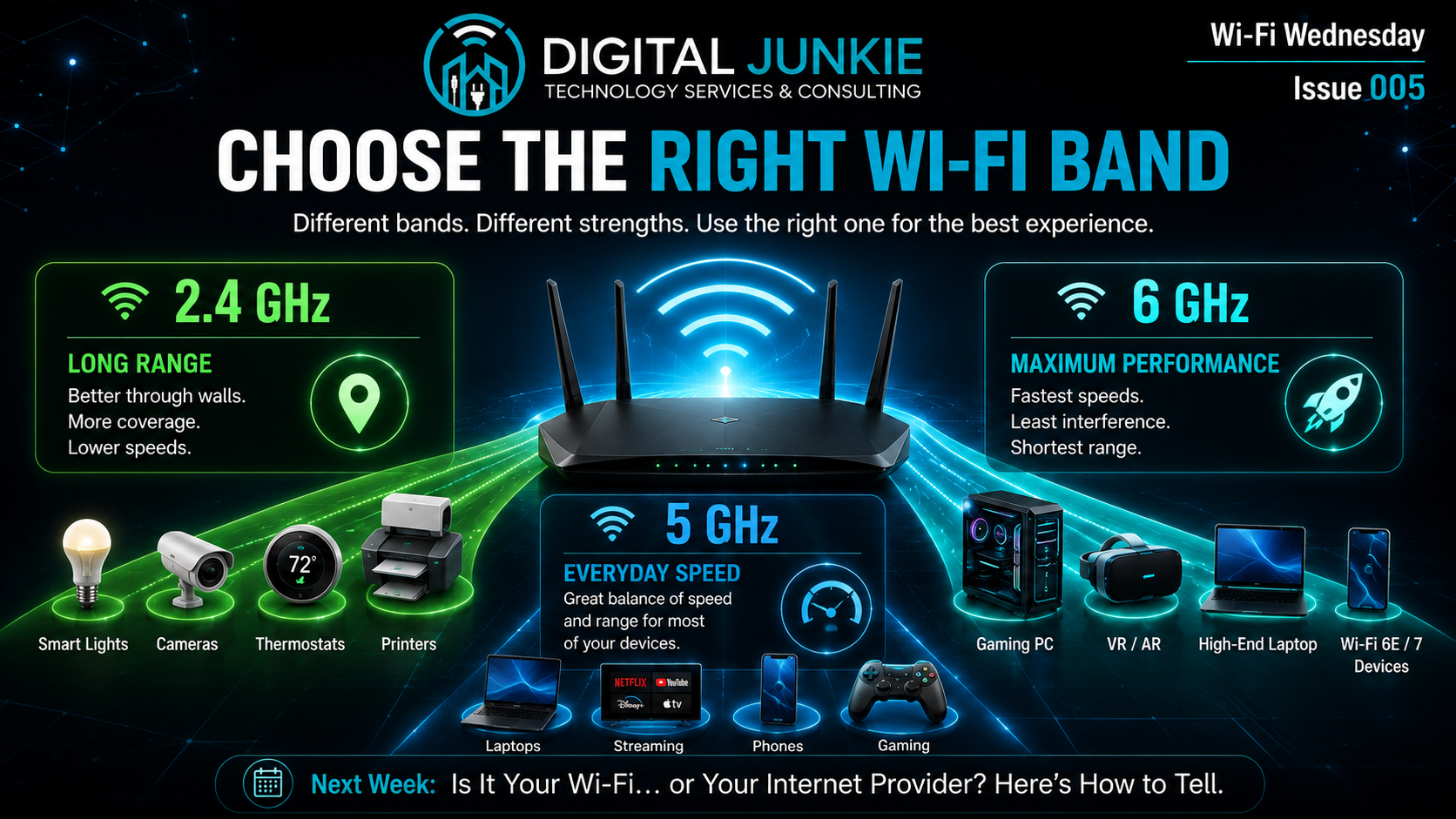
Wi-Fi Wednesday 005: 2.4 GHz vs. 5 GHz vs. 6 GHz: What’s the Difference and Which Should You Use?
If you’ve ever connected a new phone or laptop and noticed multiple Wi-Fi networks with similar names, you’ve probably wondered what all those different bands actually mean.
Modern wireless routers often broadcast multiple Wi-Fi bands simultaneously. While they all provide internet access, they’re designed for different purposes. Choosing the right one can make a noticeable difference in your connection speed, reliability, and overall experience.
Let’s break down what each band does and when you should use it.
2.4 GHz: Best for Range
The 2.4 GHz band has been around the longest and is still incredibly useful. Its biggest advantage is coverage. The signal travels farther and penetrates walls more effectively than the newer bands.
That makes it an excellent choice for:
Smart home devices
Security cameras
Smart thermostats
Smart lights
Printers
Devices located farther from your router
The downside is that 2.4 GHz is shared with many other household devices and neighboring Wi-Fi networks, making it more susceptible to interference and generally slower than newer bands.
5 GHz: The Everyday Choice
For most people, 5 GHz offers the best balance between speed and coverage.
It provides:
Faster download and upload speeds
Lower latency
Less wireless interference
Better performance for modern devices
This makes it ideal for:
Streaming movies and TV
Video conferencing
Gaming
Laptops
Smartphones
Tablets
Although its range is shorter than 2.4 GHz, it delivers excellent performance throughout most homes when your router is placed in a central location.
6 GHz: Maximum Performance
The newest Wi-Fi band is 6 GHz.
Available on Wi-Fi 6E and Wi-Fi 7 equipment, it offers:
The fastest wireless speeds
The least congestion
Extremely low latency
Additional wireless channels
Because higher frequencies don’t travel as far, 6 GHz works best when you’re relatively close to your wireless access point.
It’s an excellent option for:
High-performance gaming PCs
VR headsets
Large file transfers
Content creators
Newer laptops and mobile devices
High-bandwidth office environments
Keep in mind that older devices cannot connect to the 6 GHz band.
Which Band Should You Use?
A simple rule of thumb works for most homes and businesses:
Use 2.4 GHz when range matters more than speed.
Use 5 GHz for the majority of your everyday devices.
Use 6 GHz whenever you have compatible hardware and are close enough to take advantage of its higher performance.
Most modern routers intelligently manage all three bands, but understanding what each one does helps you get the best experience from your network.
If your Wi-Fi still feels slow after choosing the right band, the problem may not be your wireless network at all.
Need Help Optimizing Your Wi-Fi?
Whether you’re struggling with dead spots, slow performance, unreliable video calls, or simply aren’t sure if your equipment is configured correctly, Digital Junkie can help.
From home Wi-Fi optimization to complete business wireless deployments, we design networks that are fast, reliable, and built around the way you actually use technology.
Learn more about Digital Junkie and explore additional technology tips:
https://www.digitaljunkie.tech/blog/why-is-my-computer-so-slow
https://www.digitaljunkie.tech/blog/how-i-proved-the-problem-wasnt-the-clients-equipment
https://www.digitaljunkie.tech/blog/5-ways-to-make-your-computer-last-longer
Visit us anytime at:
https://www.digitaljunkie.tech
Next Week
Wi-Fi Wednesday 006
Is It Your Wi-Fi… or Your Internet Provider? Here’s How to Tell.

They Thought They Needed a New Computer. They Didn’t.
One of the most common things I hear from customers is:
“I think it’s finally time for a new computer.”
Sometimes they’re right.
But surprisingly often, the computer itself isn’t the problem.
Recently, I worked with a customer whose computer had become painfully slow. It took forever to start, programs were slow to open, and everyday tasks had become frustrating. They assumed the computer had simply reached the end of its life.
Fortunately, that wasn’t the case.
The Computer Wasn’t Too Old
After running diagnostics, it became clear that the processor and memory were still in good shape.
The real problem was something much simpler.
The computer was still running on an aging mechanical hard drive.
Traditional hard drives have moving parts that naturally become slower over time. As Windows continues to evolve and software becomes more demanding, these older drives often become the biggest performance bottleneck in an otherwise capable computer.
A Simple Upgrade Made the Difference
Instead of recommending an expensive replacement computer, I recommended replacing the hard drive with a solid-state drive (SSD).
The improvement was immediate.
Startup times dropped dramatically.
Programs opened almost instantly.
The entire system became noticeably faster and far more responsive.
To the customer, it felt like using a brand-new computer again—without the cost of buying one.
When an SSD Upgrade Makes Sense
Not every computer is worth upgrading, but many systems that are only a few years old still have plenty of life left.
If your computer:
Takes several minutes to boot
Constantly feels sluggish
Has no major hardware failures
Still meets your everyday needs
…an SSD upgrade may be one of the best investments you can make.
Don’t Replace It Until You Know What’s Wrong
Buying a new computer is sometimes the right decision.
But replacing a computer without first identifying what’s actually causing the slowdown can cost hundreds—or even thousands—of dollars unnecessarily.
A professional evaluation can often determine whether an affordable upgrade will solve the problem before you spend money on entirely new hardware.
The Right Upgrade Can Save You Money
Technology problems don’t always require expensive solutions.
Sometimes the biggest improvement comes from replacing a single component.
If your computer has become frustratingly slow, don’t assume it’s time to replace it. You may be surprised how much life is still left in your existing system.
Need help deciding whether your computer should be repaired or replaced?
Website:
www.digitaljunkie.tech
Email:
info@digitaljunkie.tech
Phone:
737-400-6482
Service Area:
Austin and Surrounding Areas
Related Articles
Continue reading:
Why Your Computer Takes So Long to Start Up (And How to Fix It)
5 Ways to Make Your Computer Last Longer
The 60-Second Monthly Tech Check Everyone Should Do
Do You Really Need to Replace Your Computer Every Few Years?
Next Week
True Story Tuesday 006
The “Virus” Wasn’t Actually a Virus
Not every pop-up, warning, or strange message means your computer is infected. Next week, I’ll share a real customer story where what looked like a virus turned out to be something completely different—and how finding the real cause avoided unnecessary repairs.
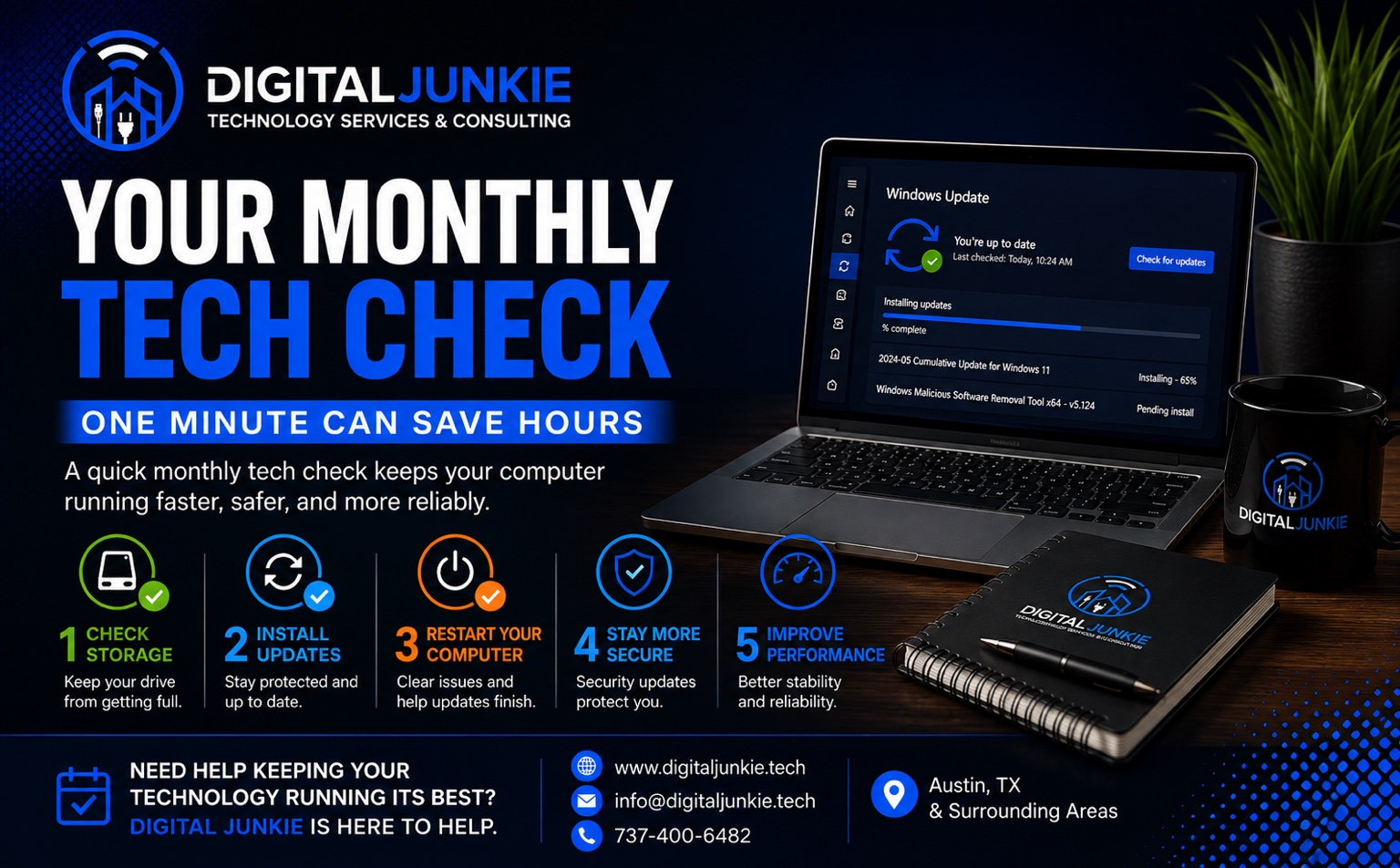
The 60-Second Monthly Tech Check Everyone Should Do
When was the last time you gave your computer a quick health check?
Most people don’t think about maintaining their computer until something goes wrong. Unfortunately, by the time your computer starts running slowly, missing updates, or acting unpredictably, small issues have often grown into much larger ones.
The good news is that basic preventive maintenance doesn’t have to take much time.
In fact, spending just 60 seconds once a month can help keep your computer running faster, safer, and more reliably.
Here are three simple things everyone should check.
1. Check Your Available Storage
Computers need free space to operate efficiently.
When your storage drive becomes nearly full, Windows has less room to manage temporary files, install updates, and perform routine maintenance. That can lead to slower performance, failed updates, and frustrating error messages.
Take a minute to:
Delete files you no longer need.
Empty the Recycle Bin.
Remove large downloads you’ve already used.
Even freeing up a few gigabytes can improve your computer’s responsiveness.
2. Install Windows and Application Updates
Software updates do much more than introduce new features.
They regularly include:
Security patches
Bug fixes
Performance improvements
Compatibility updates
Keeping Windows and your most-used applications up to date helps protect your computer from newly discovered security vulnerabilities while improving overall stability.
If you’ve been postponing updates, now is a great time to install them.
3. Restart Your Computer
Many people simply close the laptop lid or let their desktop remain in Sleep mode for weeks at a time.
A full restart is different.
Restarting your computer:
Clears temporary memory
Resets background services
Finishes Windows updates
Resolves many minor software issues
Making it a habit to restart your computer at least once each month can prevent small problems from becoming much larger ones.
One Minute Can Save Hours
Technology doesn’t have to be complicated.
A quick monthly check of your storage, updates, and restart habits can prevent many of the common computer issues that eventually lead people to think they need expensive repairs—or even a new computer.
Preventive maintenance is almost always faster, easier, and less expensive than fixing problems after something breaks.
If your computer is already running slowly, you’re seeing error messages, or you simply want help keeping your technology running its best, Digital Junkie Technology Services & Consulting is here to help.
Website:
www.digitaljunkie.tech
Email:
info@digitaljunkie.tech
Phone:
737-400-6482
Service Area:
Austin and Surrounding Areas
Related Articles
Continue learning with these Digital Junkie Tech Tips:
Why Is My Computer So Slow?
5 Ways to Make Your Computer Last Longer
Do You Really Need to Replace Your Computer Every Few Years?
Why Your Computer Takes So Long to Start Up (And How to Fix It)
Next Week
Tech Tip Monday 006
The Difference Between Restart, Shut Down, and Sleep
Most people use these three options interchangeably—but they each work differently. Next week, we’ll explain what each one actually does, when you should use it, and how choosing the right option can help keep your computer running its best.
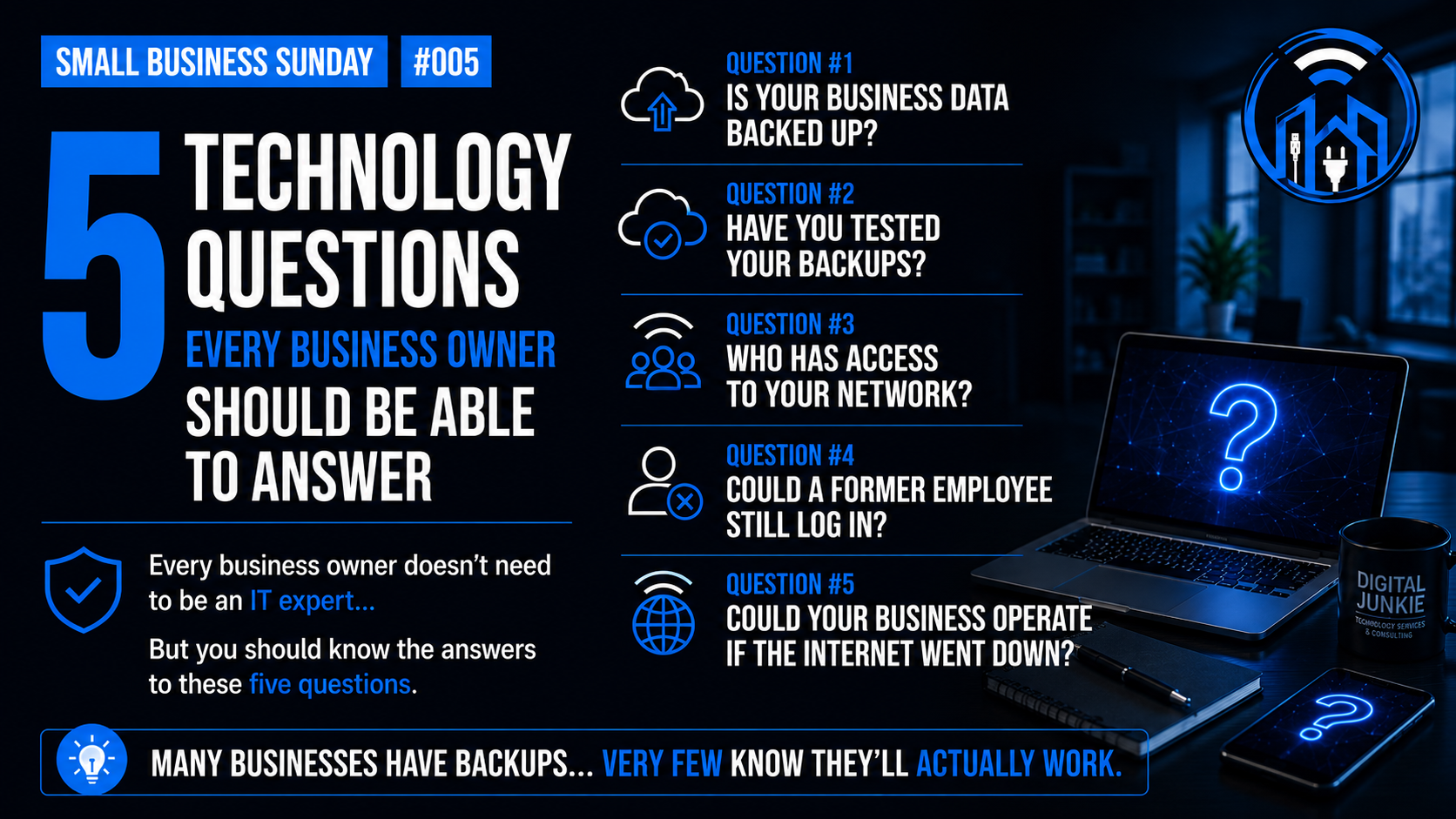
5 Technology Questions Every Business Owner Should Be Able to Answer
Running a business means wearing a lot of hats. You don’t have to be an IT expert, but there are a few technology questions every business owner should be able to answer with confidence.
If any of these leave you guessing, it may be time to take a closer look before a small issue turns into an expensive outage.
1. Is Your Business Data Backed Up?
Most businesses will answer this question with a quick “yes.”
The better question is whether those backups would actually work if you needed them today.
If a computer failed, was infected with ransomware, or important files were accidentally deleted, how quickly could you recover?
Having backups is important. Knowing they can be restored is even more important.
2. Have You Tested Your Backups?
Many businesses automatically back up their files every day.
Very few ever test restoring those files.
A backup that has never been tested isn’t something you should rely on during an emergency.
Regularly testing your recovery process helps ensure your business can get back to work quickly when something goes wrong.
3. Who Has Access to Your Network?
Do you know every device connected to your network?
What about every employee account?
Guest Wi-Fi access?
Security cameras?
Printers?
Your network changes over time. Without regular reviews, it’s easy to lose track of who—or what—still has access.
4. Could a Former Employee Still Log In?
This question surprises a lot of business owners.
When someone leaves the company, are all of their accounts disabled?
Email, cloud services, remote access, Wi-Fi credentials, password managers, and software subscriptions should all be reviewed as part of an employee’s departure.
Removing unnecessary access is one of the simplest ways to improve your business’s security.
5. Could Your Business Operate If the Internet Went Down?
Think about how many parts of your business rely on an internet connection.
Credit card processing.
Cloud applications.
Phones.
Email.
Scheduling systems.
Customer communication.
If your internet provider experienced an outage this afternoon, how long could you continue operating?
Having a backup internet connection or a continuity plan can dramatically reduce downtime.
The Bottom Line
Technology shouldn’t only become important when something breaks.
If you can confidently answer these five questions, your business is already in a much stronger position than many others.
If not, now is the perfect time to identify potential weaknesses before they become expensive problems.
At Digital Junkie Technology Services & Consulting, I help homeowners and small businesses throughout Central Texas build reliable technology solutions that keep businesses running. Whether it’s improving backups, securing networks, planning for internet outages, or simply answering technology questions before they become emergencies, my goal is to provide practical solutions that make technology work for you—not against you.
Next Week on Small Business Sunday #006
What Would One Day of Downtime Cost Your Business?
We’ll look at the hidden costs of technology outages and how even a few hours of downtime can affect revenue, productivity, customer trust, and your bottom line.
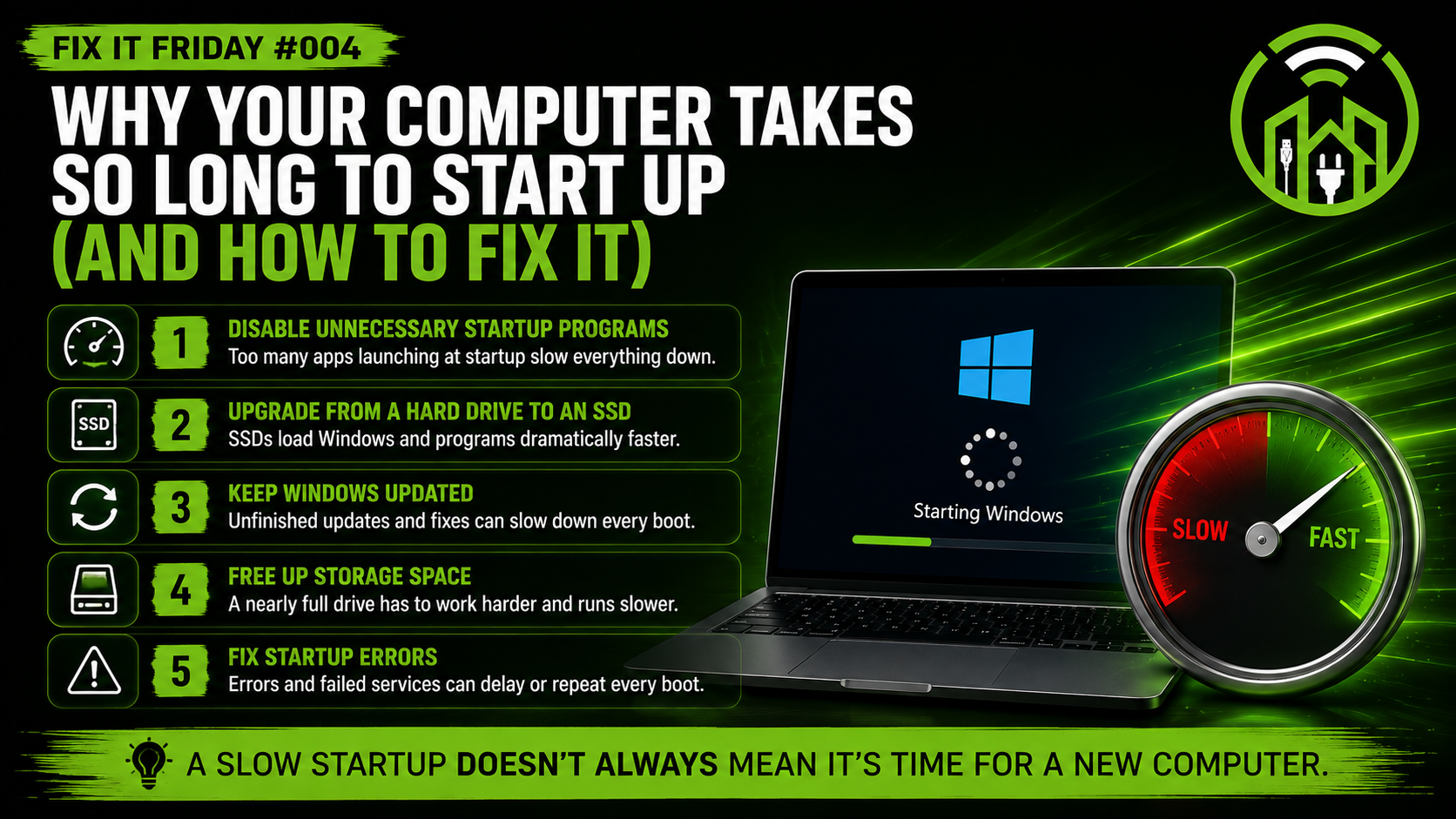
Fix It Friday #004: Why Your Computer Takes So Long to Start Up (And How to Fix It)
Does your computer seem to take forever to start every morning?
Maybe it sits on a spinning circle for several minutes. Maybe you have enough time to grab a cup of coffee before it’s finally ready to use.
The good news is that a slow startup doesn’t automatically mean you need a new computer.
In many cases, the problem comes down to a few common issues that are relatively easy to identify—and often inexpensive to fix.
1. Too Many Programs Start Automatically
Every application that launches during startup competes for your computer’s resources.
Programs like Microsoft Teams, Discord, Adobe Creative Cloud, printer utilities, cloud backup software, and game launchers all want to start the moment Windows loads.
Individually they don’t seem like much, but together they can easily add minutes to your startup time.
Disabling the programs you don’t use every day can make a noticeable difference.
2. Your Hard Drive Might Be Holding You Back
If your computer still uses a traditional mechanical hard drive, you’re already at a disadvantage.
Mechanical drives physically spin and move read heads across a disk, which makes them dramatically slower than today’s Solid State Drives (SSDs).
Replacing a hard drive with an SSD is one of the biggest performance upgrades you can make. Many computers that once took several minutes to boot can be ready in under 30 seconds after the upgrade.
3. Windows Updates Can Slow Startup
Windows regularly installs security updates, feature updates, and driver updates.
If updates haven’t finished installing—or they encounter problems—your computer may spend extra time completing them during startup.
Keeping Windows updated and allowing updates to finish properly helps maintain faster boot times.
4. Low Storage Space
When your primary drive is nearly full, Windows has less room to work efficiently.
Temporary files, updates, virtual memory, and background services all rely on available storage space.
Cleaning unnecessary files and maintaining adequate free space can help your computer perform much better.
5. Startup Errors
Sometimes Windows attempts to start a service or application that continually fails.
Instead of moving on immediately, it repeatedly tries again during every boot.
These startup errors often go unnoticed because they happen in the background, but they can significantly increase startup time.
A proper diagnosis can usually identify the offending software or service.
The Bottom Line
A slow startup doesn’t necessarily mean your computer is worn out.
Many startup problems are caused by software, storage limitations, or aging hard drives—not failed hardware.
Before replacing your computer, it’s worth taking the time to identify what’s actually slowing it down. In many cases, a simple adjustment or upgrade can make your system feel years newer.
At Digital Junkie, I help homeowners and small businesses throughout Central Texas diagnose slow computers, improve performance, and recommend upgrades only when they’re truly needed. My goal is always to find the most practical and cost-effective solution—not just sell new equipment.
⸻
Next Week on Fix It Friday #005
Why Rebooting Actually Works (And When It Won’t)
We’ll explain what really happens when you restart your computer, why it fixes so many common problems, and the situations where rebooting isn’t enough.
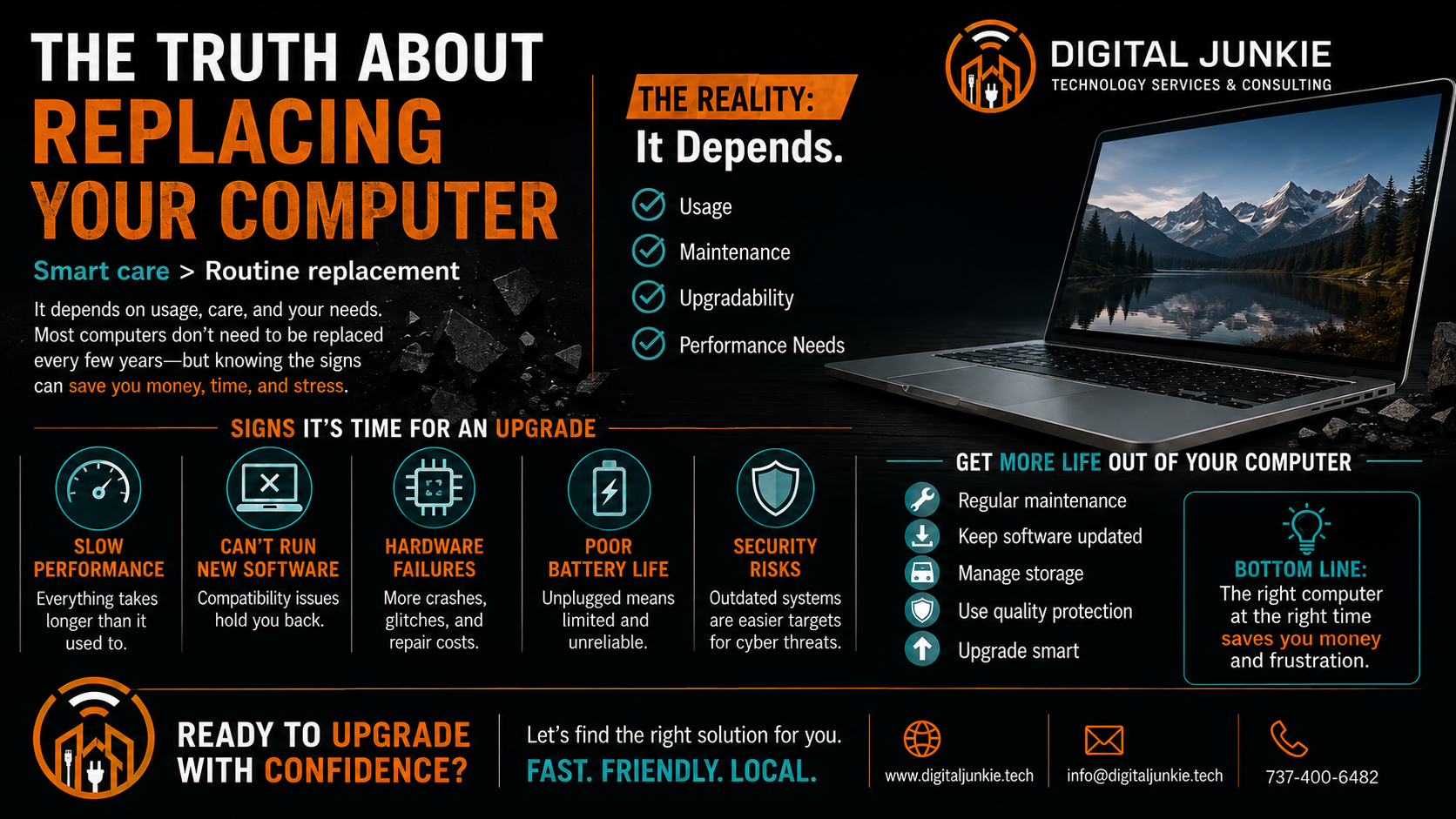
Tech Myth Thursday #004: Do You Really Need to Replace Your Computer Every Few Years?
Walk through any electronics store and you'll see advertisements encouraging you to buy the newest laptop or desktop every few years. It's easy to believe that computers have an expiration date—that after three or four years they're simply "too old."
The truth is, age alone rarely determines whether it's time for a replacement.
As someone who has spent decades working with technology—from leading infrastructure teams supporting Comcast's content delivery network to helping homeowners and small businesses through Digital Junkie—I can tell you that I've seen computers well over ten years old continue to perform beautifully with the right maintenance and upgrades.
Likewise, I've seen relatively new computers that needed replacing because they simply weren't designed for the workload their owners expected.
The calendar doesn't make the decision.
The computer does.
What Actually Determines a Computer's Lifespan?
Instead of focusing on age, ask a few simple questions:
Is the computer still meeting your daily needs?
Does it receive security updates?
Can it run the software you need?
Is it reliable?
Can it be upgraded instead of replaced?
If the answer to most of those questions is yes, replacing the computer probably isn't necessary.
Many Slow Computers Don't Need Replacing
One of the biggest misconceptions I see is that a slow computer automatically means it's worn out.
In reality, the problem is often much smaller.
Sometimes the system is running out of storage.
Sometimes the hard drive is beginning to fail.
Other times it simply needs additional memory or a solid-state drive upgrade.
These upgrades often cost a fraction of replacing the entire computer while making it feel dramatically faster.
I've had customers tell me they thought they needed to spend over a thousand dollars on a new computer, only to discover that a modest upgrade completely transformed the one they already owned.
When Replacement Really Is the Better Choice
There are times when replacing a computer makes perfect sense.
For example:
The manufacturer no longer provides security updates.
The hardware can't run the applications you need.
Repair costs approach the value of a replacement.
Multiple components are beginning to fail.
Your workload has significantly increased.
In these situations, replacing the computer isn't about age—it's about reliability, security, and productivity.
Every Situation Is Different
No two users have the same needs.
Someone who primarily checks email and browses the web can often keep a computer for many years.
A video editor, software developer, engineer, or gamer may legitimately need newer hardware much sooner because of the demands placed on the system.
That's why there isn't a magic number of years that applies to everyone.
My Recommendation
Before spending money on a replacement, have someone evaluate the computer first.
A professional assessment can determine whether:
A repair makes sense.
A simple upgrade will extend its life.
Replacement is truly the smartest investment.
That approach usually saves money, reduces electronic waste, and helps you make an informed decision instead of buying something simply because you think it's "old."
At Digital Junkie, I always recommend the option that's best for the customer—not the option that costs the most.
If your computer has become slow, unreliable, or you're wondering whether it's worth upgrading, I'd be happy to help you evaluate your options.
Serving homeowners and small businesses throughout Austin, Pflugerville, Round Rock, Georgetown, Cedar Park, Leander, Hutto, Taylor, San Marcos, Temple, and surrounding Central Texas communities, Digital Junkie provides honest technology advice without the pressure to replace equipment that still has plenty of life left.
Related Articles
You may also enjoy:
5 Ways to Make Your Computer Last Longer
How I Proved the Problem Wasn't the Client's Equipment
Your Business Doesn't Need an IT Department—It Needs a Plan
Next Week on Tech Myth Thursday
Incognito Mode Makes You Anony
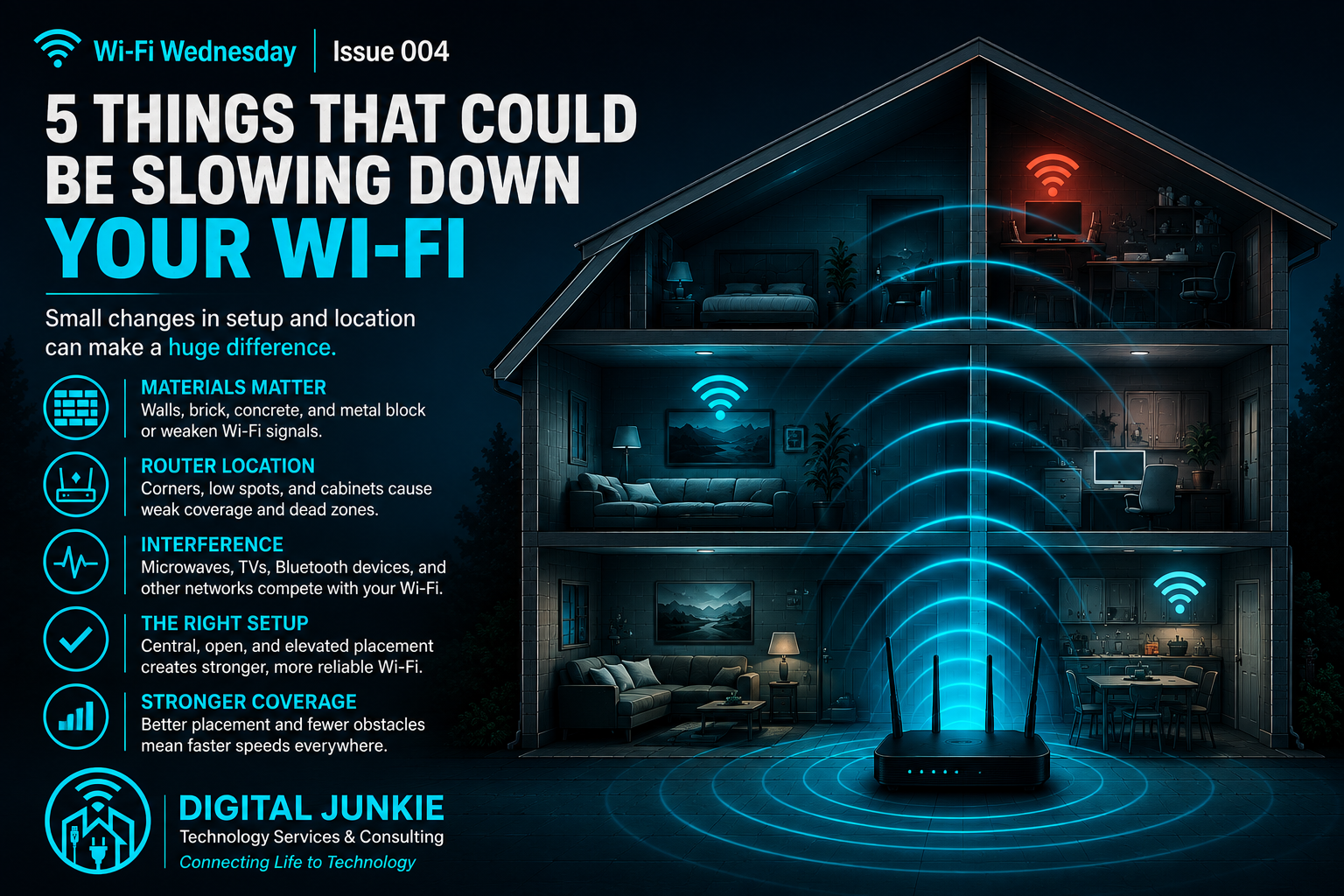
What’s Blocking Your Wi-Fi Signal?
Wi-Fi Wednesday — Issue 004
If your Wi-Fi slows down in one room, buffers during streaming, or seems unreliable in certain parts of the house, most people immediately blame their internet provider.
Sometimes that’s true.
But surprisingly often, the internet coming into your home is working perfectly.
The real problem is what happens after the signal reaches your router.
As someone who regularly troubleshoots home and small business networks throughout Central Texas, I’ve found that poor Wi-Fi coverage is usually caused by the environment inside the building—not the internet service itself.
Your Wi-Fi Signal Has to Travel
Think of Wi-Fi like light.
The farther it travels and the more obstacles it encounters, the weaker it becomes.
Unfortunately, most homes are filled with things that wireless signals simply don’t like.
That doesn’t necessarily mean your router is bad.
It often means the signal has an unnecessarily difficult path to travel.
Walls Matter More Than Most People Realize
Not every wall affects Wi-Fi equally.
Drywall usually causes only minor signal loss.
Brick reduces signal more noticeably.
Concrete can significantly weaken wireless coverage.
Metal is one of Wi-Fi’s biggest enemies because it reflects and absorbs radio signals.
If your router is trying to reach the opposite side of a house through several thick walls, it may not matter how fast your internet plan is.
Router Placement Is Everything
One of the most common things I see is a perfectly good router placed in the worst possible location.
Examples include:
Inside a cabinet
Behind a television
On the floor
In a utility closet
At one end of the house
Your router should ideally be:
Near the center of the home
Elevated
In an open area
Away from large metal objects
Simply moving the router can sometimes improve coverage without purchasing any new equipment.
Wi-Fi Has Competition
Your router isn’t the only device transmitting radio signals.
Modern homes are full of wireless devices competing for airtime.
Examples include:
Bluetooth devices
Wireless speakers
Baby monitors
Smart home devices
Neighboring Wi-Fi networks
Some cordless phones
Microwave ovens while operating
Most people never think about these sources of interference until performance begins to suffer.
Faster Internet Won’t Fix Bad Wi-Fi
This is probably the biggest misconception I encounter.
People often upgrade from 300 Mbps to Gigabit Internet expecting their Wi-Fi coverage to improve.
But if the signal can’t reliably reach your bedroom or upstairs office, buying a faster internet package usually won’t solve the problem.
A better-designed wireless network often produces a much bigger improvement than paying for additional bandwidth.
Every Home Is Different
There isn’t a single router location that’s perfect for every house.
Construction materials, layout, square footage, and even furniture placement all affect wireless performance.
That’s why professional Wi-Fi design looks at the entire environment rather than simply replacing equipment.
Sometimes the answer is moving the router.
Sometimes it’s adding a properly placed access point or mesh node.
Sometimes it’s identifying interference that most homeowners never notice.
The Bottom Line
If your Wi-Fi seems unreliable, don’t assume your internet provider is the problem.
Before upgrading your internet plan or replacing expensive equipment, make sure your wireless network is actually designed to deliver good coverage throughout your home.
A little investigation can often solve problems that faster internet never will.
If you’re in Austin, Pflugerville, Round Rock, Georgetown, Cedar Park, Leander, Hutto, Taylor, San Marcos, Temple, or the surrounding Central Texas area, Digital Junkie Technology Services & Consulting can help evaluate your Wi-Fi, identify coverage problems, and recommend solutions that fit your home instead of relying on guesswork.
Need Help With Your Wi-Fi?
Digital Junkie Technology Services & Consulting
📞 (737) 400-6482
Next Week on Wi-Fi Wednesday
Why Your Wi-Fi Speed Test Might Be Lying to You
A speed test can tell you how fast your internet connection is—but it doesn’t always tell you how well your Wi-Fi is actually performing. Next week, we’ll look at why those two things are often very different.
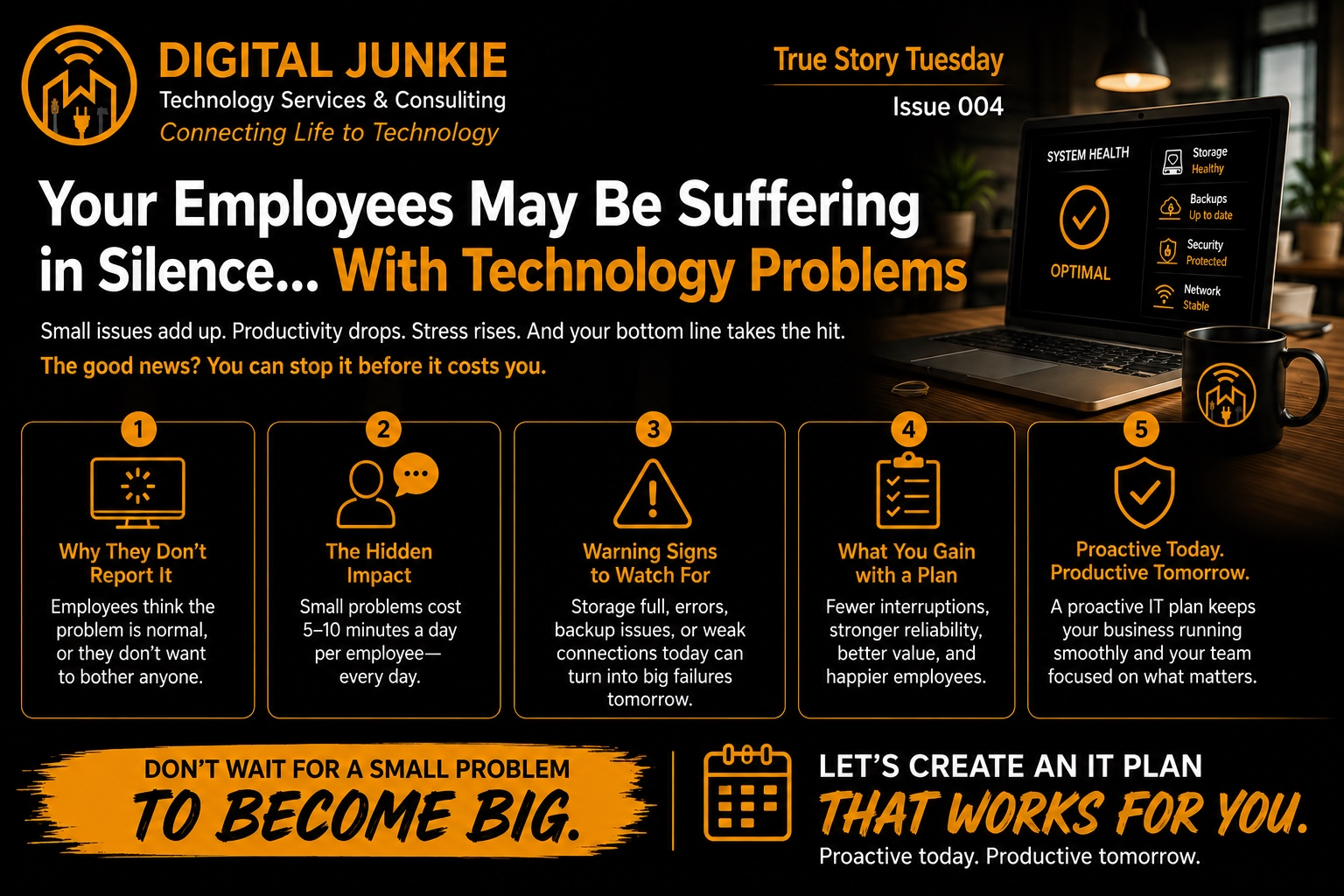
Your Employees May Be Suffering in Silence with Technology Problems
True Story Tuesday — Issue 004
When something completely breaks in a business, everybody knows about it.
The computer won’t turn on.
The printer stops printing.
The internet goes down.
A critical program refuses to open.
Those problems get reported.
But some of the most frustrating technology problems I encounter aren’t the ones that completely stop someone from working.
They’re the ones employees have learned to live with.
The computer is slow.
The printer works… most of the time.
Wi-Fi drops occasionally.
An error appears every morning.
A program takes three attempts to open.
There’s a strange workaround everyone knows about.
And nobody reports any of it.
That’s a bigger problem than many business owners realize.
“It’s Always Been Like That.”
I’ve walked into businesses to fix one problem and discovered several others simply by talking to the people who use the technology every day.
I’ll hear things like:
“Oh yeah, that computer has always been slow.”
“Just restart it when that happens.”
“You have to click it twice.”
“That printer does that sometimes.”
“Don’t use that Wi-Fi network from this side of the building.”
“If that error comes up, just close it.”
To the employee, these aren’t necessarily IT problems anymore.
They’re part of the job.
They’ve developed a workaround and moved on.
Meanwhile, the owner or manager may have absolutely no idea it’s happening.
Why Don’t Employees Report Technology Problems?
Usually, they’re not deliberately hiding anything.
If something technically still works, an employee may not think it’s important enough to report.
Maybe they assume everyone already knows about it.
Maybe it’s been happening for so long that they think it’s normal.
Maybe they don’t want to bother their manager.
Or maybe they’ve figured out a workaround.
That’s why asking:
“Is everything working?”
isn’t always a very useful question.
If employees can eventually accomplish what they’re trying to do, they’ll probably say yes.
A much better question is:
“What technology frustrates you or slows you down every day?”
That question can produce a very different answer.
Five Minutes Doesn’t Sound Like Much
Suppose an employee loses five minutes every morning waiting for a slow computer.
That’s annoying, but it doesn’t sound catastrophic.
Five minutes a day.
Five days a week.
52 weeks a year.
That’s more than 21 hours a year spent waiting—and that’s for one employee experiencing one problem.
Make it 10 minutes per day and you’re over 43 hours.
Now imagine several employees dealing with slow computers, unreliable printers, software problems, network issues, unnecessary steps, or recurring errors.
You’re paying people to fight with technology instead of doing the work you hired them to do.
And unlike a major outage, this lost productivity can continue quietly for months or even years.
Some Annoyances Are Actually Warning Signs
Lost productivity isn’t the only concern.
Sometimes the annoying little problem someone has learned to ignore is trying to tell you something.
Storage warnings
A computer that’s constantly running out of storage may become increasingly slow or unstable.
Eventually, there may not be enough space for software updates, temporary files, or other normal operations.
Recurring errors
If the same application error appears every morning, clicking OK doesn’t actually solve the problem.
It just dismisses the warning.
Backup problems
This one particularly concerns me.
Seeing OneDrive, Google Drive, Dropbox, backup software, or another cloud icon on a computer doesn’t automatically mean everything important is being backed up correctly.
A failed or incomplete backup can go unnoticed until someone actually needs the missing files.
That’s a terrible time to discover the problem.
Unreliable Wi-Fi or network connections
Employees may get accustomed to disconnecting and reconnecting Wi-Fi, moving to another room, restarting equipment, or trying something again.
But intermittent network problems can be symptoms of configuration issues, failing equipment, interference, cabling problems, or poor network design.
Today’s annoyance can become tomorrow’s failure.
Don’t Wait for a Small Problem to Become a Big One
This is one reason I believe small businesses don’t necessarily need a giant internal IT department.
They need a technology plan and someone paying attention.
Good IT support shouldn’t only mean calling someone when everything is already broken.
A proactive approach can identify the little problems that employees have quietly accepted and determine which ones are simply annoying—and which ones could turn into something much more expensive.
That can mean:
Fewer interruptions
More reliable computers and networks
Better backups
Less employee frustration
Better use of the technology you’ve already purchased
Fewer emergency IT calls
Most importantly, your employees can spend their time doing their jobs instead of troubleshooting technology.
Ask Your Employees This Question
If you own or manage a small business, try something this week.
Don’t ask:
“Is all the technology working?”
Instead, ask every employee:
“What technology problem frustrates you or slows you down every day?”
Don’t be surprised if you get answers you weren’t expecting.
Some problems may take hours to solve.
Others might take only a few minutes.
Either way, you can’t fix a problem you don’t know exists.
Need Another Set of Eyes on Your Business Technology?
Digital Junkie Technology Services & Consulting helps small businesses with computer repair, troubleshooting, Wi-Fi and networking, backups, technology consulting, and ongoing IT support.
Whether you’re dealing with a major technology problem or simply want someone to look for the smaller issues your employees have learned to tolerate, I can help you figure out what actually needs attention.
Digital Junkie Technology Services & Consulting
Connecting Life to Technology
www.digitaljunkie.tech
eherring@digitaljunkie.tech
737-400-6482
Serving businesses and homes throughout Pflugerville, Round Rock, Austin, Georgetown, Cedar Park, Leander, Hutto, Taylor, and surrounding Central Texas communities.
Next Week on True Story Tuesday
They Thought They Needed a New Computer. They Didn’t.
Before replacing a slow or problematic computer, it’s worth finding out what’s actually wrong with it. Sometimes the better answer isn’t buying another computer at all.
We’ll talk about that next Tuesday.
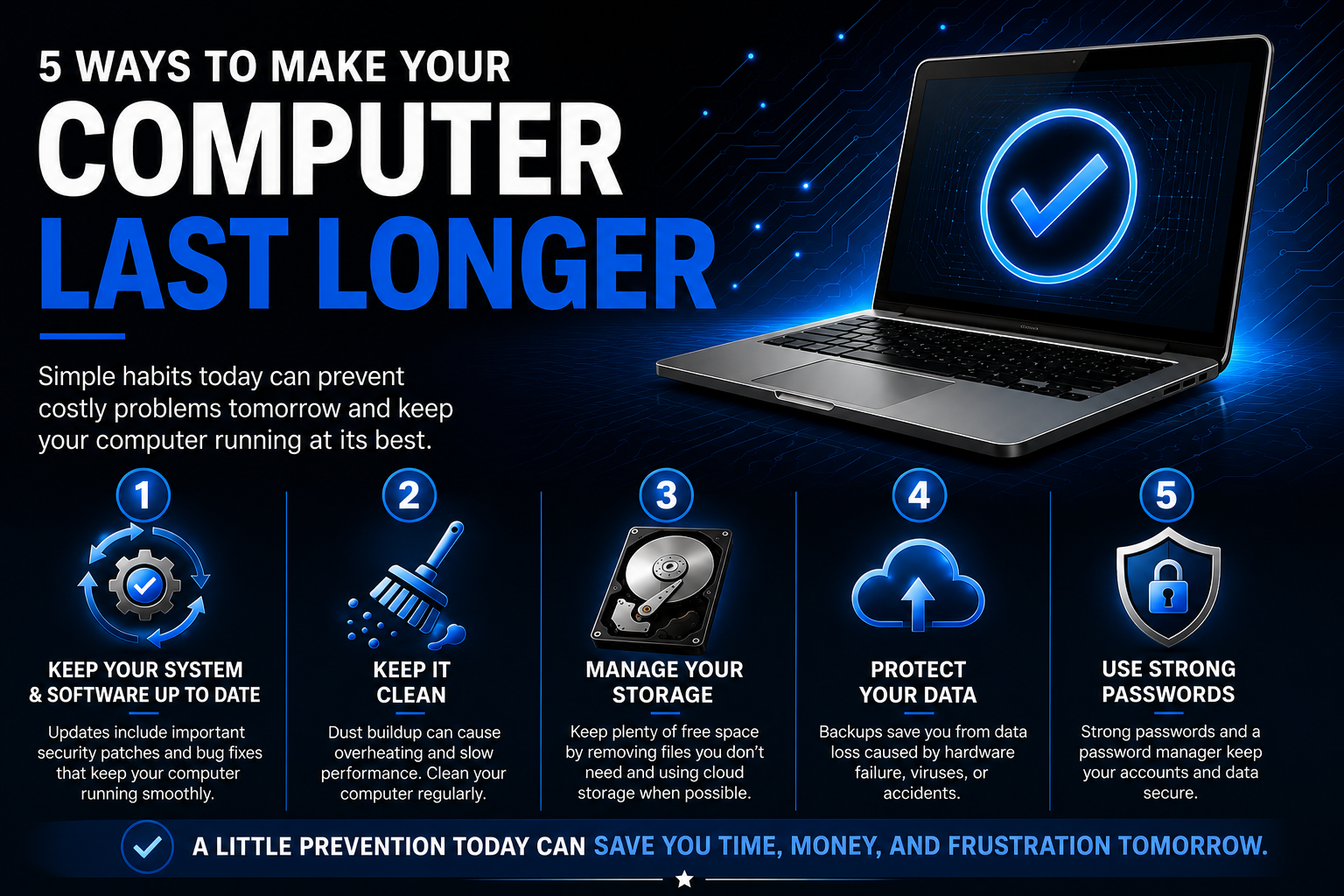
Tech Tip Monday 004: 5 Ways to Make Your Computer Last Longer
Computers aren’t cheap.
Whether you use your computer to run a business, work from home, manage your family’s photos and documents, or just handle everyday life, replacing one every few years gets expensive.
The good news is that computers don’t always need to be replaced just because they’re getting older.
At Digital Junkie Technology Services & Consulting, I regularly work on computers that people assume are simply “too old” or need to be replaced. Sometimes replacement really is the right answer. But other times, the computer has years of useful life left—it just needs some maintenance, cleanup, or attention.
A few simple habits can help your computer run better, reduce unnecessary wear, and potentially extend its useful life.
Here are five ways to make your computer last longer.
1. Keep Your System and Software Up to Date
It’s easy to postpone that update notification.
Then postpone it again.
And again.
Updates aren’t just about adding new features. They often include security patches, bug fixes, compatibility improvements, and fixes for problems that can affect your computer’s performance.
Keep your:
Operating system updated
Applications updated
Web browsers updated
Security software updated
Hardware drivers reasonably current
For most people, enabling automatic updates is the easiest approach.
Don’t Forget to Restart
One of the simplest pieces of computer maintenance advice I give customers is also one of the easiest:
Restart your computer occasionally.
Closing the lid on a laptop or putting a computer to sleep isn’t the same as restarting it.
Updates may be waiting for a restart to finish installing, and a reboot can clear temporary processes and resolve minor problems before they turn into annoying ones.
You don’t have to restart constantly, but if your computer has been running for weeks and starts behaving strangely, a restart is a pretty good place to begin.
2. Keep It Clean
Dust is one of those computer problems that happens so gradually that you may never notice it.
Computers generate heat, and their cooling systems need airflow to remove that heat.
Over time, dust can accumulate around:
Cooling fans
Air vents
Heat sinks
Power supplies
Internal components
When airflow becomes restricted, temperatures can rise. Fans may start running harder and louder, and excessive heat can contribute to poor performance and shorten the life of components.
Give Your Computer Room to Breathe
This is especially important with laptops.
Using a laptop on a bed, blanket, couch, pillow, or other soft surface can block the ventilation openings.
A hard, flat surface generally allows much better airflow.
Desktop computers also shouldn’t be packed tightly into enclosed cabinets without ventilation.
Be Careful When Cleaning
Compressed air and a soft brush can be useful for removing dust, but computer components can also be damaged by improper cleaning.
If a computer has years of dust buildup and you’re uncomfortable opening it, having it professionally cleaned may be safer than experimenting.
Digital Junkie provides computer maintenance and troubleshooting for customers who would rather have someone inspect and clean the system properly.
3. Manage Your Storage
A nearly full drive can create all kinds of problems.
Your operating system needs free storage for temporary files, updates, application data, caching, and normal system operations.
If your drive is constantly sitting at 95–100% capacity, you’re giving the computer very little room to work.
Try to maintain a reasonable amount of free space.
For many systems, keeping at least 20% free is a useful target rather than waiting until Windows or macOS starts warning you that you’re completely out of space.
Look for things like:
Old downloads
Duplicate files
Large videos
Temporary files
Applications you no longer use
Old installers
Files that could be archived elsewhere
Cloud storage can also help, but there is an important distinction to understand.
Cloud Storage Isn’t Automatically a Backup
OneDrive, Google Drive, Dropbox, iCloud, and similar services are extremely useful.
But synchronization and backup aren’t necessarily the same thing.
If something is deleted, corrupted, or synchronized incorrectly, that change may propagate to your other devices.
For important files—especially business documents, family photos, financial records, and irreplaceable data—I prefer thinking in terms of multiple copies rather than assuming that seeing a cloud icon means everything is protected.
Which brings us to #4.
4. Protect Your Data With Backups
A computer can be repaired or replaced.
Your data may not be so easy to replace.
I’ve worked with customers who had years of photos, documents, business records, and other important information stored on a single computer or drive.
Sometimes I can recover that data.
Sometimes the damage is too severe.
That’s why Digital Junkie’s approach to data recovery has always been that prevention is better than recovery.
A good backup strategy can include a combination of:
Automatic cloud backups
External hard drives
Network storage
Scheduled backups
Multiple copies of especially important files
But there’s another step people often forget:
Make Sure Your Backup Actually Works
Seeing a green checkmark doesn’t necessarily mean you’re protected.
Occasionally verify that important files exist in your backup and, when appropriate, test whether they can actually be restored.
A backup you can’t restore isn’t much of a backup.
For business owners, this becomes even more important. Losing access to customer documents, accounting information, project files, or operational data can quickly turn a computer problem into a business problem.
5. Use Strong Passwords and Protect Your Accounts
Making your computer last longer isn’t only about the physical hardware.
Keeping the system secure matters too.
Malware, compromised accounts, malicious software, and unauthorized access can create problems ranging from annoying pop-ups to serious data loss.
Start with the basics:
Use strong, unique passwords
Don’t reuse the same password everywhere
Use a reputable password manager
Enable two-factor authentication when available
Keep your browser updated
Be cautious with unexpected links and attachments
Don’t install software simply because a pop-up says you need it
And if your browser suddenly starts telling you that your computer has 47 viruses and you need to call Microsoft immediately, don’t panic.
Those messages are often browser notifications or scams rather than legitimate antivirus warnings.
I’ve helped customers with exactly that type of problem.
Sometimes what looks like a major virus infection turns out to be something that can be resolved fairly quickly.
You Don’t Have to Replace a Computer Just Because It’s Slow
This is probably one of the biggest misconceptions I encounter.
A slow computer doesn’t automatically mean you need a new computer.
The problem could be:
Low storage space
Too many startup applications
Software problems
Malware or unwanted applications
Overheating
A failing hard drive
Insufficient memory
Background synchronization
An outdated mechanical hard drive that could be upgraded to an SSD
A Windows or macOS problem
There are absolutely situations where replacing the computer makes more financial sense than repairing or upgrading it.
I’ll tell a customer when I think that’s the case.
But before spending hundreds—or thousands—of dollars on a replacement, it can be worth finding out why the computer is slow in the first place.
Computer Repair vs. Computer Replacement
This is where I think a good local computer repair service should be practical.
If you bring me a computer that isn’t worth putting $400 into, I’m not interested in convincing you to spend $400 repairing it.
I’d rather help you understand your options.
Maybe the computer needs a relatively inexpensive repair.
Maybe an SSD or memory upgrade would give it several more years.
Maybe we can clean up the software without replacing anything.
Or maybe it’s genuinely time for a new computer—and I can help you choose something appropriate without overspending.
The objective isn’t to repair everything.
The objective is to make the decision that makes sense for you.
Looking for Computer Repair or IT Support Near You?
If you found this article because you searched for computer repair near me, IT support near me, computer help near me, or local computer repair, you’re probably trying to solve an actual problem—not read a sales pitch.
That’s how I approach Digital Junkie.
Digital Junkie Technology Services & Consulting provides local technology support throughout the greater Austin area, including Pflugerville, Round Rock, Georgetown, Cedar Park, Leander, Hutto, Taylor, and surrounding Central Texas communities.
I help homeowners, remote workers, and small businesses with problems including:
Slow computers
Computer setup and migration
Windows and Mac troubleshooting
Data recovery
Backup configuration
Storage problems
Wi-Fi troubleshooting
Home and business networking
Printer problems
Malware and suspicious pop-ups
Software problems
Technology upgrades
Small-business IT support
General technology consulting
You don’t need to know what’s wrong before reaching out.
Figuring that out is part of the job.
A Little Prevention Can Save a Lot of Frustration
You don’t need to become a computer expert to take better care of your technology.
Remember these five things:
1. Keep your system and software updated.
2. Keep your computer clean and properly ventilated.
3. Maintain plenty of free storage space.
4. Protect important data with real backups.
5. Use strong passwords and basic security practices.
None of these require hours of maintenance every week.
They’re small habits.
But those small habits can help your computer stay reliable longer—and potentially save you time, money, and frustration tomorrow.
That’s what Tech Tip Monday is about: practical technology advice you can actually use.
Digital Junkie Technology Services & Consulting
Connecting Life to Technology.
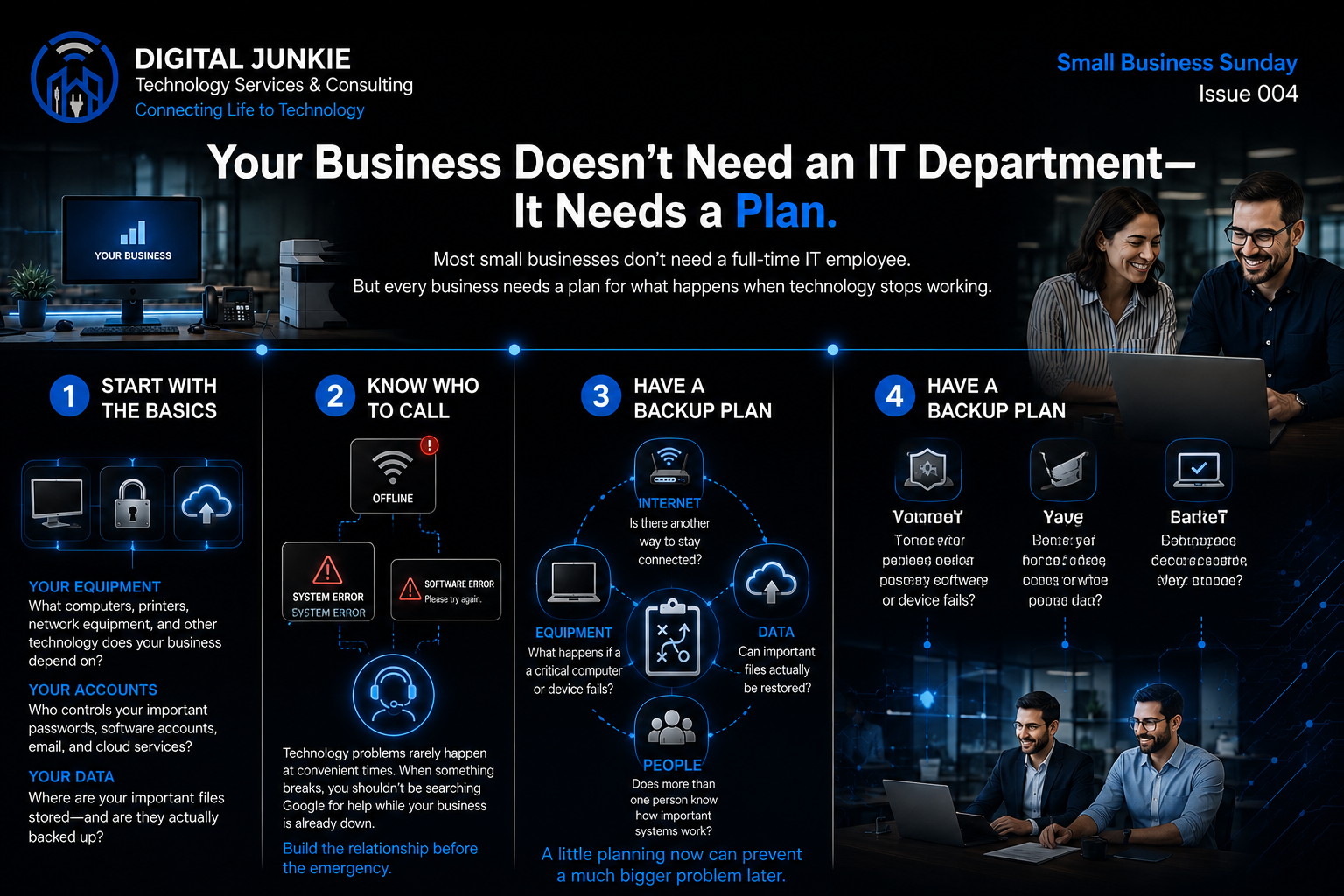
Small Business Sunday 004: Your Business Doesn’t Need an IT Department—It Needs a Plan
Most small businesses do not need a full-time IT department.
They do, however, need a clear plan for what happens when the internet goes down, a computer stops working, important software fails, or a critical file suddenly disappears.
That distinction matters.
Good IT support is not about convincing every business owner to hire more people, buy expensive equipment, or build an enterprise-level network. It is about helping a business understand what technology it depends on, where the biggest risks are, and who to call when something goes wrong.
A small amount of planning can prevent a minor technology problem from turning into a full business interruption.
Start With the Technology Your Business Already Uses
Most businesses rely on more technology than they realize.
A typical small office may depend on:
Computers and laptops
Printers and scanners
Wi-Fi and internet service
Email
Cloud storage
Accounting software
Customer-management systems
Security cameras
Phones and communication platforms
Industry-specific software
Online scheduling or payment systems
None of these systems may seem especially complicated on its own. The challenge is that they often depend on one another.
A weak internet connection can affect phones, cloud software, payments, file access, email, and customer service at the same time. One failing computer may hold the only working copy of an important file. A password known by only one employee can become a major problem when that person is unavailable.
The first step in building an IT plan is simply knowing what your business relies on every day.
Know What Equipment Matters Most
You do not need a complicated inventory system to get started.
Make a basic list of the computers, printers, network equipment, software, and other devices your business depends on. Then identify which ones would cause the biggest disruption if they stopped working.
For example:
Could your business operate if the primary computer failed?
Is there only one printer capable of handling important documents?
Does your internet router support your phones, payment system, and cloud services?
Is an aging hard drive holding years of business records?
Would employees know what to do if the Wi-Fi stopped working?
This exercise is not meant to create anxiety. It is meant to help you prioritize.
You may discover that most of your technology is in good shape and only one or two systems need attention. That is far more manageable than waiting until something fails unexpectedly.
Know Who Controls Your Accounts
Technology planning is not only about hardware.
Your business should also know who controls its important accounts, passwords, subscriptions, and online services.
That includes:
Business email
Website hosting
Domain registration
Cloud storage
Accounting platforms
Microsoft 365 or Google Workspace
Social media accounts
Internet service
Software subscriptions
Backup services
Security systems
More than one trusted person should know how to access critical business systems when necessary.
This does not mean sharing passwords casually or writing them on sticky notes. A secure password manager, documented ownership process, and appropriate backup administrator can help prevent one person from becoming the only point of access.
If an employee leaves, becomes unavailable, or forgets a password, the business should still be able to operate.
Know Where Your Data Is Stored
Many business owners believe their files are backed up because they are stored in the cloud.
Sometimes they are. Sometimes they are only synchronized.
There is an important difference.
File synchronization can copy changes across devices, including accidental deletions, corrupted files, or ransomware damage. A true backup should give you a separate recovery option and allow important files to be restored.
Ask these questions:
Where are your business files currently stored?
Are they stored locally, in the cloud, or both?
Is the backup automatic?
Has anyone confirmed that the backup is actually working?
Can an older version of a file be restored?
Is there a second backup for your most important information?
Who knows how to recover the data?
A backup is only useful if it can be restored when you need it.
That does not mean every small business needs a complicated server environment. Many businesses can be protected with a simple, affordable backup plan that matches the amount and importance of their data.
Know Who to Call Before Something Breaks
Technology problems rarely happen at convenient times.
The internet goes down before an important meeting. A computer refuses to start on payroll day. A software update creates an error when customers are waiting. A printer stops working just before a deadline.
When that happens, searching online for “IT support near me” may help you find someone, but it is much better to already know who you trust.
Building a relationship with a local IT support provider before an emergency gives that person time to understand your business, your equipment, and the way your employees work.
That can make troubleshooting faster and less stressful.
A reliable technology partner may also help you communicate with your internet provider, software company, equipment manufacturer, or other vendor. Business owners should not have to spend hours being transferred between support departments while each company blames someone else.
Local IT support for small businesses should make technology easier to manage, not more confusing.
Ask One Simple Question
A useful business continuity exercise is to ask:
What happens if this stops working tomorrow?
Ask that question about your internet, computers, software, phones, files, and key employees.
Internet
Is there another way to stay connected temporarily?
Some businesses can use a mobile hotspot, secondary internet connection, or cellular failover. Others may simply need a written plan for what employees should do during an outage.
Data
Can important files actually be restored?
A successful backup notification is reassuring, but a periodic restore test provides much more confidence.
Equipment
What happens if a critical computer or device fails?
You may not need a spare computer for every employee, but you should know which systems are essential and how quickly they could be replaced or repaired.
People
Does more than one person understand how important systems work?
Basic documentation can make a major difference. Include account ownership, vendor contact information, equipment details, and simple recovery instructions.
The goal is not to plan for every possible disaster. The goal is to avoid being completely unprepared.
Small Businesses Need Practical IT Planning
A useful IT plan does not have to be expensive or complicated.
For many small businesses, it may include:
A list of essential equipment
Secure access to important accounts
Verified backups
Basic cybersecurity protections
Up-to-date software
Vendor contact information
A response plan for internet or equipment failures
A trusted local IT support contact
Periodic technology reviews
That may be enough to prevent most common disruptions from becoming emergencies.
The best small-business technology support is usually proactive, practical, and sized appropriately for the business. A five-person office does not need the same systems as a large corporation, but it still deserves reliable computers, secure accounts, working backups, and dependable business Wi-Fi.
When Should You Search for Business IT Support?
It may be time to look for small-business IT support if:
Technology problems keep returning
Employees lose time dealing with slow computers
Your Wi-Fi is unreliable
You are unsure whether backups are working
Important passwords are not organized
Your equipment is aging
You are moving or opening a new office
You are adding employees
You need help communicating with an internet provider
You do not have anyone to call during an emergency
Searching for terms such as IT support near me, small-business IT support, computer repair for businesses, business Wi-Fi support, network support near me, or managed IT services for small business can help you find local options.
The right provider should be willing to explain what you need, what you do not need, and which improvements should be handled first.
Be cautious of anyone who immediately recommends replacing everything without first understanding your business.
A Plan Creates Confidence
Technology should support your business, not constantly interrupt it.
Your business may never need a full-time IT employee. It may only need a dependable plan, good documentation, reliable backups, and a trusted person to call when help is needed.
That preparation gives business owners and employees more confidence because they are not starting from zero every time something goes wrong.
Good IT is not about having a big IT department.
It is about being prepared.
Digital Junkie Technology Services & Consulting helps small businesses throughout the Austin area with computer support, business Wi-Fi, networking, backups, cybersecurity, troubleshooting, technology planning, and vendor coordination.
Next week on Small Business Sunday, we will look at another common technology issue that quietly affects productivity and business operations.
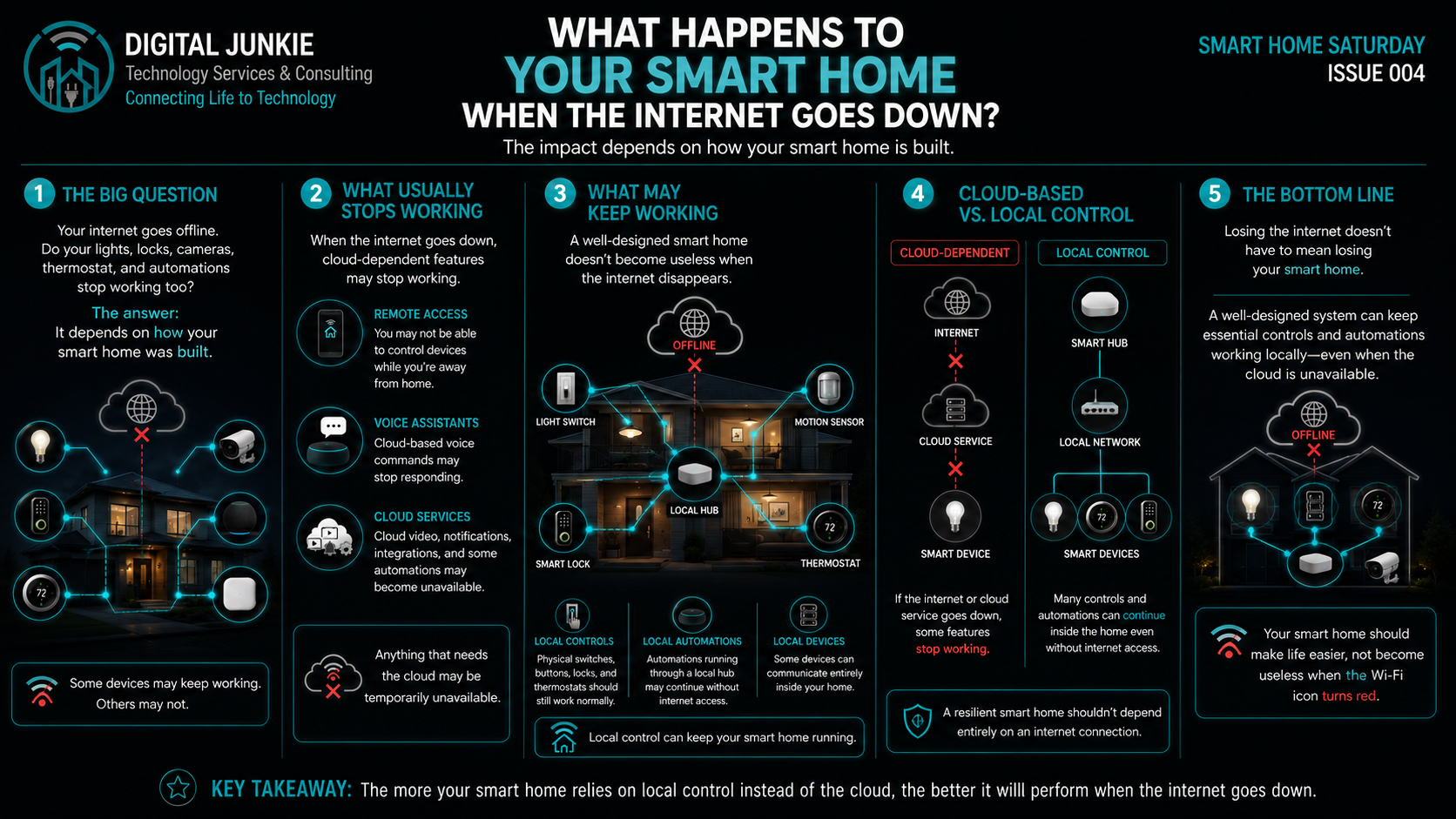
Smart Home Saturday 004: What Happens to Your Smart Home When the Internet Goes Down?
Your internet suddenly goes down.
Your phone drops off Wi-Fi. The smart speaker stops responding. Maybe your security camera app won’t load.
Then comes the question:
Is my entire smart home now useless?
The answer is not necessarily.
What happens to your smart home during an internet outage depends heavily on how the system was designed. Some smart devices rely almost completely on cloud services, while others can continue communicating and running automations locally inside your home.
Understanding that difference can make the difference between a smart home that’s genuinely useful and one that falls apart every time there’s an internet problem.
Your Wi-Fi and Your Internet Are Not the Same Thing
This is probably the most important concept to understand first.
Your Wi-Fi network connects devices inside your home.
Your internet connection connects that network to the outside world.
Those aren’t the same thing.
If your internet provider has an outage, your router and Wi-Fi network may still be operating perfectly well. Devices capable of communicating locally may therefore continue talking to one another even though they can’t reach the internet.
Think of it like a neighborhood during a highway closure.
The highway out of town may be closed, but that doesn’t necessarily prevent you from driving to your neighbor’s house.
Your smart home can work the same way.
What Usually Stops Working When the Internet Goes Down?
The biggest problems generally involve features that depend on an outside cloud service.
Remote Access
If you’re away from home and normally use an app to control your lights, thermostat, locks or other devices, that remote connection may stop working.
Your phone has internet access.
Your house doesn’t.
The two can’t communicate through the cloud until your home’s internet connection returns.
Voice Assistants
Many voice assistants rely heavily on cloud processing.
You say something like:
“Turn off the living room lights.”
The speaker may send that request across the internet to a cloud service, interpret the command and then send instructions back to your smart home.
Without internet access, some of those commands may stop working even though the light itself is perfectly functional.
Cloud Cameras and Video
Security cameras are another major example.
If your cameras primarily store video in the cloud, an internet outage can prevent new footage from being uploaded.
Remote viewing and notifications may also stop.
A camera with local storage, an NVR or another local recording solution may continue recording even when the internet is unavailable.
That’s an important distinction when designing a security system.
Cloud-Based Automations
Some automations don’t actually happen inside your house.
The trigger travels to a cloud service, the service processes the automation, and instructions are sent back to your devices.
Take away the internet connection and that chain gets broken.
What Can Keep Working?
This is where a well-designed smart home starts showing its value.
Physical Controls
A smart home should never make ordinary things unnecessarily difficult.
Your light switch should still turn on the light.
Your thermostat should still control your HVAC system.
Your door should still be unlockable.
Smart technology should add functionality, not eliminate basic functionality.
That’s one reason I’m a big believer in designing technology around the people who actually have to live with it.
Local Smart Home Automations
Some smart home hubs and platforms can process automations locally.
Instead of:
Sensor → Internet → Cloud → Internet → Light
the automation can happen more like:
Sensor → Local Hub → Light
Everything happens inside your home.
If your motion sensor detects someone walking into a hallway at night, for example, the hub may still be able to turn on the hallway lights even when your internet provider is completely offline.
That’s faster, more resilient and often more private.
Local Devices Can Still Communicate
Depending on the equipment and smart home platform you’re using, devices connected through technologies such as Ethernet, Wi-Fi, Zigbee, Thread or other local protocols may still communicate inside the home.
Your smart home could therefore lose its connection to the cloud while its internal network continues operating.
Picture your house with a giant red OFFLINE symbol sitting over the internet connection while lights, sensors, thermostats and other devices inside the house continue communicating normally.
That’s what we’re trying to accomplish.
Cloud-Based vs. Local Control
Neither cloud technology nor local technology is inherently bad.
Cloud services provide some incredibly useful features.
They make remote access easy. They allow manufacturers to provide sophisticated services without requiring homeowners to maintain servers or complicated infrastructure. And for many people, they’re incredibly convenient.
The problem comes when everything depends on them.
A smart home built entirely around cloud services may have multiple points of failure:
Your internet connection
The manufacturer’s servers
DNS or other internet infrastructure
The manufacturer’s app
Your account authentication
The company continuing to support the product
Local control removes some of those dependencies.
That doesn’t mean eliminating the cloud.
It means designing the system so the cloud adds capabilities instead of becoming a requirement for every basic function.
A Smart Home Should Still Work Like a Home
This is something I think gets overlooked when people start buying smart devices.
Technology can become the objective instead of the solution.
You don’t really need a smart light.
You need a light.
Smart technology should simply make that light more useful.
Maybe it automatically turns on when you arrive home.
Maybe hallway lights illuminate at 20% brightness when someone gets up during the night.
Maybe every light downstairs shuts off automatically when you go to bed.
Those are useful improvements.
But if an internet outage means you suddenly can’t operate your lights normally, we’ve made something simple unnecessarily complicated.
That’s not a smarter home.
What Should You Consider When Building a Smart Home?
Before buying another smart device, ask a few questions:
Does it still perform its basic function without internet access?
Can it communicate locally?
Does it require the manufacturer’s cloud service?
What happens if that company shuts down the service someday?
Can physical controls still operate the device?
Are important automations processed locally or in the cloud?
Does it integrate properly with the rest of the smart home?
You don’t necessarily need every device to work completely offline.
But you should understand what you’re giving up when the internet disappears.
The Bottom Line
Losing the internet doesn’t have to mean losing your smart home.
A well-designed system can keep essential controls, devices and automations operating locally even when cloud services aren’t available.
Your lights should still work.
Your thermostat should still control the temperature.
Your doors should still function.
And many of your most important automations may be able to continue running.
The goal isn’t to eliminate cloud technology.
It’s to avoid making your entire house dependent on it.
Because your smart home should make your life easier—not become useless the moment the Wi-Fi icon turns red.
Need Help With Your Smart Home in Central Texas?
Digital Junkie Technology Services & Consulting helps homeowners design, install, troubleshoot and improve technology that actually works for the way they live.
That includes smart home installation and automation, Wi-Fi and networking, security cameras, computers, technology troubleshooting and consulting.
I serve customers throughout the greater Austin and Central Texas area, including Austin, Round Rock, Pflugerville, Georgetown, Cedar Park, Leander, Hutto, Taylor, Buda, Kyle and San Marcos, with projects extending north toward Temple depending on the scope of the work.
If you’ve been searching for a smart home installer near you, need help figuring out why your existing smart home isn’t working reliably, or simply want someone to help design the right system before you start buying equipment, I’d be happy to help.
Digital Junkie Technology Services & Consulting
Connecting Life to Technology
www.digitaljunkie.tech
info@digitaljunkie.tech
737-400-6482
Next Week on Smart Home Saturday
What Happens When Your Smart Home Stops Working? Build a Backup Plan
An internet outage isn’t the only thing that can take smart technology offline. Next week, we’ll look at what happens when devices, hubs, networks or other parts of the system fail—and how to build a smart home with a backup plan instead of a single point of failure.
When Your Passwords Die With You: Planning for the Digital Life You Leave Behind
We plan for who will receive our homes, savings, vehicles, and belongings. We create wills, purchase life insurance, name beneficiaries, and tell our families where important papers are stored.
But who will receive the keys to our digital lives?
Today, nearly every part of life has a digital connection. Our bills arrive by email. Our financial statements live behind passwords. Our photographs are stored on phones and in the cloud. Even our doorbells, thermostats, security cameras, and lights may depend on an online account.
Technology companies have made these devices and accounts more secure than ever. Encryption, facial recognition, fingerprint identification, strong passwords, and two-factor authentication help protect our private information from thieves and hackers.
That security is important—but it creates a difficult question:
What happens when someone dies and the people they love cannot get into their devices or accounts?
Locked Out After an Unexpected Loss
Not long ago, a woman contacted me after tragically and unexpectedly losing her son.
Along with the unimaginable grief of losing a child, she faced a problem most families never consider until it happens: she could not access his computer or phone.
She was trying to make sense of the life he had left behind. Were there bills that needed to be paid? Accounts that needed to be closed? Financial or insurance information the family needed to find?
She also hoped to recover something far more personal—photographs, messages, and memories of her son.
But his devices were protected. She did not know the passwords, and modern encryption meant that there was no simple way to get around them.
She was not trying to invade her son’s privacy. She was a grieving mother trying to handle his affairs and preserve pieces of his life.
Unfortunately, a death certificate does not automatically unlock an encrypted computer or phone. In some cases, even the company that made the device cannot recover the information without the correct password, passcode, or recovery key.
Security was doing exactly what it had been designed to do: keeping everyone else out.
That included his family.
Preparing as an Act of Love
Another client contacted me under very different circumstances.
He had terminal cancer and knew that his time was limited. He wanted help preparing his computer so his wife could access the information she would need after his death.
He wanted important files organized. He wanted her to know how to find the household information he normally managed. He wanted to reduce the number of passwords, devices, and confusing accounts she would have to untangle while grieving.
This was more than a computer project.
It was an act of love.
He knew he could not prevent his wife’s grief, but he could remove one burden from her shoulders. By preparing his digital life, he was giving her one less problem to solve during one of the most difficult times she would ever experience.
These two families illustrate the difference that planning can make. One family was forced to search for answers after a sudden tragedy. The other had an opportunity to prepare.
None of us knows which situation our family may face.
What Is Part of Your Digital Life?
Your digital life is much larger than your social-media accounts. It may include:
Computers, phones, tablets, and external drives
Email accounts
Household bills and automatic payments
Bank, retirement, stock, and investment accounts
Tax returns and insurance documents
Password managers and two-factor authentication apps
Family photographs, videos, messages, and contacts
Cloud-storage accounts
Medical portals and records
Social-media profiles
Websites, domain names, and online businesses
Cryptocurrency and digital wallets
Streaming services and other subscriptions
Smart locks, cameras, alarms, thermostats, lights, and doorbells
In many households, one person manages most of these things. If that person becomes seriously ill, incapacitated, or dies, the rest of the family may not even know which accounts exist—much less how to access them.
Accessing an account also is not the same as having legal authority over it. Banks, investment firms, insurance companies, and other institutions have procedures for executors, beneficiaries, and legal representatives. A password does not replace those procedures.
The first step, however, is knowing what exists and where to begin.
A Death Certificate Is Not a Master Password
It is important to understand the difference between a physical device, an online account, and the assets connected to that account.
An encrypted computer or phone may require a password, passcode, or recovery key. The manufacturer may be technically unable to bypass that protection.
An Apple, Microsoft, or Google account is separate from the device. These companies may have procedures for deceased users, but access is not automatic and may be limited to certain cloud information.
Banks, investment firms, insurance companies, and similar organizations follow their own legal procedures. They may require a death certificate, letters testamentary, proof of authority as executor, or other documents.
Gaining access to a cloud account does not necessarily unlock the person’s computer. Unlocking a computer does not necessarily give someone legal authority over the financial accounts found on it.
That is why planning before an emergency is so valuable.
What Do Apple, Google, and Microsoft Offer?
Access is generally controlled by the company providing the account—not necessarily the company that manufactured the computer.
Apple
Apple allows users to designate one or more Legacy Contacts. After the user dies, a Legacy Contact can request access to certain Apple Account and iCloud information using the Legacy Contact access key and proof of death.
Accessible information may include photographs, messages, notes, files, and device backups.
However, some highly protected information is excluded. Apple does not provide Legacy Contacts with data stored in iCloud Keychain, including saved passwords, passkeys, and payment information.
Legacy Contact access also does not guarantee that someone can unlock an encrypted Mac, iPhone, or iPad. Without the device password, passcode, or appropriate recovery method, information stored only on the device may remain inaccessible.
Learn more from Apple’s Legacy Contact guidance.
Google offers an Inactive Account Manager. It allows you to decide what should happen if your account remains inactive for a period of time.
You can choose trusted contacts, determine which information they may receive, and decide whether the account should eventually be deleted. This can cover information from services such as Gmail, Google Drive, and Google Photos, depending on the choices you make.
Google also accepts requests concerning deceased users from immediate family members and legal representatives. However, access is reviewed individually and is not guaranteed.
Learn more about Google’s Inactive Account Manager.
Microsoft and Windows
Microsoft has a legal process for requesting certain information associated with a deceased person’s Microsoft account. Depending on the country and circumstances, a court order or additional legal documentation may be required. Supplying documents does not guarantee that Microsoft can provide the requested content.
A Windows computer protected by BitLocker presents another challenge. Microsoft states that its support staff cannot retrieve, provide, or recreate a lost BitLocker recovery key.
If the key was saved to the person’s Microsoft account, printed, placed on a USB drive, or retained by an employer or school, the drive may be recoverable. Without the correct key, its encrypted files may be permanently inaccessible.
Read Microsoft’s guidance for deceased users and its instructions for finding a BitLocker recovery key.
Create a Digital Estate Plan
A digital estate plan does not need to be complicated. Begin by creating an inventory of the important parts of your digital life.
Record:
Your computers, phones, tablets, and storage devices
Your primary email addresses and account usernames
The financial institutions and insurance companies you use
Your recurring household bills and subscriptions
The location of important documents and photographs
Your password manager and its emergency-access instructions
Your device recovery keys
The administrator accounts for your smart-home equipment
Any websites, domain names, or online businesses you own
Which accounts should be preserved, transferred, memorialized, or deleted
You do not necessarily need to write every password in this document. The inventory can explain where your passwords and recovery information are securely stored.
Choose someone you trust to manage your digital affairs. Depending on your location, your estate-planning attorney may be able to formally name that person as a digital executor or include appropriate digital-asset language in your estate documents.
Store the Plan Safely
A list containing every password can create a serious security risk if it falls into the wrong hands. It may also be unwise to place passwords directly in a will, because wills can become public records.
Safer possibilities include:
A reputable password manager with an emergency-access feature
A secure physical safe
A sealed document kept with an attorney
Recovery keys stored separately from the encrypted devices
Estate documents that explain where credentials are stored
Written instructions given to a trusted representative
Make sure the appropriate person knows that the plan exists and knows where to find it. A perfectly organized plan is not helpful if nobody knows about it.
Review the information at least once a year and after major life changes such as marriage, divorce, serious illness, the death of a family member, or replacing a primary phone or computer.
Because laws and company policies vary, consider discussing your plan with a qualified estate-planning attorney.
Five Things You Can Do This Week
You do not have to solve everything at once. Start with five steps:
Choose someone you trust to handle your digital affairs.
Create an inventory of your important devices and accounts.
Configure Apple Legacy Contact and Google Inactive Account Manager where applicable.
Securely store your device recovery keys and password-manager instructions.
Tell your family or representative where the plan is located.
These steps may take only a small amount of your time, but they could save your family days or weeks of confusion.
One More Way to Care for the People You Love
Digital estate planning is not really about computers.
It is about the people who may one day find themselves sitting in front of those computers, searching for answers during one of the hardest moments of their lives.
It is about the spouse trying to find the household bills. The child searching for an insurance policy. The parent hoping to recover one more photograph. The family trying to manage a smart home that nobody else knows how to operate.
We cannot remove the grief our loved ones may one day experience. But with a little preparation, we can remove some of the confusion, frustration, and fear.
We plan our estates because we care about what happens to the people and possessions we leave behind.
It is time to plan for our digital lives, too.
You Don’t Have to Plan It Alone
If you are unsure where to begin, I can help you organize your devices, identify important accounts, securely document recovery information, and prepare a digital plan your loved ones can understand.
Whether you are planning ahead for yourself, helping an aging parent, or facing a serious illness in your family, the best time to sort through your digital life is before access becomes an emergency.
Contact me to schedule a digital estate planning consultation. Together, we can help make sure the people you love are not left digitally locked out.
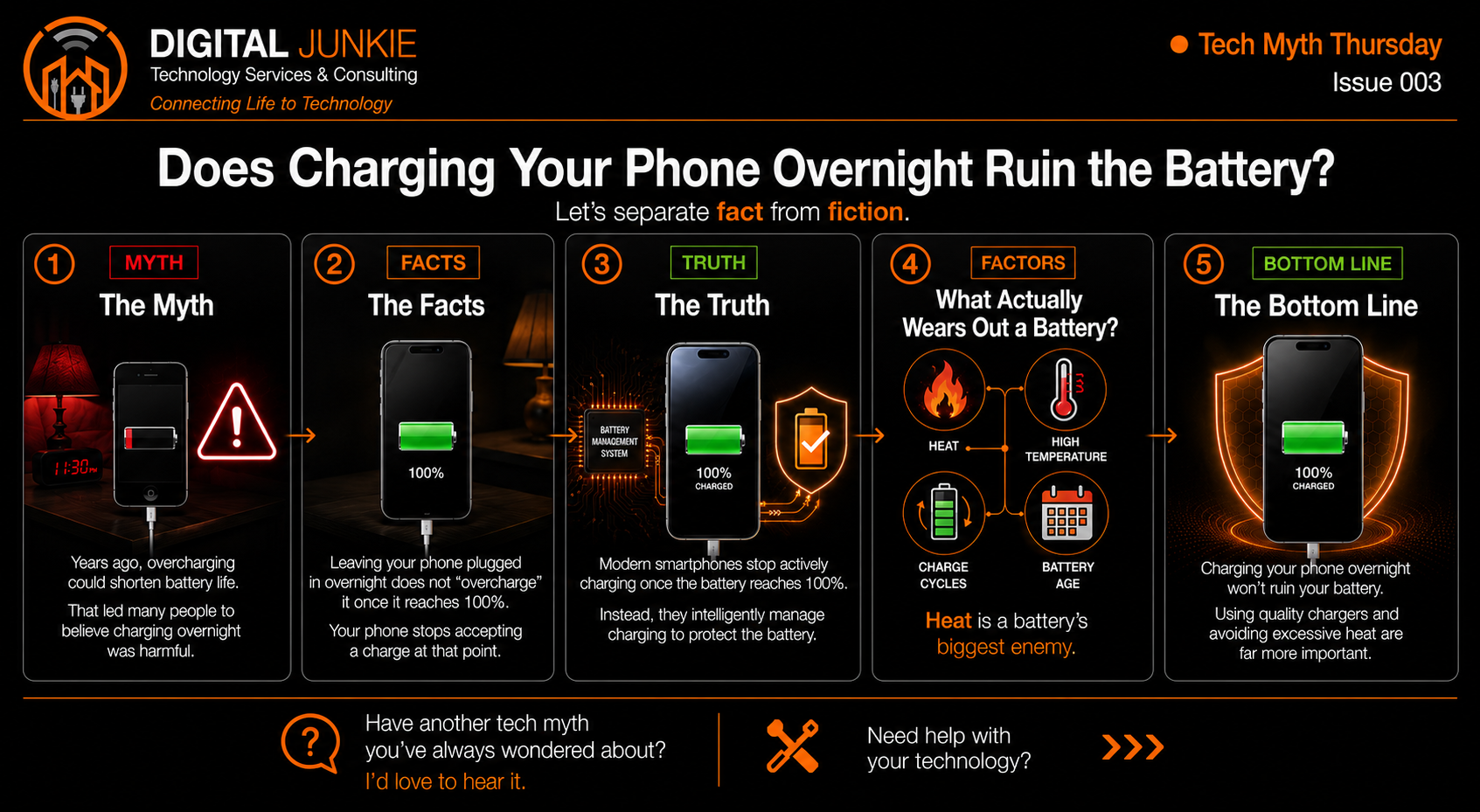
Tech Myth Thursday 003: Does Charging Your Phone Overnight Ruin the Battery?
Have you ever been told that leaving your phone plugged in overnight will ruin the battery?
It's one of the most common technology myths I hear, and years ago, there was some truth behind it. Older rechargeable batteries could be damaged by overcharging, which is why many people got into the habit of unplugging their phones as soon as they reached 100%.
Fortunately, smartphone battery technology has come a long way.
Why This Myth Started
Older devices commonly used Nickel-Cadmium (NiCd) and Nickel-Metal Hydride (NiMH) batteries. These batteries could develop what's known as a "memory effect," and repeatedly overcharging them could reduce their lifespan.
Because of this, people were encouraged to avoid leaving devices plugged in longer than necessary.
Many of us carried that advice forward—even though today's smartphones use completely different battery technology.
How Modern Smartphones Protect Themselves
Nearly every modern smartphone uses a lithium-ion battery along with sophisticated charging software.
When your battery reaches 100%, your phone doesn't continue forcing power into it all night long. Instead, it stops active charging and carefully manages the battery level. Many phones even learn your charging habits and delay the final portion of the charge until just before you normally wake up.
In other words, your phone is much smarter than it used to be.
What Actually Wears Out Your Battery?
If charging overnight isn't the problem, what is?
The biggest factors that affect battery health are:
Excessive heat
Frequent full charge cycles
Normal battery aging
Low-quality or damaged chargers
Heat is especially hard on lithium-ion batteries. Leaving your phone in a hot vehicle, direct sunlight, or under a pillow while charging can do far more damage than simply leaving it plugged in overnight.
Using a quality charger and keeping your phone cool will have a much greater impact on long-term battery health.
The Bottom Line
For most people, charging your phone overnight is perfectly safe.
Modern smartphones are designed to intelligently manage charging and protect the battery. Instead of worrying about leaving your phone plugged in overnight, focus on avoiding excessive heat and using quality charging accessories.
Technology changes quickly, and sometimes the advice that was true years ago simply doesn't apply anymore.
Need help with your technology?
Whether it's smartphones, computers, Wi-Fi, smart home devices, or small business technology, Digital Junkie Technology Services & Consulting is here to help.
📞 737-400-6482
Next Week on Tech Myth Thursday
You Need to Replace Your Computer Every Few Years.
We'll look at why many computers still have years of life left and explore the upgrades and maintenance that can often make them feel like new again—saving you money and reducing unnecessary e-waste.
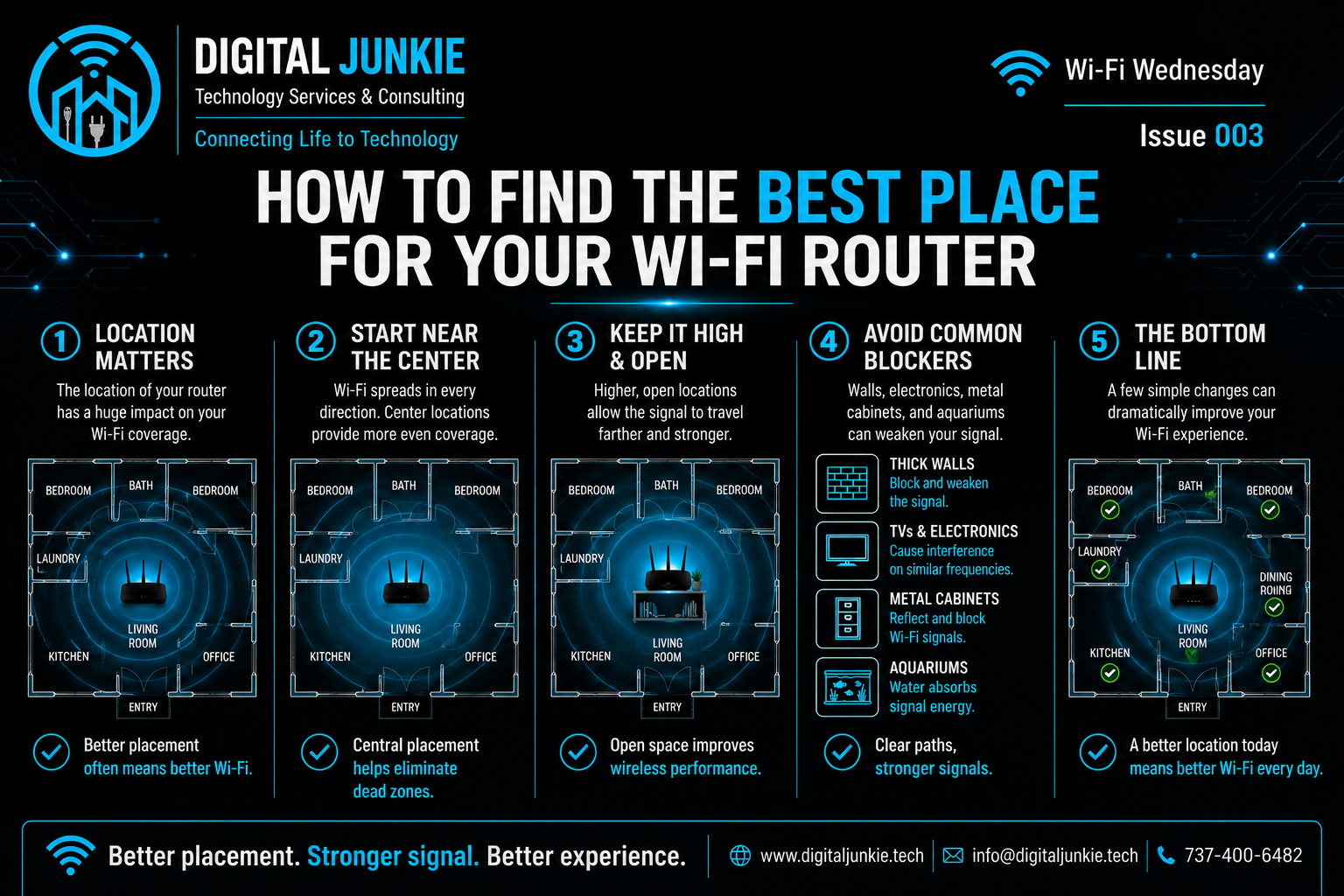
How to Find the Best Place for Your Wi-Fi Router
Wi-Fi Wednesday 003:
One of the most common questions I hear is:
“Do I need a better router?”
Sometimes the answer is yes—but more often than people realize, the biggest problem isn’t the router at all. It’s where it’s sitting.
I’ve visited homes and businesses where expensive, high-end Wi-Fi equipment was hidden inside cabinets, sitting on the floor, tucked into utility closets, or placed in one corner of the building. Even the best router can’t provide great coverage if the signal has to fight through walls, furniture, appliances, and distance before it reaches your devices.
Before spending money on new networking equipment, take a few minutes to evaluate where your router is located.
1. Place Your Router Near the Center
Wi-Fi signals spread outward in every direction.
When a router is installed near the center of your home or office, the signal has a much better chance of reaching every room evenly. If it’s pushed into one corner, half of its signal is wasted covering areas outside your living space while the farthest rooms struggle with weak connections.
A central location creates more balanced coverage and often reduces dead zones without spending a dime.
2. Keep It High and Out in the Open
Routers work best when they have a clear path for their wireless signals.
Avoid placing them:
On the floor
Inside cabinets
Behind televisions
Behind furniture
Inside closets
Instead, place your router on a shelf, desk, or wall mount where the signal can travel freely.
Even moving it up a few feet can noticeably improve coverage.
3. Watch Out for Signal Blockers
Several common household items interfere with Wi-Fi signals, including:
Thick walls
Brick and concrete
Metal cabinets
Large aquariums
Microwaves
Large electronics
These obstacles absorb or reflect wireless signals, reducing both speed and reliability.
If possible, position your router away from these items to improve performance.
The Bottom Line
Before upgrading your internet plan or replacing your router, try improving its location first.
A simple move from the floor to a bookshelf—or from a corner to a more central location—can dramatically improve your Wi-Fi experience throughout your home or business.
Sometimes the best upgrade doesn’t cost anything at all.
Need help improving your home or business Wi-Fi?
Digital Junkie Technology Services & Consulting specializes in home and business networking, Wi-Fi optimization, mesh network design, troubleshooting, and technology consulting throughout the Austin area.
📞 737-400-6482
Next Week on Wi-Fi Wednesday
What’s Blocking Your Wi-Fi Signal?
We’ll take a closer look at the walls, materials, appliances, and other everyday objects that can weaken your wireless signal—and what you can do about them.
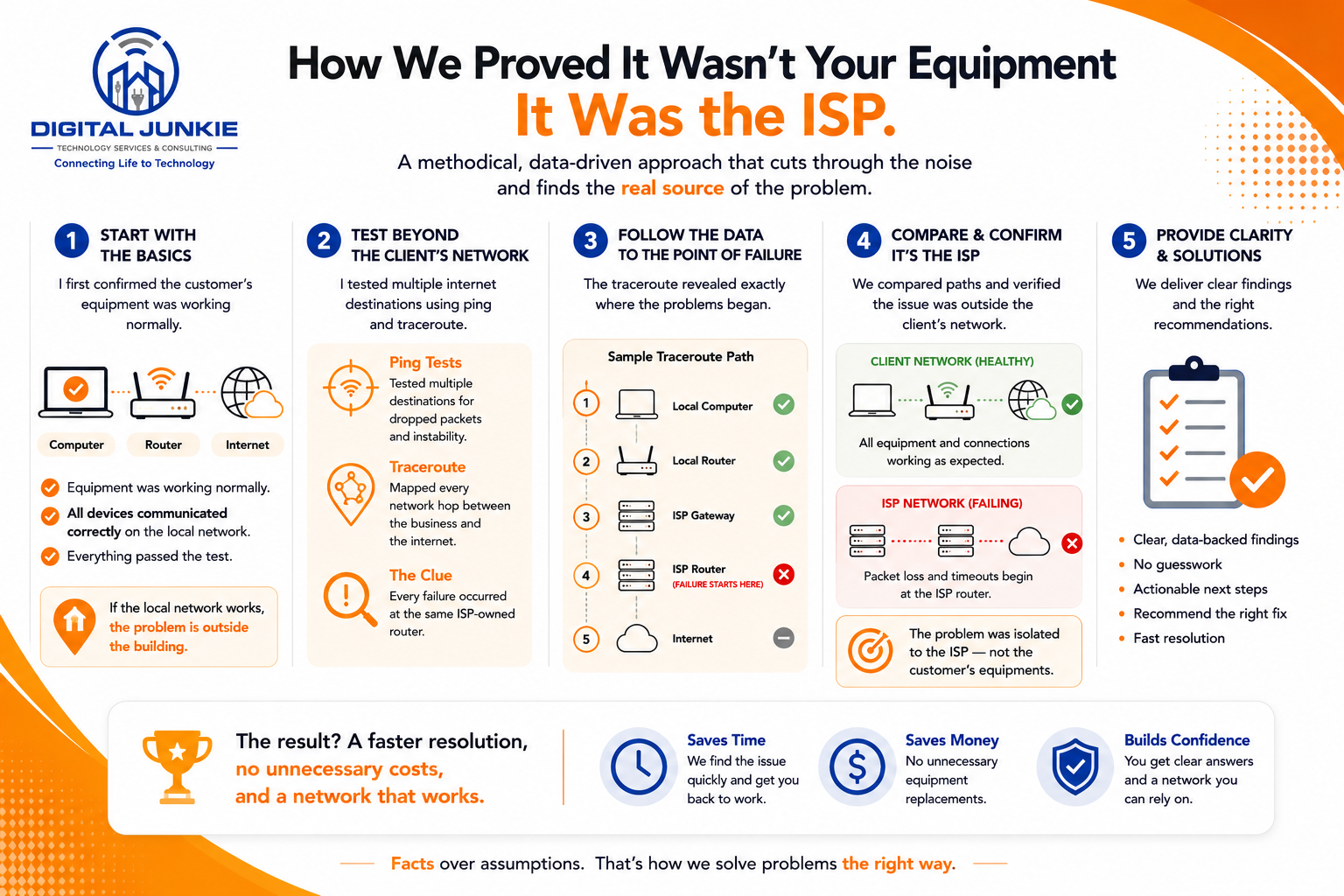
How I Proved the Problem Wasn't the Client's Equipment
Tech Tip Tuesday #003
Last week, I shared a story about a business that was experiencing intermittent internet outages. At first glance, everyone assumed the customer's networking equipment was failing.
Instead of replacing hardware and hoping for the best, I followed the evidence.
This week, I want to show you exactly how I narrowed the problem down and proved the issue wasn't the client's equipment at all.
Step 1: Verify the Client's Network
The first rule of troubleshooting is simple: don't assume.
Before looking at the internet connection, I confirmed that everything inside the business was communicating properly.
Computers could communicate across the network.
The switches were operating normally.
The router was functioning correctly.
Internal traffic was stable.
That told me something important.
If devices inside the building can communicate normally, there's a good chance the problem exists somewhere beyond the client's network.
Step 2: Test the Internet Connection
Next, I began testing connectivity outside the local network.
Using Ping, I monitored response times and watched for packet loss.
The results showed intermittent failures, but Ping alone couldn't tell me exactly where the connection was breaking.
So it was time to dig a little deeper.
Step 3: Follow the Path
Using Traceroute (Tracert), I mapped every stop—or "hop"—between the business and the destination.
Each hop represents another piece of networking equipment carrying internet traffic.
Every time I ran the test, the same thing happened.
The traffic moved successfully through the customer's equipment before consistently failing at the same ISP-owned router.
That repeated result was the evidence I needed.
The customer's computers, switches, cabling, and router were all doing exactly what they were supposed to do.
The problem existed outside their network.
Why This Matters
Without proper testing, the customer could have replaced perfectly good equipment and still experienced the exact same outages.
Instead, they were able to take documented evidence to their Internet Service Provider and focus on the actual problem instead of spending money chasing the wrong one.
That's why I always recommend diagnosing the problem before replacing hardware.
Good troubleshooting saves both time and money.
The Bottom Line
Technology problems don't always start where they appear.
A structured troubleshooting process eliminates guesswork, identifies the real cause, and prevents unnecessary expenses.
Sometimes the most valuable repair isn't replacing hardware—it's proving you don't have to.
Coming Next Tuesday...
Tech Tip Tuesday #004
"Your Employees May Be Suffering in Silence with Technology Problems."
We'll look at the small technology frustrations employees often work around every day, how those hidden issues quietly reduce productivity, and why business owners usually don't discover them until they become major problems.
Digital Junkie Technology Services & Consulting
Connecting Life to Technology
📞 (737) 400-6482